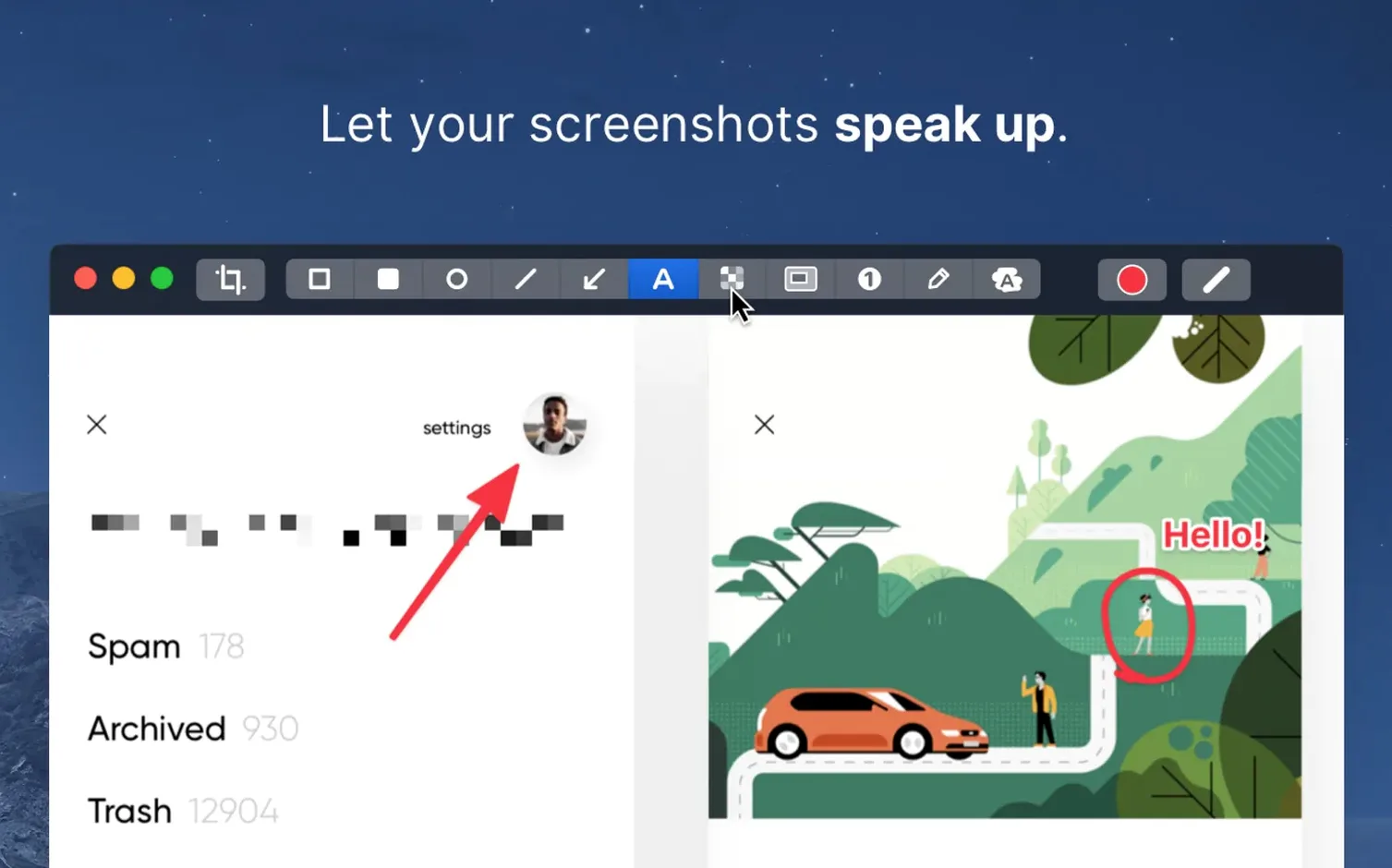
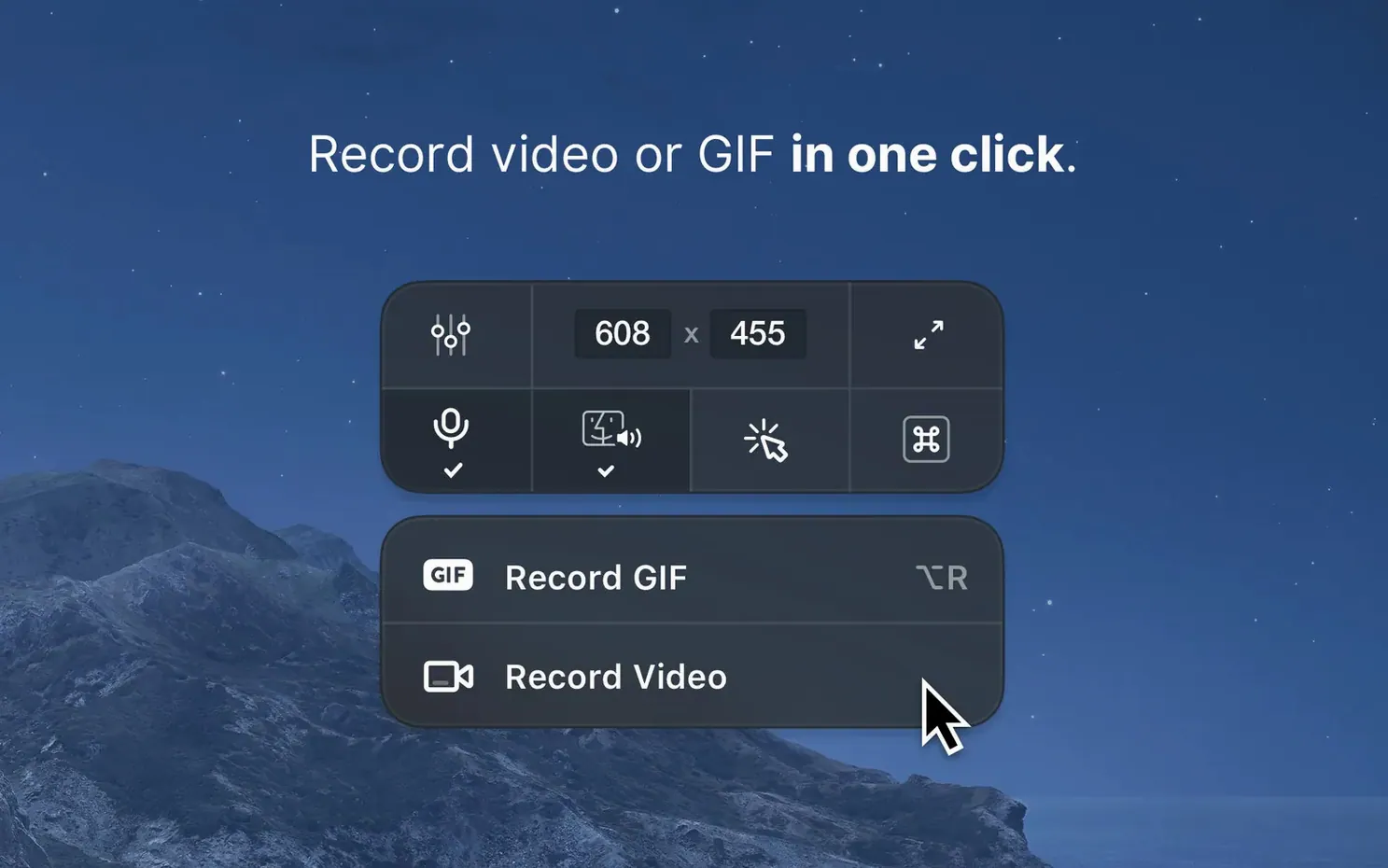
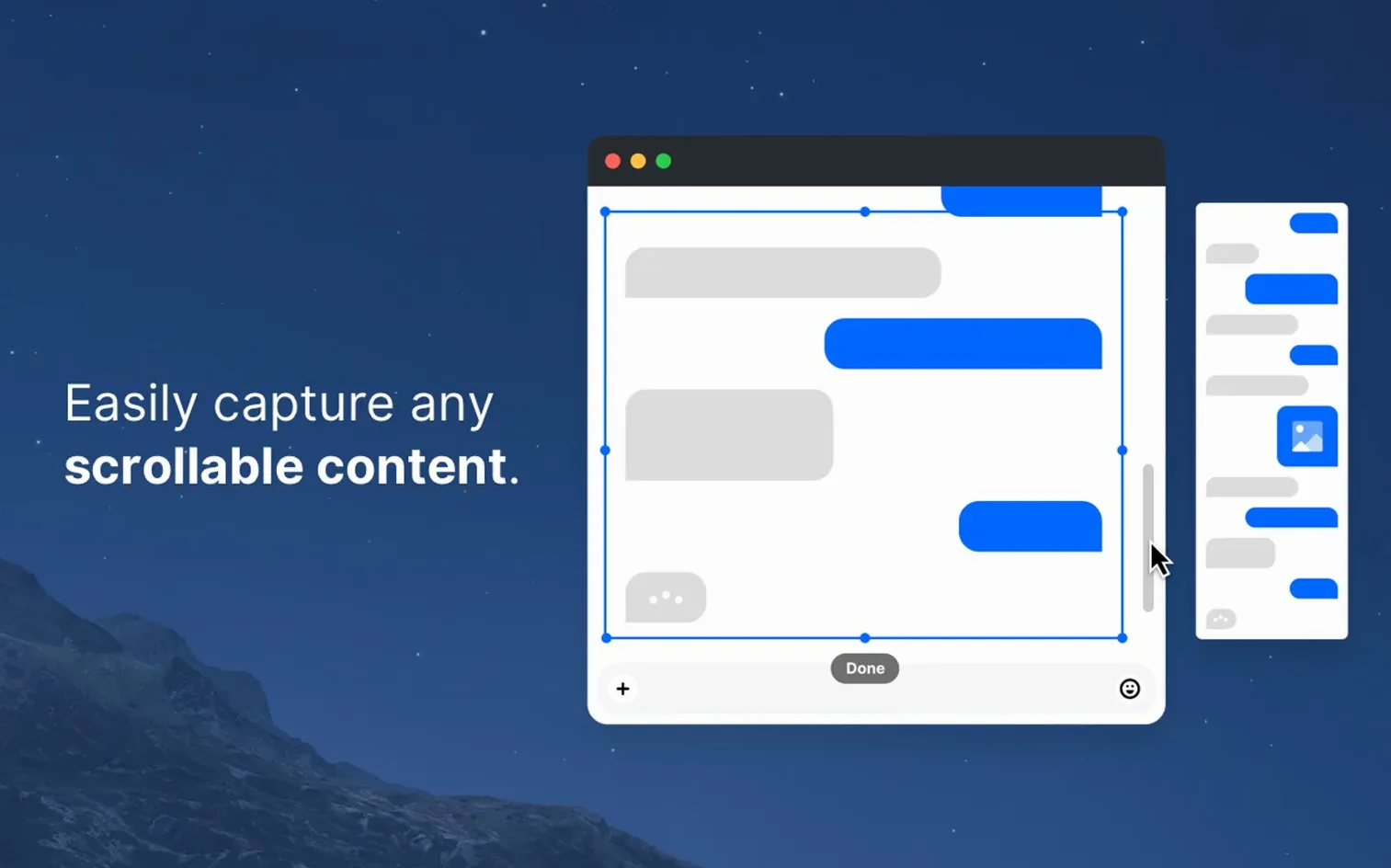
The scrolling capture that waits for you to stop moving is where it begins to feel like a camera assistant rather than a utility. CleanShot X wraps screenshots, screen recordings, and quick annotations into a single overlay that disappears when you don't need it, then reappears the moment your pointer touches the menu bar or you press a shortcut. It's built for people who explain things visually—designers sending feedback, developers capturing bugs, writers assembling tutorial steps—and for anyone who wants the capture itself to look deliberate.
- Set a countdown timer before the shutter fires, so you can open a menu or position a cursor without rushing.
- Hide desktop icons automatically whenever you take a screenshot, keeping the frame clean.
- Silence incoming notifications during a recording so nothing pops over your demo.
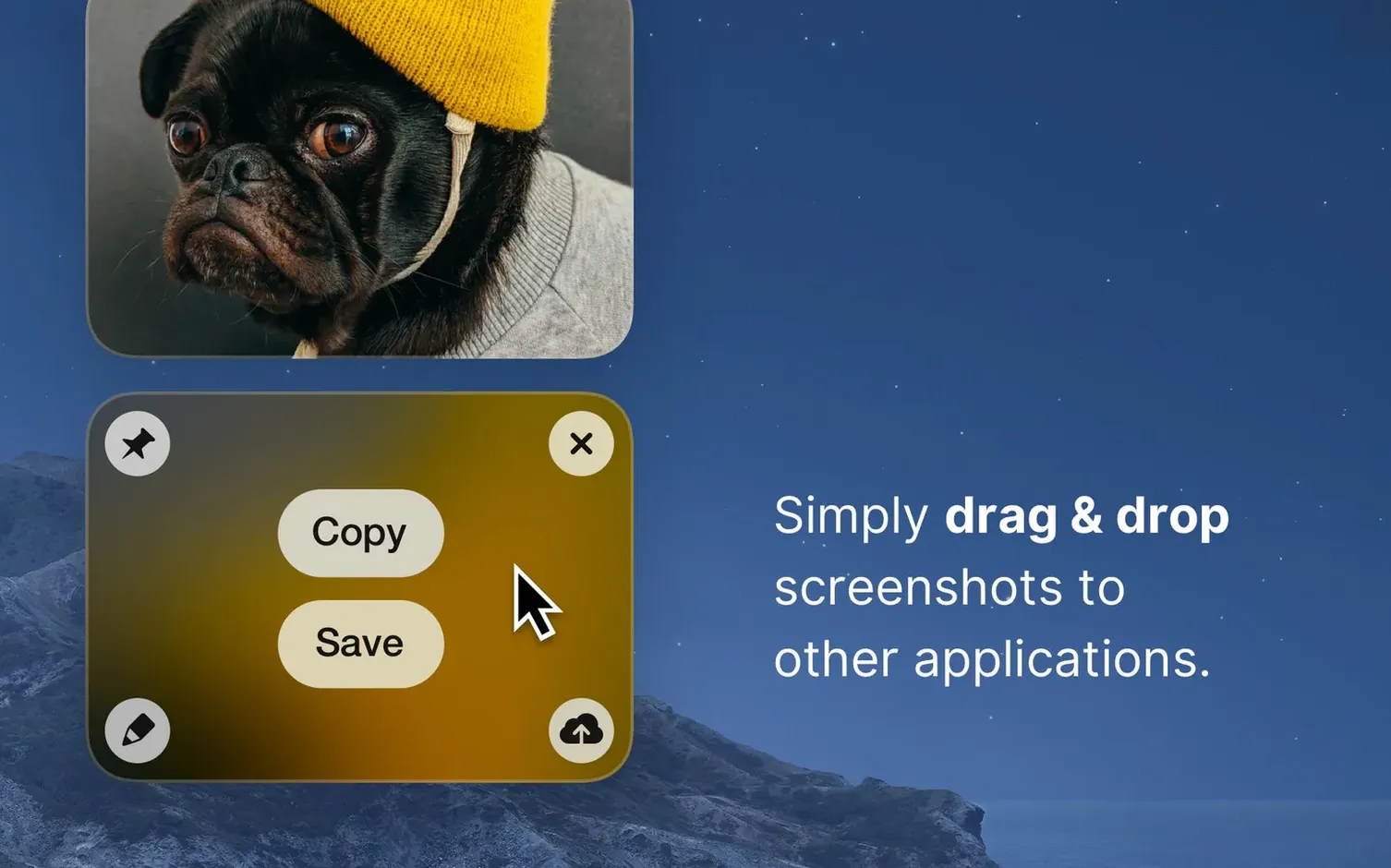
- Pin a screenshot above other windows as a floating reference while you work in another app.
- Swap between Retina and standard resolution before export, depending on whether you need pixel precision or a lighter file.
- Replace the default background behind a window screenshot with a solid colour or a custom image.
Version 5.0 arrived in September 2026 as a major rework, and the current 5.0.1 release tidies the frame with minor fixes. The app switches easily between a quick snap and a considered composition, and the little grace notes—like the timer and the notification block—make it feel like software written by people who record their own screens often.
Where CleanShot X sits among Mac capture tools
Shottr is the closest neighbour in spirit, and the one people cross-shop most often. It also does scrolling captures, annotation, and OCR text selection from a screenshot, and it runs remarkably light. Where CleanShot X pulls ahead is the recording side: Shottr is strictly stills. If you need to grab a quick video or a GIF of a behaviour, CleanShot X handles it in the same overlay without opening another app. Shottr's annotation set is solid but sparser—no numbered-step stamps, no ability to hide sensitive text with a blur that actually blurs rather than pixelates. The trade is that Shottr feels instant in a way CleanShot's heavier editor sometimes doesn't. For a designer who only ever ships stills, Shottr is the leaner pick. For someone who switches between stills and recordings throughout the day, CleanShot X earns its place on the menu bar.
Apple's built-in screenshot tool has improved noticeably since Mojave, and the quick-markup floating thumbnail covers a lot of ground for zero install. But it stops at basic shapes and text. No blur tool, no step counter, no ability to pin a capture, and no scrolling capture at all—you'll be stitching frames manually in Preview. Screen Recording via QuickTime Player works for a single take, but there's no GIF export, no trimmed clip from the same interface, and no do-not-disturb toggle. CleanShot X doesn't replace those tools so much as absorb them into a single workflow that remembers your last settings.
Cleanshot X cracked the habit of launching three different utilities for one bug report. The difference becomes most visible when you're ten captures into a task and you haven't opened a separate editor once.
When the overlay vanishes after a shortcut
The most common frustration is the overlay not appearing after a shortcut press. Nine times out of ten, another app has claimed the same key combination. CleanShot X ships with defaults that sometimes collide with clipboard managers, launchers, or even Apple's own screenshot bindings. Opening Preferences and reassigning the capture shortcut to something unoccupied—Shift-Command-5 is surprisingly free on many setups—clears it immediately. If the overlay still doesn't show, check Security & Privacy > Screen Recording in System Settings; a macOS update occasionally revokes the permission without warning.
Recording audio alongside a screen capture catches people off guard as well. CleanShot X can include microphone input, but it doesn't capture system audio directly—there's no loopback driver built in. If you need the app's own sound in your recording, you'll need to route it through something like BlackHole or Loopback, then select that as the input device in CleanShot's recording settings. The toggle for "Record Microphone" only covers your voice, not the video you're playing.
Scrolling captures sometimes cut off mid-page on sites that load content dynamically. The capture scrolls to a certain point, the page hasn't finished rendering, and the result is half a screenshot with a blank tail. Pausing briefly at the top of the page to let everything settle, then starting the scrolling capture slowly, usually solves it. For stubborn pages, capturing in a Chrome or Safari window where the content is already fully loaded, rather than the app's built-in browser overlay, tends to be more reliable.
Small conveniences worth clicking into
The self-timer menu hides a detail that's easy to overlook: you can set it to trigger on a mouse click rather than a countdown. Select "Capture on click" from the timer dropdown, click anywhere on screen, and the capture fires at that exact moment. It's the cleanest way to grab a tooltip or a hover state that disappears when you move to press a key.
After you've annotated a screenshot, pressing Command-S saves it back to the location you last used, without a dialog. But holding Option while pressing Command-S saves a copy while keeping the editor open, which is useful when you need a marked-up version and a clean original from the same capture. The pinned screenshot can be right-clicked to copy its contents without unpinning it first, so you can keep a reference floating and still paste it into a document seconds later.
In the recording controls, the "Hide cursor" toggle is obvious, but the fact that you can change the cursor highlight size after recording starts isn't—the slider remains active during capture. If you're recording a demo and realize the click highlight is too subtle, you can bump the radius without stopping the take.
Barely a dent in the CPU during 30 fps recording
On an Apple Silicon Mac, the app sips resources. A full-screen recording at 30 fps with the do-not-disturb flag active puts a barely visible dent in the CPU graph, and the HEVC encoder keeps file sizes reasonable without a noticeable hit during export. The GIF recorder caps at 15 fps by design, which keeps the resulting files from ballooning, though the colour palette can get crunchy on gradients—fine for UI captures, less flattering for anything with soft shadows or photography.
Stability has been steady through the 5.0 cycle. The editor hasn't lost work mid-annotation in daily use, and the auto-save that runs before you close an unsaved capture has caught every absent-minded dismissal so far. The one area where patience wears thin is launching the full annotation editor from a fresh capture; there's a beat of hesitation while it loads the canvas, slightly longer than the near-instant markup overlay in Shottr. It's not a lag that disrupts flow, just a small pause that reminds you the editor is a heavier component than the capture overlay itself.
Memory usage sits around 180–220 MB with several pinned screenshots and a recent recording still in the tray history. That figure stays flat over hours, no slow creep. For a tool that sits in the menu bar all day and gets called on dozens of times, that restraint matters more than any single feature.
CleanShot X 5.0.1 is a maintenance release with minor bug fixes and improvements that follow the major 5.0 update from September 2026.
- macOS 11 or later
- Intel or Apple Silicon Mac