
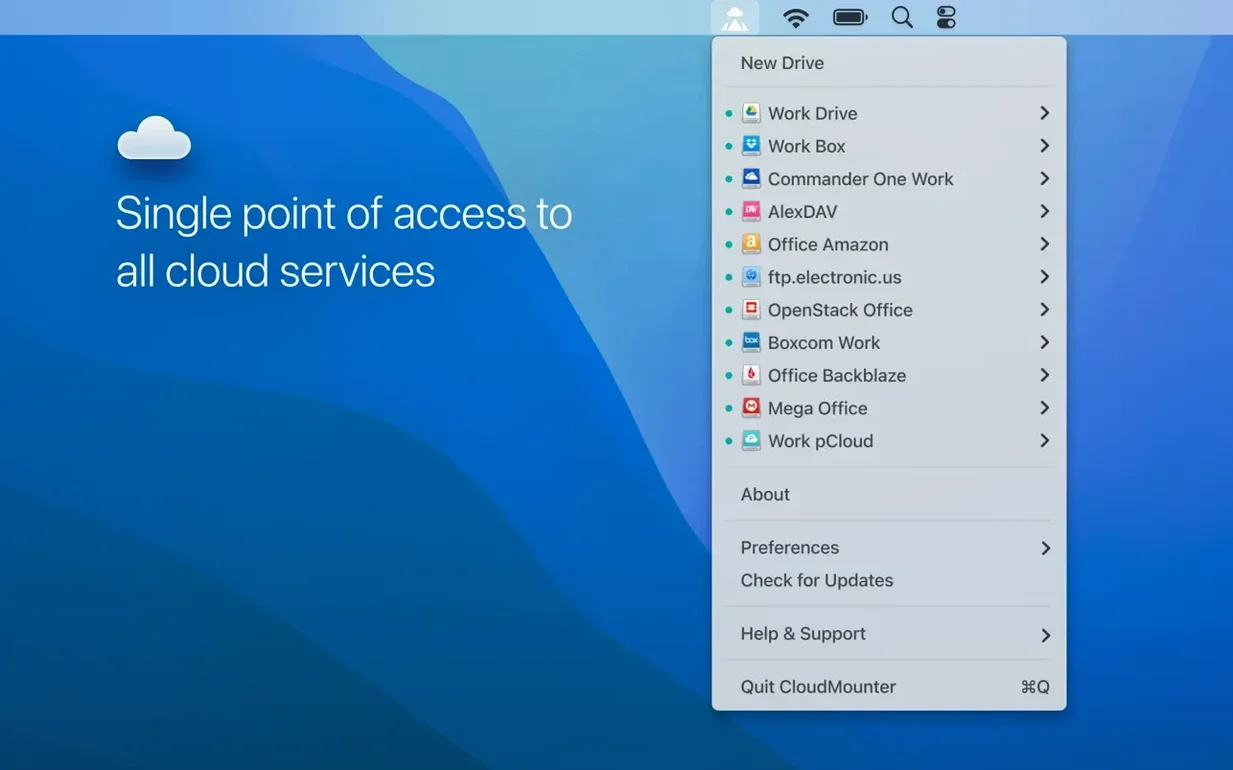
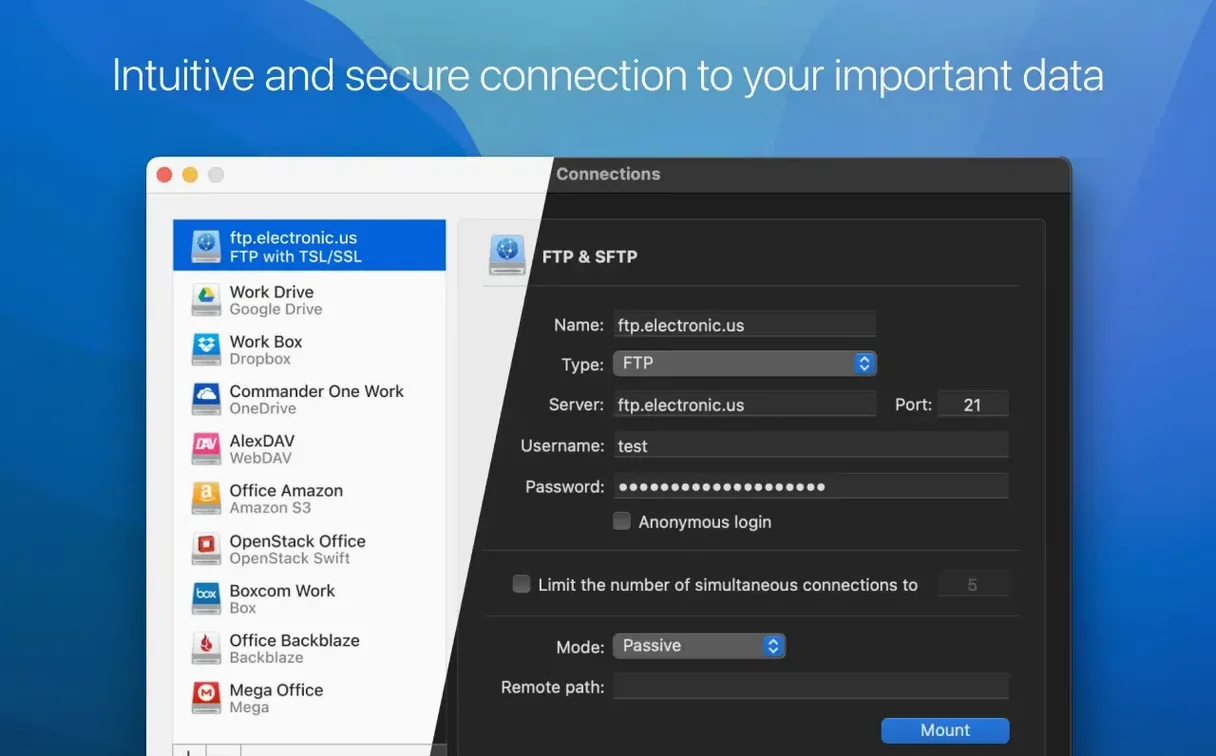
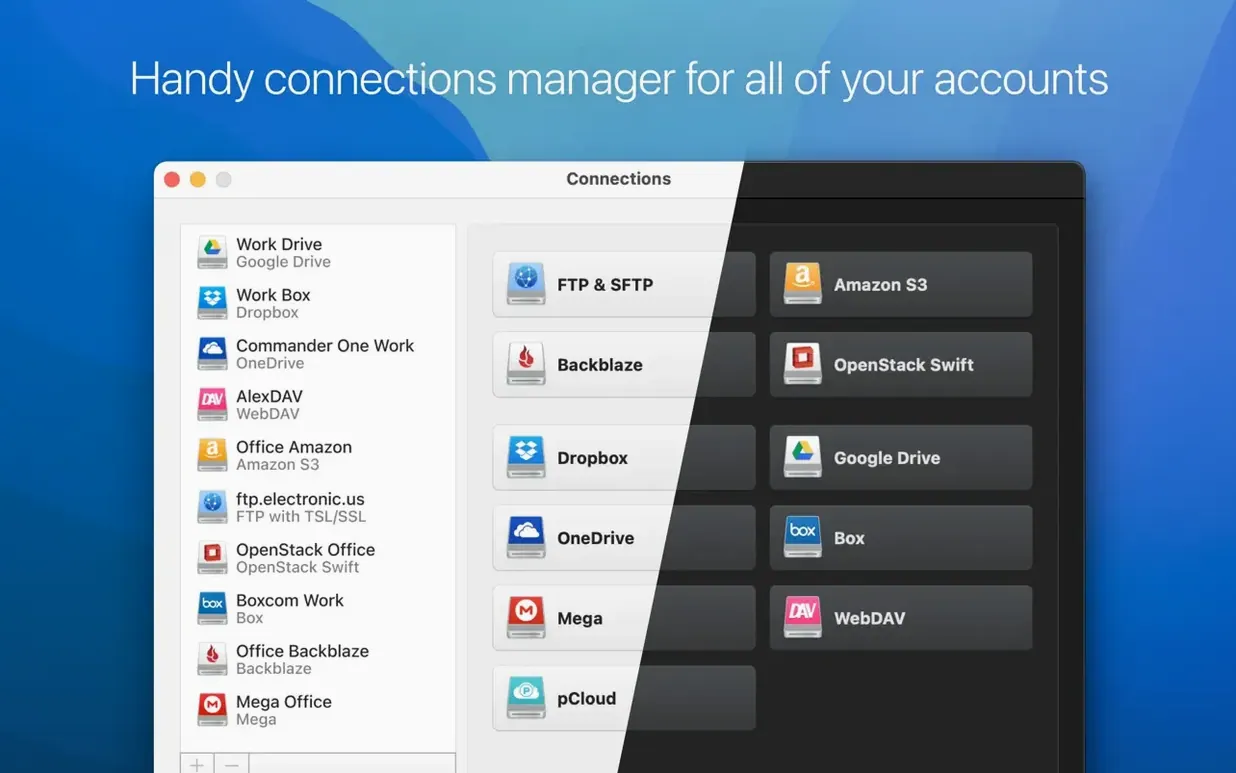
Running on any Mac still holding onto macOS 10.14 Mojave or newer, CloudMounter 4.18 sidesteps the clutter of sync clients by making remote storage behave like a plain external drive right inside Finder. For someone who has outgrown the stock desktop apps and wants finer control over how connections breathe, there is a quiet depth here worth mapping out. The app speaks to more than a dozen protocols—Google Drive, Dropbox, OneDrive, Amazon S3, Backblaze B2, Box, plus FTP, SFTP, FTPS, and WebDAV—but the real interest lies in how it handles them once the mount is live.
- Per-connection caching lets you pin a working set of files locally on an SSD while the bulk stays remote, avoiding the all-or-nothing sync that eats laptop storage.
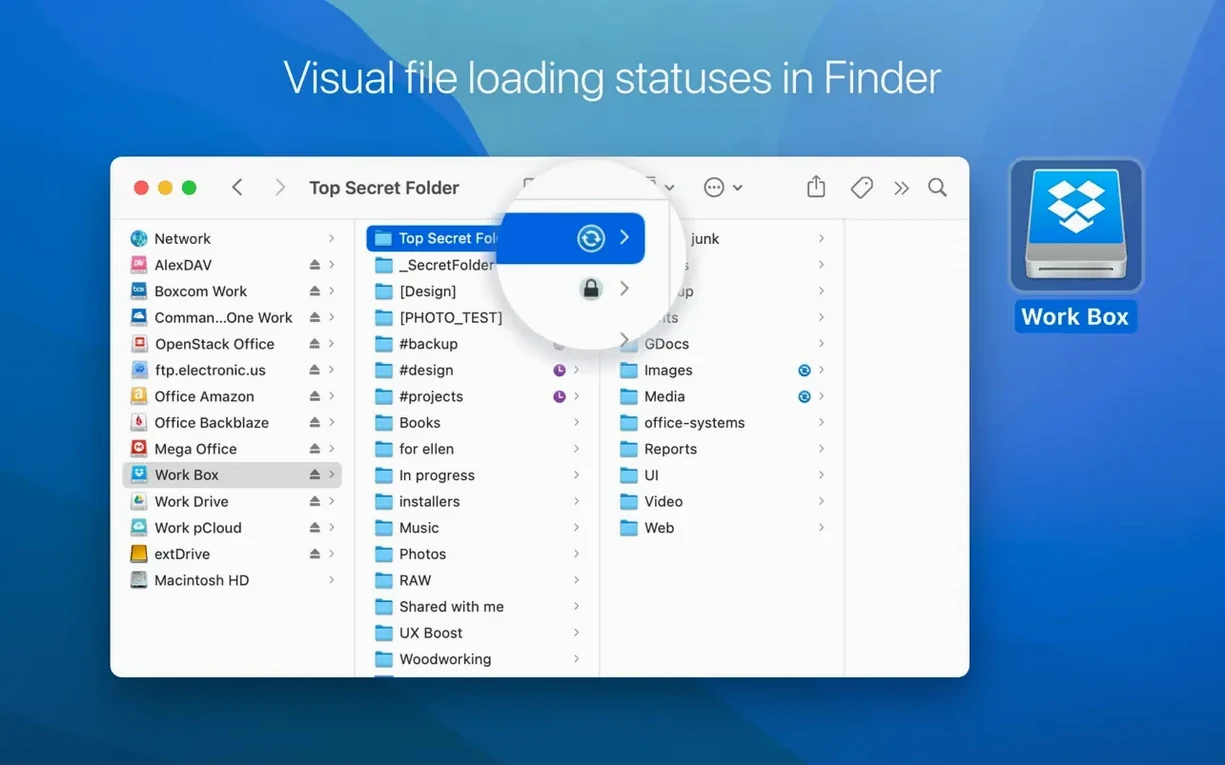
- Finder integration runs deep: transfer progress, uploads, moves, and updates all surface through subtle status icons, so you are never guessing whether a write actually committed.
- OpenStack Swift and S3 mounts are treated as first-class volumes, letting media apps read assets directly from object storage without a round-trip download step.
- Multiple accounts from the same provider mount side by side with distinct drive letters, which untangles personal and client Dropbox accounts in a single Finder sidebar.
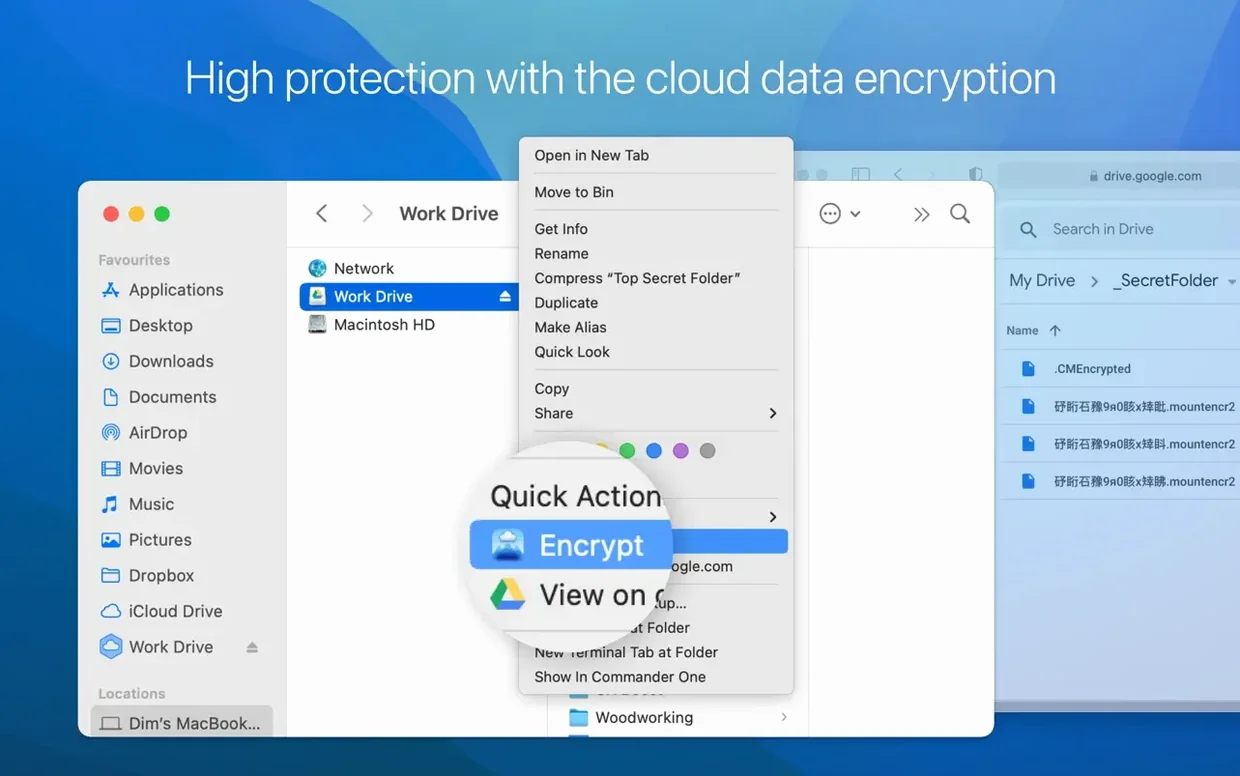
- Encryption is handled at the mount point, not per-file, so workflows that generate lots of temporary scratch files stay protected without manual intervention.
The 4.18 release tightened large-file uploads and fixed a handful of edge cases—cancelled SFTP downloads, cache-volume switching hiccups, and storage-usage readouts for online connections—making the daily rhythm of push and pull feel more predictable on Intel Macs.
What the quieter updates fixed — and why they matter in practice
Version 4.18 did not redesign the interface or add a marquee feature. It sanded down friction. The improved large-file upload pipeline is the kind of change you notice only when a 12 GB ProRes file moves to Backblaze B2 without the progress bar freezing at 87 percent. Faster folder listing means a mounted S3 bucket with three years of dailies populates in Finder before you finish pouring coffee, where earlier builds could leave you staring at a spinning cursor. MEGA connections received attention too — previously erratic mounts now hold steady across sleep-wake cycles, which matters if you keep a MEGA volume pinned in the sidebar for days at a time. The cancelled-download fix on SFTP removes a small but maddening bug where hitting Stop on a transfer left a phantom lock on the remote file, forcing a reconnect. And corrected storage-usage readouts for online connections mean the Finder status bar finally reports accurate free space instead of a shrug. None of this is flashy, but taken together it makes CloudMounter feel less like a utility you manage and more like a drive you trust.
A working session, step by step
Imagine a Tuesday afternoon. You are cutting a short film and the rushes sit on an S3 bucket shared with a colourist in Berlin. You launch CloudMounter — it lives in the menu bar, a tiny cloud icon — and the S3 mount appears in Finder within seconds, cached credentials doing their quiet work. You drag the rushes folder onto an external SSD for local scrubbing; the transfer progress icon, a faint pie chart overlaid on the folder, fills without stealing focus. Mid-session, the colourist drops new graded stills into the same bucket. A quick disconnect and remount — right-click the drive, two seconds — refreshes the listing, and the stills are there. Later, you open a OneDrive mount from a producer who insists on it, copy a shot list, and close the connection when you are done, leaving no local footprint. Switching between providers feels like swapping USB drives, not juggling apps. The menu bar icon holds a compact list of mounts, each with a green or amber dot indicating health, so a dropped connection on the SFTP server at the edit house reveals itself before you waste time hunting for missing files.
Small conveniences that are easy to miss
CloudMounter rewards the kind of user who pokes around in preferences. The per-connection cache slider, tucked behind a gear icon on each mount, lets you reserve exactly 2 GB or 20 GB of local SSD for frequently accessed files — set it once and the app handles eviction silently. Keyboard-driven users will appreciate that mounted volumes respect standard Finder shortcuts: Cmd-Shift-G for Go to Folder works inside a mounted FTP directory, and Spacebar previews remote files with Quick Look, provided the cache has fetched them. The encryption passphrase prompt appears only at mount time, not on every file access, so a day of editing inside an encrypted S3 volume never interrupts you with repeated authentication dialogs. And if you work across languages, the app switches interface to match your system locale without a restart — useful on a shared workstation where the assistant editor prefers Korean and you keep macOS in English. For those exploring a CloudMounter crack or CloudMounter torrent, the appeal is obvious: mounting half a dozen cloud accounts as local drives with full Finder-level transparency that no web interface replicates, and many users find that setting the cache slider generously and pre-mounting volumes at login delivers a seamless experience.
A workflow from start to finish: encrypted offload of a project archive
Picture the end of a production. You have a folder called ShortFilm_Final — 80 GB of Premiere projects, exports, and sound stems — and you want it archived to Backblaze B2 with encryption, leaving nothing readable on the cloud provider's side. Here is how that plays out in CloudMounter, without a single terminal command or upload client.
- Open CloudMounter and click the plus button in the menu bar dropdown. Choose Backblaze B2 from the connection list.
- Enter your key ID and application key. Before hitting Connect, check the Encrypt this connection box. CloudMounter asks for a passphrase — make it strong, store it somewhere offline. The app derives an AES-256 key from it and will never store the passphrase itself.
- The B2 bucket mounts as a volume called, say, Archive. In Finder, it looks and feels local. Drag ShortFilm_Final onto it. The copy progress appears as a standard Finder progress bar; behind the scenes, CloudMounter encrypts each file block before it ever reaches Backblaze's servers.
- Once the copy completes, right-click the mount and choose Unmount. The volume disappears from Finder, and no decrypted data lingers in the cache because the cache itself is encrypted with the same key. Even if someone gains access to your Backblaze account, the stored objects are opaque ciphertext.
- Months later, when the distributor asks for the stems, mount the same bucket with the same passphrase. The folder reappears, intact, and you copy just what you need back to a local drive. The rest stays archived, encrypted, and out of sight.
The whole process took under five minutes, required no upload queue management, and left zero temporary files on the desktop. That combination — Finder-speed access plus mount-point encryption — is what makes CloudMounter feel less like a utility and more like a quiet extension of the file system itself. For anyone who has ever searched for a cloudmounter activation code or a cloudmounter macos download just to keep their cloud sprawl manageable, the workflow above is the reason the app earns its place in the menu bar.
Version 4.18 refines the heavy-lifting side of CloudMounter. Large-file uploads are smoother, MEGA connections behave more reliably, and a handful of lingering bugs got cleaned up—cancelling an SFTP download now actually stops the transfer, file downloads no longer stumble when you change the cache volume, and storage usage information for online connections reads correctly again.
- macOS 10.14 or later
- Intel processor
Questions from the booth
Yes, you can mount several accounts from a single provider simultaneously, and each one appears as a separate drive in Finder so personal and work storage stay clearly separated.