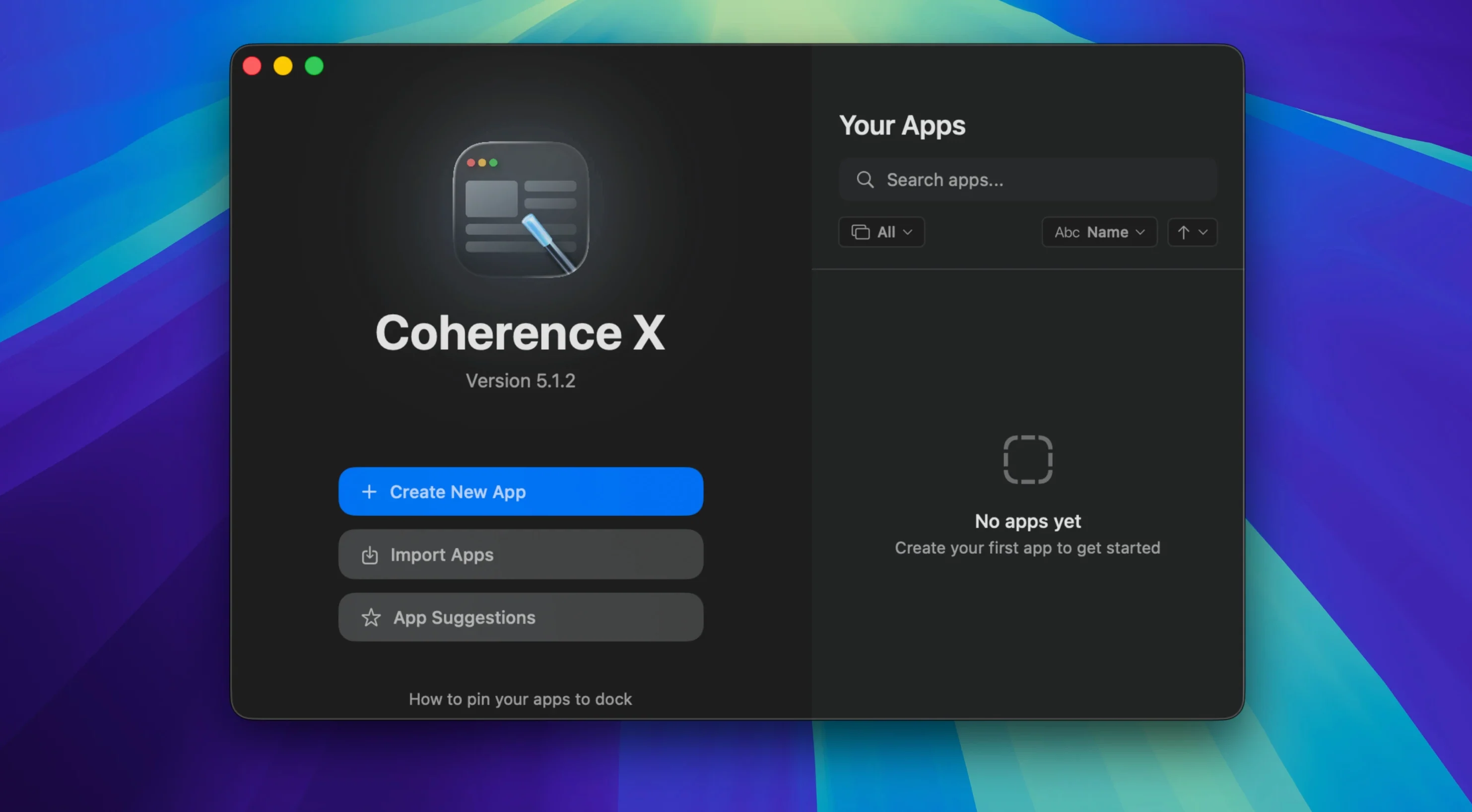
Coherence X is a tool that wraps any website into a standalone, Chrome-based desktop app with its own Dock icon, settings, and isolated profile.
macOS requirement — You need macOS 13 Ventura or later; the app runs natively on both Apple Silicon and Intel Macs.
Architecture — Universal binary. No Rosetta workarounds, no separate downloads.
Interface languages — English, German, and Spanish are built in.
Once it is on your machine, Coherence X creates Standard apps and Incognito-mode apps from any URL. Each app can have its own extensions, icon, and profile, so you can keep two Gmail accounts in separate windows with their own session data. Dock clicks either restore a minimized window or open a fresh one if nothing is active, and tabs survive a restart when you need them back.
Editing an existing app is straightforward: change the URL, switch the icon, add extensions, or adjust the mode without starting over. In version 6.1, link-routing rules accept multiple domains in one go, suggest a destination by default, and save alongside appearance tweaks without requiring a full rebuild. You can also export any app you have made and share the file with someone else.
When Chrome extensions refuse to appear
Some Chrome extensions refuse to appear in the extension manager inside a Coherence X app, even after you click Install from Chrome Web Store. This usually means the extension checks for a full browser signature and bails out when it sees the app wrapper. The simplest fix is to install the extension in regular Chrome first, then open your Coherence app's settings, switch to the Extensions tab, and enable the same extension from the list of already-installed items. It picks up the local copy without going through the store a second time.
Another snag that catches people: link routing works beautifully until you add a domain that overlaps with an earlier rule. If YouTube links keep opening in your main browser instead of the YouTube app you built, check the routing table for a catch-all rule higher up that swallows them. Drag the more specific rule above the broad one and the behaviour snaps into place. Version 6.1 helps here because you can now add several domains to one rule at once, preview the suggested destination, and save the change without rebuilding the app.
A quiet problem with tabbed apps involves restored sessions. Tabs come back after a restart, but the page state does not always survive — a half-filled form or a paused video will likely be gone. If that matters for your workflow, split the service into separate Standard apps instead. Separate windows keep their own session files and Chrome handles them more like independent browser instances.
Google Workspace users feel the shift first
People who live inside Google Workspace tend to notice the difference fastest. A dedicated Gmail app with its own extensions — Grammarly, a CRM sidebar, Boomerang — behaves less like a pinned tab and more like a mail client you can Cmd-Tab to without hunting through twenty browser tabs. The isolated profile also means you can stay signed into a personal account in Chrome while a work account runs inside the app, no incognito windows needed.
Designers and front-end developers who need Figma, Notion, or Linear running alongside creative tools benefit from the Dock separation. Each web tool gets its own entry in the app switcher, and link routing can send Jira ticket clicks from Slack into the Jira app while keeping everything else in the browser. The extension support means your colour picker or accessibility checker travels with the Figma app, not the whole browser.
Anyone juggling multiple accounts on the same platform — social media managers, support teams, freelancers with client logins — can build a small fleet of apps with different profiles and icons. A pink Notion icon for the design wiki, a dark one for the client portal, both open at once. Tab restoration keeps the context alive across reboots for the apps where that matters, and Incognito mode handles the sessions you want to throw away at the end of the day.
Treating it like a tiny Safari window
The most common misstep is treating a Coherence X app like a tiny Safari window. People paste a URL, keep the default icon, and wonder why it feels like a browser tab with extra steps. The whole point is in the isolation: give the app its own Chrome profile, install only the extensions that service needs, and pick an icon that reads clearly in the Dock at a glance.
Another early mistake is overloading a single tabbed app with too many services. A tabbed app works well for things that belong together — three Slack workspaces, or a project wiki plus its attached calendar — but cramming Gmail, Spotify, and a Jira board into one window defeats the purpose. Split them into separate apps and let the Dock carry the cognitive load of switching contexts.
Beginners also overlook the export feature. After spending time tuning extensions, profiles, and routing rules, they assume the setup lives only on that Mac. Exported apps carry everything except local session data, so you can move a carefully configured work setup to another machine or share it with a teammate who needs the same tooling. The file is small and the recipient just double-clicks to install.
Building a separate-account portal that keeps PDFs inside
Suppose you need a self-contained app for a client's project-management portal that runs on a separate Google account and must open PDFs inside the app instead of handing them off to Preview. Here is how the whole thing comes together, step by step, in about four minutes.
Open Coherence X and paste the portal's URL. Name the app after the client — something you will recognize in the Dock — and pick a Standard app mode so it behaves like a single-window tool. Switch to the Profiles tab, create a new Chrome profile called Client Portal, and sign into the Google account tied to that project. This keeps cookies, bookmarks, and session data walled off from your normal browsing.
Move to the Extensions tab. Install a PDF viewer extension from the Chrome Web Store directly inside the app, then disable every other extension the profile inherited. You want the lightest possible payload. While you are there, add any password-manager extension the client's systems require.
Now open the Link Routing pane. Add the portal's main domain and its file-storage subdomain to a single rule, and set the destination to this app. Any link that matches those domains — email notifications, shared documents, internal help pages — stays inside the app. Leave everything else set to open in your default browser. Version 6.1 saves this routing change instantly; you can test it by clicking a link in the app and watching where it lands.
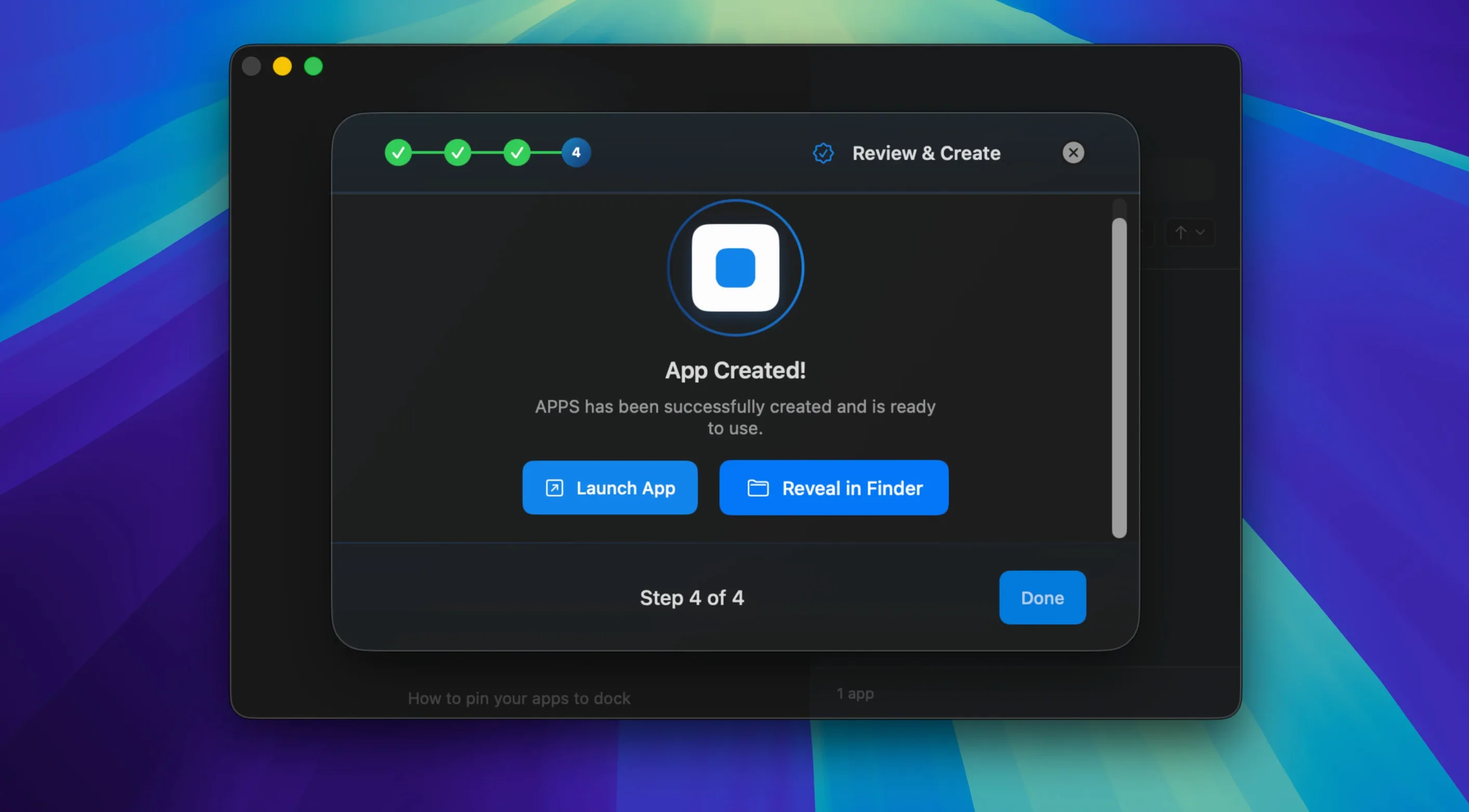
Finally, drag a custom icon onto the app tile — maybe the client's logo on a solid background — and rename the Dock label if the full name is too long. Export the app file to an Apps folder in your home directory. The next time you onboard a team member, you hand them that file and they skip the entire setup.
Version 6.1 streamlines link routing by letting you add several domains to a single rule at once, and new routing rules now suggest a destination right away. Both link-routing and appearance edits save directly — no rebuild needed.
- macOS 13 or later
- Apple Silicon and Intel Macs
Questions from the booth
Yes. Each app you create runs in its own isolated profile, so you can sign into multiple accounts for the same service side by side.
You can edit the URL, icon, mode, and extensions of any existing app. In version 6.1, link-routing and appearance changes save immediately without a rebuild.
Yes, created apps can be exported as a file and shared, letting someone else run the same wrapped site on their Mac.