
Commander One PRO is a dual-pane file manager that pulls macOS file operations into a classic two-column view, then extends them with FTP, cloud services, and a process viewer.
The audience is anyone who has outgrown the Finder. Editors sorting dailies across a local drive and a NAS. Sound designers copying takes while an FTP upload runs in the neighbouring tab. Developers who want regex search without opening a terminal. The free version covers local and networked drives. The PRO tier unlocks the pieces that turn a file manager into the centre of a workflow.
What the PRO tier adds
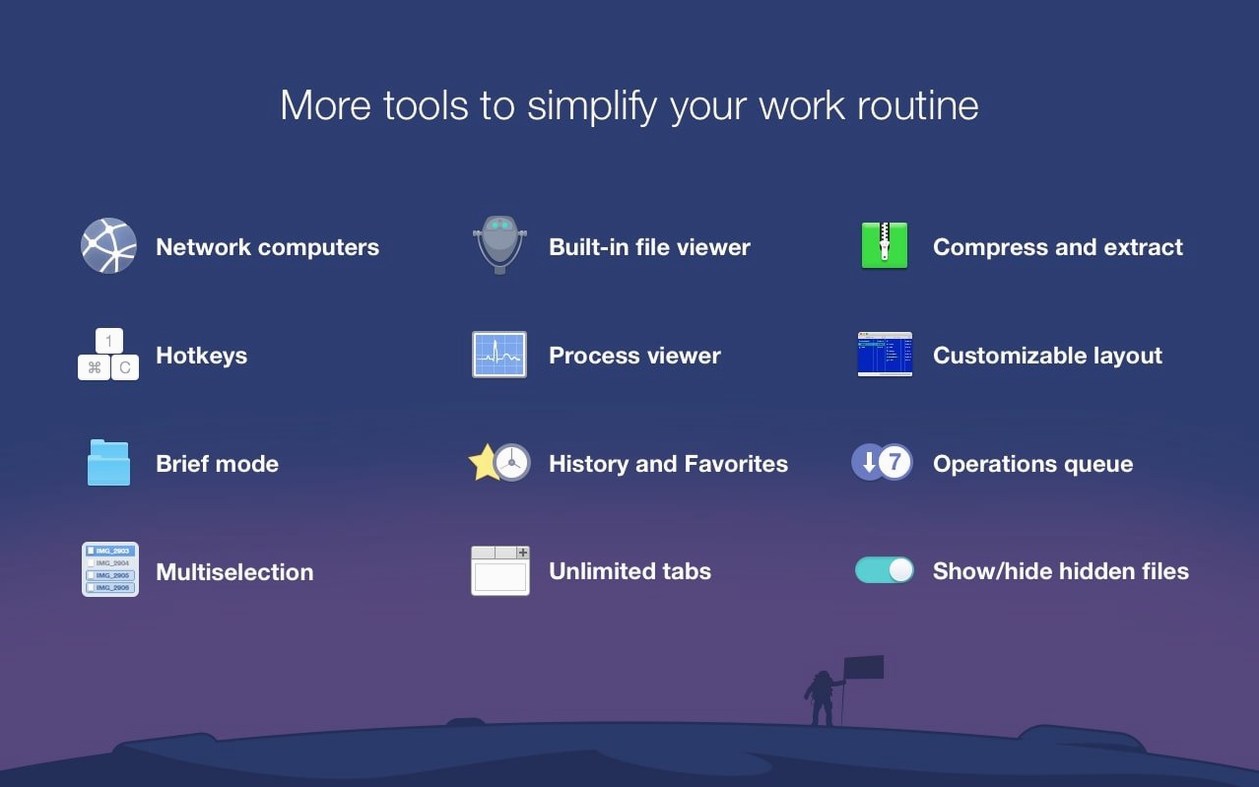
- FTP, SFTP, and FTPS client built into the second pane
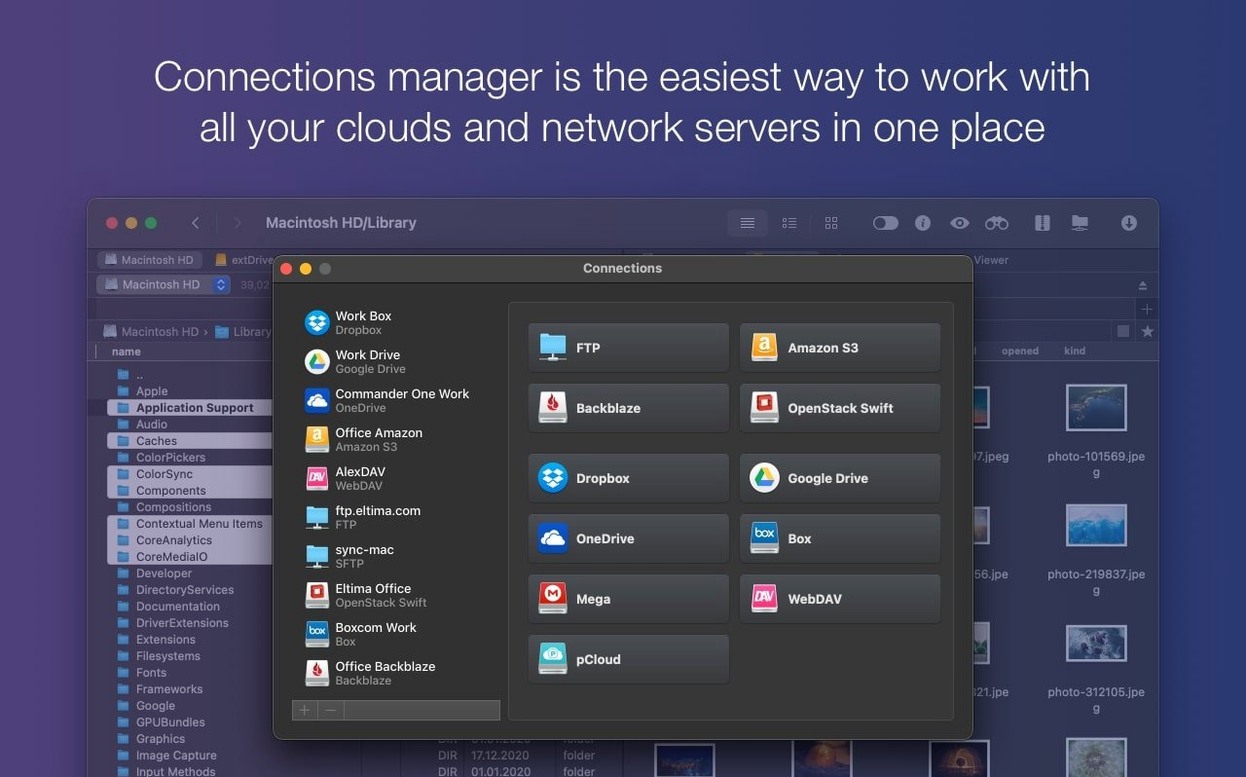
- Mount Dropbox and Google Drive accounts as browsable volumes
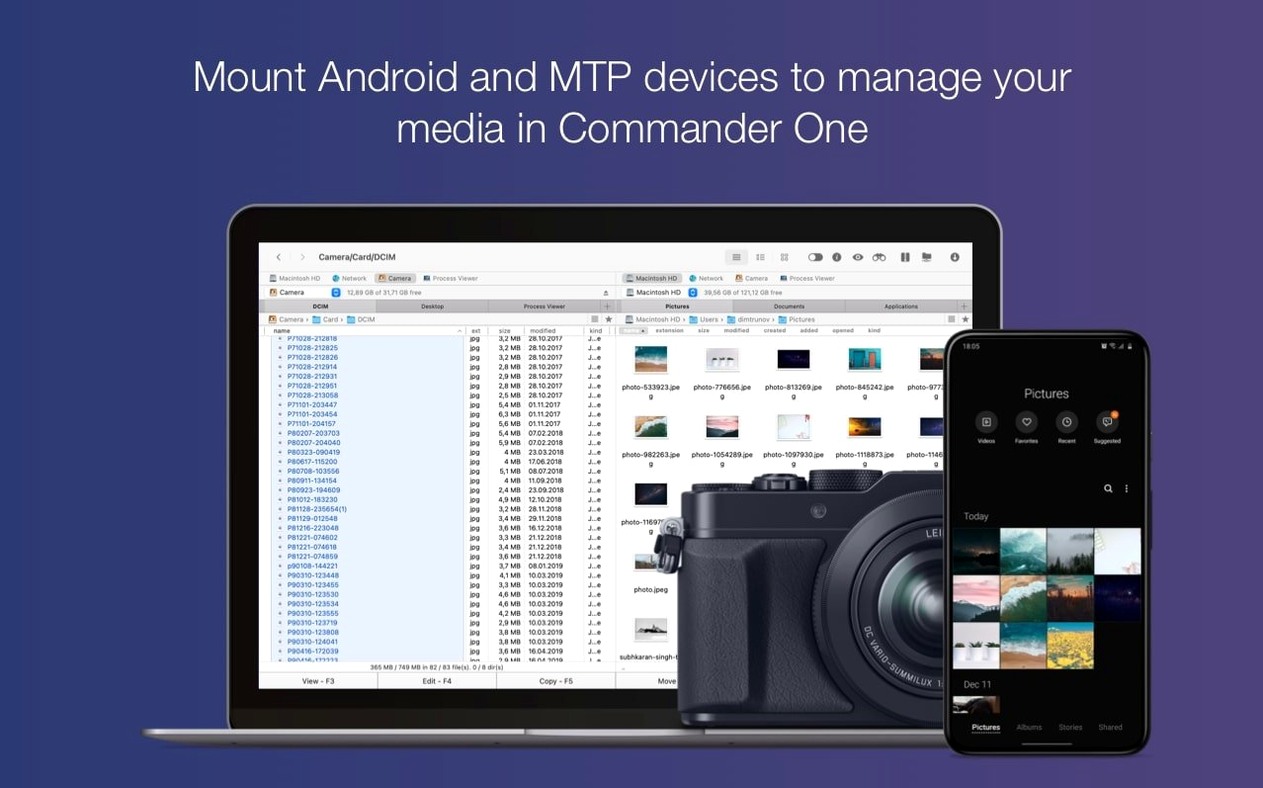
- Access iOS, MTP, and Android devices over USB
- Process Viewer to inspect and quit active Mac processes
- Brief Mode for scanning and selecting across deep folders
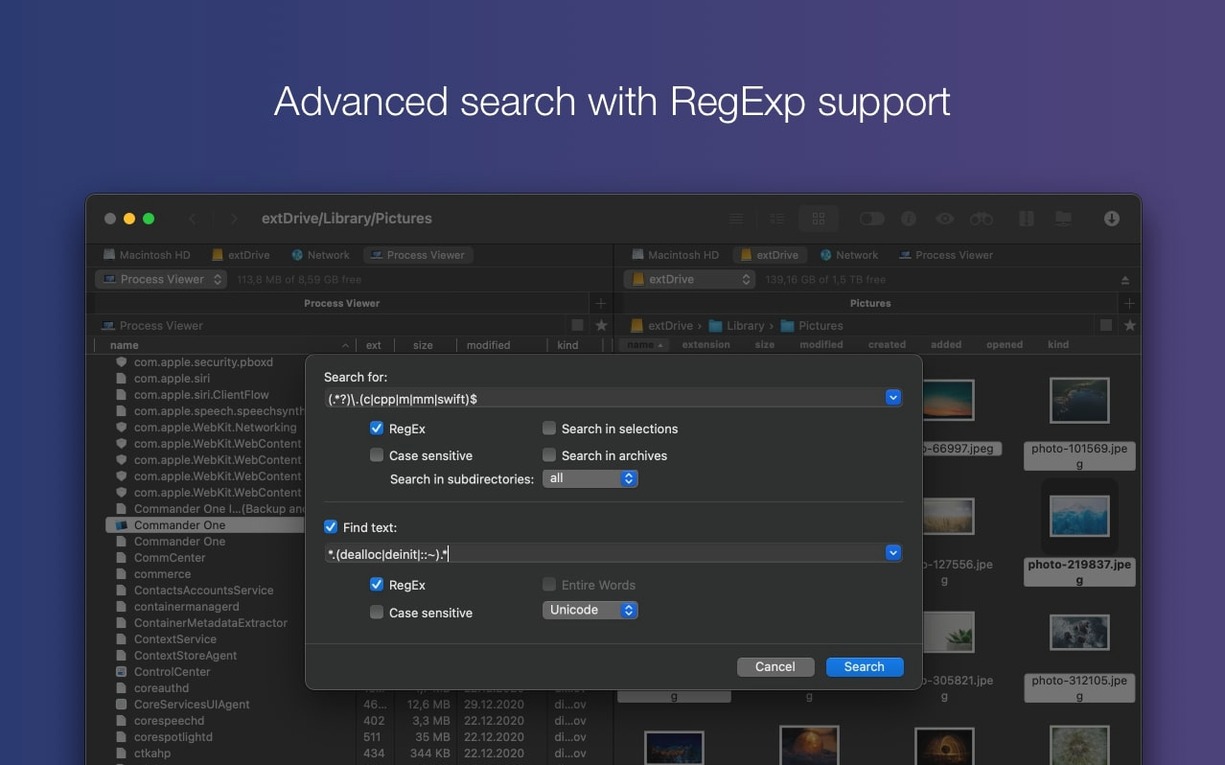
- Regex-powered file search
The shape of a session
You open the app to a familiar dual-pane layout. One side holds the external drive with the day's rushes, the other shows the project folder on a cloud volume. You queue copy operations, rename a batch in place, and pull up the Process Viewer when a render hangs. Commander One PRO doesn't replace the Finder as much as it gives you a second, more articulate pair of hands for the moments when the default tools run out of reach.
Finder stays untouched when you install it
One of the first things people ask is whether Commander One PRO can sit alongside the Finder without conflict. It can. The app does not override the Finder or change default file associations; it simply becomes another way to navigate the same file system. You can leave it running while using Finder windows, and drag-and-drop between the two works as you would expect. The dual-pane setup is not a shell replacement — it is a parallel tool that you reach for when a single-window view feels cramped.
Another common question concerns cloud accounts and credentials. When you connect Dropbox or Google Drive, Commander One PRO talks directly to the service through its API. Credentials are stored in the macOS keychain, not in a separate database, so the app inherits the same security model the system already uses for saved passwords. People who rely on Amazon S3 for project delivery often ask about bucket permissions; the app maps buckets as volumes and respects the access policies set in the AWS console, with no extra abstraction layer that might obscure what is actually permitted.
There is also the question of what happens with a commander one pro full mac setup on Apple Silicon. The build is universal, so no Rosetta translation stands between the app and the hardware. That matters most during large copy queues or when searching across a dozen archive files, where the native instruction set keeps the interface from stalling. On both Intel and ARM machines, the minimum requirement remains macOS 10.13, which covers a wide span of hardware still in daily use.
Workflow: assembling a delivery package from scattered sources
Picture a short film nearing picture lock. The colourist has sent graded shots to a cloud folder. The sound designer has dropped stems into an FTP directory. The assistant editor has a local drive with the final XML and a folder of reference stills. The task is to gather everything into a single delivery archive for the DCP house.
Start by opening Commander One PRO and setting the left pane to the local project folder. In the right pane, connect to the FTP server where the stems live. The connection manager remembers the server address, port, and protocol, so you click once and the remote directory tree appears. Switch the right pane to Brief Mode to see the stems as a dense list you can scan quickly. Select the five WAV files you need and press F5 to copy them across to the local pane.
Now disconnect the FTP session and mount the Google Drive account that holds the colourist's folder. The drive appears as a volume in the right pane, and you navigate into the delivery subfolder. Use regex search — \.dpx$ — to filter everything in that directory down to the image sequence files. Select all results and copy them into a local subfolder named colour.
With everything now local, you turn to packaging. Commander One PRO handles ZIP, RAR, and 7z archives natively. Select the three subfolders — stems, colour, and the assistant's reference folder — right-click, and choose to compress them as a single 7z archive. The compression runs in a background operation while you open the Process Viewer to check whether a lingering After Effects background render from the morning is still eating CPU cycles. It is, so you quit it from within the app and let the archive finish uninterrupted. The delivery package lands in the project root, ready to upload.
Dragging between panes copies instead of moving
The most frequent stumble is treating the dual-pane layout as two independent Finder windows. A new user will sometimes try to drag a file from the left pane into a folder on the right, expecting it to move, only to discover they dropped it onto the wrong directory because the target pane was not scrolled into view. The fix is to always expand the destination folder so the exact drop point is visible before starting the drag. Taking half a second to check the target avoids a misplaced file that vanishes into a deep subfolder.
Another early mistake is misreading the queue panel. Commander One PRO queues copy and move operations, and when a large transfer is in progress, the queue can hold subsequent tasks silently. A beginner will sometimes issue a second copy command, see no immediate file count change, and issue it again — stacking three identical operations that all execute in sequence. Glancing at the queue indicator before repeating an action saves time and keeps the disk from doing redundant work.
People coming from single-pane managers also tend to overlook Brief Mode entirely. They scroll through long folder listings in the default column view, frustrated by the low information density, unaware that a single keyboard shortcut can collapse the display into a compact multi-column list where a hundred files fit on screen at once. Learning that toggle early changes how you approach bulk file operations.
ForkLift adds a sync engine, Commander One keeps panes compact
ForkLift shares the dual-pane DNA and also bundles an FTP client with cloud support, but it leans more heavily on a built-in syncing engine and a preview drawer that competes for screen space. Where Commander One PRO keeps the interface utilitarian, ForkLift adds a graphical file viewer and sync rules that can feel like extra furniture. For someone who wants a clean two-panel layout without preview panes opening unprompted, the difference in visual quiet matters during long editing sessions.
Path Finder goes in another direction entirely, piling features into a single-window file browser with tabs, shelves, modules, and so many toolbar options that the window can look like a cockpit dashboard. Its strength is customisation for people who want to build their own interface. The trade-off is that Path Finder reaches deeper into the system — replacing the Finder's desktop handling and Trash integration — which can introduce friction during macOS updates. Commander One PRO sits alongside the system, not inside it, making updates a less anxious affair.
Transmit is the comparison that comes up most often for FTP users. It is a dedicated file transfer app with a fast engine and a reputation for handling huge batch uploads gracefully. But Transmit does not try to be a general file manager; local browsing feels secondary to its transfer duties. If FTP is the entire job, Transmit is a specialist. If FTP is one part of a day that also includes local file wrangling, commander one pro mac keeps everything in a single window without toggling between apps.
Where Commander One PRO carves out its own space is in the combination of a process viewer and mobile-device access inside a file manager. Neither ForkLift nor Path Finder nor Transmit lets you plug in an Android phone and browse its directory tree, then switch tabs to inspect a stuck process, then queue an upload to S3 — all without leaving the same two-pane frame. That breadth of access, kept behind a straightforward visual structure, is what makes the tool feel less like a Finder replacement and more like a utility belt you reach for when the job demands several things at once.
Version 3.18.0 improves compatibility with macOS 27, fixes a drag-and-drop issue on that same OS, and corrects hotkey handling for several non-English keyboard layouts.
- macOS 10.13 or later
- Apple Silicon or Intel 64-bit