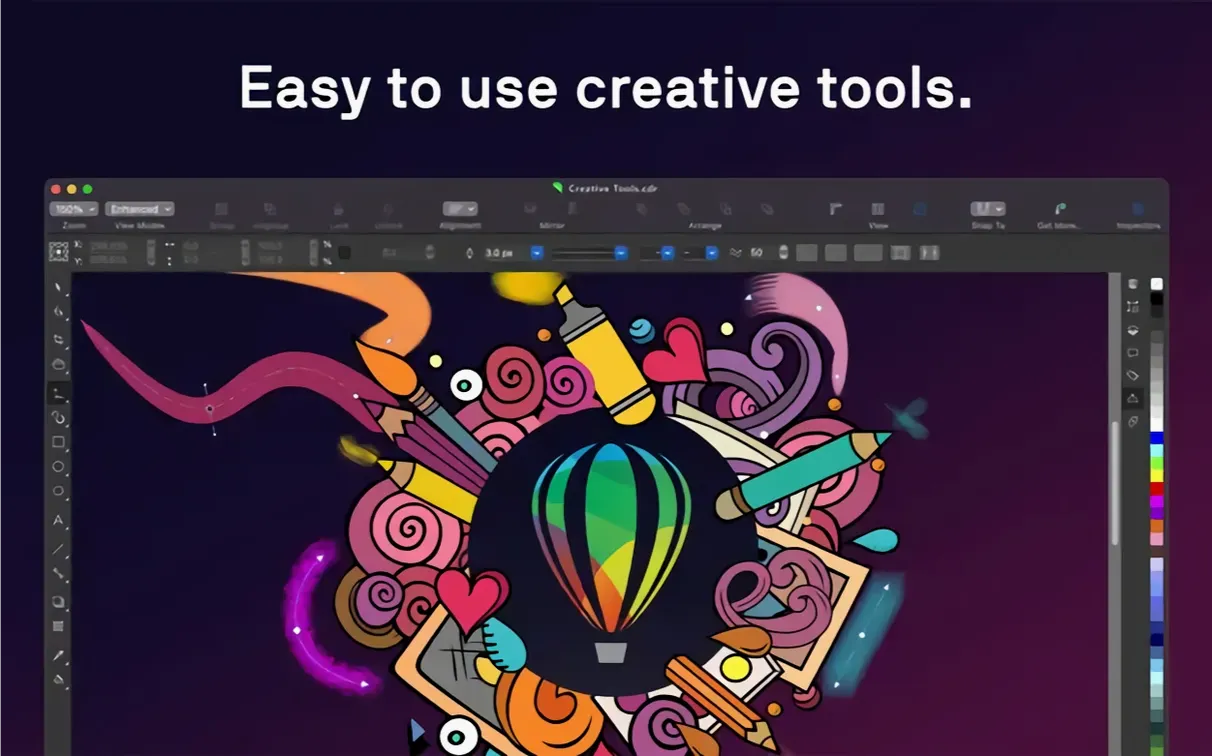
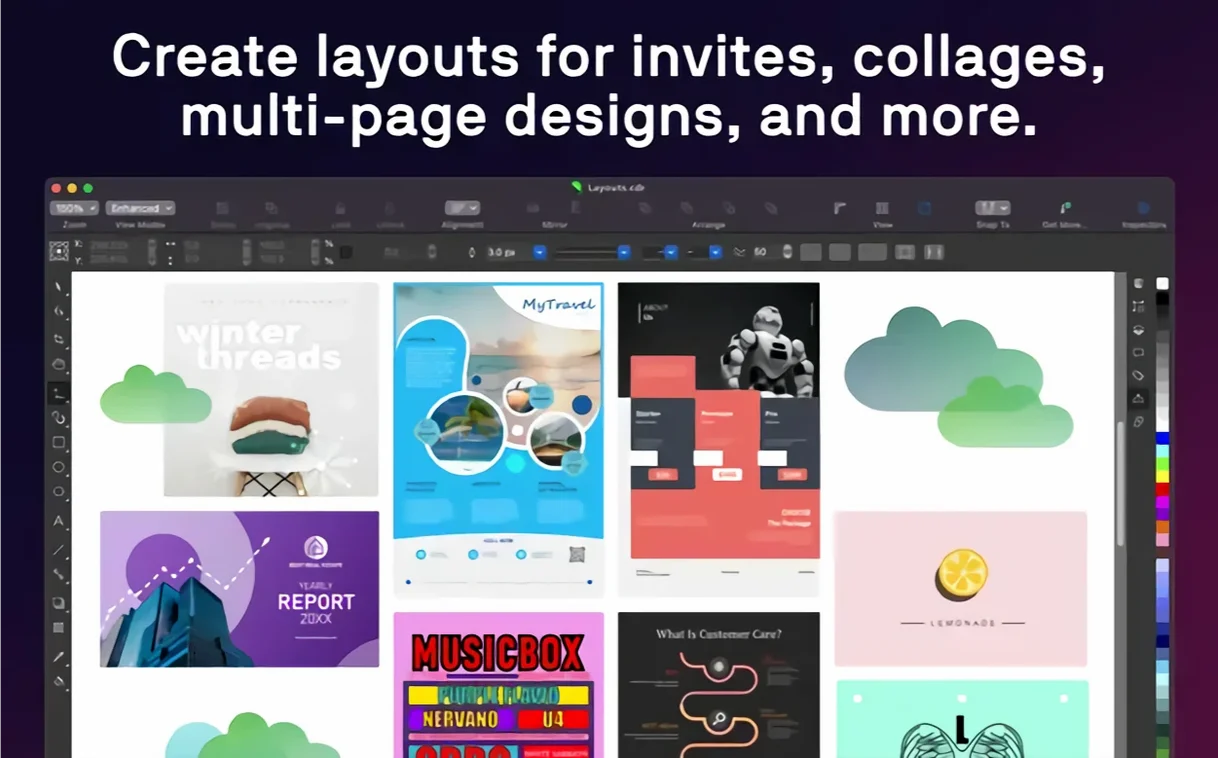
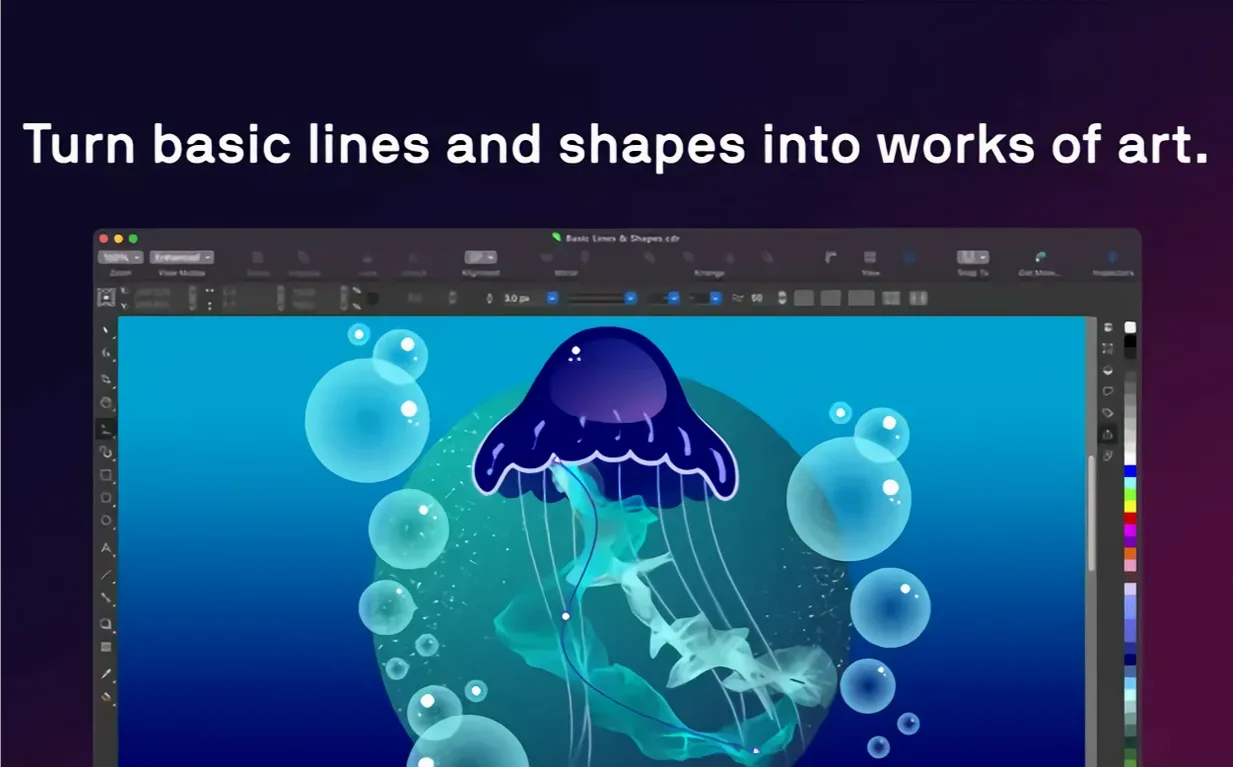
The multi-page brochure is nearly finished. Vector illustrations sit across a tight grid, photos are placed, and now the final typographic refinements begin. A headline needs tighter kerning, a drop shadow softened. Switching between the photo-editing tools and the page layout without leaving the workspace keeps the rhythm intact. The Touch Bar flickers with layer controls as a gradient fill shifts from cyan to a warm grey. This is a workflow built on tools that surface when they are needed, not before.
Tools an experienced hand reaches for
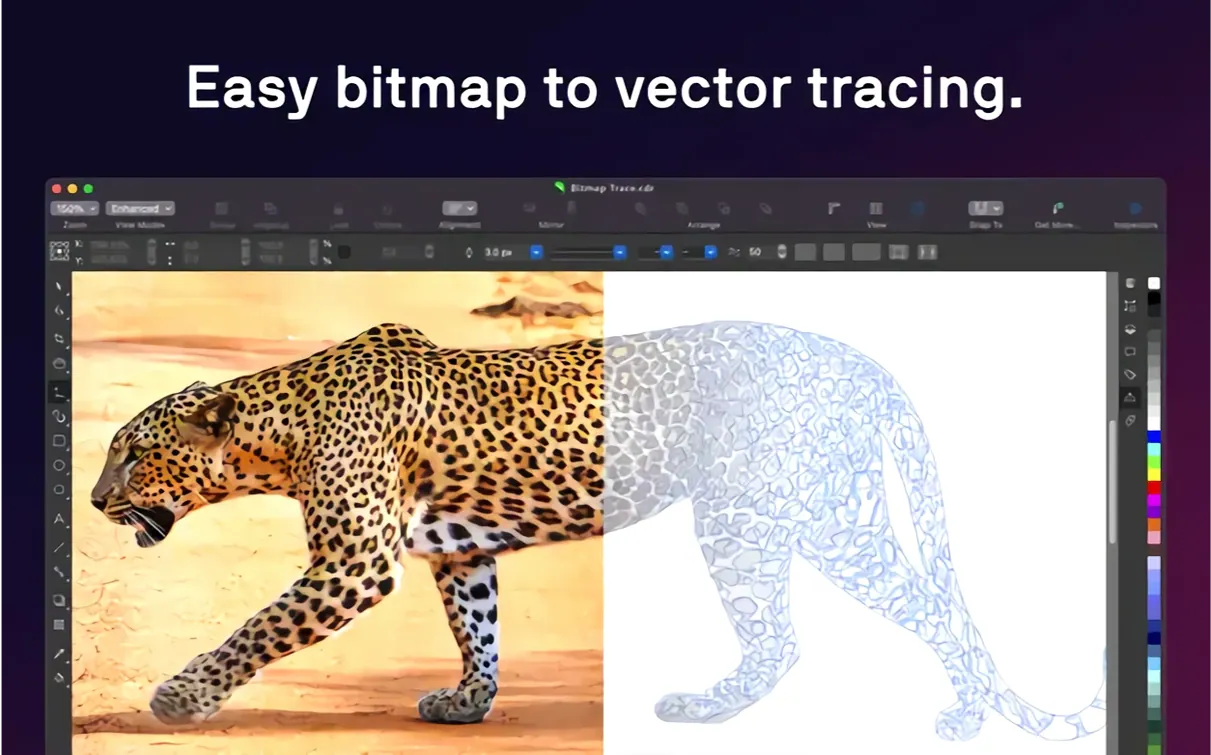
- Raster-to-vector tracing for pulling a scanned sketch or a low-resolution logo back into editable curves.
- AI-powered upscaling and JPEG artifact removal that rescue source images before they touch the layout.
- Transparency, pattern fills and gradient mesh controls refined across years of point releases.
- Typography panels that handle font, size, spacing, shadow and outline from a single palette, with Touch Bar shortcuts on Mac.
- Deep file support spanning CDR, AI, PSD, PDF, SVG, DWG, EPS and HEIF, so a project rarely starts from a blank page.
Where the Mac edition stands apart
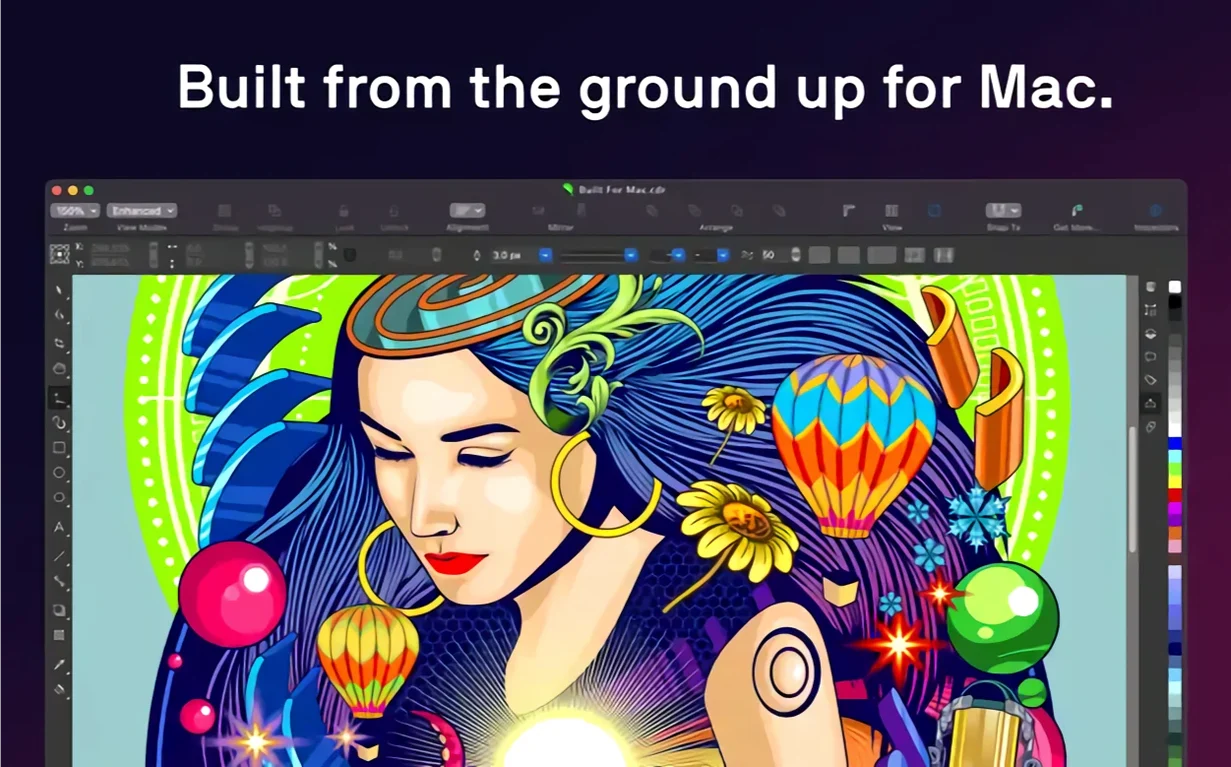
The native macOS interface runs on Apple Silicon and multicore Intel machines with AVX2, asking for 8 GB of RAM but settling into its stride at 16 GB. macOS 13 or later hosts the full toolset—vector, photo, layout and text—without a translation layer. The interface language switches across fourteen localizations, and the file dialogs feel at home on the desktop. It is a version that has stopped translating Windows conventions and started speaking the platform directly.
Opening Adobe files without conversion
No application sits alone on a designer's machine. CorelDRAW on macOS understands this in ways that earlier Mac versions did not. The suite reads and writes Adobe file formats without fuss—AI, PSD, PDF—so a designer who receives client assets from Illustrator or Photoshop can open them, work on them, and hand back files that keep their layers and editable text. A logo roughed out in Adobe Illustrator can land on a layout page without conversion, and a PSD mockup can drop straight into a brochure spread with its transparency intact.
Sidecar support turns an iPad and Apple Pencil into a pressure-sensitive drawing surface that mirrors the Mac display. An illustrator can sketch vector brush strokes directly onto the canvas while watching the curves resolve in real time on a larger screen. The Touch Bar on MacBook Pro surfaces context-sensitive layer toggles and text property sliders, so adjusting a headline's tracking or switching the active layer happens without hunting through panels. These are small things that accumulate across a working day.
HEIF import matters for teams pulling photography from recent iPhones, and the DWG and DXF support keeps sign-makers and industrial illustrators connected to CAD workflows. The suite also speaks the native macOS colour management—Display P3, sRGB, Adobe RGB—so what appears on screen translates predictably to print proofs and PDF exports. Font Book and Corel Font Manager coexist: fonts activated through Apple's system tool appear in CorelDRAW's font list without restarting, and the dedicated Font Manager can browse, search and temporarily activate collections for a specific project.
Switch the default colour mode before you start
A fresh install arrives with sensible defaults, but a few preferences make the difference between a tool that fits and one that fights. Open the CorelDRAW preferences, head to General, and switch the colour mode to match your primary output—CMYK for print work, RGB for screen-only deliverables. The default colour management preset is safe, but assigning your specific monitor profile and a working CMYK profile (such as FOGRA39 or GRACoL) tightens the preview accuracy immediately.
Under Display, enable "Show object position when moving" if it is not already on. This displays a small floating readout of X/Y coordinates while dragging an element, which helps when snapping alone is not enough. In the Text preferences, turn on "Use font names in their own language" if you work across CJK and Latin typefaces; it keeps the font list readable and avoids the cryptic romanisations that some foundry names produce.
The Save preferences deserve attention. CorelDRAW's default auto-backup interval is generous. Tighten it to ten minutes, and point the backup folder somewhere you can find it quickly—not buried six folders deep in Application Support. If you collaborate with Windows users, set the default save format to a version compatible with their release, because the CDR format is not always forward-compatible across major versions.
In Customisation, bind a shortcut to "Break curve apart" and another to "Convert outline to object." These two actions are buried in menus but called upon constantly during logo and illustration work. The Mac Touch Bar can also be customised from this pane; dragging the layer opacity slider and the align-and-distribute controls onto it turns the narrow strip into a fast layout assistant.
Fonts showing as squares after installing mid-session
One of the first friction points on macOS is the font cache. After installing a large batch of fonts mid-session, CorelDRAW may show placeholder squares or fail to list them. The fix is usually a restart of the application—not the machine. If that does not clear it, opening Corel Font Manager, letting it index the new additions, and then switching back to CorelDRAW forces a refresh. In stubborn cases, holding Option while launching the application rebuilds the internal font database.
PDF import sometimes lands with text blocks broken into separate lines rather than flowing paragraphs. This happens when the originating application wrote the PDF with subset fonts and no structural tagging. The workaround is not inside CorelDRAW but upstream: when exporting from InDesign or similar, include at least 50% of the glyph set in the subset and embed paragraph style names. Once the file is open, the "Combine text frames" command under the Text menu can rejoin lines into a single block, though manual kerning and line-break checks usually follow.
Another recurring snag involves the pasteboard area around the page. Objects placed there in a multi-page document can vanish when switching pages if the view mode is set to "Page only." Switching to "Bleed" or "Full" view restores them. It is a view-state issue, not lost work, though it has startled enough people to earn a mention.
The raster-to-vector tracing engine, PowerTRACE, occasionally produces thousands of nodes on a scan that looked simple. Reducing the source image's noise first—either with the AI JPEG artifact removal tool or a light blur in Corel PHOTO-PAINT—gives the tracer fewer false edges to chase. Dropping the detail slider before tracing, rather than simplifying afterwards, tends to produce cleaner curves with fewer control points to edit.
Performance stutters on large-format signage files (think 10-metre banners at 150 dpi) often trace back to the "Live preview of effects" setting. Turning it off from the View menu while positioning complex drop shadows and lens effects returns the canvas to a responsive state. Effects still render at export; they simply do not recalculate with every nudge of the mouse.
From DXF die-cut to print-ready carton in one shift
A packaging designer starts the morning with a brief for a folding carton: die-cut shape supplied as a DXF from the structural engineer, product photos from a morning shoot still sitting on a camera card, and brand assets in a mix of AI and CDR files inherited from the previous campaign. The DXF lands on a new page in CorelDRAW, its cut and crease lines snapping into registration on the layout grid. The product photography opens directly from the card into Corel PHOTO-PAINT, where the AI upscaling expands the hero shot to fit a 300-dpi print area without interpolation artefacts, and a quick shadow lift brightens the packaging mockup's front panel.
Back in CorelDRAW, the revised artwork drops onto the dieline layer. The designer groups the panel art, applies a style set that matches the brand's typographic spec—headline in the variable weight of the corporate sans, body copy at a fixed optical size—and then duplicates the group across the carton's six panels. A single edit to the master text updates the ingredients list across all faces. The gradient fill on the side panel shifts from a spot green to a four-colour build with one click in the Colour docker, because the printer requested no spot plates for this run.
Before lunch, the designer exports a soft-proof PDF with trim and bleed marks, emails it to the client, and saves the working file as a CDR with linked images so the photo editor can continue refining the hero shot in parallel. In the afternoon, the client requests a last-minute barcode change. The designer opens the file, edits the number string in the barcode object, and regenerates the symbol without touching an external generator or re-importing anything. The revised PDF goes out fifteen minutes later. None of this required closing the application or converting a file format.
Space shelf strips at an exact distance, not evenly
The Align and Distribute docker has a "distribute spacing by specified amount" field that many people scroll past. Instead of distributing objects evenly across a selected area, it places them at an exact distance apart—useful for shelf-strip layouts where each price callout must sit 42 millimetres from the next, regardless of the overall strip length.
Holding the tilde key (~) while dragging a shape creates a temporary duplicate on the fly, a leftover from the Windows muscle memory that still works on the Mac build. The duplicate drops at the cursor's release point, skipping the copy-paste dance entirely.
The Object Coordinates docker, often overlooked in favour of on-screen dragging, accepts simple arithmetic. Type "+12mm" after an X value and the object shifts twelve millimetres to the right without mental calculation. It also respects unit changes, so a designer working in inches can type "3cm" and have the software convert on the fly.
The Find and Replace docker works on object properties, not just text. Searching for all rectangles with a particular fill colour and replacing that fill across the document takes seconds. A packaging designer who needs to swap a Pantone across fifty dieline panel copies can do it in one operation rather than fifty clicks.
Corel PHOTO-PAINT's Lens objects, tucked away in the Object menu, apply non-destructive tonal adjustments that stay editable after saving. A brightness curve or colour balance lens sits above the image layers and can be revisited hours later without flattening anything. It is the kind of feature that Photoshop users discover with quiet envy.
Finally, the scratchpad area outside the pasteboard—an infinite canvas beyond even the bleed area—holds reference images, colour swatches and abandoned experiments without cluttering the page. Zooming out reveals it all, and nothing placed there exports or prints. For a designer who works across several concepts before committing, it becomes an unspoken part of the workflow.
- macOS 13 or later
- Apple Silicon or multicore Intel processor with AVX2 support
- 8 GB RAM minimum, 16 GB or more recommended
Questions from the booth
It supports CDR, CDT, CPT, DES, AI, PSD, PDF, JPG, PNG, SVG, DWG, DXF, EPS, TIFF and HEIF, covering most assets a designer encounters from concept to production.