
The immersive metadata viewer is the first thing you open—not because you need it, but because it tells you what this version of Compressor cares about. Drag in a clip shot on Apple Immersive Video and the viewer unpacks the spatial data before a single frame is transcoded. It is a small, thoughtful addition that sets the tone for the rest of the app.
Three places to begin
- Send a timeline from Final Cut Pro. Choose File > Send to Compressor and watch how your project inherits the roles, markers, and colour space you set in the timeline. The shared rendering engine means what you see in Compressor is what you graded in Final Cut—no surprises.
- Build a custom HEVC setting with data rate limits. On Apple silicon, Compressor now respects HEVC data rate ceilings. Set a limit, encode a minute of a dark, grainy scene, and check if the bitrate holds without starving the shadows. It is a small test that teaches you how the encoder breathes.
- Try distributed encoding across your local cores. Even on a single Mac, telling Compressor to share work across multiple CPU cores can shorten a long export enough that you notice. Activate it in the Shared Computers pane just to hear the fans pick up sooner.
The anaglyph preview, because you have those glasses somewhere
Stereoscopic video is hard to judge on a flat monitor, so the new anaglyph preview option is quietly practical. Turn it on when you are setting the convergence point on a 180° project; the red-cyan ghosting reveals depth decisions you would otherwise miss. It costs you nothing but a pair of cardboard glasses and a moment of your time before the encode runs.
Where HDR grades survive the transcode
Final Cut Pro editors who hand off batches overnight are the most obvious fit. They already live inside Apple's colour pipeline, so the shared rendering engine is not a bullet point—it is the reason their HDR grades survive the transcode unchanged. Post houses that need MXF-wrapped ProRes for broadcast or IMF packages for Netflix deliverables also settle in quickly, because Compressor speaks those containers without making you learn a new interface first.
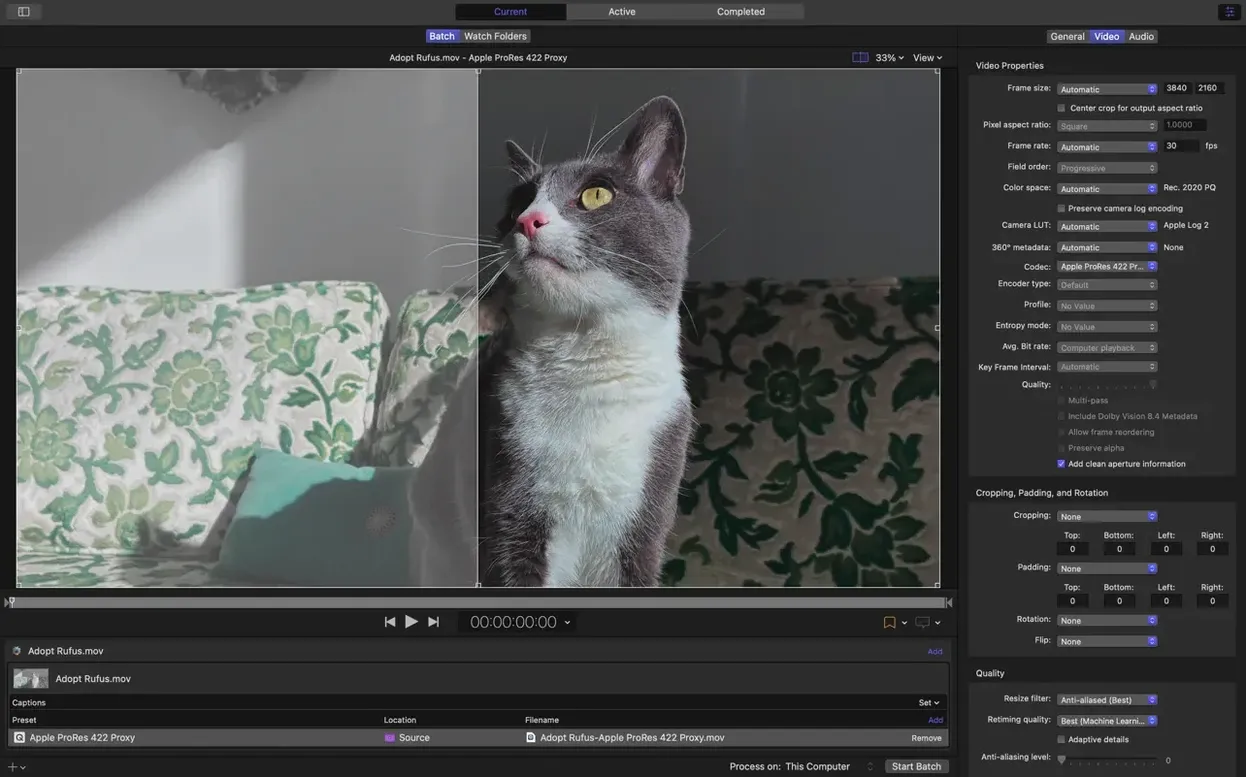
Motion graphics artists get something specific too. When a Motion project exports with an alpha channel, Compressor preserves it through formats that actually matter—HEVC with alpha for Apple devices, ProRes 4444 for finishing. That is not flashy, but it removes a round-trip through another app.
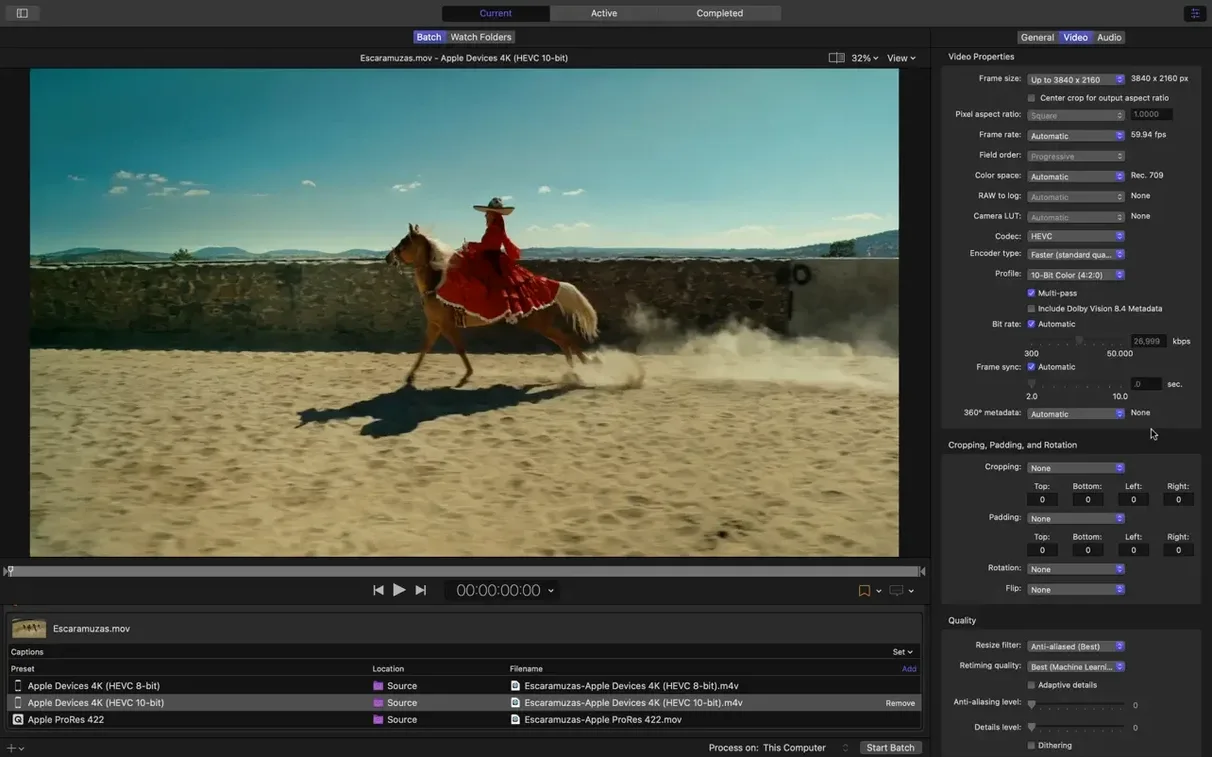
Where the fit is less comfortable is among users who want deep codec-level control. Compressor gives you an inspector full of audio and video properties, but it does not expose every knob that a ffmpeg pipeline would. If you need to fine-tune x265 parameters or write your own rate-control equations, you will feel the walls. The app is built for repeatable, shareable settings, not for encoder archaeology. Similarly, Windows-adjacent workflows that rely on AVI containers or legacy DivX wrappers will find no warm welcome here—this is a Mac tool that assumes you are moving toward modern deliverables.
Three apps that sit on the same shelf
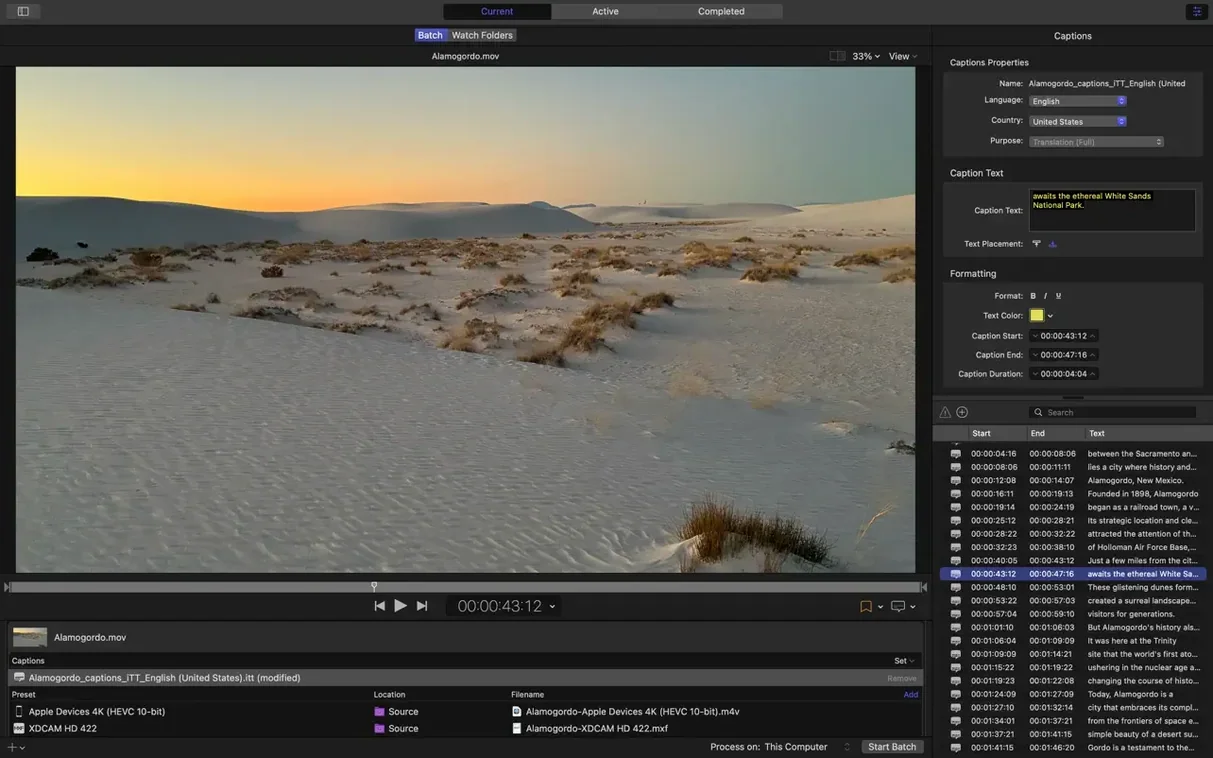
HandBrake is the one most people compare first. It is open source, runs on everything, and gives you granular control over x264 and x265 encoders. But HandBrake does not integrate with Final Cut Pro, does not understand roles or colour spaces from a timeline, and cannot build an iTunes Store package or an IMF bundle. People who reach for Compressor often started with HandBrake and outgrew the manual export round-trip. They keep both: HandBrake for quick, one-off transcodes; Compressor for the delivery day when the DCP or closed-caption master needs to be frame-accurate.
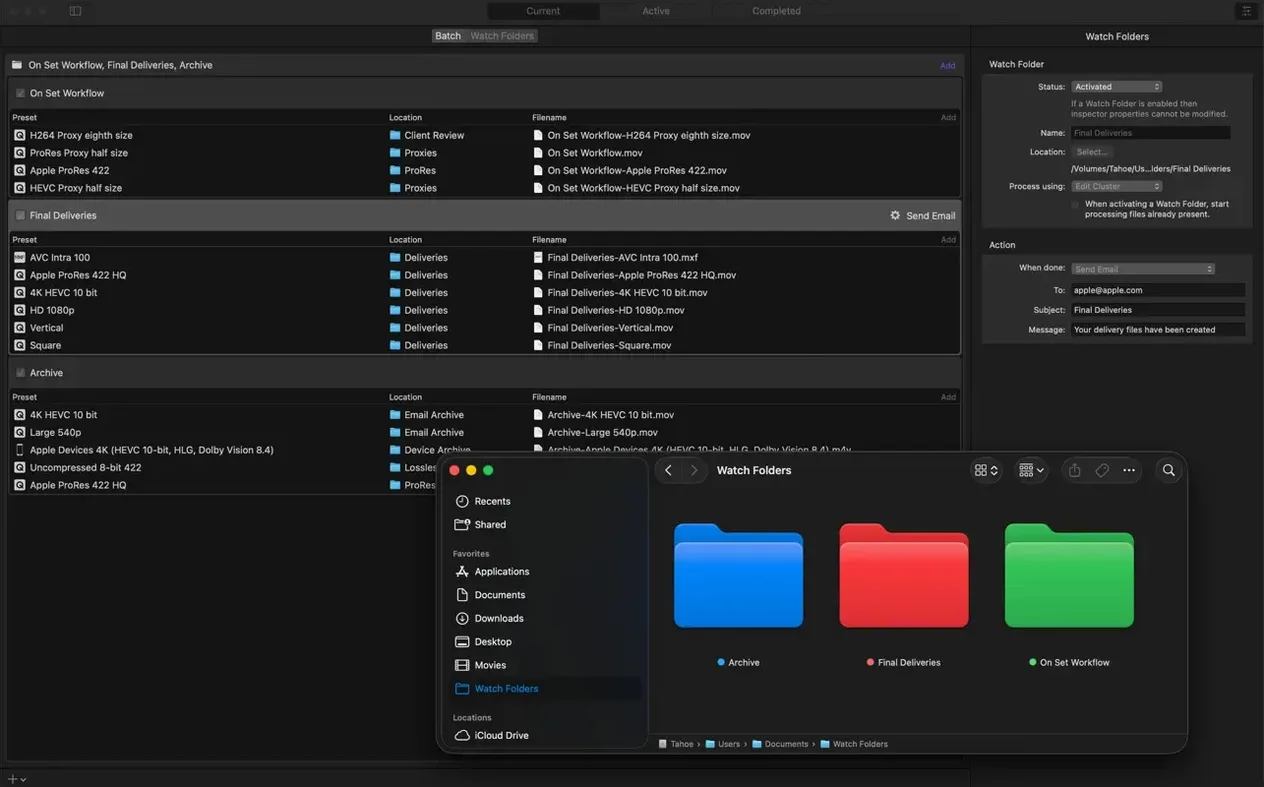
Adobe Media Encoder is the natural counterpart for Premiere Pro and After Effects users. It matches Compressor's watch-folder and queue behaviour, and it has long supported distributed rendering across networked machines. Where Compressor pulls ahead is in its tight bond with Apple's rendering engine and its growing immersive toolset—Media Encoder does not yet offer an anaglyph preview or an immersive metadata viewer. If your shop runs on Premiere, you likely already have Media Encoder open. If you finish in Final Cut, Compressor saves you from a render that silently shifts your colour transform.
ffmpeg is the command-line giant that does everything Compressor does and a thousand things it does not—but it asks for your syntax in return. Compressor's advantage is not feature count; it is the envelope of reliability around common delivery specs. When a broadcaster requires a specific MXF wrapper with eight channels of 24-bit PCM audio, Compressor has a preset that is already tested against that spec. ffmpeg can do it, but you are the one responsible for verifying the output.
What changed when 5.3 arrived
The immersive additions are the headline, but the quieter shifts matter in daily use. HEVC data rate limits on Apple silicon ended the guessing game of whether a hardware encoder would spike above your target. Before this update, you could set a bitrate and still see peaks that pushed a file over a streaming platform's ceiling. Now you set a limit and the encoder obeys. That one change removes the need for a second pass on most HEVC exports, which trims minutes or hours from a batch depending on how long your timelines run.
The 5.1 AAC option in Apple Device settings closed a small but persistent gap. Stereo downmixes on a surround project always felt like a compromise you made for the phone screen. Now you set the device preset once, include the 5.1 stream, and let the playback device decide. For editors delivering review copies to clients who watch on Apple TV with a home theatre setup, this quietly raised the impression those dailies leave.
The 180° Apple Projected Media Profile support means Compressor now writes metadata that Apple Vision Pro and other immersive players read natively. It is a container-level feature, not a codec change, but it saves a step that used to require a separate metadata injection tool. Combined with the option to transcode immersive sources that lack WAV files, the workflow for 180° and 360° projects feels more like a straight line and less like a scavenger hunt for missing audio tracks.
Why the queue stalls and how to resume it
The queue stalls and you cannot figure out why. This is almost always a file permission issue or a network mount that dropped. Compressor writes temporary frames during an encode, and if the destination volume is a NAS share that requires authentication, a lapsed session will freeze the job. Point the output to a local folder first, then move the finished file afterward. The post-encode action panel can automate that copy for you.
Distributed encoding does not engage. Check that every Mac you want to use appears in the Shared Computers list and runs the same version of Compressor. Mismatched versions are the most common culprit—a machine on 5.2 will not take work from a 5.3 queue. Also, distributed encoding only helps with formats that support segmented processing; some codecs, particularly older MPEG-2 variants, will not split across nodes no matter how many machines you add.
HDR looks washed out after transcoding. The likely cause is a mismatch between the source colour space and the output setting's colour properties. Open the inspector, look at the video tab, and confirm that the colour space, transfer function, and primaries match your timeline's working space. Compressor inherits these from Final Cut Pro, but if you build a custom setting from scratch, the defaults may not be what your grade expects. Test with a ten-second clip that has both deep shadows and bright highlights before you commit to the full export.
Immersive sources transcode but lose their spatial feel. This one appeared more often before the 5.3 update, but it can still happen if the source clip uses a projection format that Compressor does not yet map. The new immersive metadata viewer helps you catch this early—if the viewer does not show the spatial layout you expect, the encode will not fix it. Check the source's projection tag and compare it against the output profile you selected. Sometimes simply re-wrapping the source in the correct metadata container solves the issue before Compressor ever touches the pixels.
Version 5.3 brings an immersive metadata viewer that lets you inspect spatial data before encoding begins, alongside support for 180° Apple Projected Media Profile output. An anaglyph preview option helps you check stereoscopic convergence with simple red-cyan glasses. Apple Device export settings now include a 5.1 AAC option, and on Apple silicon you can set HEVC data rate limits. The app also handles transcoding of immersive sources without WAV files straight to Apple Immersive outputs.
- macOS 15.6 or later
- 8 GB memory
- 1.2 GB available disk space
- Apple silicon or Intel Mac
Questions from the booth
Yes. While it integrates with Final Cut Pro and Motion, Compressor is a standalone transcoding app that handles batch processing, custom output settings, and distributed encoding on its own.
Compressor 5.3 supports 180° Apple Projected Media Profile output and can now transcode immersive sources that lack separate WAV files directly to Apple Immersive outputs.
Compressor 5.3 requires macOS 15.6 or later and 8 GB of memory, with 1.2 GB of available disk space.