
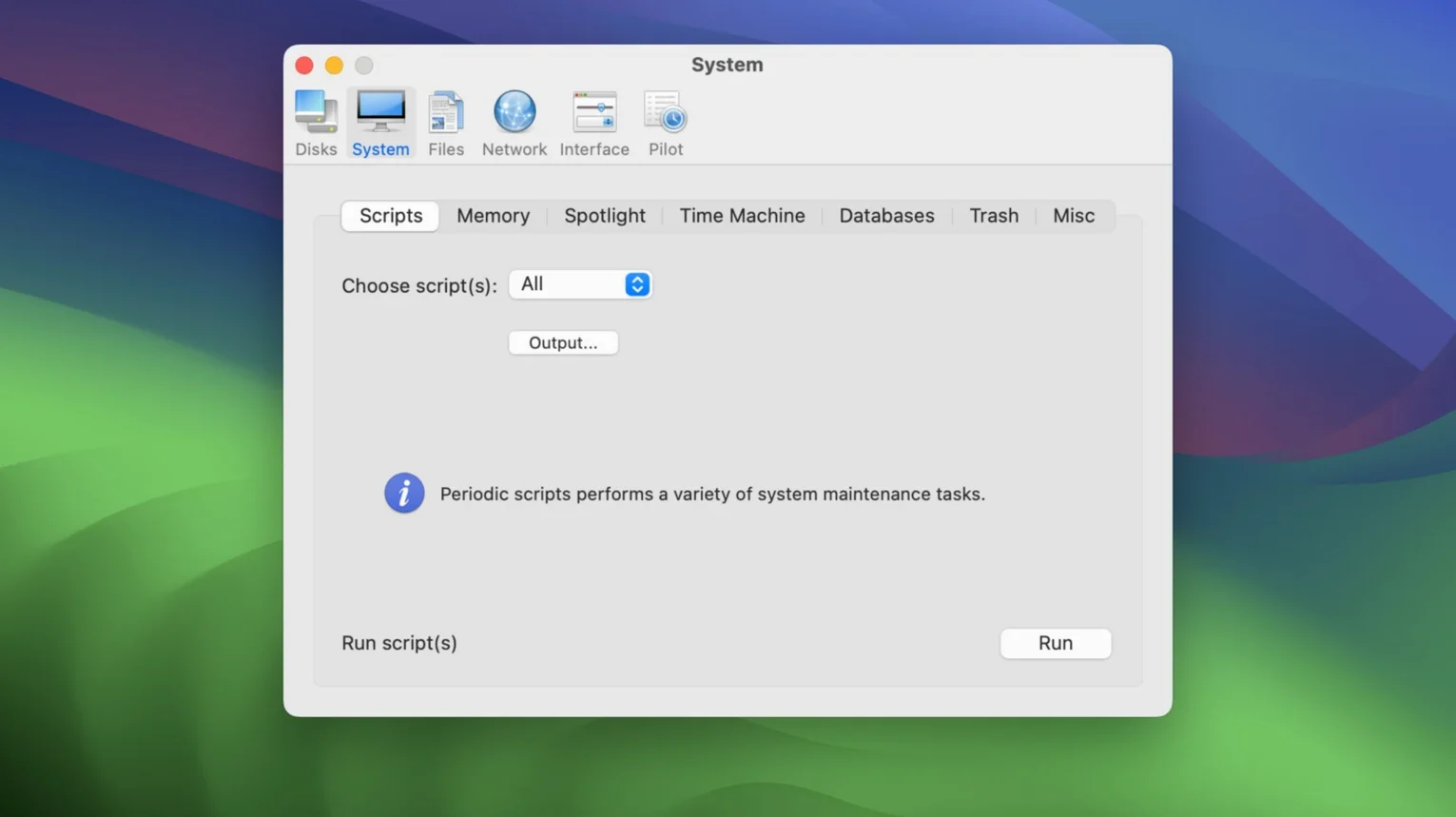
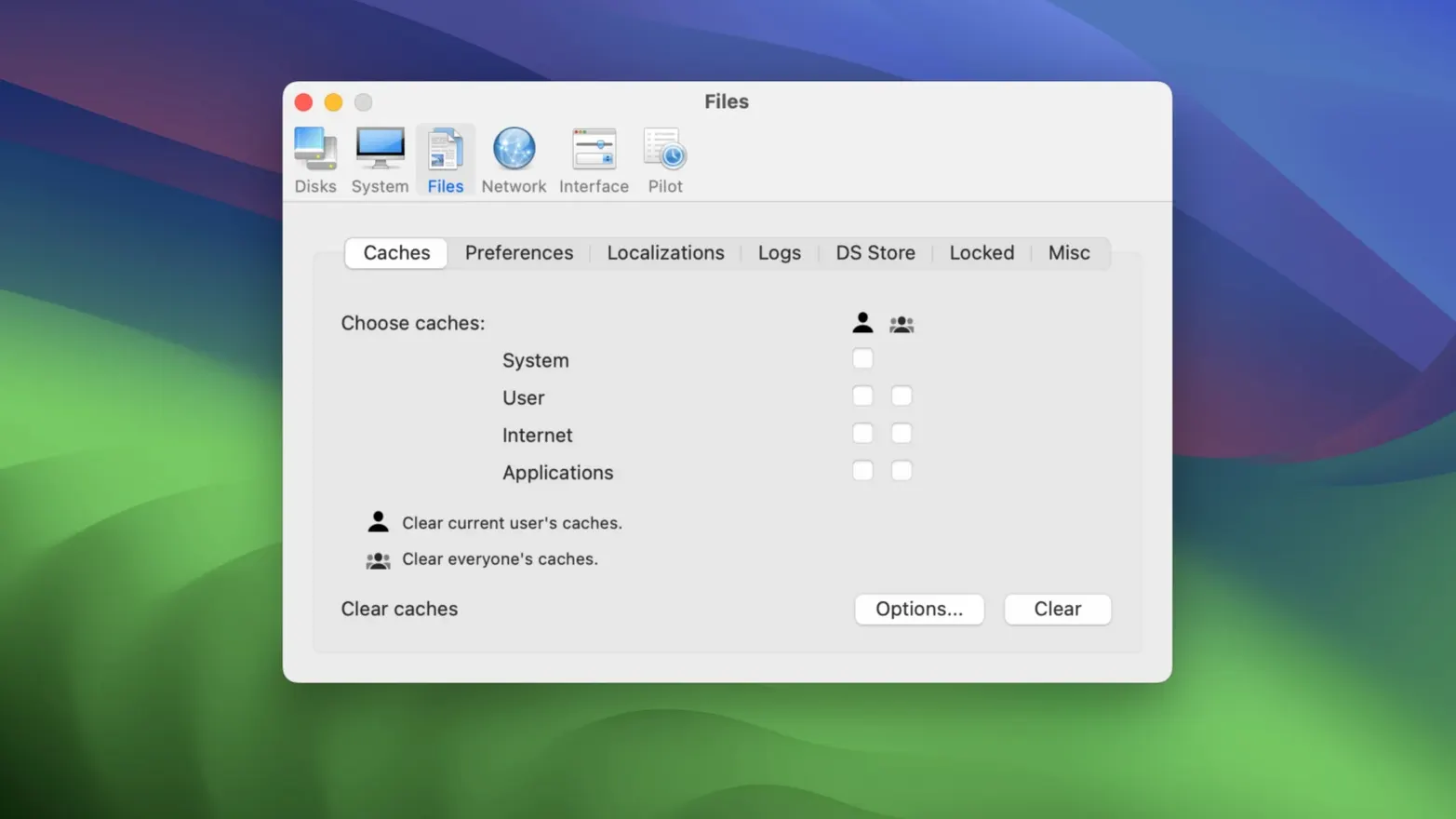
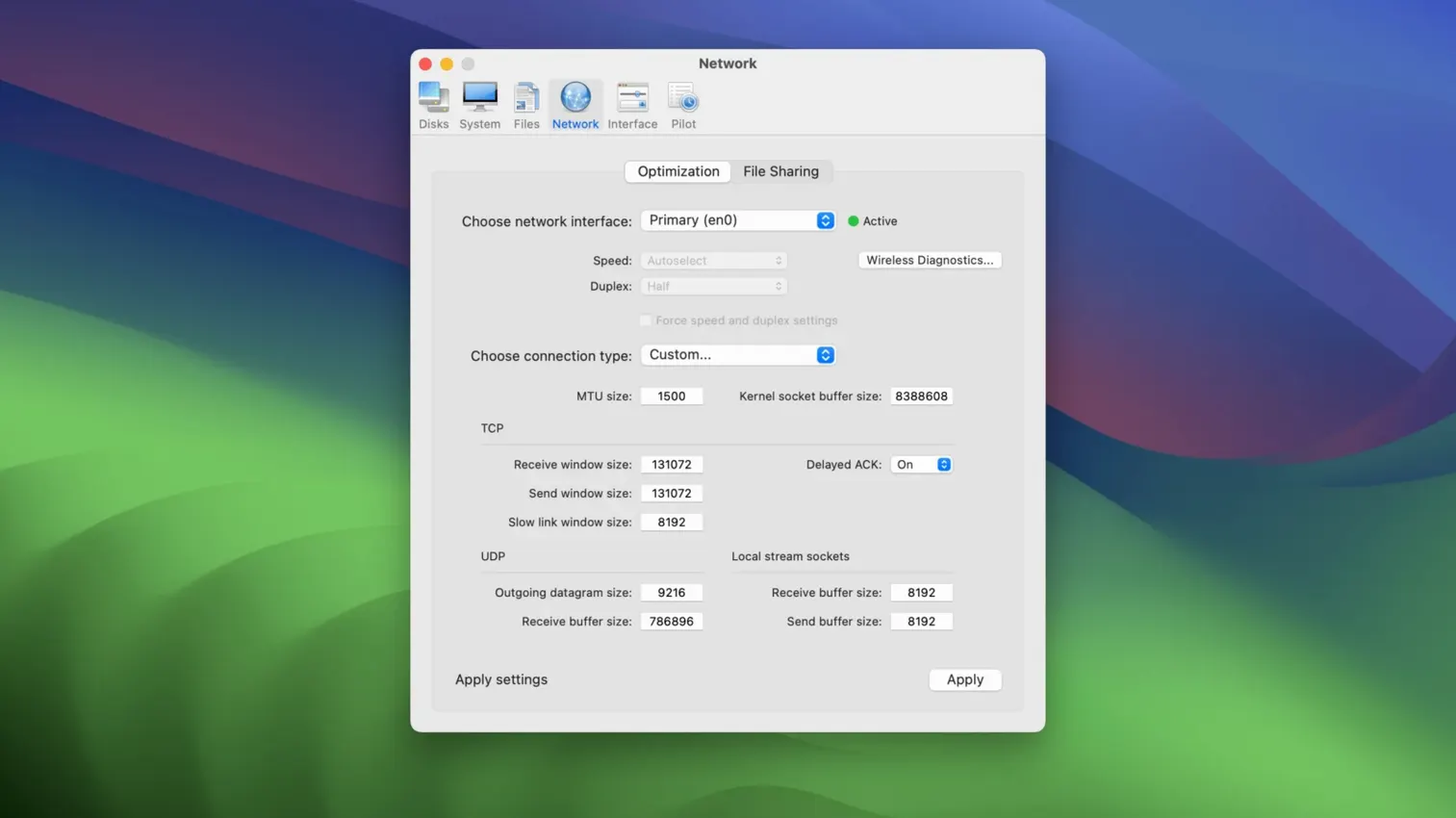
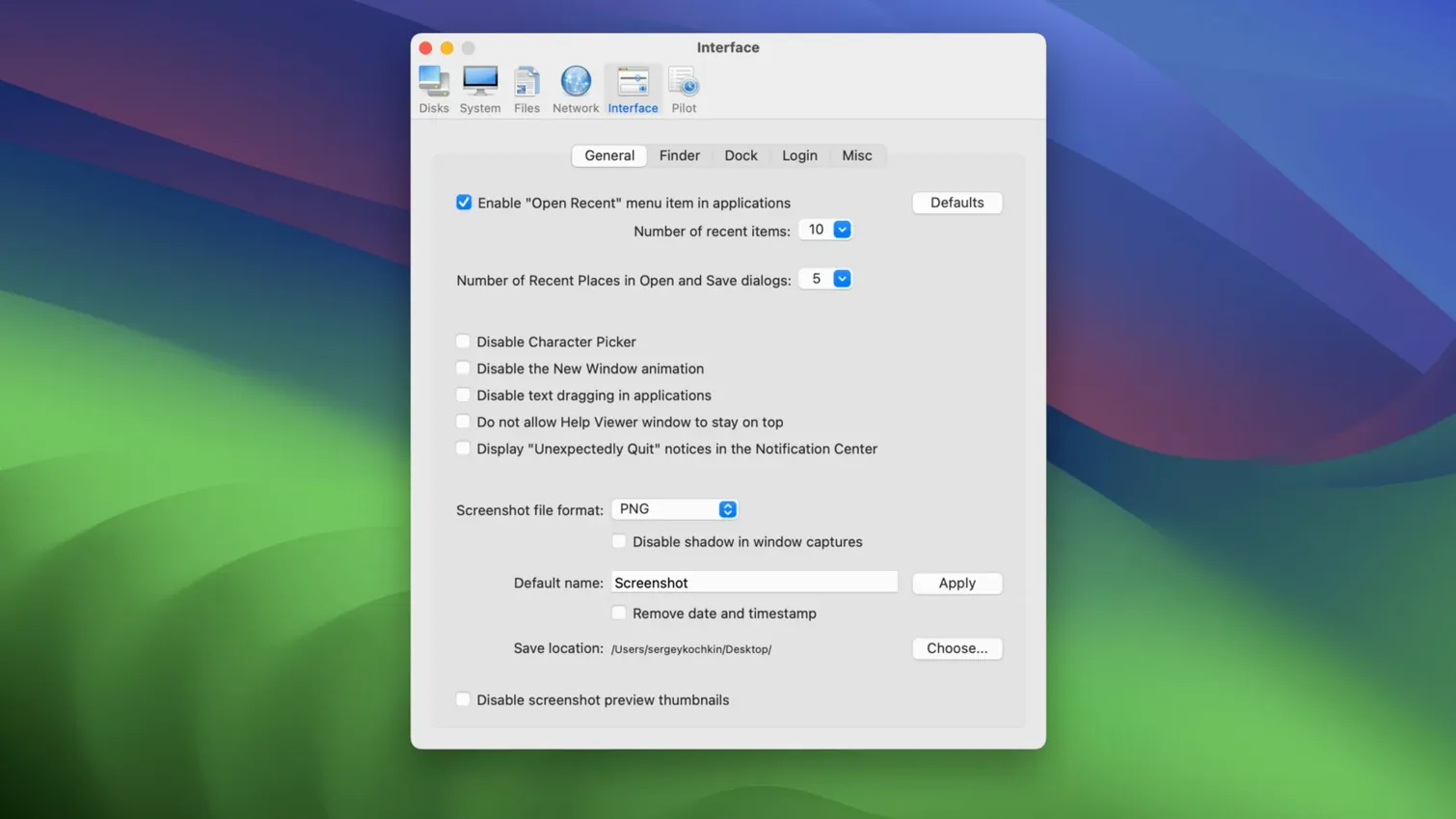
Five function categories sit inside version 18.7.1, each one named for a different kind of system housekeeping.
Cocktail — a maintenance utility from maintain, built for Intel 64-bit Macs running macOS 15. It clears caches, repairs disk permissions, and runs system housekeeping scripts that normally wait for the middle of the night.
Automatic pilot — a single-click mode that runs the most common cleanup and repair jobs in sequence. No checkboxes to weigh, no schedule to set. Click and let it finish.
Previous editions — earlier versions of Cocktail exist for older macOS releases, so a Mac stuck on an ageing operating system is not left without the same maintenance routines.
the first forty-eight hours
Install Cocktail and the temptation is to click every button in sight. Resist that. The utility is powerful enough to clear caches a running app still expects to find, and macOS Sequoia is less forgiving of sudden permission changes than its predecessors. Give the system a day of normal use before running anything beyond the Automatic pilot.
Start with a single pilot run. Watch the log scroll past — it lists exactly which temporary files it removed, which system scripts it forced to execute, and whether any disk permissions needed repair. That log is your baseline. If something feels slow a week later, you can compare a fresh run against it and see what actually changed.
After the pilot, open the Disks category and run only the permission repair. Do not touch the journaling or defragmentation options yet. On an Intel Mac with an APFS volume, those are rarely needed and take far longer than the utility suggests. The permission repair, by contrast, catches small ACL mismatches that Sequoia introduces during system updates — mismatches that cause odd Finder hangs and application launch stalls.
a cleanup workflow for a finished project
Let us say you have just wrapped picture lock on a short film. Eighteen minutes of ProRes 422, half a terabyte of render files, and a desktop littered with audio stems. The Mac feels sluggish every time you scrub the timeline. Here is a method that takes ten minutes and leaves the machine ready for colour grading.
First, quit every application except Cocktail. No browsers, no background renderers, no menu bar utilities holding file handles. Open the System category and run the maintenance scripts manually — those daily, weekly, and monthly routines that normally fire at 3:15 a.m. if the Mac happens to be awake. On a machine that sleeps overnight, they may not have run in weeks. Let them complete; they rotate system logs and rebuild the locate database, which Spotlight leans on more than Apple admits.
Next, move to Files. Check the box for user cache files, but not system caches — not yet. Check the box for application logs older than seven days. Cocktail will show you the total size before it acts. Click through. When it finishes, open the Network category and flush the DNS cache. Sequoia caches DNS more aggressively than Ventura did, and after days of uploading proxy files to a remote server, stale lookups can slow every frame.io refresh.
Finally, return to System and rebuild the Launch Services database. This step is easy to overlook. It re-indexes which applications can open which file types, and after a project wraps — when you have thrown a dozen obscure audio and video utilities at the system — Launch Services is often confused. The rebuild takes under a minute and resolves the mystery of why QuickTime Player suddenly refuses to open a WAV file.
Restart the Mac. Open your grading application. The scrub should be clean.
Launches in under two seconds, no menu bar daemon
Cocktail itself is light. The application launches in under two seconds on an Intel i7, and its memory footprint hovers around 80 MB during a pilot run. It does not install a daemon, does not sit in the menu bar, and does not phone home. When you quit it, it is gone.
The real measure is what happens afterward. After a pilot run that clears user and system caches, macOS feels raw for the first few minutes — applications launch more slowly as caches rebuild, and Spotlight churns briefly. That is expected and resolves within half an hour. By the second day, the system is noticeably snappier, particularly when opening large directories in the Finder and switching between Spaces. The difference is not benchmark-grade; it is the absence of that half-second hesitation before a context menu appears.
Stability, in my experience, is tied to the permission repair. Sequoia introduced tighter sandboxing for applications that access the microphone, camera, and screen recording frameworks — exactly the frameworks a filmmaker hits daily. An NLE that requests screen recording permission for capture, then has that permission silently invalidated by a point update, will crash on launch without explanation. Cocktail's permission repair catches those mismatches. It is not magic; it is just re-applying the ACLs that Apple's own installer sometimes leaves in an inconsistent state. Every crash I blamed on Resolve or OBS this year turned out to be a permission issue, and Cocktail found it.
Resource use during a manual session is modest. A full cache clear across user and system domains touches the CPU for perhaps ninety seconds of sustained work, mostly in the rm and purge calls. The fan may spin up on an older MacBook Pro. But it finishes and falls silent. There is no background residue.
Click any error line to reveal its shell command
The pilot log is clickable. Most users read it, then close it. But clicking any line that reports an error expands it to show the underlying shell command and its full output. That is how I discovered that a third-party audio driver was leaving orphaned socket files in /tmp — a detail the summary view hid behind the phrase "cleaned temporary files."
Holding the Option key while clicking the Files tab reveals cache locations that are normally hidden from the checkbox list. These include per-user Quick Look caches and the font validation cache, both of which can grow to gigabytes on a machine that previews many video files and activates many typefaces. Clearing the font cache in particular fixes the problem where Photoshop's font menu scrolls at two frames per second.
The Network category includes a checkbox labelled simply "Bonjour." Unchecking it, running a clear, and rechecking it forces a full restart of the mDNS responder. For a filmmaker working with a NAS or a DIT station on set, this is the fastest way to recover from a disappearing network share — faster than toggling Wi-Fi, faster than rebooting. Sequoia's Finder is stubborn about cached share mounts, and this one checkbox often solves what looks like a hardware failure.
Finally, the utility remembers your last category selection between launches. If you spend most of your time in Files, Cocktail opens to Files. A small detail, but after the fourth maintenance session in a tight post-production week, it saves genuine friction. The interface is not flashy, but it is deliberate, and that deliberateness extends to every tab and toggle.
- macOS 15 Sequoia or later
- Intel 64-bit processor
- Interface language: English
Questions from the booth
It supports Intel 64-bit Macs on macOS 15 Sequoia. Apple Silicon machines need a different utility altogether.
It performs a suite of cleaning and repair tasks—including clearing caches and running maintenance scripts—with a single click instead of ticking individual boxes.
Yes. Maintain provides earlier editions of Cocktail matched to specific older macOS releases, so you can still run the same kind of system cleanup.