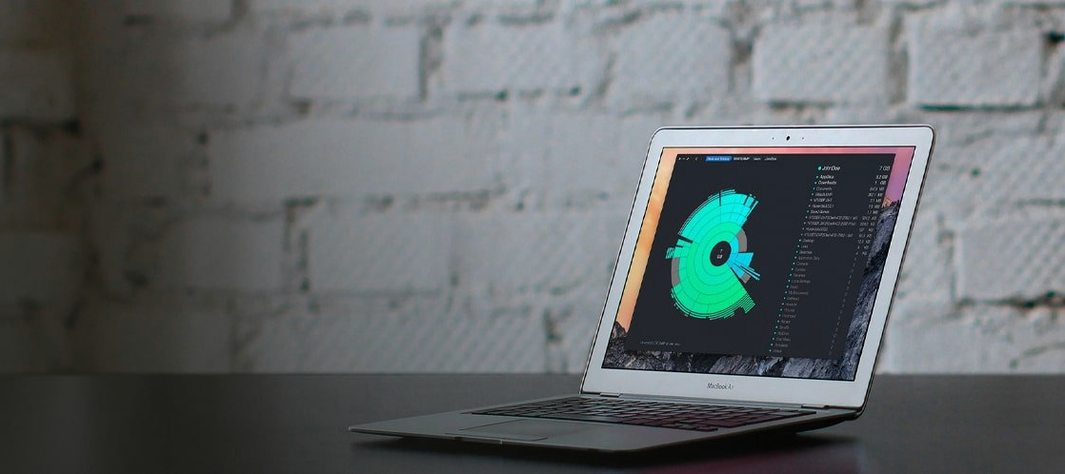
Cursor Pro runs on any Mac with macOS 11 Big Sur or newer — Intel and Apple Silicon alike.
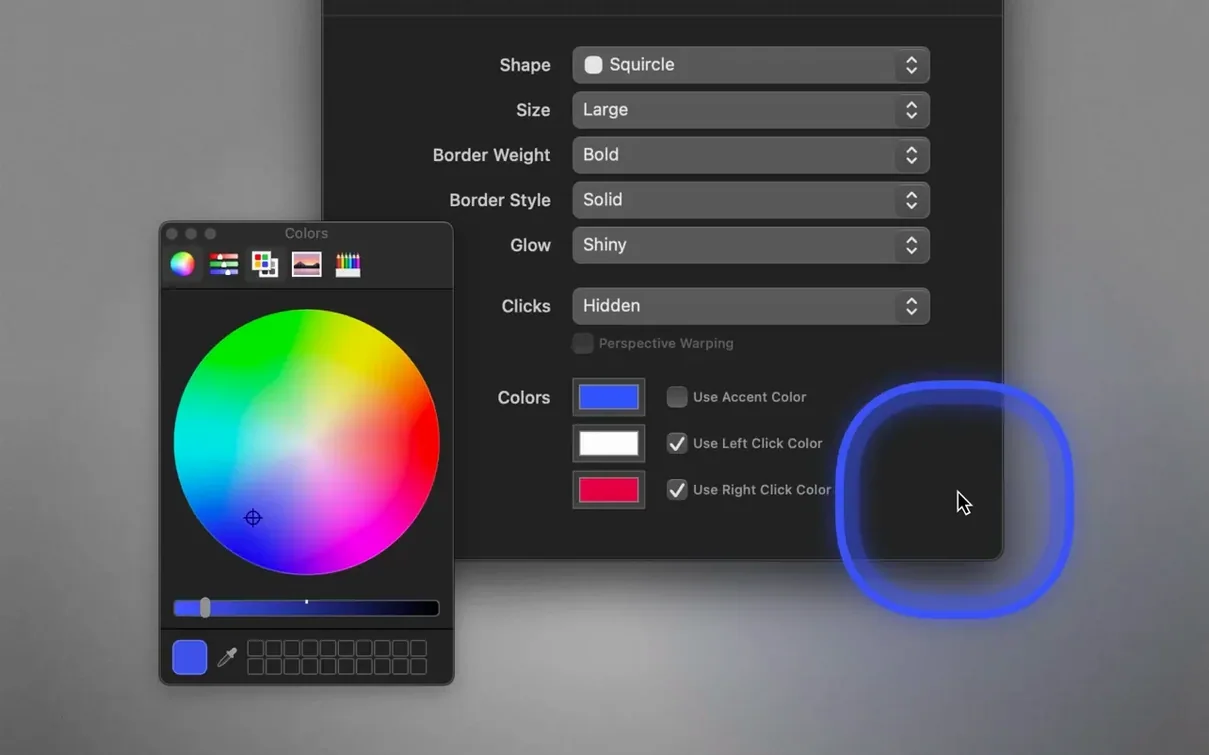
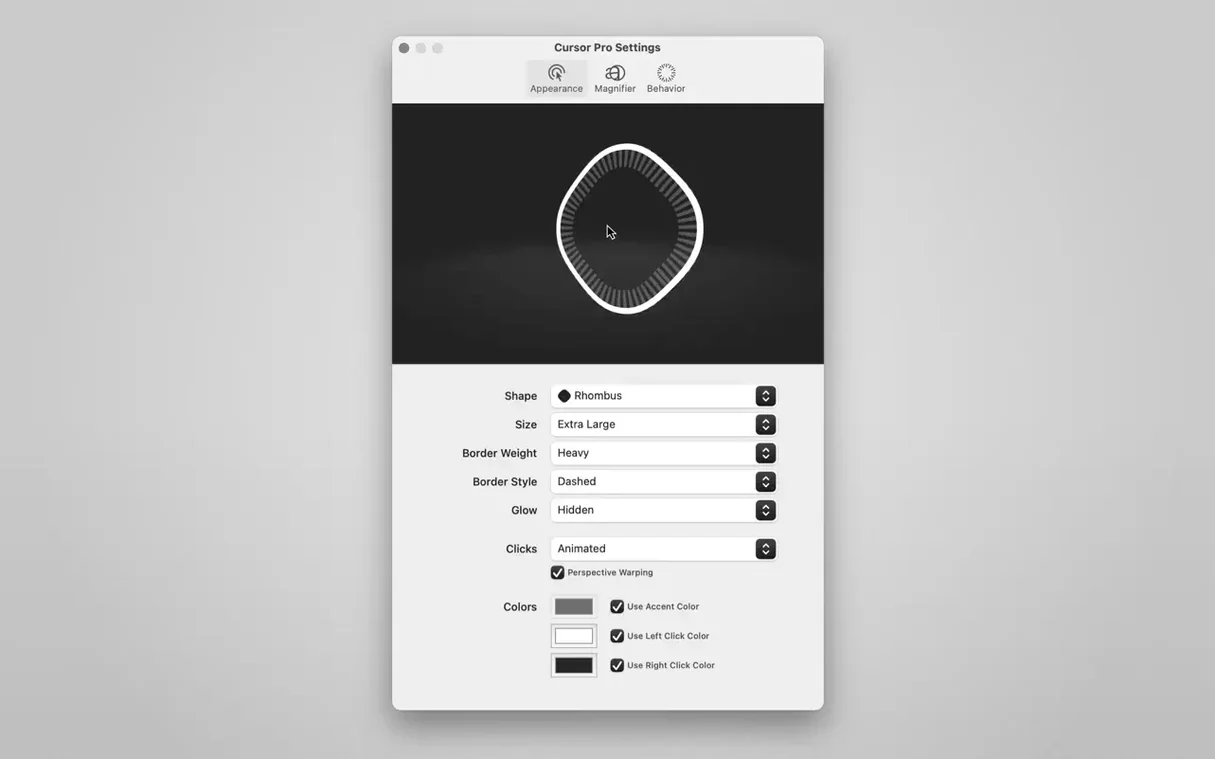
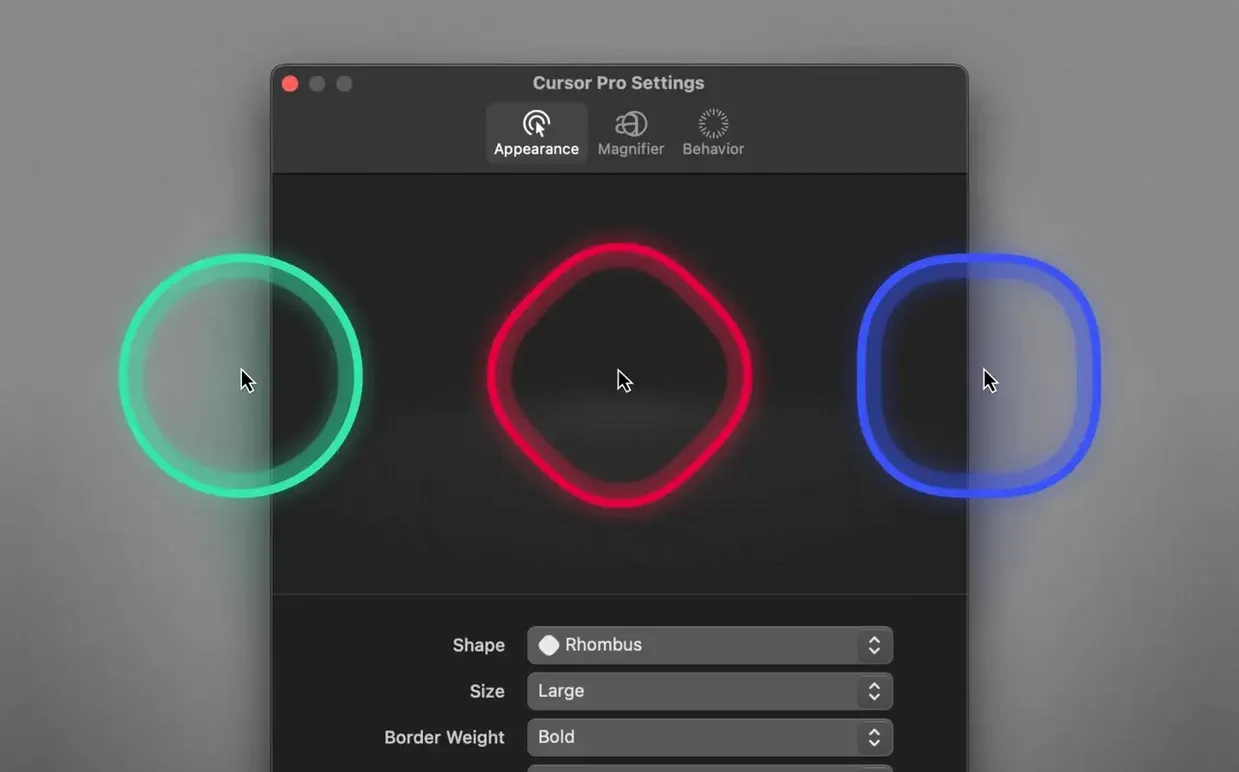
Pointer highlight — a coloured circle or diamond that follows the mouse, drawn larger than the system cursor so it cuts through a cluttered desktop or a dense timeline.
Glow — a soft halo around the highlight shape, adjustable so the pointer reads against light and dark backgrounds without changing the core colour.
Pulse — a brief expanding ring that fires on click or via hotkey, giving a visual cue an audience can follow when you switch tools or tap a button during a screen share.
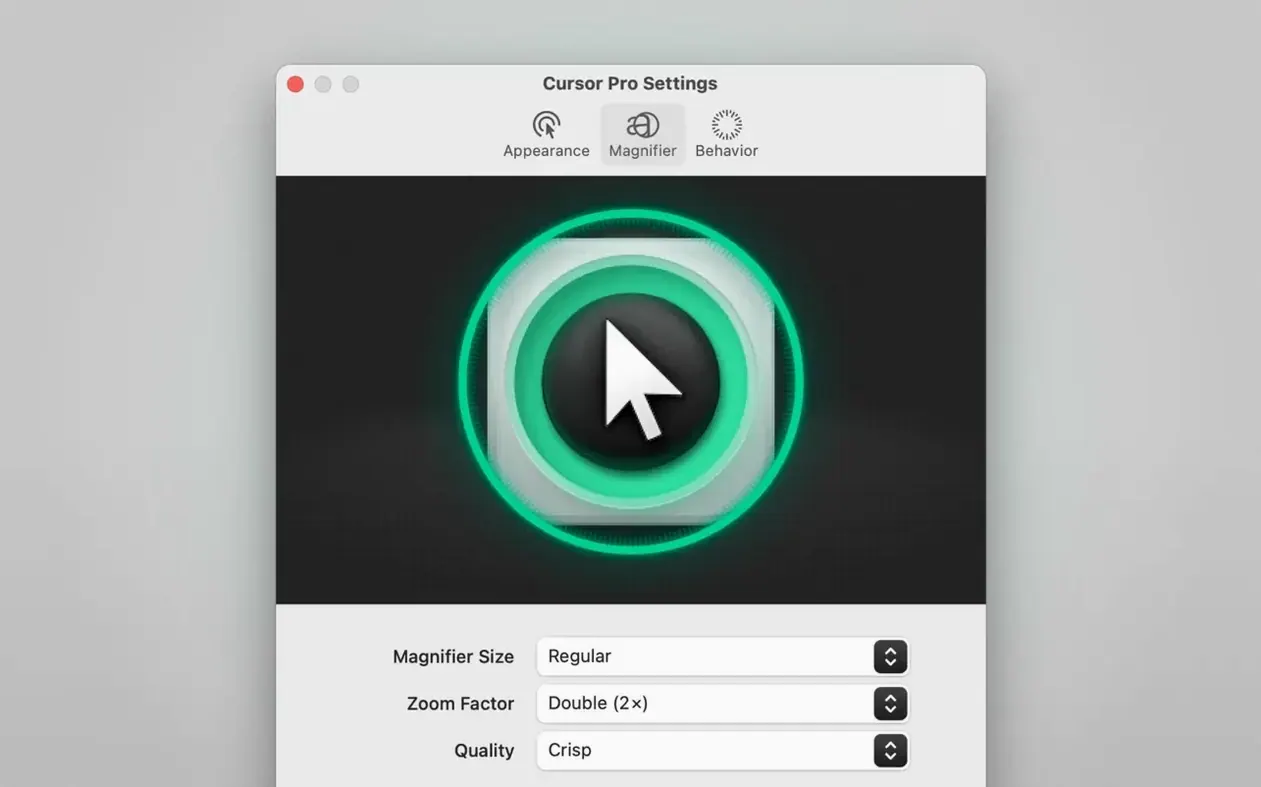
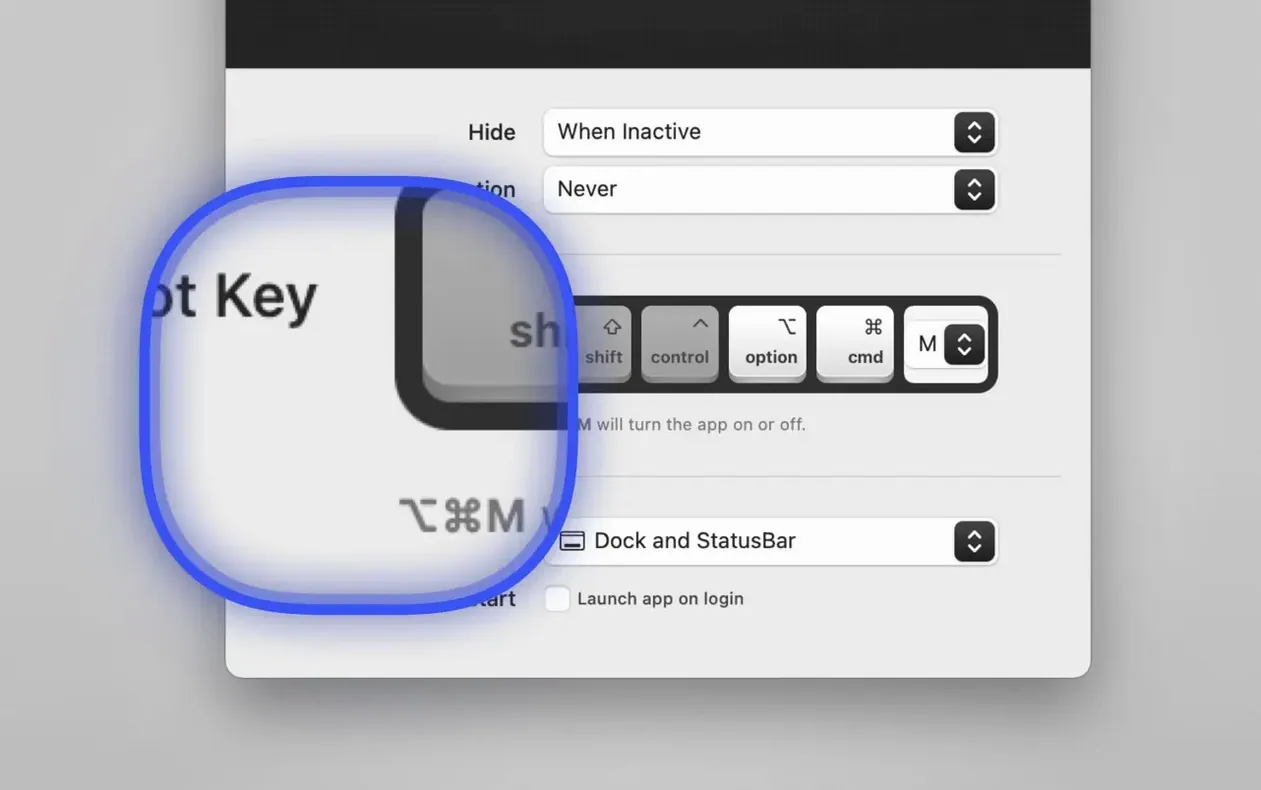
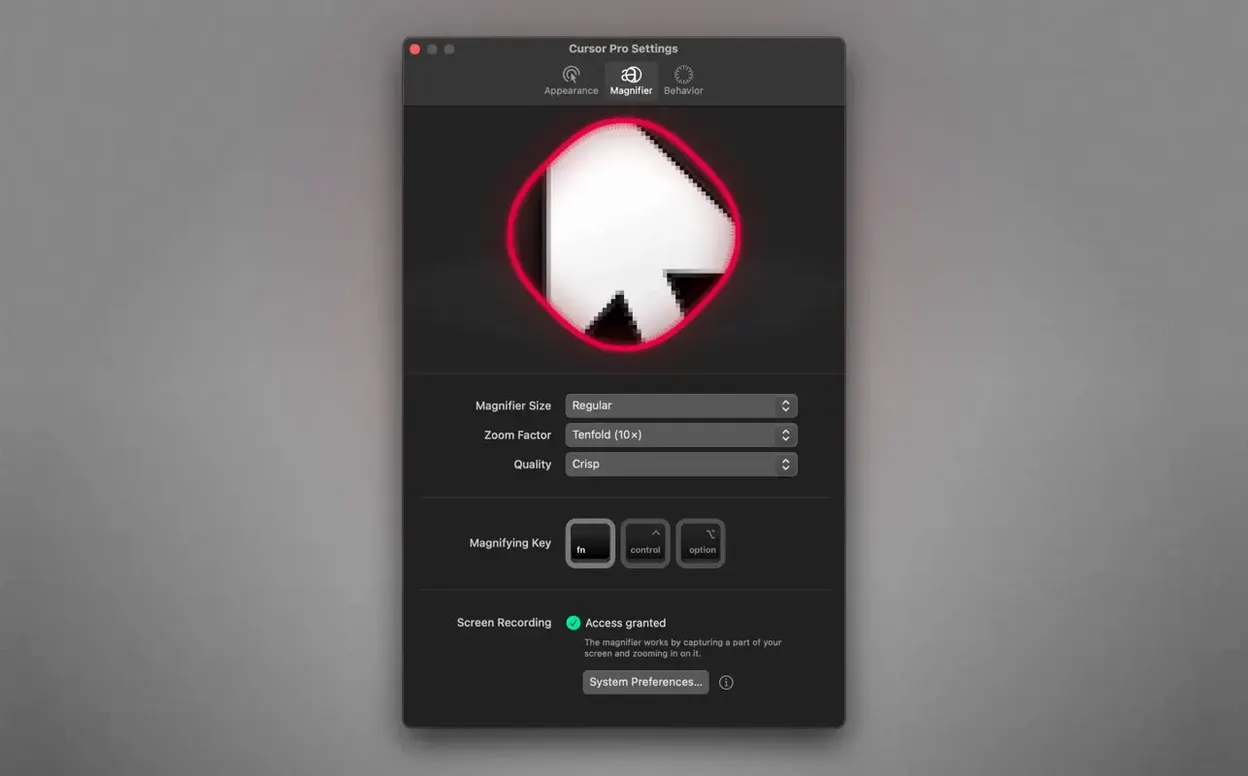
Magnifier — a zoom lens tied to the pointer, with a configurable zoom factor. Useful when you are walking someone through a settings panel with tiny type, and screen-sharing compression would otherwise blur the labels.
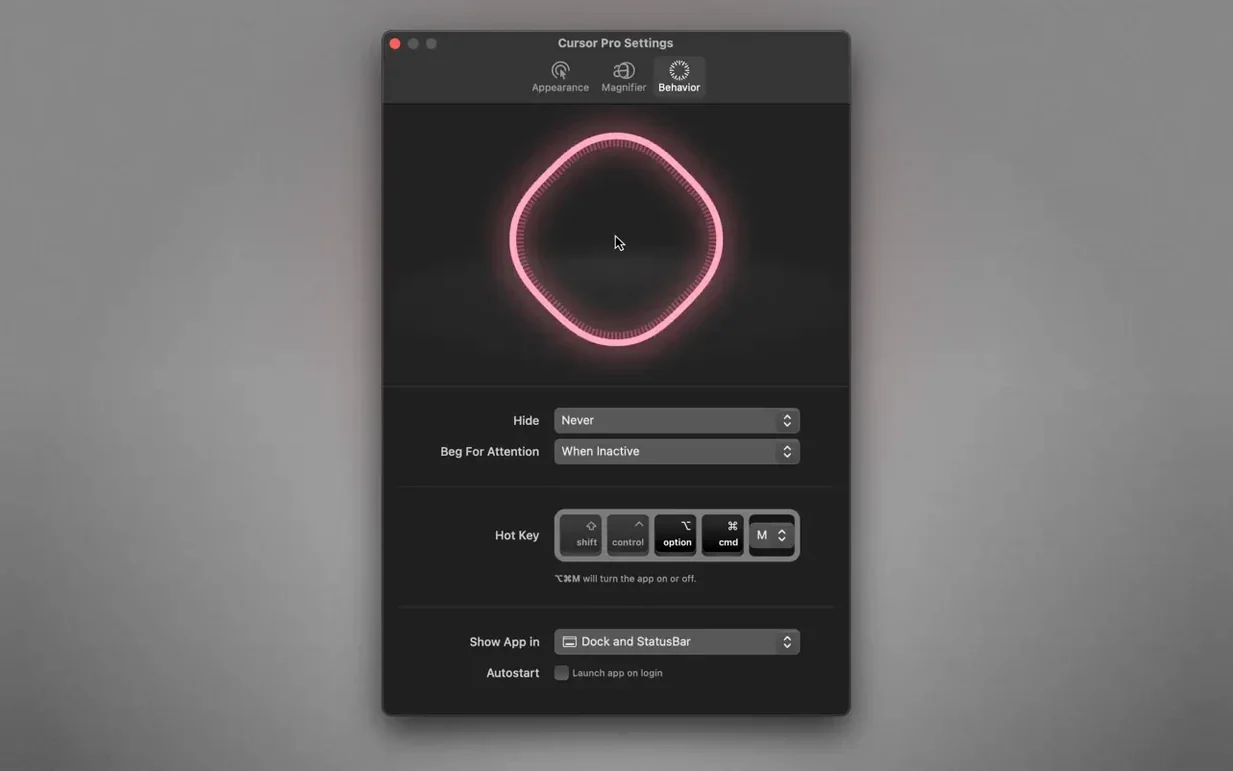
Dock and status bar — the app can live in either, or both, with an auto-hide option for the Dock icon so it stays out of the way when you are not actively tuning the settings.
The global hotkey toggles the highlight and magnifier together, which means you can turn the effect on only when you are about to present or record, then snap back to a clean screen with one keystroke. Cursor Pro works with any screen-sharing app that transmits the whole display, because it draws an overlay rather than altering the system pointer itself.
A screen-recording walkthrough with Cursor Pro
Say you need to record a walkthrough of an audio plug-in chain for a colleague. Open your DAW, load the project, and arrange the plug-in windows so the signal flow reads left to right across the display. Before you hit record, set the highlight to a diamond shape in a warm amber, dial the glow up just enough to create a soft edge, and enable the pulse on click. Now every time you tap a bypass switch or drag a threshold slider, a brief ring radiates outward — your viewer's eye lands exactly where the action happens, even on a compressed video stream.
With the magnifier, park the zoom lens over the gain reduction meter of a compressor while you explain knee and ratio. The zoom factor sits at 1.5× or 2× — enough to make the tiny meter readable in the final video without warping the surrounding interface. Leave the global hotkey mapped to a key you rarely use in the DAW, so you can kill the highlight and magnifier when the recording shifts to a talking-head segment or a full-screen title card, then bring them back the moment the pointer needs to lead the story again.
First days: dial it in for your rhythm
Spend the first hour with the auto-hide behaviour. The default works, but if you tend to park the pointer at the screen edge while thinking, you may want to shorten the fade-out delay so the highlight doesn't linger over empty desktop space. Open the preferences, watch how the glow interacts with your most-used apps — a dark terminal window wants a lighter halo than a bright browser tab — and settle on one highlight colour you can stick with for a week. Changing it daily trains your brain to ignore it; consistency makes it feel invisible until someone else is watching.
Next, bind the global hotkey to a chord you can hit without looking. Something like Control-Option-Command-H works because it's unlikely to collide with other shortcuts and it's reachable with one hand while the other holds a stylus or stays on the trackpad. Practice toggling the highlight a few times mid-task so the motion becomes muscle memory. If you share your screen often, pin the app to the status bar rather than the Dock — the menu bar icon stays visible regardless of which Space you are on, and you can click it to tweak settings without leaving the app you are demonstrating.
Slotting into a Mac toolset
Cursor Pro pairs naturally with the built-in screenshot and screen-recording tools in macOS. Call up the recording palette with Shift-Command-5, select "Record Entire Screen," and the overlay draws on top of everything — the highlight and magnifier are captured as part of the video stream, so you do not need to add pointer effects in post. If you use QuickTime Player for audio-only screen captures or a third-party app like OBS for multi-source streaming, the result is the same: anything that grabs the full framebuffer preserves the overlay.
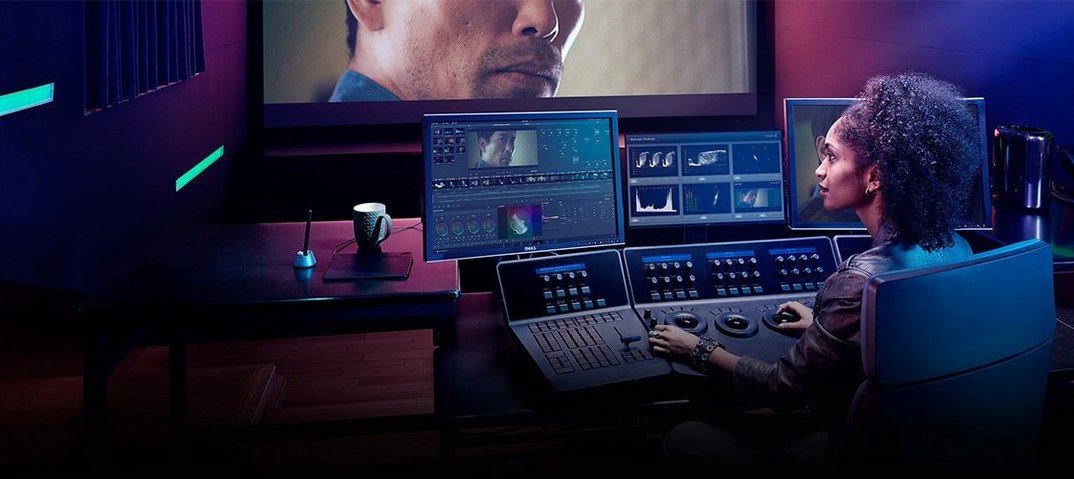
When you are not recording, the magnifier earns its keep during long editing sessions. Crank the zoom factor to 3× and hover over fader values or colour wheels in apps like DaVinci Resolve or Lightroom. You are not sharing the screen; you are just sparing your eyes from squinting at a 13‑inch panel late in the evening. Between the magnifier and the system's built-in Hover Text accessibility feature, you have two independent zoom tools — one for quick peeks at tiny type, the other for a persistent lens that tracks the pointer. Cursor Pro's magnifier stays active as you move, which makes it the faster choice when you are checking a dozen small parameters in sequence.
And because the highlight shape and colour are distinct from the macOS pointer, the app sidesteps a common frustration with screen-sharing setups that rely on cursor torrent visuals — where the system pointer gets lost in a sea of identical-looking cursors during collaborative sessions. Your highlight reads as yours, even when colleagues' remote desktop indicators clutter the same window.
- macOS 11 or later
- Apple Silicon or Intel 64-bit