You have a folder of 24-bit masters that need to land as 16-bit FLAC for an archive and high-quality MP3 for a screening reference, all with embedded artwork and clean metadata. That is where the deeper toolset matters.
Batch core — Convert multiple files in one operation across formats like FLAC, Apple Lossless, WAV, AIFF, AAC, M4A, MP3 and WMA, with ID tags and cover art preserved through every pass.DSP chain — Apply volume normalization, sample rate conversion and bit-depth reduction as part of the encode, not as a separate post-process.
Tag editor — Write or repair metadata directly, with fixes in the current version for Enter-key behaviour when the autocomplete panel is visible.
Finder integration — Right-click any audio file and choose Convert with dBpoweramp to start a job without leaving your project folder.
Apple Silicon native — Runs on both Intel 64-bit and Apple Silicon Macs from macOS 11 onward, so the conversion queue moves at the speed your hardware allows.
What the latest build quietly fixed
The 2026.09.13 release tightens a few things that had been fraying at the edges for daily users. Resampling got a proper overhaul — if you have ever downsampled a 96 kHz field recording to 48 kHz and winced at the faint metallic halo it left on the decay of a piano note, the new algorithm cleans that up noticeably. It is not a feature you see; it is one you stop worrying about.
The tag editor fix sounds small on paper but changes the rhythm of a metadata session. Until this build, hitting Enter while the autocomplete panel was visible — say, filling in an album title the app had seen before — would close the entire dialog instead of accepting the suggestion. You would lose your place, reopen the editor, start the track over. Now Enter behaves the way it should: it confirms the tag and keeps you in the flow. Anyone tagging a dozen live recordings in one sitting will feel that difference by the third track.
There is also a compatibility patch that silences a spurious Intel-only component warning on the latest macOS. The app was already running native on Apple Silicon, but the system threw a notice that made it look otherwise. That is gone now, so a clean launch on an M3 MacBook Pro looks exactly as uneventful as it should.
A working session, from raw files to a finished folder
Imagine a Tuesday morning. A composer you collaborate with has sent over sixteen stems as 24-bit/48 kHz WAV files — too large to share with the sound designer as email attachments, and the wrong format for the temp mix you need to drop into DaVinci Resolve later that afternoon.
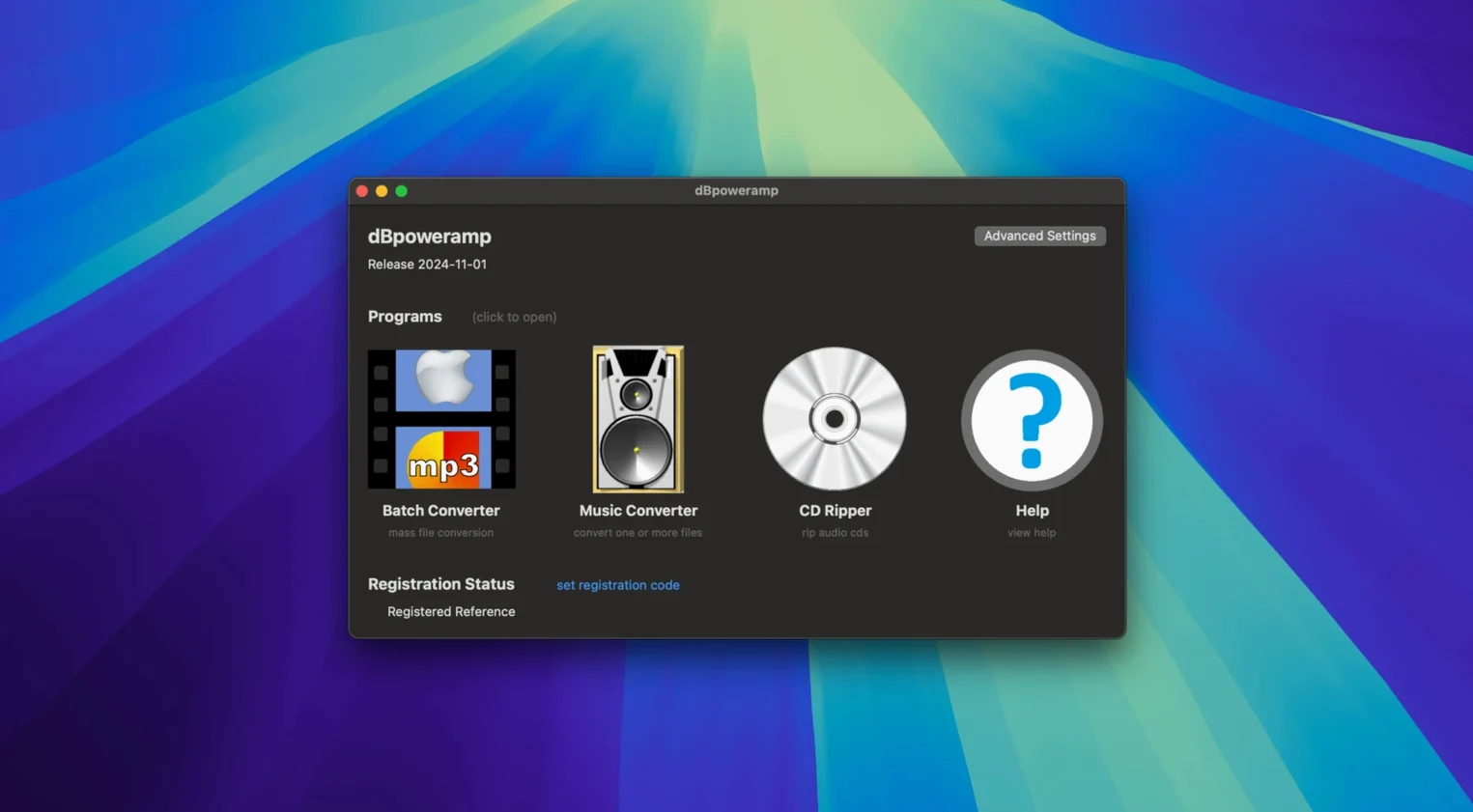
You open dBpoweramp Batch Converter from Launchpad. The interface is straightforward: a file browser on the left, a queue panel on the right. You drag the folder of stems into the queue. All sixteen tracks appear, each with its original filename, duration and format visible in a single row. No import wizard, no library to build — just a list of files ready to be transformed.
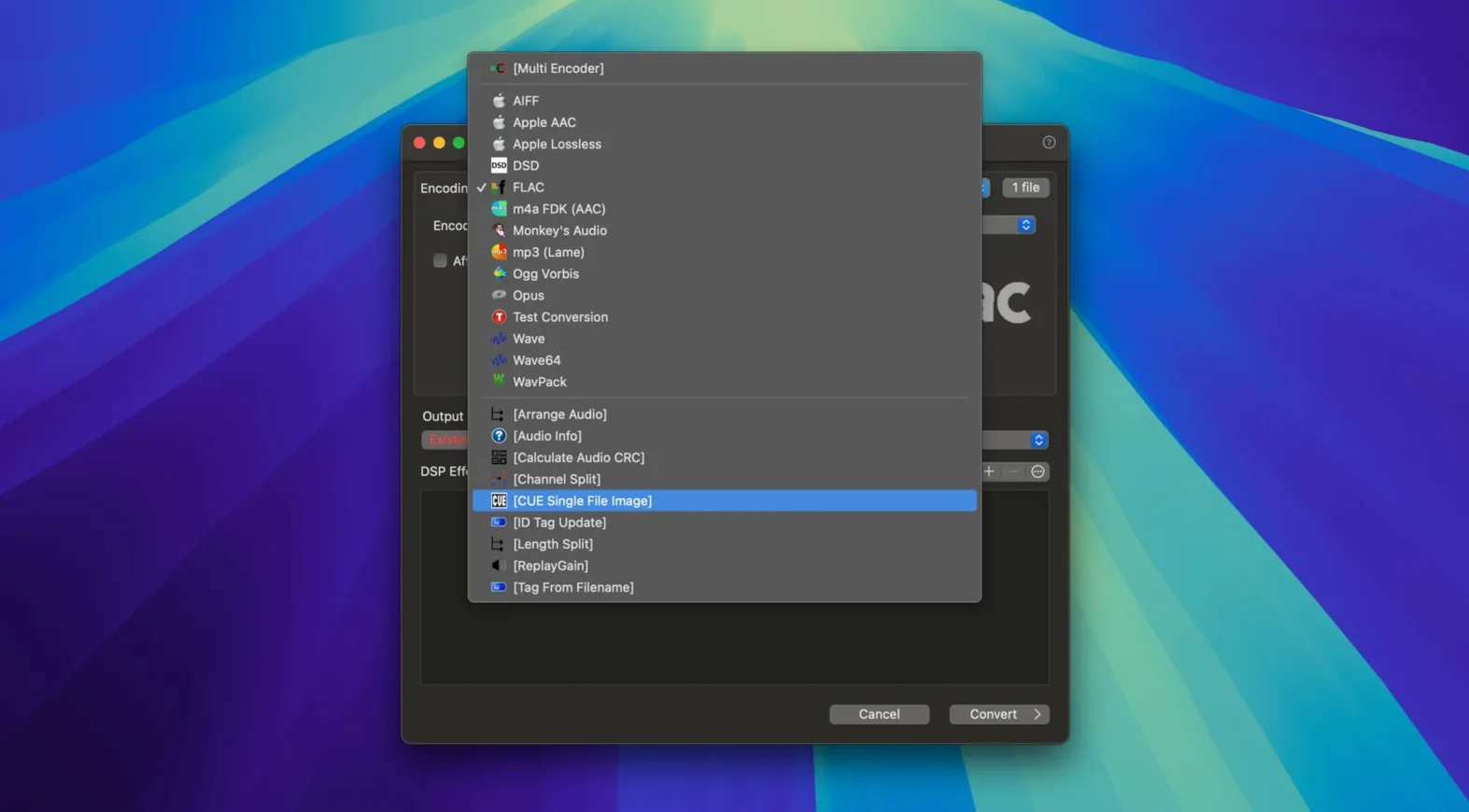
You select FLAC as the output format and set the compression level to 5, a middle ground that balances encode speed against file size. Then you add two DSP actions: Bit Depth, dropping from 24 to 16 bits with triangular dither, and Volume Normalize, set to EBU R128 at -23 LUFS so every stem lands at a consistent perceived loudness. The DSP chain runs in sequence during encoding, not as a second pass — by the time the FLAC file exists, it is already dithered and levelled.
You click Convert. The multi-core encoder lights up all eight performance cores on your M2, and the progress bar sweeps through the queue. Sixteen files finish in under a minute. The original folder still holds the untouched WAVs. A new subfolder holds the FLACs, each with the original timestamp and all embedded metadata intact.
For the temp mix, you switch to the single-file Music Converter. You drag one stem into the window, pick MP3 at 320 kbps, add the same EBU normalization, and encode. The MP3 lands on your desktop, named identically to the source, ready to drop into a Resolve timeline. The whole process — archival FLACs plus a reference MP3 — took roughly the length of a coffee pour-over.
First days with the app
The Finder integration is worth enabling early. Once installed, Control-click any audio file and you will see Convert with dBpoweramp in the contextual menu. It launches a conversion dialog anchored to that file, which is faster than opening the full app for one-off jobs. You will use it more than you expect.
Spend ten minutes inside the ID Tag Editor on your first afternoon. Open a few albums from your collection and look at how the app reads multi-disc tags, composer fields and embedded artwork. If you have files with inconsistent tagging — some using "Artist," others using "Album Artist" for the same name — this is the moment to map out a convention and apply it across a batch. The editor supports multi-file selection, so you can highlight an entire album and write the album title and year once, then tab through individual track titles.
Set up a default DSP chain and save it. If you regularly convert high-resolution masters to Red Book FLAC, build a preset that includes bit-depth reduction to 16-bit, resampling to 44.1 kHz, and your preferred dither shape. Name it something you will recognize six months from now. Having that preset ready makes the right-click conversion genuinely one-step — no need to configure parameters each time.
Do not ignore the Output To options. You can set the converted files to land in the same folder as the source, in a fixed output folder, or in a subfolder named after the format or encoder. Choosing a subfolder keeps your originals clean and prevents the mild panic of wondering which file is the 24-bit master and which is the 16-bit copy when they sit side by side with identical names.
Who feels the difference
Anyone managing a large local music library on a Mac will appreciate dBpoweramp Music Converter as a bulk tool, but the people who live inside it tend to fall into a few specific camps.
Post-production sound editors and composers who shuttle stems between Pro Tools, Logic and picture-editing timelines need a converter that respects bit depth, sample rate and loudness metadata without adding a layer of guesswork. The DSP chain running inline during encoding saves them from round-tripping files through a DAW just to apply normalization.
Independent filmmakers and media artists who score their own work often end up with a patchwork of field recordings, library sounds and exported cues in mismatched formats. The Finder integration lets them convert a file the moment they notice it is in the wrong format, without breaking their editing flow. Right-click, convert, keep cutting.
Collectors of live recordings and archival audio who care about metadata hygiene get a tag editor that handles large selections cleanly and an encoder that preserves every ID tag and cover-art byte through conversion. They are the ones most likely to notice the Enter-key fix in the latest version and appreciate that it arrived.
If your audio workflow already feels frictionless, the app will not change your life. If you regularly find yourself opening a DAW just to export a file in a different format, or renaming tracks one by one because a conversion stripped the tags, or hesitating before converting a whole folder because the tool you have feels slow — that is where dBpoweramp for Mac earns its place in the dock.
Version 2026.09.13 brought resampling improvements, a fix for the Edit Tags Enter key behaviour when autocomplete is visible, and the removal of a false warning about an Intel-only component on the latest macOS.
- macOS 11 or later
- Apple Silicon or Intel 64-bit Mac
- Interface language: English
Questions from the booth
It converts between MP3, M4A, WMA, WAV, AIFF, AAC, FLAC and Apple Lossless, preserving ID tags and artwork during the process.
Yes, the app is built around batch conversion and can run an entire folder through a format switch and DSP chain in one operation.
You can apply volume normalization, sample rate conversion and bit-depth changes as part of the encode, so the processed file lands ready to use.