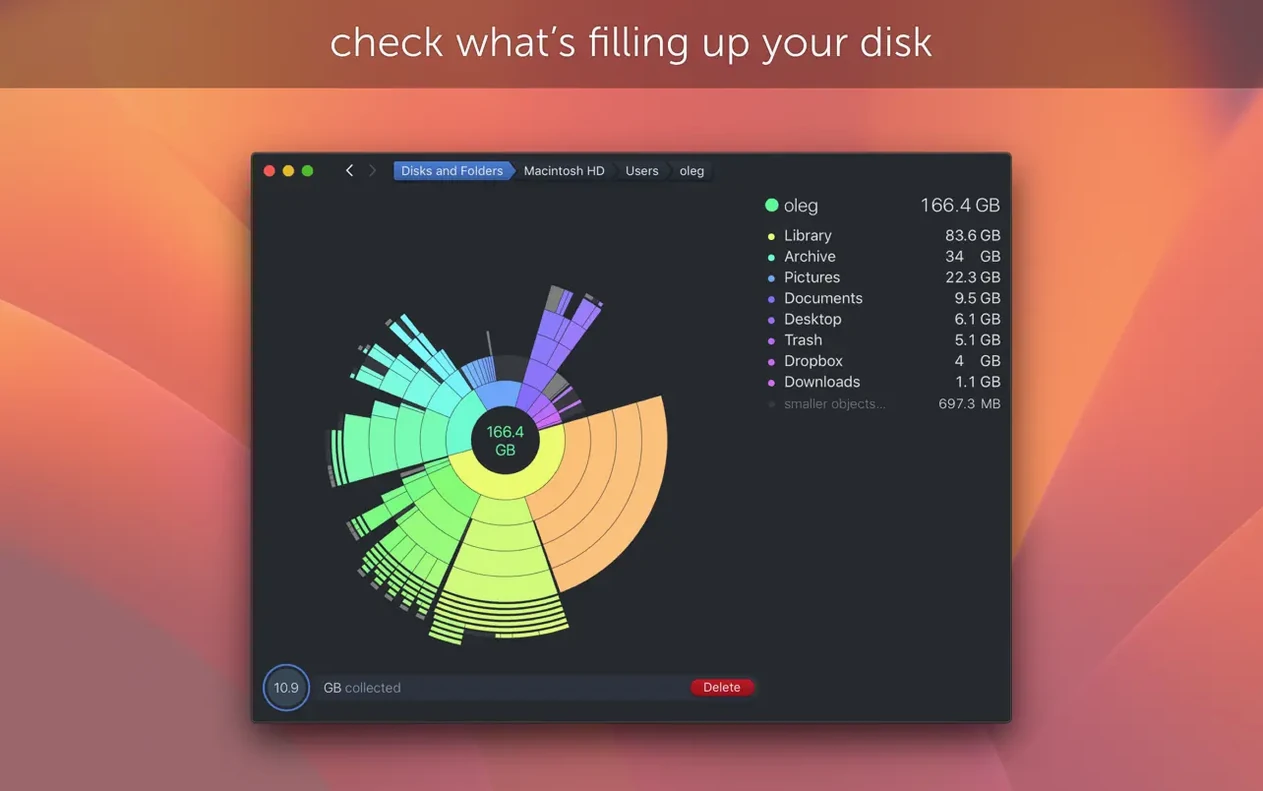
Half the battle with a filling drive is not knowing what actually occupies it. The vague "Other" category in macOS storage reports is a black box, and Finder's list view is slow to reveal where the gigabytes have gone. DaisyDisk sidesteps that detective work by scanning any mounted volume and rendering it as a colour-coded, interactive sunburst map. Sectors of the map correspond to folders and files, sized proportionally, so the culprit behind a nearly full disk is visible in seconds.
The map, not the spreadsheet
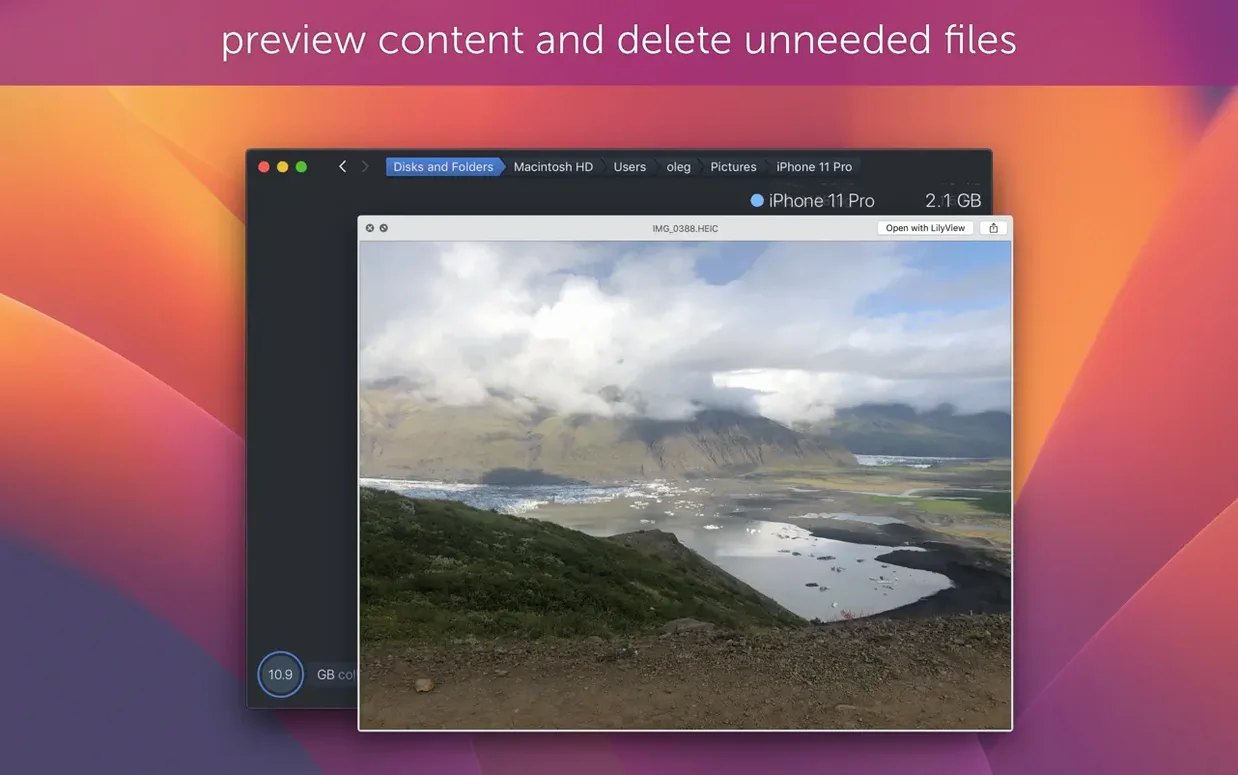
Where traditional analyzers lean on sortable tables, DaisyDisk commits fully to the visual approach. You hover over a segment to see its name and size, then click to zoom into that directory for a more granular view. The map updates smoothly on Retina displays, and a built-in Quick Look integration lets you preview a file's contents before you decide to drag it onto the collector for deletion. The experience feels less like system maintenance and more like exploring a data constellation, which changes how you think about cleaning up. It sits comfortably alongside Final Cut Pro libraries, Logic project folders, and large raw photo caches—the kinds of media sprawl that creative workflows accumulate between edits.
Under the map's surface
Version 4.34 introduced a thoughtful handling of APFS clones, counting only the first occurrence of a cloned file toward used space rather than summing every reference. For video editors and designers who duplicate projects as versioned backups, this prevents the scan from overstating what is actually taken up on disk. You can also scan multiple drives in parallel, which is practical when juggling an internal SSD and a shuttle drive. The tool runs on any Mac still on macOS 10.13 or later and arrives in a tight package that does one thing without drifting into system cleanup suites or background daemons. It opens, scans, reveals, and gets out of the way—fitting naturally between the Finder and whatever storage you are trying to understand.
Where the map trips you up
Most of the friction people encounter with DaisyDisk comes down to scanning permissions rather than the app itself. On a fresh launch, the map can feel incomplete because macOS restricts access to certain system folders by default. The scan will finish, but large chunks labelled "hidden space" sit in the centre ring, and clicking them just tells you the data is off-limits. The fix is quick: open System Settings, navigate to Privacy & Security > Full Disk Access, and toggle DaisyDisk on. After that, the next scan reaches into mail downloads, Spotlight indexes, and those cryptic caches that previously sat behind a permission wall.
Another snag involves external drives that refuse to appear in the scan list. If the disk is formatted as NTFS and you lack a write-capable driver, DaisyDisk sees it but cannot mount it for analysis. Reformatting to exFAT or sticking with APFS for shuttle drives solves this cleanly. Occasionally a user with a DaisyDisk TNT release will notice the app stalling on launch, and nine times out of ten it is a Gatekeeper quarantine flag that was not cleared during installation. Running xattr -cr /Applications/DaisyDisk.app in Terminal strips the flag and lets the binary start normally—something worth remembering if you grab a DaisyDisk torrent from a shared library and forgot the terminal step.
Why the sunburst scan map stays legible even on a 13-inch screen
One question that surfaces repeatedly is whether the scan map feels overwhelming on smaller laptop screens. The answer depends more on your folder depth than the display size. A 13-inch Retina panel shows the sunburst without truncation, and you can zoom into nested folders with a click or a scroll gesture until the view centres on a single directory. It scales gracefully. Another concern is safety: dragging files to the collector and hitting delete feels alarmingly direct. The collector acts as a staging area, not a shredder, so nothing vanishes until you confirm the operation, and the app respects the system Trash if you prefer a safety net.
People also wonder about APFS clone awareness, especially when a DaisyDisk Mac torrent page mentions version 4.34's reworked calculation. If you duplicate a Final Cut library as a versioned backup, DaisyDisk no longer reports the clone as fresh occupied space. That change alone prevents the mild panic of seeing a 200 GB project apparently consuming 400 GB. For anyone running a DaisyDisk torrent on an older macOS build, the hidden space estimation improvements in 4.33.2 mean fewer "where did that go" moments on exFAT thumb drives and FAT32 camera cards, which historically reported sizes poorly.
A session from first scan to clean desktop
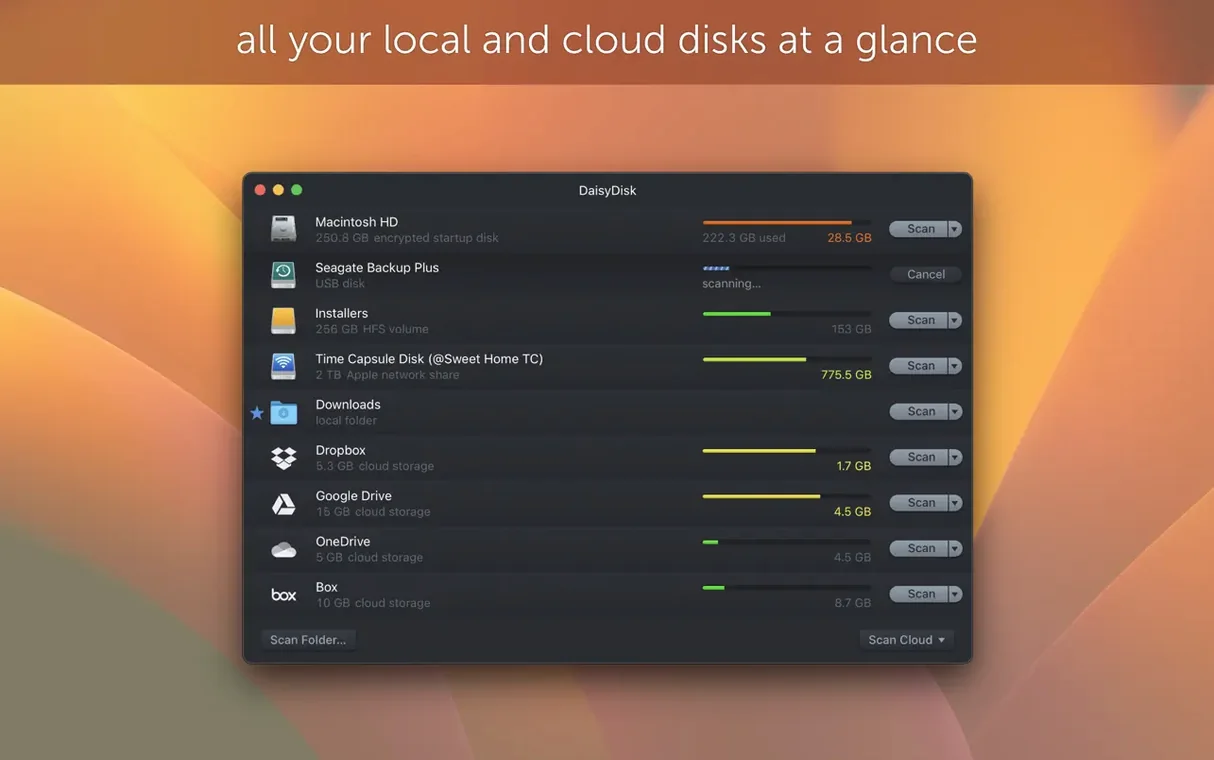
You launch the app after a week of editing reshapes your project drive into something unrecognizable. The start panel lists every mounted volume—internal SSD, a 2 TB Samsung T7, a network share you forgot was connected. You click the internal drive and DaisyDisk spins up its scanner, the progress ring filling in under thirty seconds for a 1 TB volume. When the map blooms outward from the centre, the largest segment is immediately legible: a deep indigo wedge representing your Movies folder, swollen with ProRes transcodes you rendered for a colour grade two months ago and forgot to archive.
You hover over the wedge, read the size, then click to zoom. Inside, the map splits into project folders. A few more clicks and you are staring at individual .mov files. A tap of the spacebar invokes Quick Look, and you scrub through a clip to confirm it is a redundant render pass. Satisfied, you drag the file onto the collector icon in the lower-left corner. You repeat this four times—three render passes and a bloated After Effects cache you did not know hid inside ~/Library because you finally enabled full disk access. The collector tally reads 218 GB. You hit delete, confirm, and the map redraws itself with a satisfying shift in proportions. The whole session, from double-click to reclaimed space, runs maybe six minutes. No background service remains, no menu bar icon, no scheduled scans. DaisyDisk is already closed, and the drive breathes again.
Version 4.34.2 arrives as a bug-fix release, resolving an issue from the previous update. The broader 4.34 cycle added proper APFS clone awareness—only the first occurrence of a cloned file counts toward used space calculations, so your visual map reflects real storage consumption rather than summing every logical reference.
- macOS 10.13 or later
- Intel and Apple Silicon Macs
Questions from the booth
Yes, by scanning your disk it visually maps every file, including those that System Information lumps into the opaque "Other" category.
Since version 4.34, it counts only the first occurrence of each APFS clone as used space, so duplicated files don't artificially inflate the total.
It requires macOS 10.13 High Sierra or later and offers universal binary support for both Intel and Apple Silicon Macs.