1. Set the date and time you actually want to see
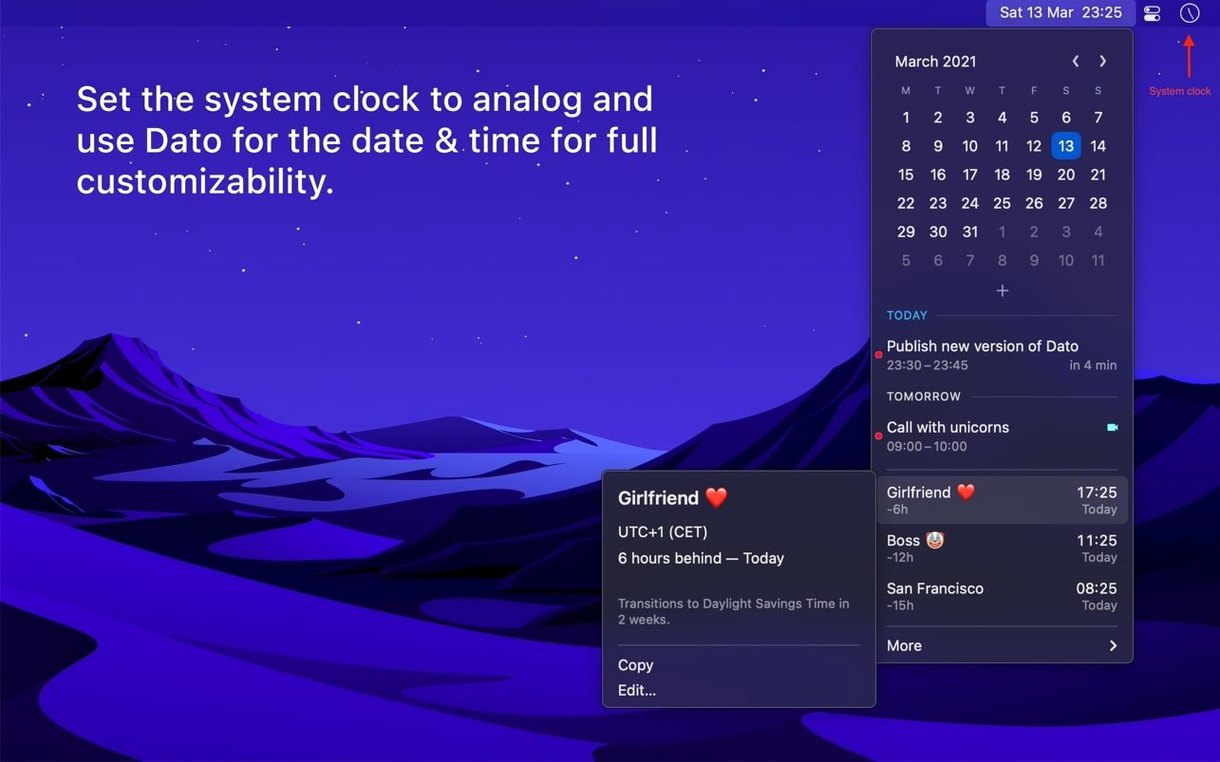
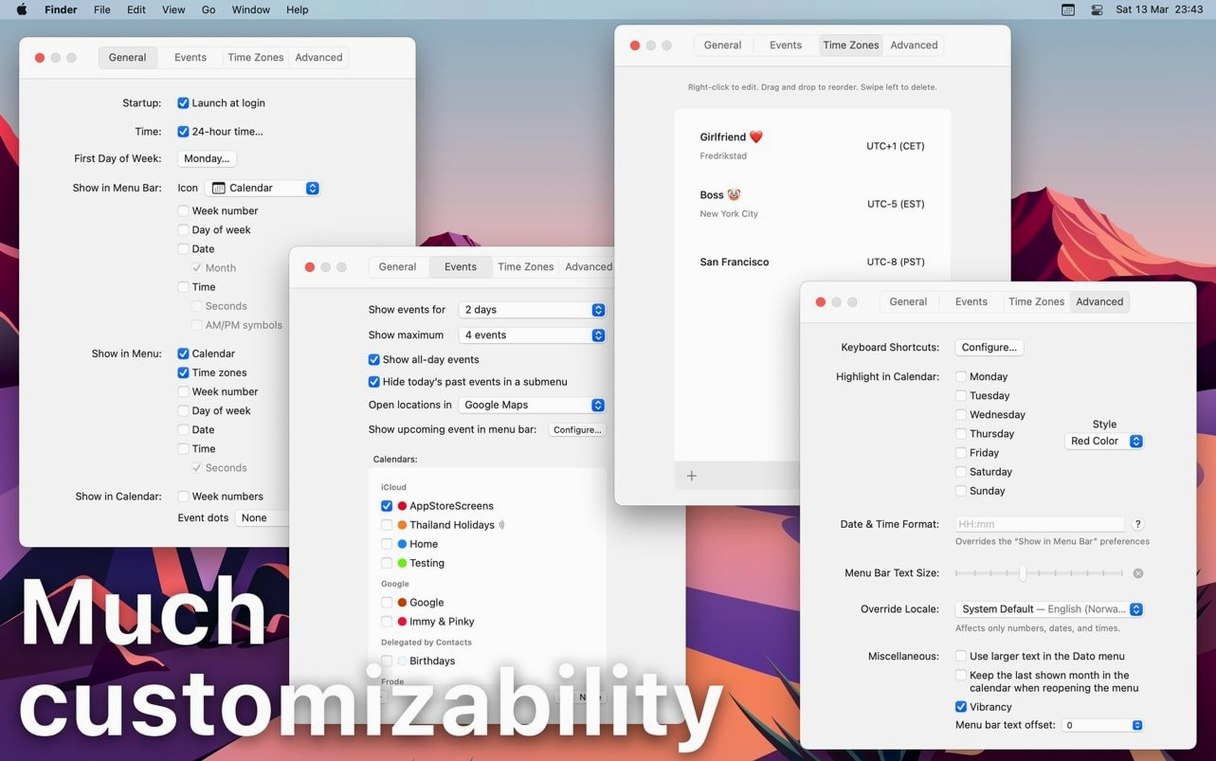
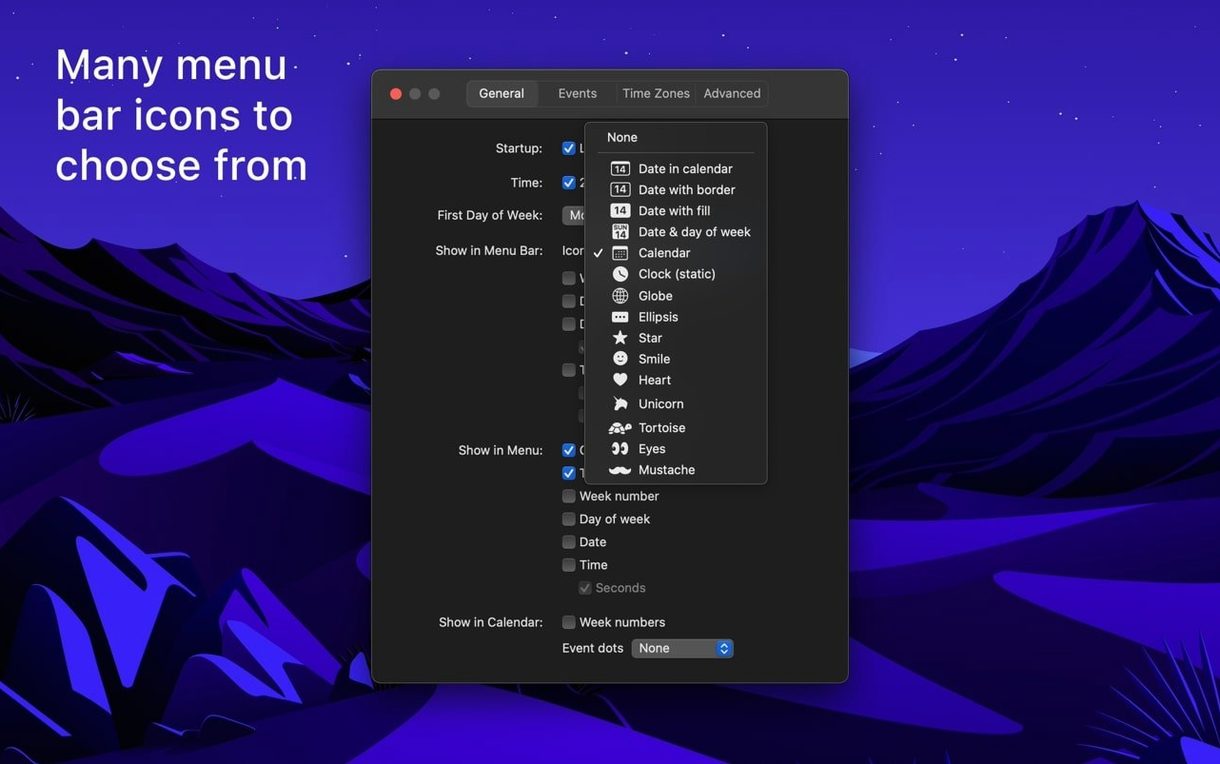
By default, the Mac menu bar shows a day and a clock. Dato lets you replace that with a custom format: add seconds, drop the day, or spell out the month. You pick the string in settings, and the menu bar updates immediately. For anyone who has glanced at the clock and still opened a calendar to check the date, this small change removes a tiny, repetitive friction.
2. Pull in your existing calendars
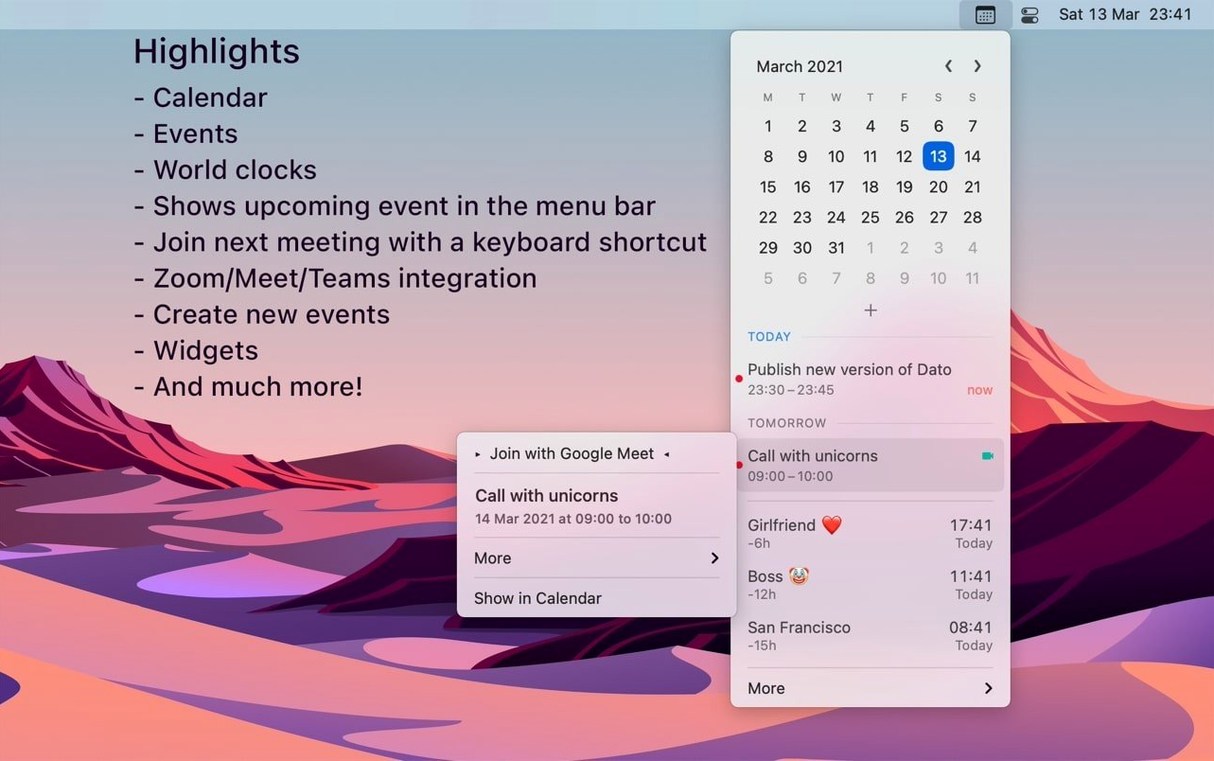
Dato works with whatever calendar services macOS already knows — iCloud, Google, Outlook, and others. No separate account setup. Once granted permission, the app displays upcoming events right in the menu dropdown. A meeting icon marks events with a video link, and a join button appears so you can jump into a call without opening the calendar app.
3. Add a world clock that names the person, not the city
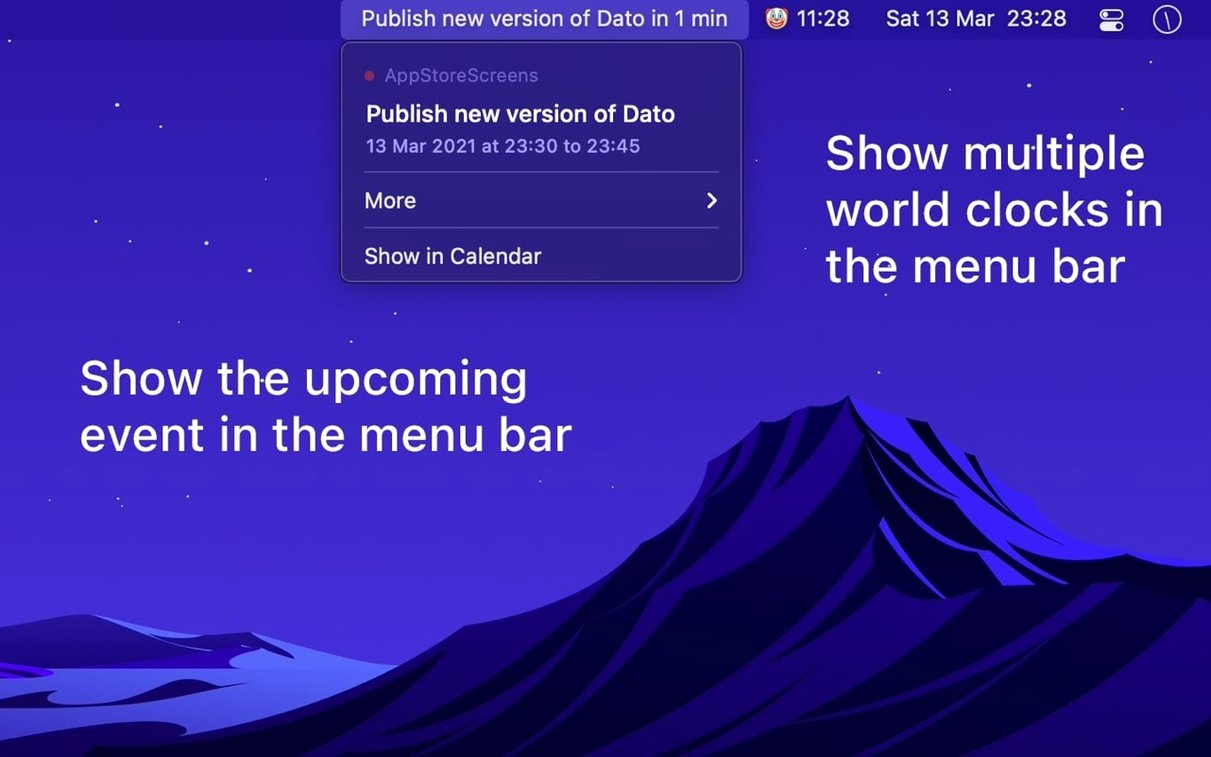
The offline search covers 15,000 cities. After picking a location, you can give the clock a custom name — a colleague’s name, a studio, a family member. Clocks live in the menu dropdown or directly in the menu bar, so checking another time zone becomes a glance rather than a search.
4. Let it chime and open what you need
An optional hourly chime marks the passing hours while you work. For deeper integration, Dato supports Shortcuts and a global keyboard shortcut to open or close the app. If a calendar event came from Google Calendar, one click opens it on the web rather than in the local Calendar app — a small detail that preserves your workflow when you prefer Google’s interface for editing.
Dato doesn’t replace a full calendar client. It sits next to the tools you already use and handles the quick, repeated checks that pull you out of your focus.
Getting the default menu bar clock back
One question comes up often: does Dato replace the built‑in menu bar clock entirely, and can you get the default look back? By default, Dato shows its own date and time display in the menu bar, and you hide the system clock through macOS settings. If you later quit Dato, you re‑enable the system clock — nothing is permanently altered. The app does not modify system files; it simply runs alongside them and stops affecting the menu bar the moment you close it.
Another frequent hesitation is whether a menu bar app that reads calendar data will drain a MacBook battery. In practice, Dato pulls event data through the macOS calendar database rather than running its own constant network sync. The offline city search also means time‑zone lookups never hit the network. On an M‑series Mac, the app typically sits under 0.1% CPU when idle, and memory use hovers around 45–60 MB — noticeable only if you go looking for it. People who run Dato alongside a dozen other menu bar utilities report no perceptible lag in daily use; the menu opens with the same immediacy as a native system menu.
The third common question is about meetings and privacy. The meeting‑join button works by detecting a URL in the event’s location or notes field — Dato does not read your screen or listen to your microphone. It simply parses the calendar data macOS already holds and surfaces the link when you want it.
Stability and feel over a working day
Dato 5.8.3 under macOS 26 feels calm and uneventful, which is exactly what you want from something in your menu bar. The app launches at login and stays out of the way. During a full day of switching between editing, calls, and time‑zone checks, Dato does not beachball, does not leak memory in any obvious way, and does not drop calendar permissions — a common pain point with third‑party calendar tools. When a meeting notification appears, it arrives within a second or two of the event start time, and the fullscreen alert is assertive without hijacking focus if you are typing in another window.
On the resource side, enabling multiple world clocks in the menu bar adds a negligible amount of redraw work; the text updates once per minute. If you use the dato macos app in its most minimal form — just a custom date string and one upcoming event — it runs lighter than the system clock widget and uses no network at all. That quiet efficiency makes it one of those rare utilities that earns its place in the menu bar within the first hour.
- macOS 26 or later
- Apple Silicon or Intel 64-bit
Questions from the booth
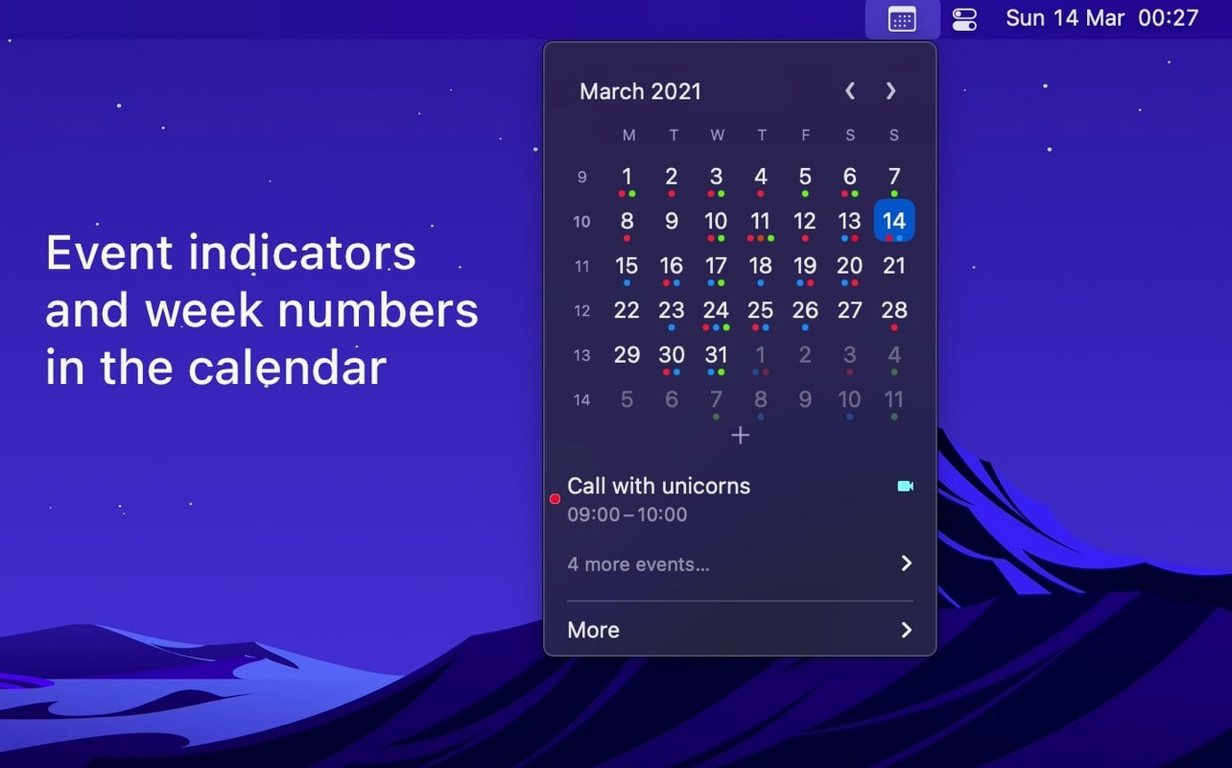
Yes, week numbers can be enabled and will appear inside the menu bar calendar view.
It supports all calendar services that macOS supports, including iCloud, Google, and Outlook.