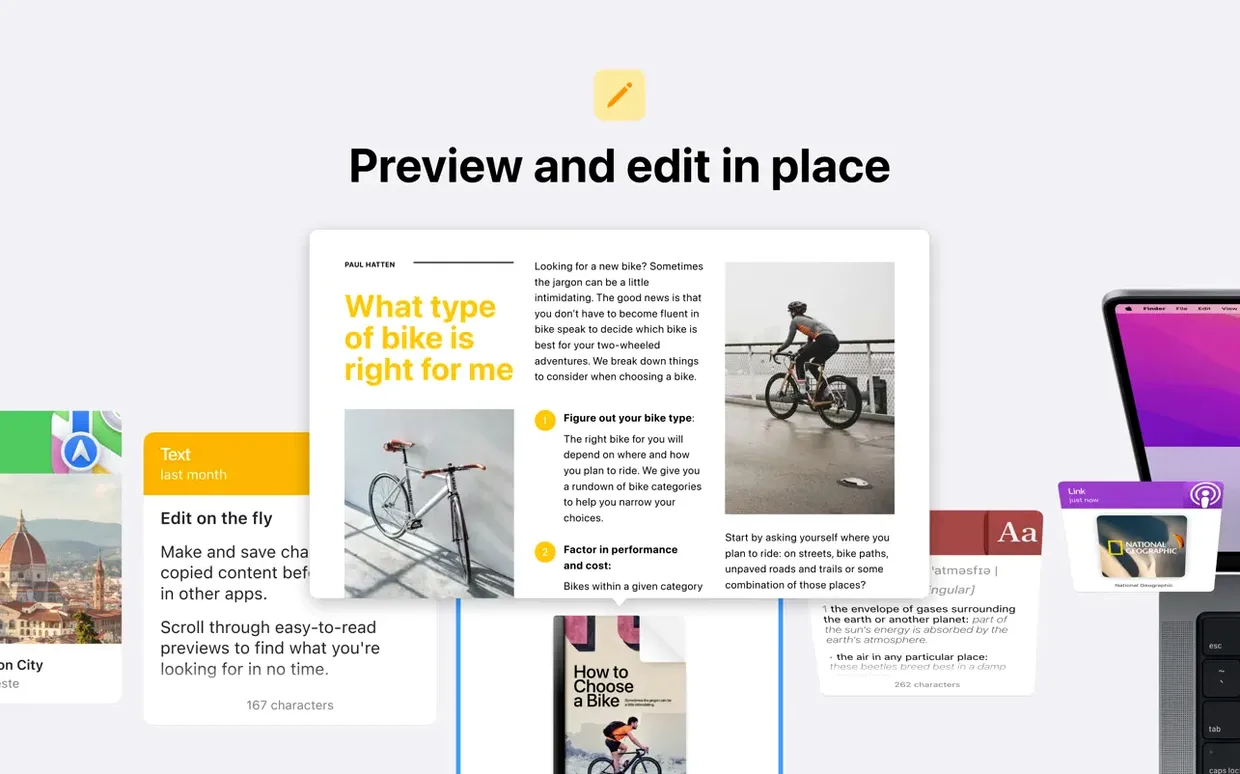

Workflow for the particular editor
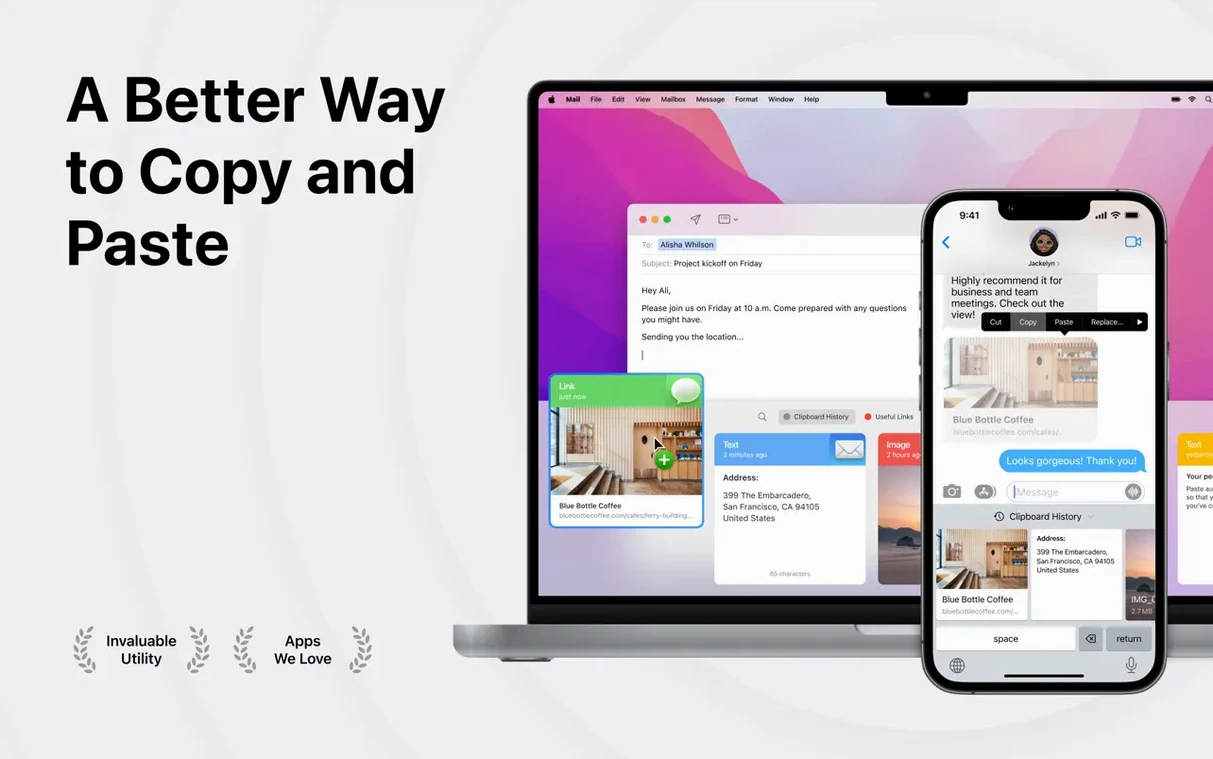
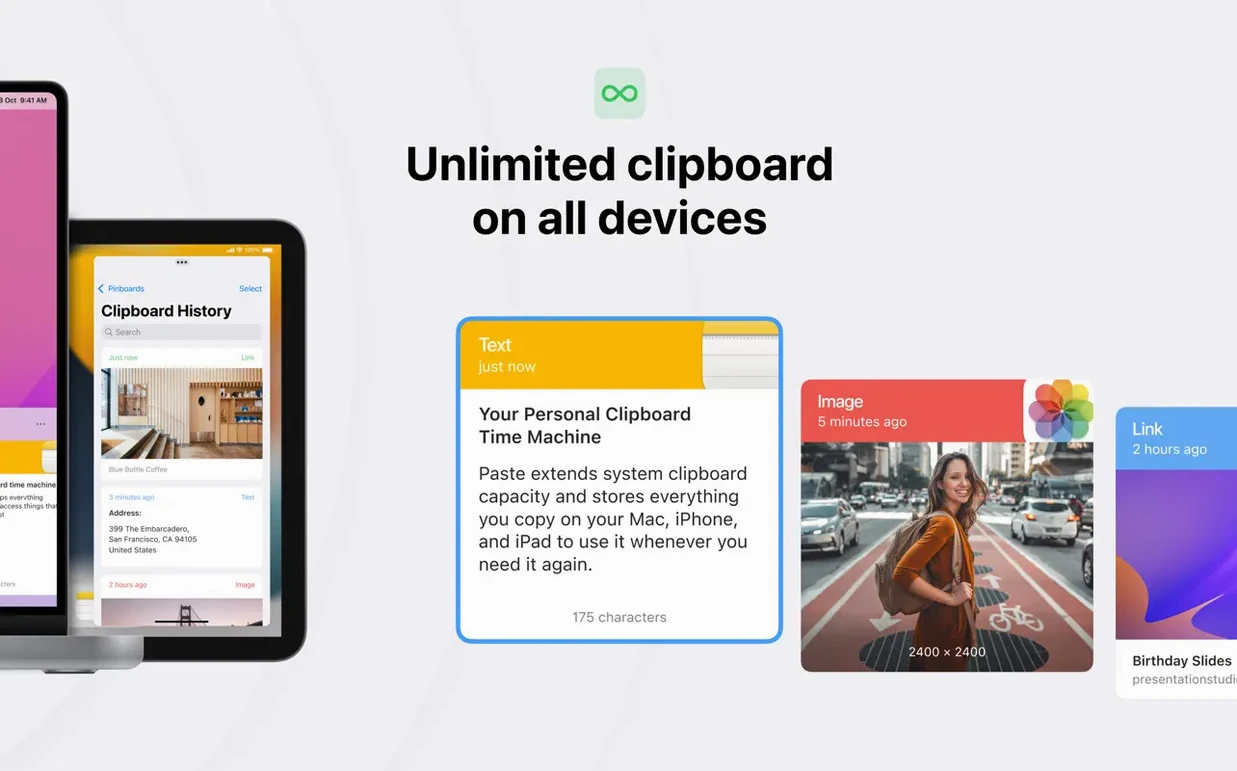
Paste is a clipboard history manager that stores everything you copy — text, images, screenshots, links — and keeps it searchable. For an experienced user, the value lies not in the saving itself, but in how quickly you can retrieve and reshape what you saved. The steps below assume you are assembling a draft from scattered sources and want to stay in flow.
- Strip formatting as you paste. In Preferences, set the app to show plain text without its original styling. A copied paragraph from a web page drops into your script as clean, unformatted text, ready for your own markup.
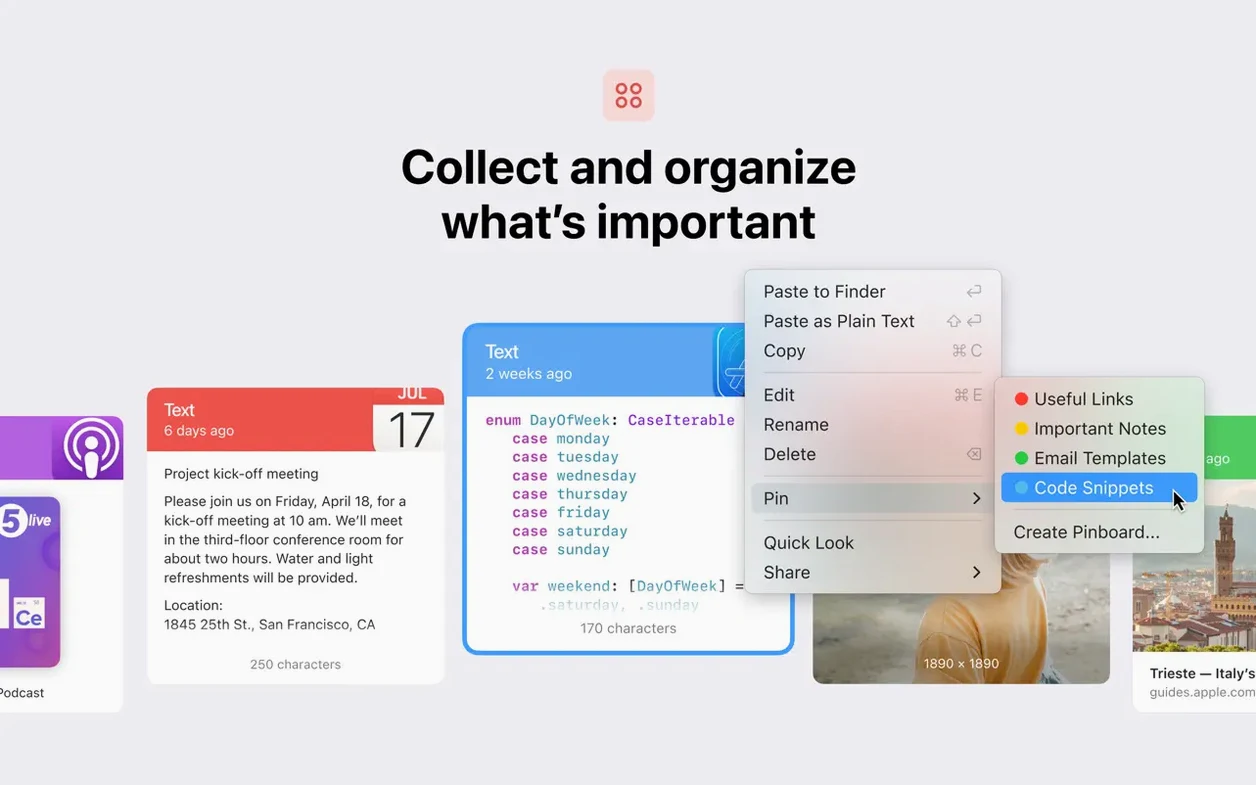
- Send fragments to the right list. Create an unlimited number of lists — one for location descriptions, one for dialogue snippets, one for research links. Assign each copy to its list with a custom keyboard shortcut. The interface supports Russian, English, German, Hungarian, Greek, Danish, Hebrew, Spanish, Italian, Traditional Chinese, Simplified Chinese, Korean, Dutch, Polish, Portuguese, Turkish, Ukrainian, Finnish, French, Czech, and Japanese, so lists stay readable regardless of the source language.
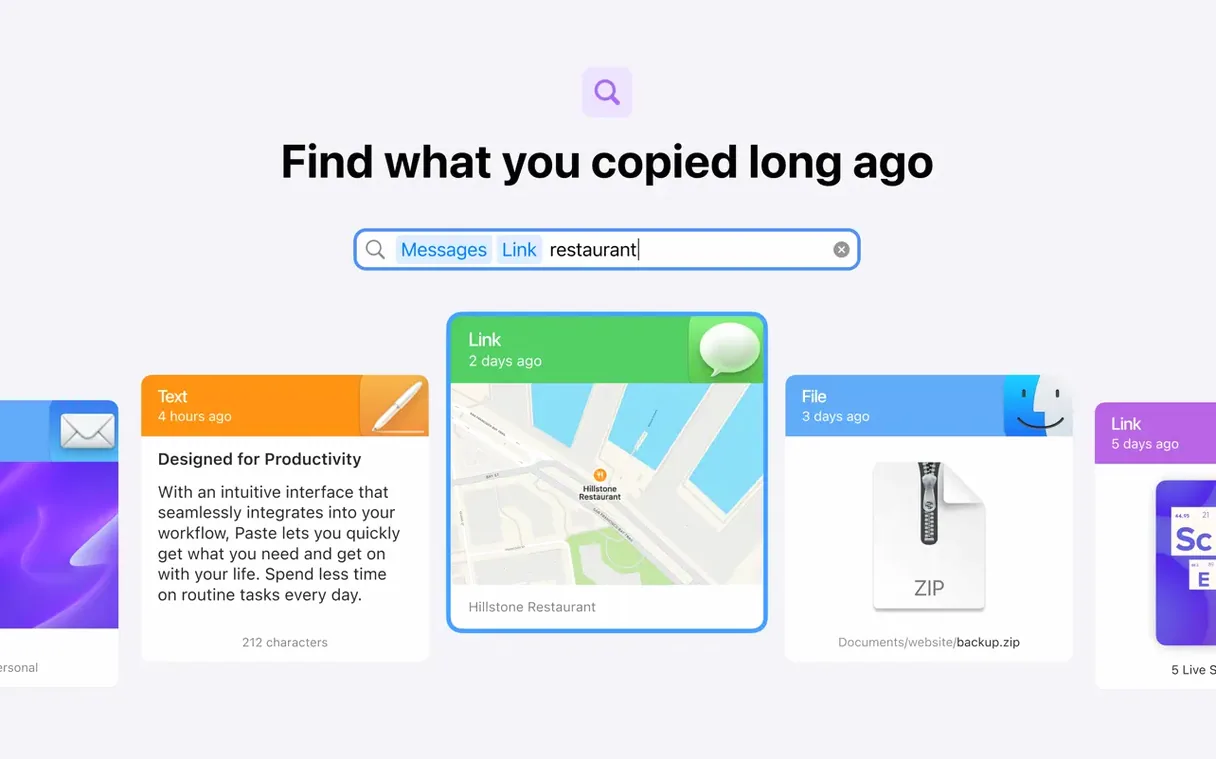
- Search inside your history. Hit the smart search shortcut and type a phrase fragment. Paste surfaces the exact clipping, even if you copied it days ago. You are not scrolling through thumbnails — you are summoning a specific line of description or a screenshot of a lighting reference.
- Revisit earlier fragments. The history remembers sequence. Step back through previously copied items to retrieve a version of a line you overwrote, or pull a screenshot you thought you had lost.
- Move between devices. Universal Clipboard support means a fragment copied on your Mac appears on your iPad, and vice versa. The history travels with the act of copying.
The shelf that slides up from the bottom of your screen
The shift from earlier 5.x releases to version 6 rewrote the interface around a shelf that slides up from the bottom of the screen, and the 6.6.x updates have been about refining how that shelf behaves under daily load. Search latency dropped noticeably — typing a few characters now filters hundreds of saved items without the momentary hesitation that could break concentration during a fast edit session. The pinboard system, which lets you fix a handful of clippings at the top of the shelf, gained drag reordering, so the three pieces of copy you return to all afternoon stay in muscle-memory position.
Behind the scenes, iCloud sync moved to a more aggressive push model. A link copied on a Mac appears on an iPhone in roughly the time it takes to glance down at the phone, which matters when you are pulling a reference image from a desktop browser into a colour grade on set. The plain-text paste behaviour also became per-application aware: you can tell Paste to strip formatting when pasting into Final Draft but keep rich text when dropping into Notes, and it remembers the rule.
Secure input fields stay out of the clipboard history
Does it keep a record of passwords or sensitive fields? Paste watches the system clipboard, which means it sees whatever you copy. It does not, however, capture text typed into secure input fields — macOS itself blocks clipboard history managers from reading those. If you copy a password from a password manager, it will land in your history, so users who share a Mac or screen-record regularly tend to set a keyboard shortcut that pauses recording for a few minutes.
How much memory does a clipboard manager actually use? After a week of heavy use — hundreds of text snippets, dozens of screenshots, a handful of large images — Paste typically sits between 120 and 200 MB of RAM. The disk cache for iCloud sync can grow larger, but the app prunes items older than a threshold you set in Preferences.
Can it work alongside Universal Clipboard, or do they conflict? They complement each other. Universal Clipboard handles the last thing you copied; Paste keeps the history that Universal Clipboard discards. Copy something on a Mac, paste it immediately on an iPad via Universal Clipboard, and still find it in Paste the next morning if you need it again.
Remap the shelf shortcut to avoid muscle-memory clashes
Start by setting a custom shortcut for the shelf — the default ⇧⌘V is easy to remember, but many editors remap it to ⌥V to avoid muscle-memory collisions with other apps. Spend ten minutes on the first day creating three or four pinboards for active projects: a temporary board for the current draft, another for production notes, a third for colour references you keep revisiting. Pinboards are what turn Paste from a passive log into something you reach for deliberately.
If you work across two Macs, enable iCloud sync on both and watch that the pinboards propagate within a few seconds. A practical test: copy a frame grab on the grading machine, switch to the writing machine, and confirm it is sitting in the pinned board before you rely on the setup for a deadline. The sync is fast, but the first handshake between two freshly installed copies benefits from a brief trial run. Lastly, visit Preferences and set the history retention window to something longer than the default — a month or more — if your workflow involves returning to reference material across the span of a production. The search bar gets more valuable the deeper the well you give it to search.
Smart search, unlimited lists, and plain-text control turn the clipboard from a single-slot buffer into a structured extension of your working memory.
- macOS 13 or later
- Apple Silicon or Intel 64-bit processor
Questions from the booth
Yes, Paste supports both Apple Silicon and Intel 64-bit Macs.
Yes, Paste can show plain text without its original formatting, so you paste clean content into your documents.
It automatically saves text, images, screenshots, and links as you copy them.