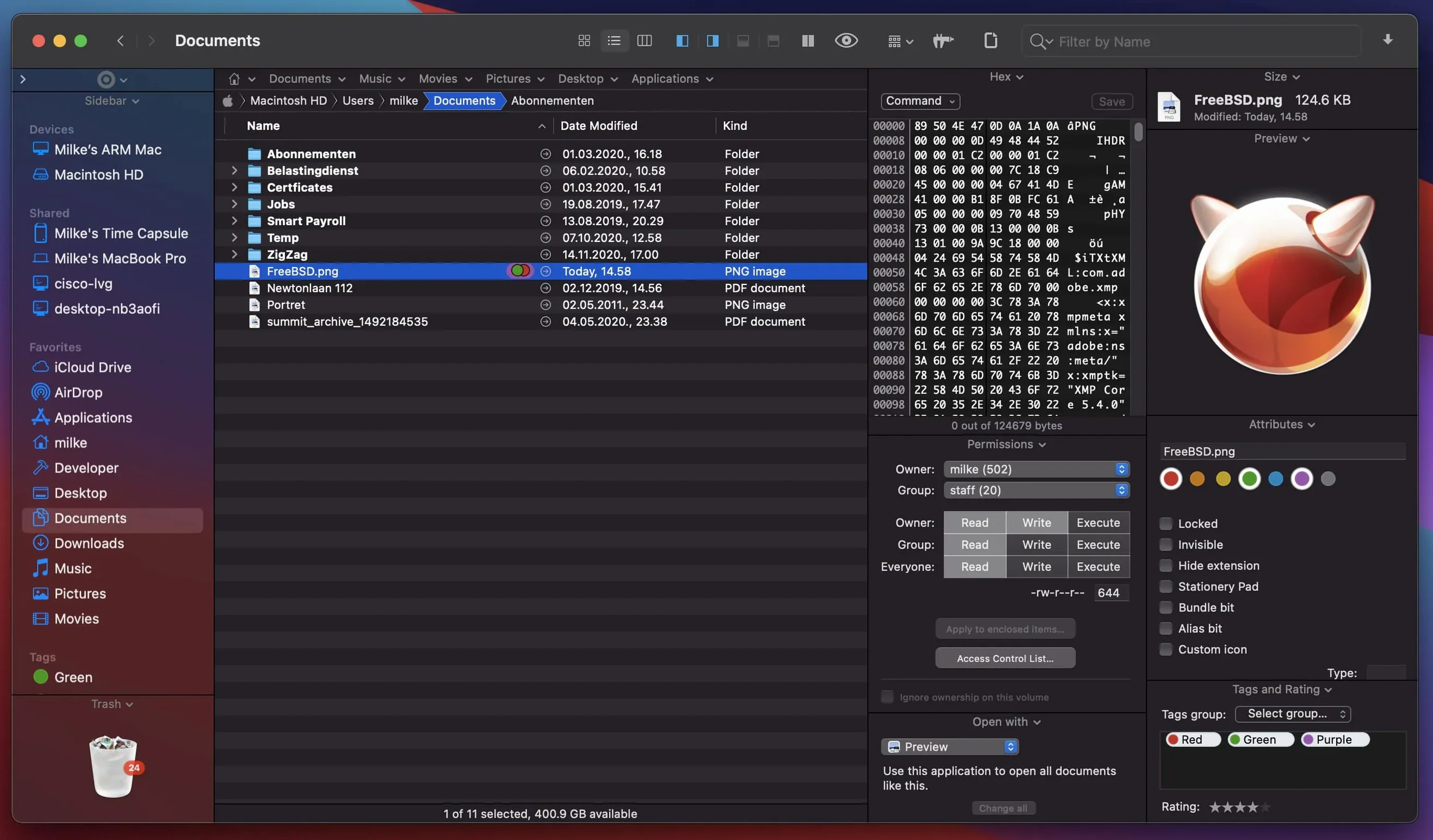
Path Finder tends to attract the kind of person who arranges a shoot's worth of raw footage and audio stems across two Finder windows and immediately wishes they could just be one window with tabs. It's for anyone who has mapped out a mental workflow that the stock file browser never quite agreed with, and who finds a little extra friction in everyday file management worth smoothing over.
Dual-pane browsing keeps distant folders a drag away
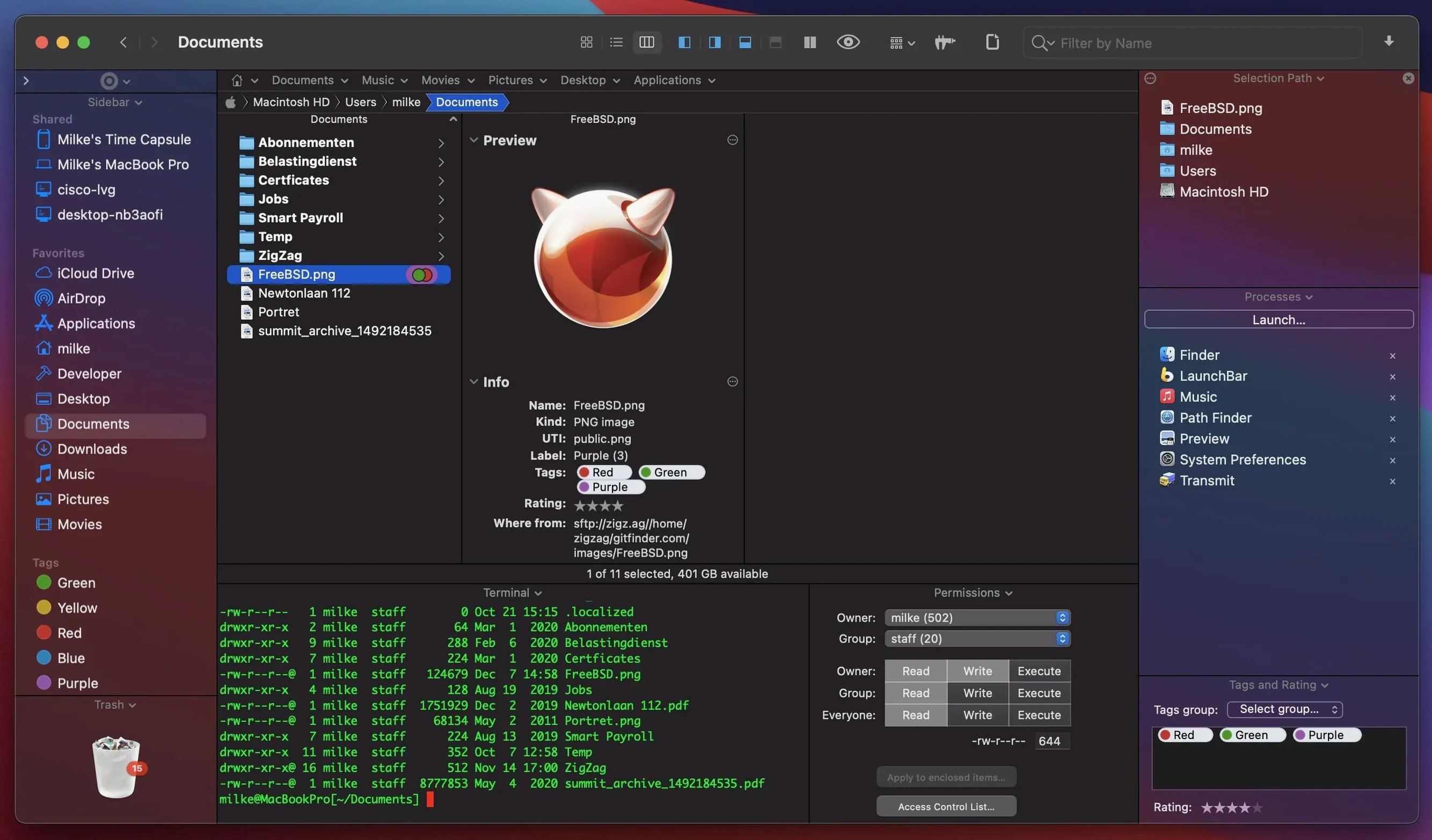
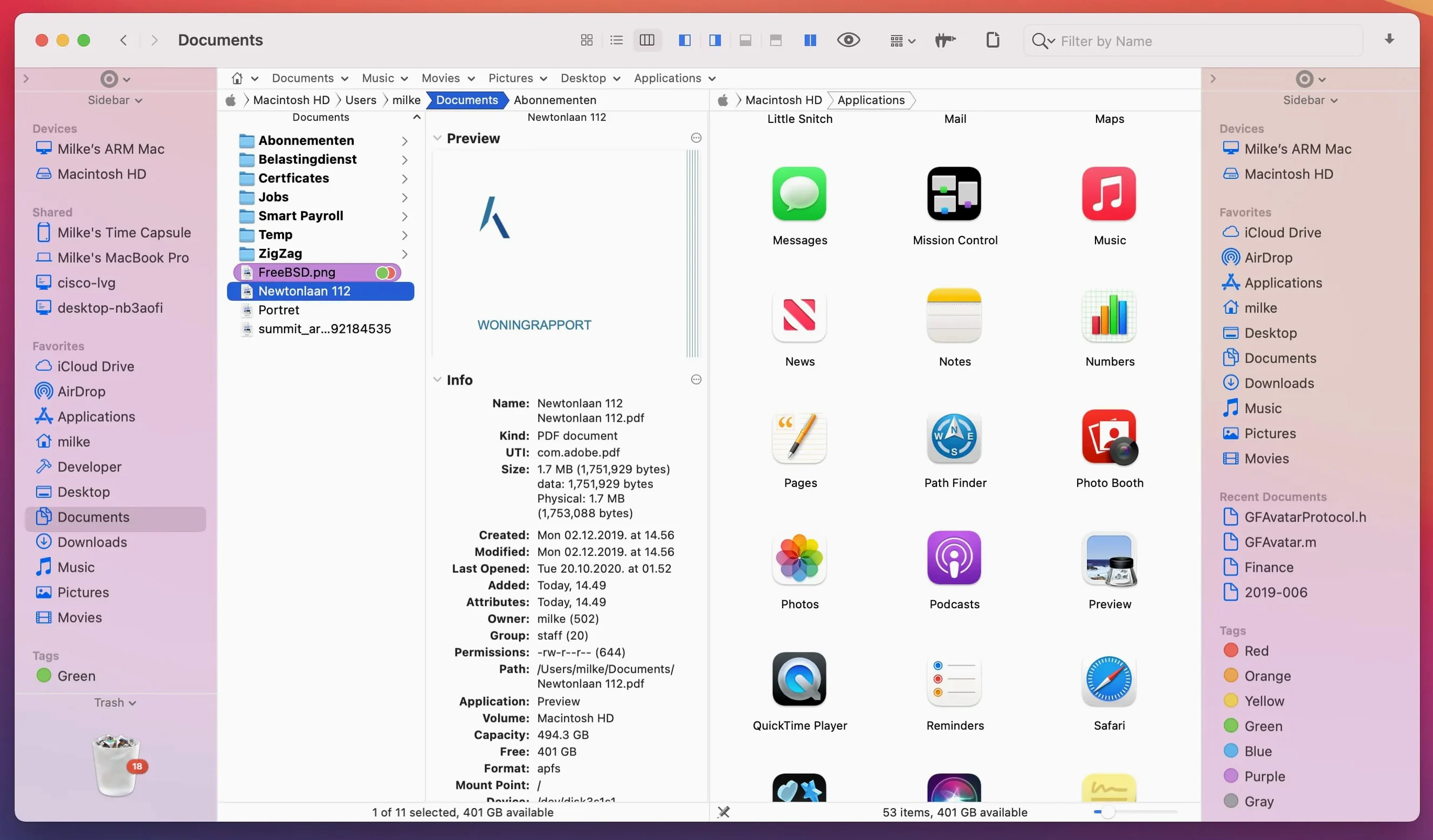
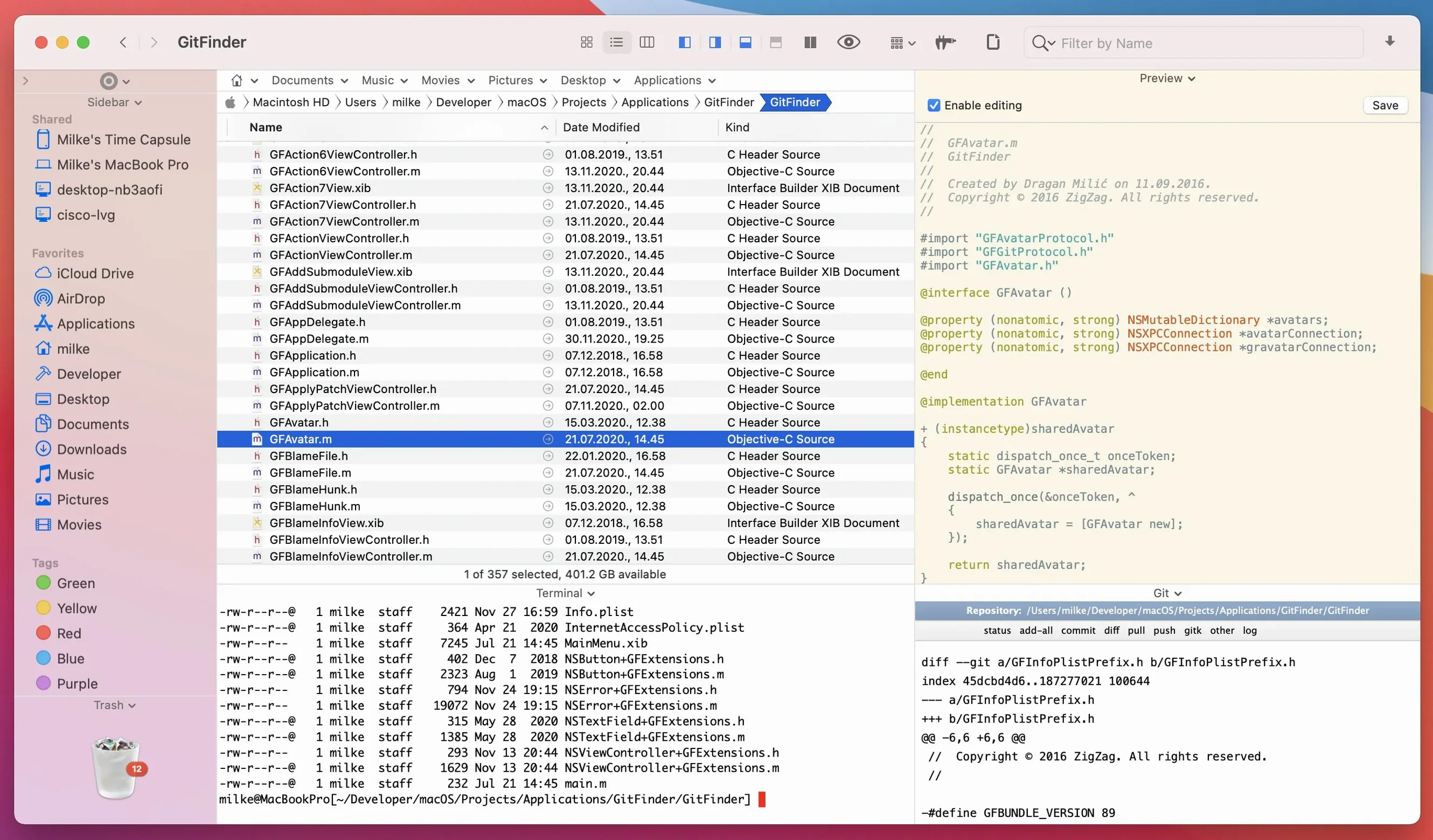
The dual-pane browsing remains the centrepiece, letting you drag between distant folders without a trail of separate windows. Alongside it sit a built-in FTP client, archive handling that doesn't send you to a separate utility, and small embedded modules—a text editor, an image editor, an app launcher—that cover the quick edits and checks that interrupt a sorting session. File previews cover documents, audio and video without opening a dedicated player, and the search tools can filter by keyword, extension or type. The feature set is dense, but the philosophy is simple: keep the file operation inside Path Finder instead of bouncing between three or four other apps.
Label colors and iCloud badges now render correctly
Version 26.1.9 is a maintenance pass, not a feature drop. It tidies up a handful of visual and interaction bugs that had crept into the list, icon and column views—label colour badges and iCloud status icons now display correctly again, multiple-item selection in list view behaves as expected, and drag-and-drop operations got their slide-back animation back across all view types. A batch rename limitation that stalled at 31 files is gone, and double-clicking an icon in list view no longer triggers the wrong action. Several compatibility adjustments keep the interface legible on macOS 27 Golden Gate, down to menu item icons that had gone missing.
Small shortcuts that quietly reshape the day
Some of Path Finder's most useful moves never announce themselves. The keyboard-driven browsing is one of them—you can navigate entire folder trees with arrow keys and Return alone, but the real speed comes from typing partial folder names to jump the selection, a behaviour that feels like fuzzy search without opening a search field. Holding Option while expanding a folder in list view recursively opens everything inside, which is a small revelation when you are hunting for a buried LUT file across a project directory with four levels of nested folders.
The shelf—a collapsible panel that holds frequently used files and folders—doubles as a temporary staging area. Dragging a batch of clips or audio stems onto it mid-session keeps them visible while you navigate elsewhere, effectively giving you a third hand. Less obvious is that you can drop a selection onto a folder in the shelf and Path Finder will move or copy the items there, depending on your modifier key, without ever leaving the current pane. And the dual-pane layout itself supports a quick swap: Command-U exchanges the contents of the left and right panes, which saves a cascade of tab reordering when you change your mind about which side is the source and which the destination.
It begins when Finder makes a task awkward
A typical working hour with Path Finder starts not with the app but with a task that Finder made awkward. Say you have just offloaded a card of footage—a mix of ProRes 422 files, scratch audio, and a folder of stills from a location scout. You open Path Finder to a dual-pane view: the card backup on the left, the project drive on the right. The first step is a rough sort. You switch the right pane to column view so the nested folder structure fans out horizontally, then start dragging batches across. A few clips need renaming before they land; you select them, hit the batch rename module, and strip the camera's auto-prefix in a few seconds without launching a separate utility.
Halfway through, you remember a reference image buried somewhere in last month's shoot. You press Command-F, search by extension .arw scoped to the archive drive, and the results populate while you continue dragging files on the other side. The search runs in its own tab, so the two panes stay intact. You find the image, drop it onto the shelf for later, and close the search tab. A client folder needs uploading, so you open the built-in FTP client in a new tab—no separate app, no password manager dance if you saved the credentials earlier—and queue the transfer. While it runs, you switch to the process manager module briefly to kill a runaway render daemon that has been pinning the CPU. The session ends with all panes cleared except one, and the shelf holding the reference image you will need first thing tomorrow.
Make it feel like your own workspace in General preferences
Path Finder arrives with sensible defaults, but a few preferences shifts make it feel less like a Finder alternative and more like your own workspace. The first stop should be the General preferences, where you can set Path Finder to replace Finder entirely—meaning every folder you open anywhere in macOS comes up in Path Finder instead. This is a commitment, but it eliminates the cognitive split of two file browsers competing for muscle memory. If that feels too absolute, leave it off and rely on the system-wide hotkey you can assign to summon Path Finder from anywhere.
Next, under Browser settings, enable "Show tab bar when only one tab is open." Many people miss this and later wonder why a single open path leaves them without quick access to drag-to-tab operations. Switching the default sort order to "Folders on top" keeps directory structures readable, especially in list view. The View preferences let you set different default views per pane, so your left pane might always open in list view while the right favours columns—a small asymmetry that mirrors how most people actually work. Finally, in Modules, take thirty seconds to reorder the sidebar module list. Pull the shelf, the app launcher, and the archive tool to the top; bury the modules you rarely touch. The sidebar you assemble here becomes the one you will reach for a hundred times a session, and those few reordered slots will save more keystrokes than you expect.
Path Finder 26.1.10 arrives with the developer's latest round of fixes and refinements. The full breakdown lives over at Cocoatech's release notes.
- macOS 13 or later
- Apple Silicon or Intel 64‑bit
Questions from the booth
Yes, it has a built-in FTP client so you can browse and transfer files to remote servers without leaving the app.
Path Finder can preview audio and video files directly, along with documents, so you can check footage or sound clips inline.
It requires macOS 13 Ventura or newer and runs natively on both Intel and Apple Silicon Macs.