The redact tool works exactly as you'd hope, with a single click wiping clean whatever’s underneath rather than just drawing a black box on top. Questions tend to surface the moment the disk image mounts though, so here are the ones that matter.
Does it handle scanned documents well?
It does. Optical character recognition is built in, meaning you can search, highlight, and copy text from a scanned page as if it were born digital. The recognition layer sits quietly in the background until you need it.
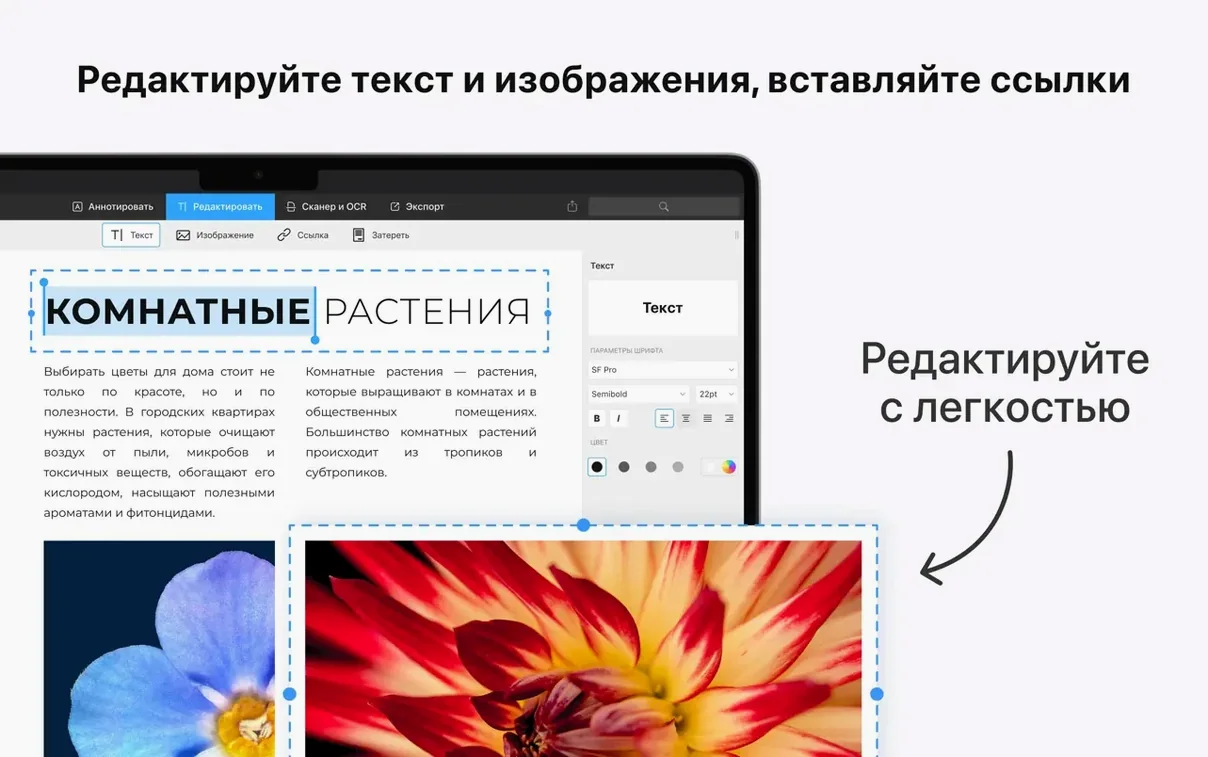
Can you truly edit existing text, not just annotate?
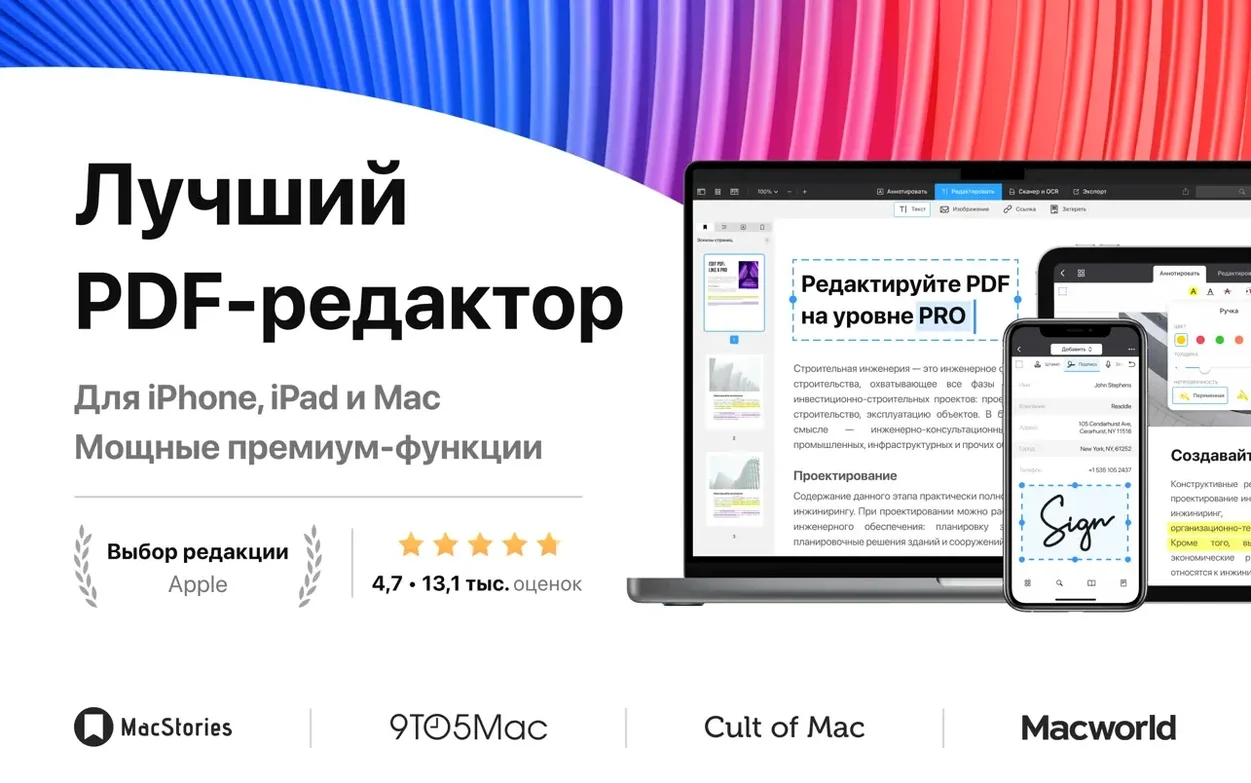
Yes—tap any text block and the line reflows around your changes. It matches the original font automatically in most cases, though heavily stylised documents may need a manual font pick. Paragraphs stay intact, which is the part that usually breaks elsewhere.
What about merging files from different sources?
Drag a Word document, a Pages file, and a few loose PDFs into the thumbnail sidebar and they become one continuous document. Rearranging pages is a matter of dragging thumbnails into order before saving.
Where PDF Expert sits among Mac PDF editors
One name that comes up often is Adobe Acrobat. It remains the heavy lifter for pre-press workflows, accessibility compliance, and enterprise document management, but it brings a weight that most people don’t need on a daily basis. Launch times stretch, menus multiply, and the interface hasn’t quite shaken its Windows heritage. PDF Expert occupies a different spot altogether: it opens in a beat, lives in a single window with a clean toolbar, and handles the tasks that make up ninety percent of a working day without ever feeling like you’ve opened a piece of industrial machinery. Where Acrobat pulls ahead is batch OCR across hundreds of pages and deep form-scripting, but those are edge cases for most Mac users.
Then there’s PDFpen, now Nitro PDF Pro. It shares a similar philosophy—lightweight editing on the Mac—but the text engine behaves differently. PDFpen tends to place edited text into floating boxes that sit above the original content, whereas PDF Expert reflows the line in place. The difference matters when you need to adjust a paragraph mid-page and want the surrounding text to shift naturally rather than overlaying a patch. Nitro’s advantage lies in its AppleScript support and a slightly more generous OCR page count, so if automation is central to your workflow it’s worth a look. For straight-up editing fluidity, PDF Expert has the edge.
For those searching for a pdf expert torrent or a pdf expert for mac crack, the comparison question usually runs deeper than features. A pdf expert crack mac might promise the full toolset without friction, and what's worth checking is whether the Handoff integration that moves a document from Mac to iPad mid-read, or the signature sync that remembers your scrawl across devices, still functions as expected. A pdf expert mac torrent or pdf expert crack puts those threads to the test, and the app's quiet reliability—its real selling point—depends on them staying intact.
Your signature is ready before you open a second file
The app doesn’t overwhelm you with onboarding screens, which means a few genuinely useful things sit just out of sight. Start with the signature capture. Open any PDF, click the signature tool in the toolbar, draw your signature on the trackpad with a finger or use the camera option if you have a signed piece of paper handy. Once saved, it sits in a dropdown for every form you’ll ever fill. It’s a one-time thirty-second task that pays back for years.
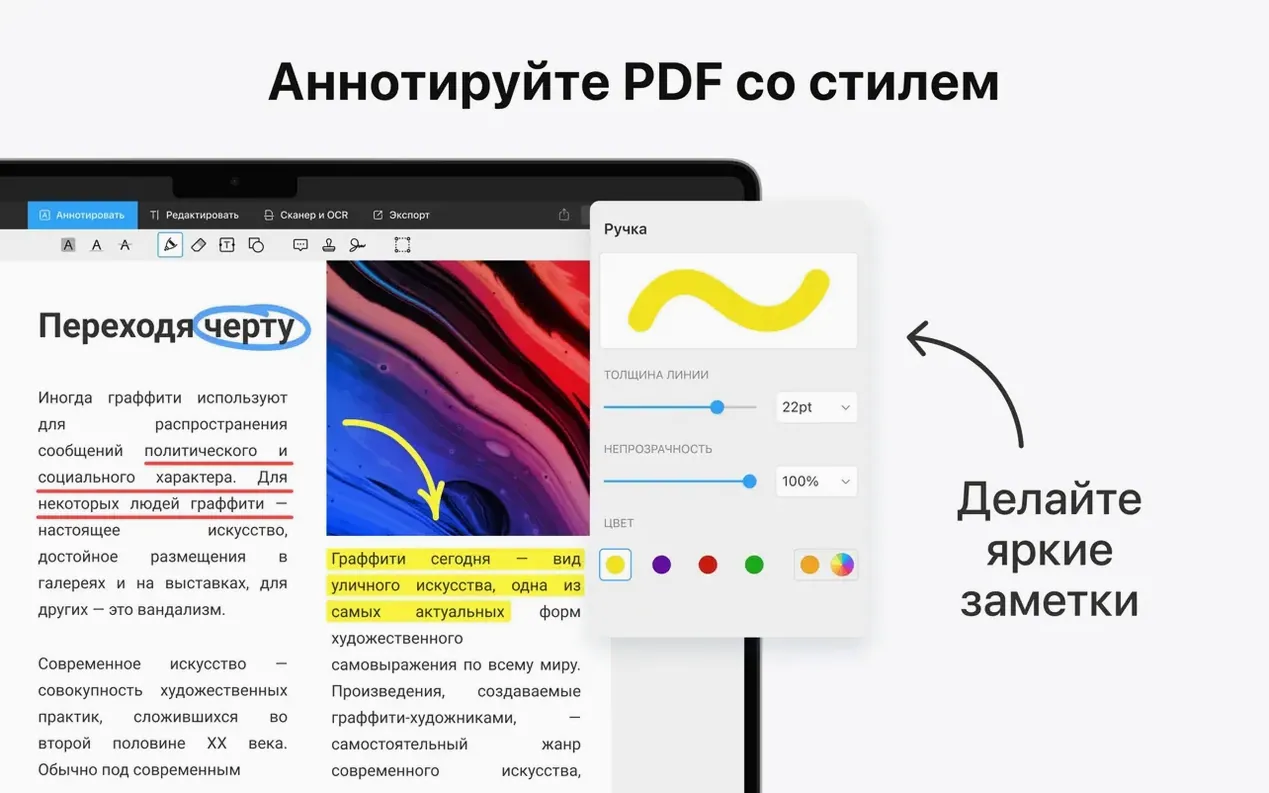
Next, spend ten minutes with the annotation toolbar customisation. Right-click anywhere in the toolbar area and you’ll see a list of tools you can show or hide. Pull the ones you actually use—highlighter, underline, strikethrough, and the stamp tool if you review documents—into the visible set. Hide the rest. The toolbar remembers your layout per document type, so a contract you’re marking up can have a different toolset from a screenplay you’re proofing.
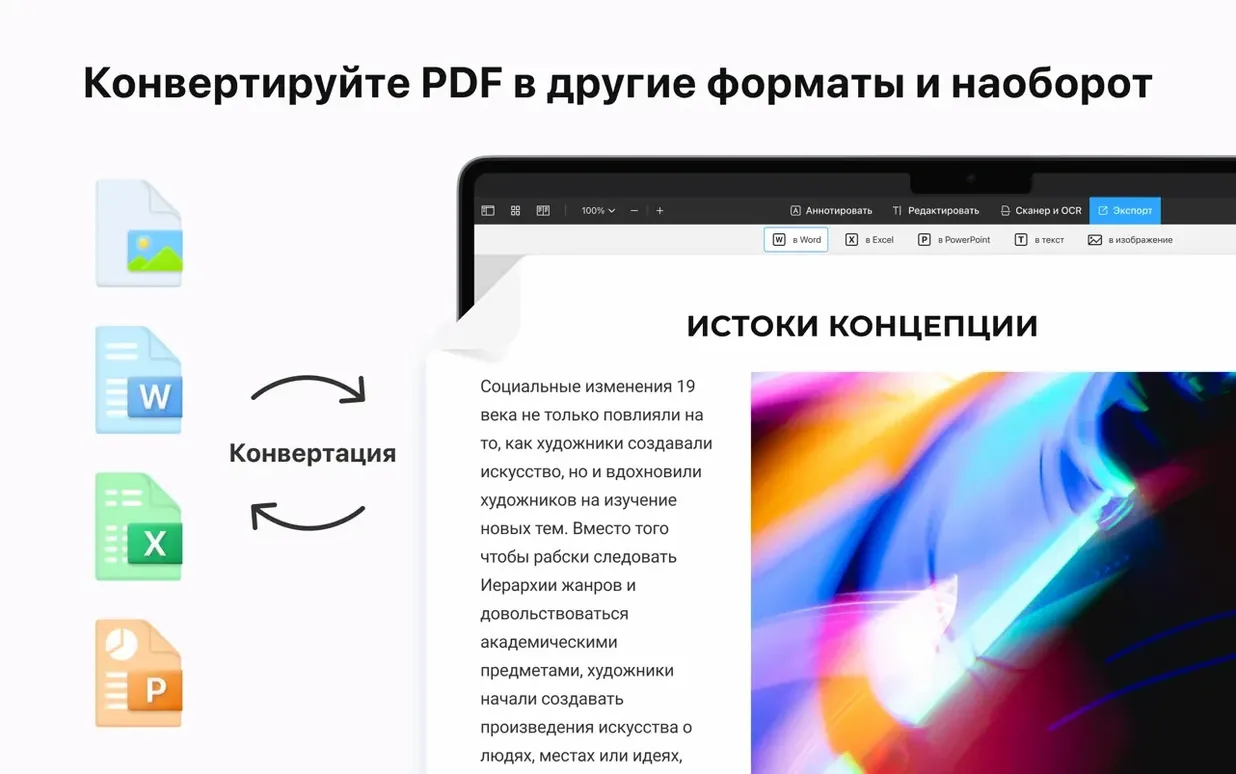
The third move is to test the conversion pipeline with your own files. Grab a Pages document with images and tables, drag it onto the PDF Expert icon in the Dock, and watch how the conversion handles layout fidelity. In most cases tables survive intact and images hold their position, but highly complex multi-column layouts may shift slightly. Knowing what converts cleanly and what needs a manual check saves the panic of discovering a formatting glitch five minutes before a deadline.
Hundred-page files scroll without a stutter
On an Apple Silicon machine the app launches cold in under two seconds. Opening a hundred-page PDF with mixed text and images takes about the same. Scrolling through that document is smooth at native refresh rates, even with annotation layers visible. The rendering engine uses Metal where it can, which means pinch-to-zoom on a trackpad feels responsive rather than laggy—a small thing that becomes significant after the third hour of reviewing a long document.
Memory usage stays modest. With half a dozen PDFs open, including a heavily annotated research paper and a hundred-page contract, the app typically sits around three hundred megabytes. That’s lean enough to leave running alongside Final Cut Pro or Xcode without triggering memory pressure warnings. On Intel Macs the experience is similarly smooth, though initial document rendering can take a beat longer on older machines. Rosetta isn’t needed; the binary runs native on both architectures.
Stability has been uneventful in the best way. Across weeks of daily use—editing text, merging documents, filling forms, signing contracts—crashes are rare enough to be memorable when they happen. The only reproducible hiccup involves extremely large OCR jobs on scanned books exceeding five hundred pages, where the progress bar can stall and require a relaunch. For documents under that threshold, which covers nearly everything a typical user throws at it, the app hums along without complaint.
Who clicks with PDF Expert and why
Academics and researchers get the most obvious payoff. The annotation tools are deep enough for serious markup—highlighting with colour-coded categories, margin notes that nest neatly, and the ability to extract all annotations into a summary text file. The table of contents editor turns a pile of scanned chapters into a navigable document in a few clicks, which transforms how you interact with archival material.
Freelancers and small-studio creatives benefit from the contract workflow. Receiving a PDF contract, filling in the blanks, signing it, and sending it back without ever printing or scanning feels like a small superpower. The signature sync across devices means the iPad can handle signing duties while the Mac does the heavy editing, and everything stays consistent.
Writers and editors who work with manuscripts find the text editing surprisingly capable. It won’t replace a word processor for composition, but for that final pass where you spot a typo in a PDF proof and want to fix it directly rather than returning to the source document and re-exporting, the reflow editing saves a tedious round trip. The link tool also means you can add cross-references between sections of a long document, which stays useful for table-of-contents-heavy work.
People who only occasionally touch PDFs—opening a bank statement once a month, filling a single form per quarter—may not feel the difference between this and Preview. The tipping point comes when you need to edit text, merge files from different formats, or mark up a document with a collaborator. At that moment the extra toolset stops being a luxury and becomes the reason the work gets done before lunch.
The questions that surface before anyone clicks download
Will it mess up my existing Preview workflow? No—PDF Expert doesn’t take over as the default PDF handler unless you tell it to. You can set it as the default for specific file types in the Finder’s Get Info panel, or leave Preview in charge for quick looks and open PDF Expert only when you need its editing tools. They coexist peacefully in the dock.
Does it phone home or require an account? On first launch a sign-in screen appears. Closing it once is enough; the app activates on the next launch and never asks again. No account is required for core functionality, and the app doesn’t pester you with upgrade prompts or newsletter sign-ups during normal use.
How does it handle fonts I don’t have installed? When you edit text in a PDF that uses a font not available on your Mac, the app attempts to match it from the embedded font data in the file. If that fails, it substitutes a close match and shows you a warning. For documents where exact typographic fidelity matters—brand guidelines, designed layouts—this is worth testing on a duplicate before committing edits to the original.
What happens with form fields that Preview can’t handle? Some government and banking PDFs use XFA forms, a format that Preview struggles with. PDF Expert handles most XFA forms without issue, rendering the interactive fields correctly and letting you tab between them. The rare exceptions tend to involve forms with embedded JavaScript validation, which may not trigger correctly, though the data you enter is still saved when you close the document.
- macOS 12 or later
- Apple Silicon or Intel 64-bit