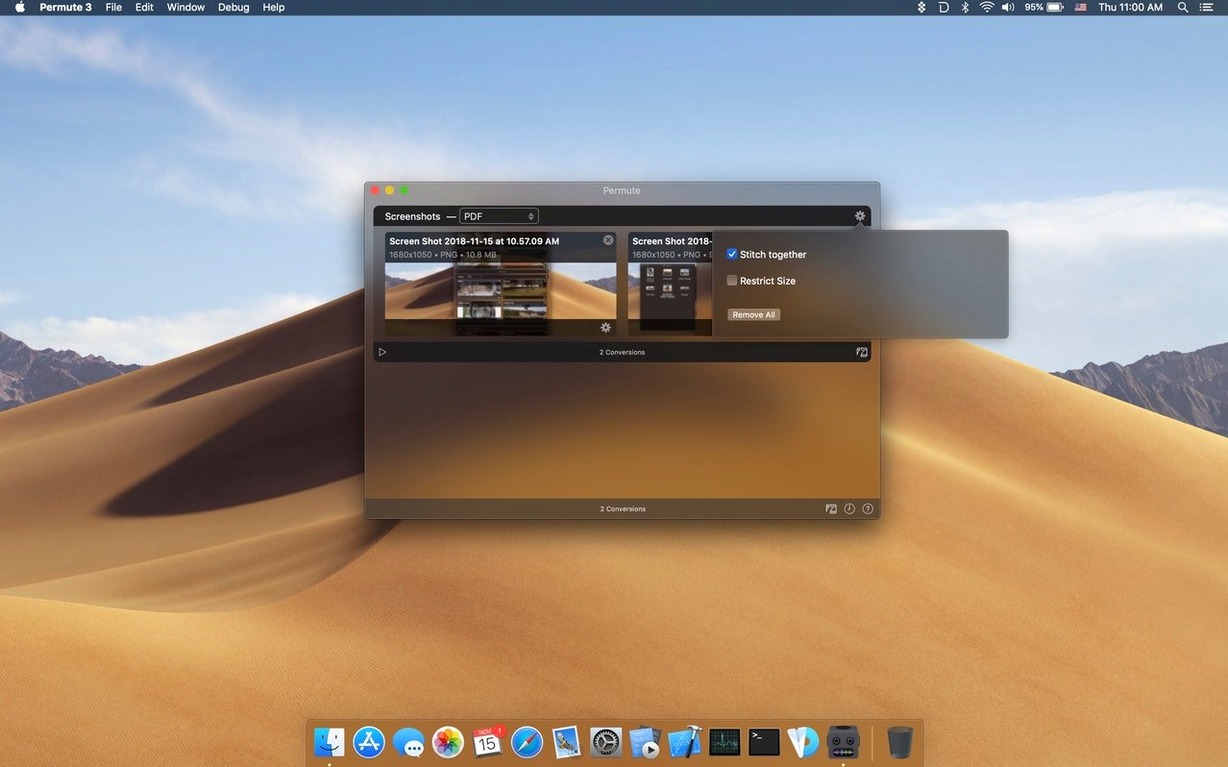
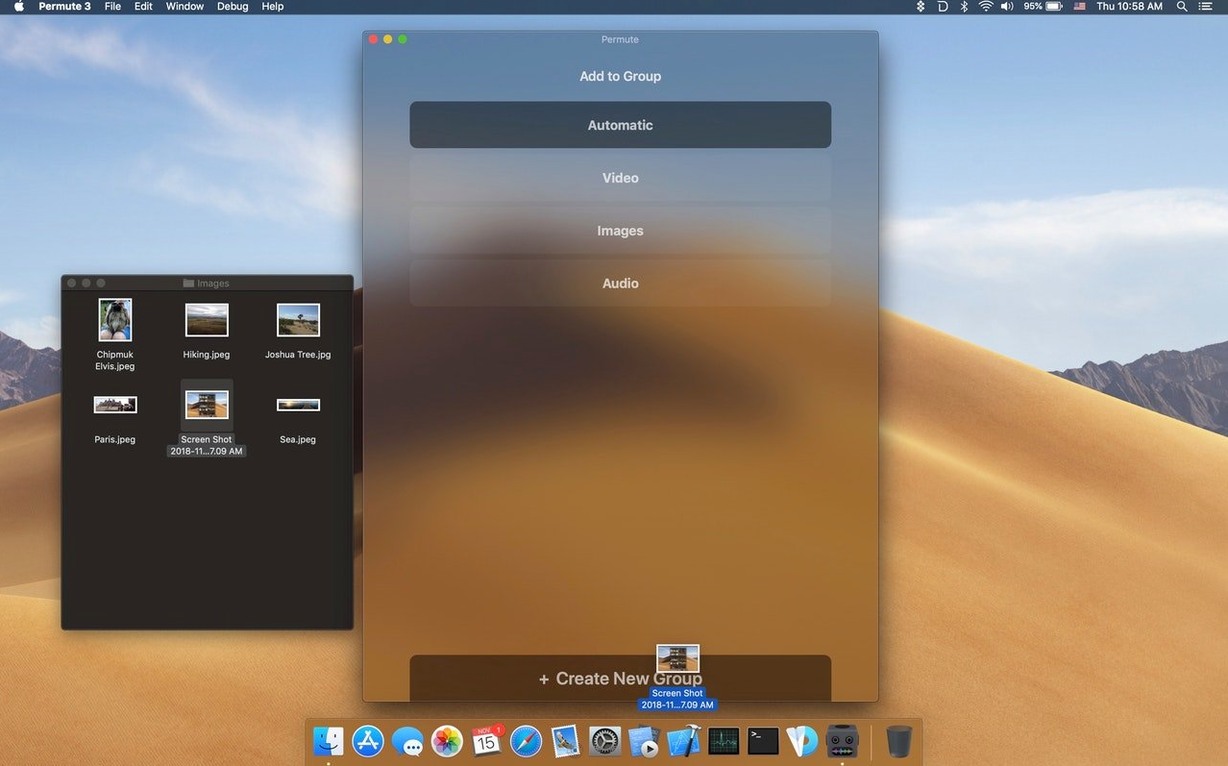
The current version doesn't ship with a splashy list of new features—sometimes the meaningful change is a library update under the hood that keeps the format support current, or a refinement to how it hands off an encode to Apple Silicon. For a tool that lives or dies by its codec compatibility, that kind of maintenance is the actual feature.
Mux subtitles or burn festival screeners without re-encoding
- Muxing a subtitle track into an existing video file without re-encoding the stream
- Converting a finished short to an ISO image for festival screeners that still request optical media
- Batch-processing audio stems from a scoring session into a single delivery format
- Projects where you want FFmpeg's power but prefer to stay out of the terminal
Solo developer on Apple Silicon with a fifteen-language interface
- Built by a single developer, so release cadence follows a personal rhythm
- Runs on Apple Silicon only, with macOS 26 required
- Interface translations cover fifteen languages, though some localizations may lag behind the latest controls
Drop an entire folder day one and let it queue everything recursively
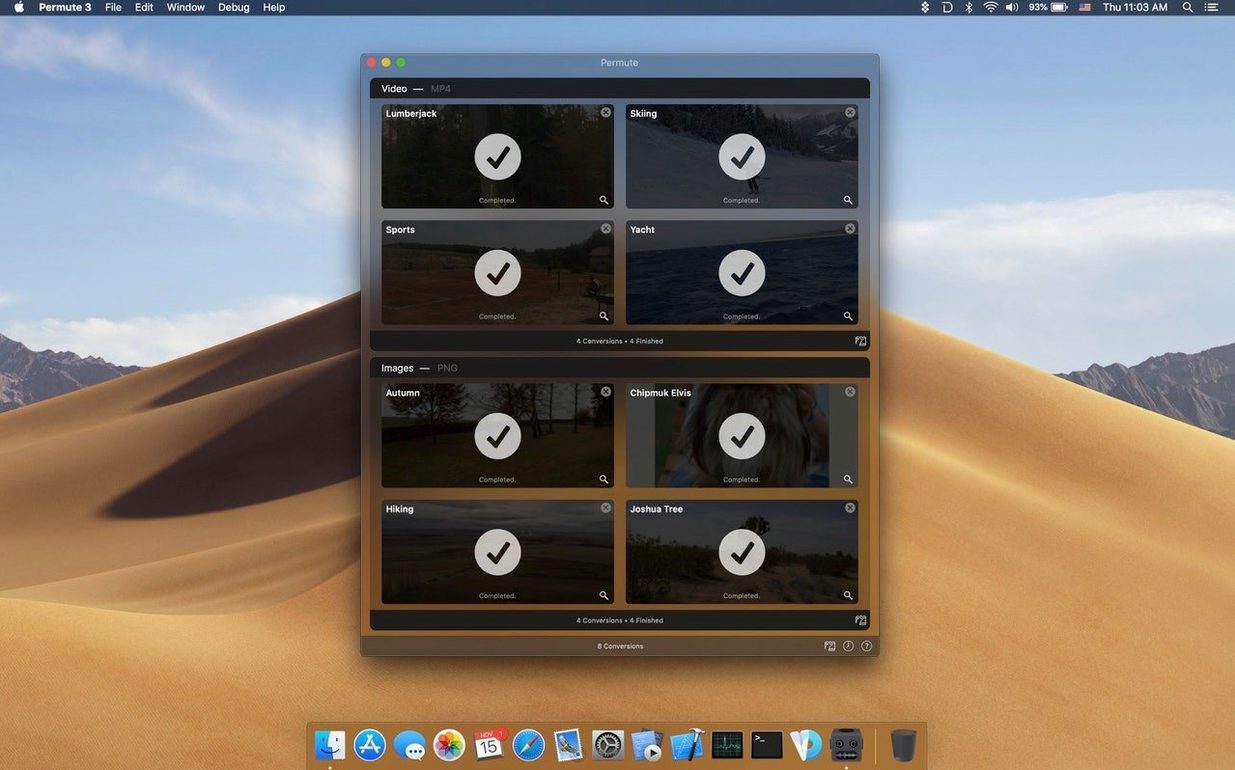
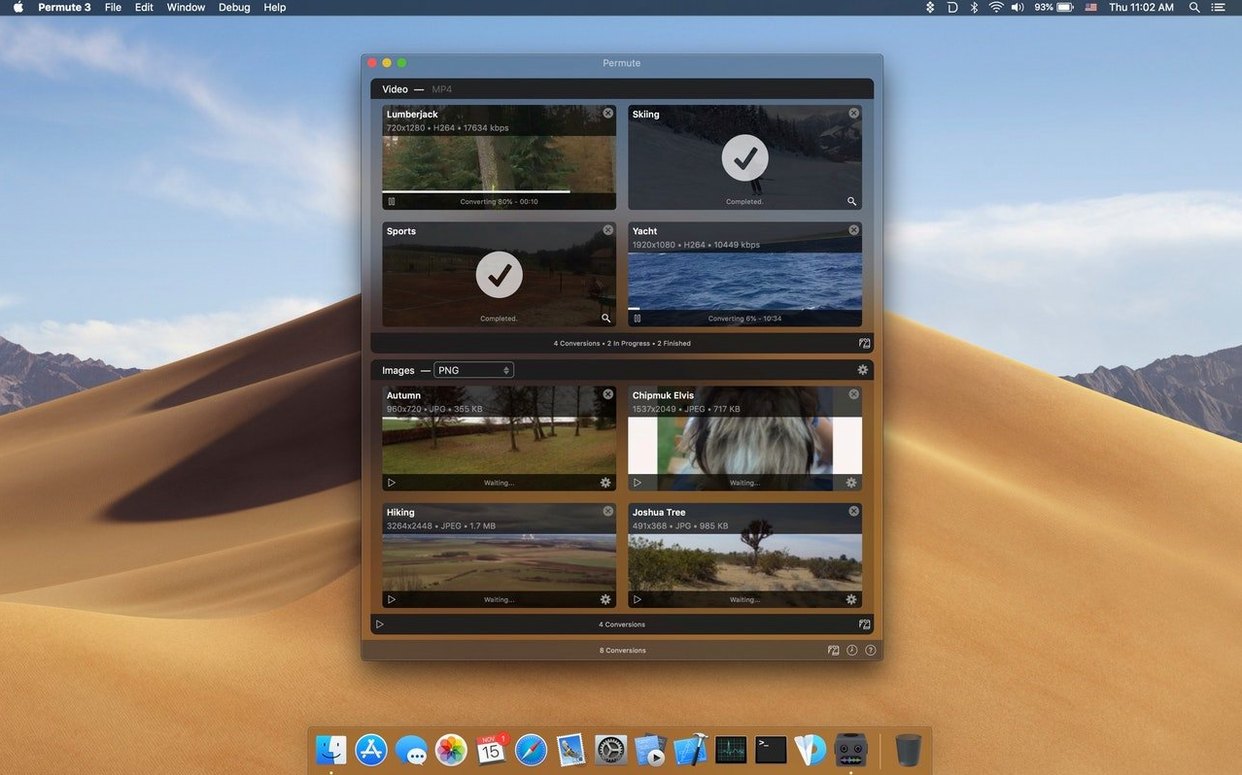
Drop a folder onto the window on day one rather than a single file. Permute reads the contents recursively and queues everything it recognizes—video, audio, stills—in one gesture. That habit alone saves the kind of scattered, repeat-the-same-step-three-times friction that makes people drift back to a command line they were trying to leave behind.
Set up at least one custom preset early. The built‑ins cover the obvious cases, but a preset that bakes in your usual resolution ceiling, subtitle handling and codec preference turns a five‑click job into a two‑click one. I keep a “festival DCP-ish” preset with burnt‑in timecode and a “stringout” preset that downscales rushes to something I can actually scrub through on a laptop. The preset editor isn’t hiding—it’s the gear icon next to the format dropdown—but I’ve watched enough people overlook it that it’s worth pointing out.
The third thing worth doing in the first week is checking the scheduling pane. Permute can run a queue after you’ve closed the lid for the night, and if you point it at a watch folder on an external drive, it’ll process whatever lands there without being asked again. For a day‑rate editor cutting dailies, that’s the difference between waking up to proxy files or waking up to a morning of waiting.
HandBrake masters video but ignores your audio stems and PNG sequences
HandBrake does one thing extremely well—fine‑grained, frame‑accurate video transcoding—and if your whole world is x264 and x265 tuning parameters, you’ll still keep it around. But HandBrake won’t touch an audio file, doesn’t know what to do with a PNG sequence, and has no interest in muxing a subtitle track without re‑encoding. Permute handles all three of those before breakfast, making it the tool you turn to when the deliverable isn’t a feature‑length film but a dozen small outputs that need to exist by lunch.
Adapter was the closest in spirit for years: drop in, pick a format, walk away. Its development stalled, and the interface grew fragile across macOS updates. Permute 4 feels like the spiritual successor that actually kept walking—the drag‑and‑drop simplicity is intact, but the codec library underneath is actively maintained and built for Apple Silicon from the jump. Where Adapter would stumble on a modern HEVC variant, Permute chews through it without comment.
ffWorks wraps FFmpeg in a deeper, knob‑per‑parameter interface that appeals when you need to specify a particular b‑frame strategy or tune the deinterlacer. It’s excellent, and verbose. Permute makes a different trade‑off: it assumes you’d rather not see the knobs at all unless you deliberately open the preset editor. For the ninety percent of conversion tasks that don’t need esoteric flags, the quieter interface is a relief.
A scoring session, turned around
A composer I know records string quartets in her living room and delivers stems to a director in another time zone. After a session she has a folder of forty‑eight 96 kHz WAV files, each named by microphone position. The director needs 48 kHz MP3 reference mixes, and the sound designer wants 48 kHz WAVs with the same folder structure intact.
She drags the session folder into Permute twice. The first pass runs her “ref MP3” preset—resample to 48 kHz, joint stereo, 320 kbps—and writes the results to a mirrored folder on iCloud Drive. The director gets a notification before she’s poured a cup of tea. The second pass runs a “stem delivery” preset that resamples without touching bit depth and places the output in a local folder she shares via a Synology sync. No terminal, no batch‑file syntax remembered at midnight, no accidental 44.1 kHz resamples because a script defaulted to the wrong flag. Total elapsed time: under three minutes of her attention.
Right-click a video in Finder and convert without opening the main window
Permute integrates with the share sheet, so you can right‑click a video in the Finder and send it straight to a preset without opening the main window. That’s the kind of quiet OS integration that fades into muscle memory—select, share, convert—and it pairs naturally with Quick Actions in Automator for people who want a one‑click droplet on the desktop.
Because it writes standard metadata that Spotlight indexes, files that come out of Permute are findable by tag, title and kind immediately. If you use Hazel to automate folder actions, a watch folder flowing through permute 4 becomes a self‑cleaning inbox: drop in raw camera footage, Hazel triggers the conversion, Permute writes the proxies, and Hazel files the originals into an archive. No scripting required beyond picking a preset and pointing two folder paths at each other.
The ISO conversion feature also plays well with macOS’s built‑in disk image handling. Burn the resulting image to a USB stick with Disk Utility, or mount it directly for a last‑minute QC pass before sending a screener. For anyone who still fields the occasional “can you put it on a DVD?” request, the round‑trip from timeline export to burnable image stays entirely within native tools plus Permute’s single conversion step.
- macOS 26 or later
- Apple Silicon
Questions from the booth
It uses FFmpeg libraries under the LGPLv2.1, which gives it broad support for video, audio, and image codecs.
Yes, you can add a subtitle track to a video file during conversion.