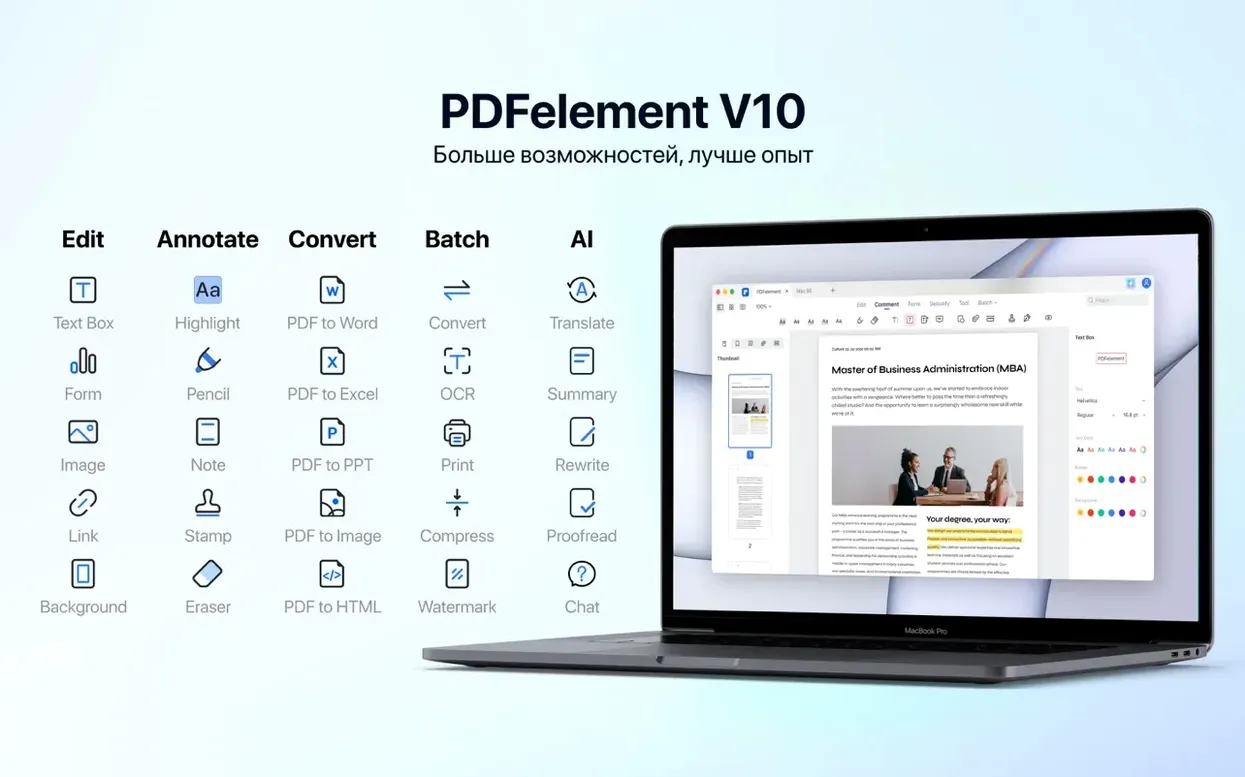
Version 12.1.28 now bakes OCR directly into the app, so scanned call sheets and location stills become searchable text without a separate download.
OCR languages — The engine recognizes text in 29 languages, from Russian and Arabic to Simplified Chinese and Japanese, letting a multi-lingual crew annotate the same shooting script.
Batch processing — Hundreds of release forms or continuity stills can be watermarked, converted, or stamped with Bates numbering in one pass instead of one by one.
PDF/A output — For grant applications and festival submissions that demand archival-grade documents, the export preserves fonts, colour profiles, and metadata so a file renders identically years from now.
Interface languages — Eleven localizations sit inside the menu bar, including Dutch, Italian, Portuguese, French, and Spanish, useful when a co-producer abroad needs to review a contract natively.
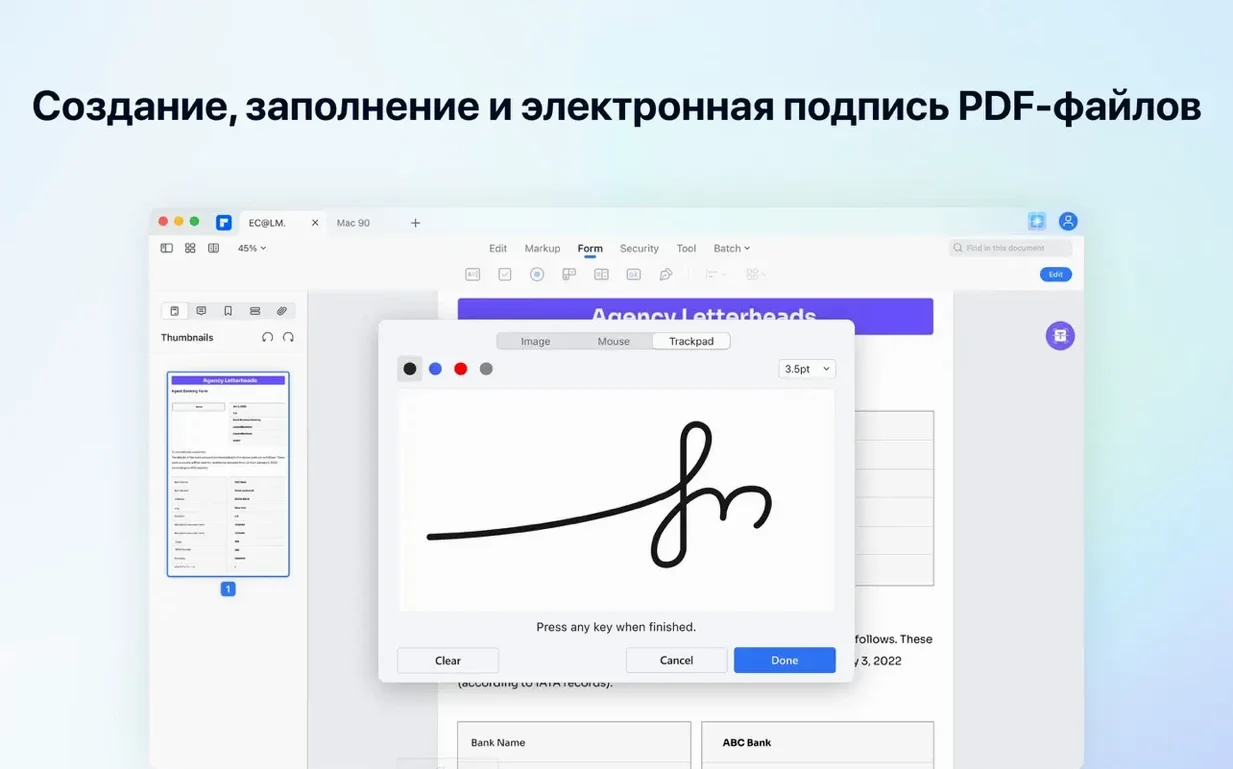
Editing and signing — Text blocks, images, and links can be adjusted directly on the page, and a digital signature tool handles distribution agreements without printing a single sheet.
To get a feel for PDFelement Pro as more than a set of features, follow a session that starts messy and ends with a clean, typed-out contract pack. I opened the app on a quiet morning with ten scanned pages of a location agreement sitting on my desktop — crooked, faint, clearly photocopied a few times. I dragged the whole stack onto the PDFelement window. The app offered to apply OCR immediately, no separate dialog to hunt down. I chose English and let it run. Within half a minute, every page was selectable text, even the fine print about noise curfews. The skew correction had straightened the pages without my asking, and the recognized text sat in a hidden layer I could toggle off if I wanted to see the original scan underneath.
I placed the cursor into a clause about insurance and typed a revised amount. The surrounding text reflowed without breaking the paragraph shape, which is rarer in PDF editors than it should be. I then switched to the form tool and drew a text field over the signature block — five seconds to set the field name and font size, then I copied it across all ten pages using the duplicate-across-pages command. A producer’s email had asked for initials on every page too, so I placed a smaller field at the bottom right of each sheet. The tab order panel let me drag the fields into a logical sequence so no one would jump from page one to page seven by accident.
With the fields in place, I opened the Protect tab and dropped my digital signature onto the last page. The certificate details came from a .p12 file I had saved from a previous project, and PDFelement found it without fuss. I saved a copy as PDF/A-2b for the festival’s records, then exported a standard version for email. A quick trip to the batch tool let me merge the signed contract with four other documents — call sheets, a location map, a stills release — into a single production pack. I stamped each page with a faint “CONFIDENTIAL” watermark applied at 10% opacity, barely visible but legally meaningful. The whole task, from scan to finished packet, took about twenty minutes and involved no printing, no scanning, no separate OCR utility, and no converter website.
Working through a specific task: turning a paper form into a fillable PDF
A common job in any small office or production company is taking a paper form — a tax questionnaire, a crew deal memo, an equipment checkout sheet — and making it fillable on screen. Here is a walk-through of that task from start to finish, as I would do it in PDFelement Pro.
I began with a scanned TIFF of a two-page crew deal memo. The scan was 300 dpi, slightly rotated, with a few speckles from the scanner glass. I opened it in PDFelement, which automatically prompted the OCR engine. I selected English plus Spanish, because the form had bilingual labels, and let the app process both pages. After recognition, the text was selectable, but the form itself was still inert — just an image of boxes and lines.
I switched to the Form tab and chose “Recognize Fields.” PDFelement scanned the page layout and proposed a set of auto-detected fields. It guessed correctly on the name, date, and rate boxes, but it missed the checkboxes for “union” and “non-union” because they were drawn as small circles rather than standard squares. I deleted the mistaken fields and drew fresh checkboxes manually, setting “union” and “non-union” to the same group name so only one could be selected. For the dropdown asking for department — camera, grip, electric, art — I created a combo box and typed the four options into the properties panel, one per line.
The form needed a calculation, something a surprising number of PDF editors stumble on. The deal memo had a daily rate field and a number-of-days field, with a third box for the total. I opened the calculation tab on the total field, set it to multiply the two source fields, and tested it with a few quick numbers. It updated instantly. I then set the tab order so that filling the form felt natural: personal details first, then department, then rate, then days, with the total locked and read-only at the end.
Before saving, I ran the “Find and Mark” redaction tool across a stray phone number that had been pre-printed on the original form — a holdover from an old office that no longer existed. The redaction burned it out cleanly, leaving a black rectangle that could not be undone. I saved the finished file as a PDF with extended forms support and emailed it to the crew. They could fill it in Preview, Acrobat Reader, or PDFelement itself, and the calculations worked everywhere.
How PDFelement Pro fits into a Mac workflow
The app sits comfortably alongside macOS’s built-in document tools and a handful of third-party utilities. It registers itself as a PDF handler, so selecting a batch of scans in the Finder and choosing Open With sends them straight into PDFelement’s workspace, bypassing Preview’s more limited editing. The Share menu picks up the app too, letting you send a Pages document or a Keynote deck directly into PDFelement as a converted PDF, ready for annotations or signature placement.
For people who lean on AppleScript or Automator, PDFelement responds to basic open-and-process commands, though it does not expose a full scripting dictionary. I keep a small Automator workflow on the desktop that watches a “To OCR” folder: anything dropped in opens in PDFelement, triggers OCR in the last-used language, saves a searchable copy to a “Processed” folder, and closes the original. It is a blunt tool, but it handles batches of old location stills without me touching a menu.
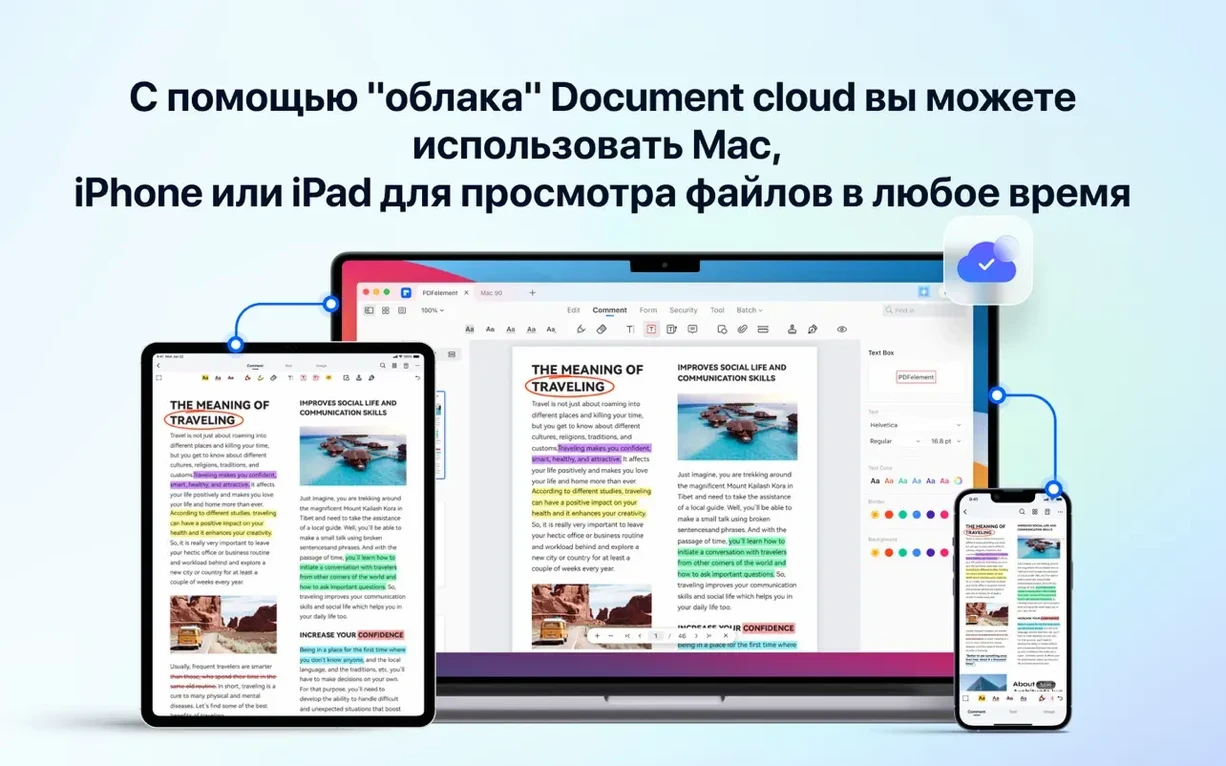
The app also works well as a bridge between paper-heavy processes and cloud storage. Scanned contracts processed through PDFelement can be saved directly into an iCloud Drive folder or a shared Dropbox space from the Save dialog, with the PDF/A option ticked for long-term projects. The OCR text layer survives cloud sync intact, so Spotlight on macOS can index the contents of those PDFs. A search for “catering waiver” in the Finder pulls up documents whose text existed only as pixels an hour earlier.
Hold Option and drag to clone a text box instantly
A few details in PDFelement Pro are easy to overlook because they are tucked into right-click menus or modifier-key behaviours that are not advertised loudly. Holding the Option key while dragging a text box duplicates it in place, which is faster than copy-paste when you are building a grid of form fields. Double-clicking a recognized word in an OCR layer selects the whole word even if the original scan was smudged, thanks to a snap-to-glyph-boundary behaviour that works more often than not.
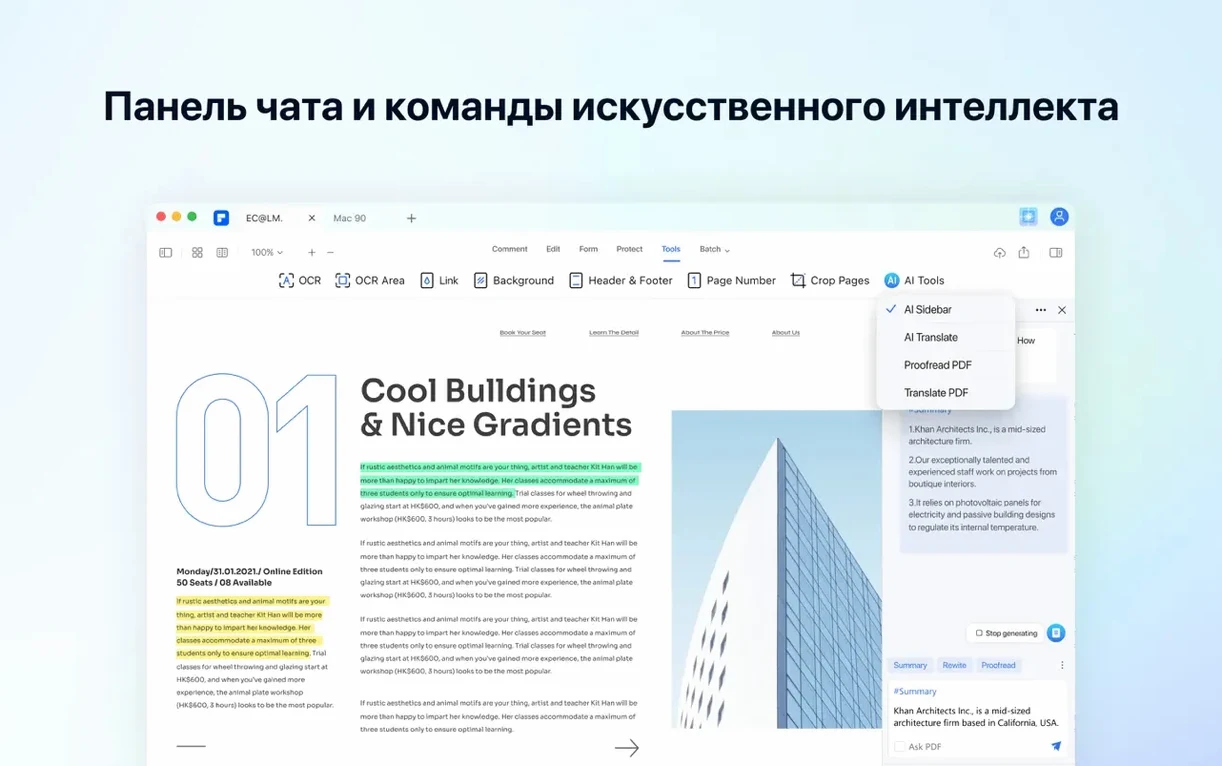
The batch tool supports drag-and-drop reordering, so you can sort a pile of files by dragging thumbnails before applying a unified Bates numbering sequence. The numbering dialog remembers your last prefix and starting number between sessions, which spares you re-typing “PROD-001” every time. In the annotation panel, holding Shift while drawing a line constrains it to 45-degree angles, useful for marking straight crop guides on a location photo. The AI panel — a sidecar that handles summarization and translation — can be collapsed to a single icon if you find it distracting, and it stays collapsed across restarts.
One of the quieter features is the “Replace Image” command, buried in the right-click context menu. You can select a logo or a photo embedded in a PDF, right-click, and swap it with a new image file from the Finder. The replacement inherits the exact dimensions and position of the original, which is a lifesaver when updating letterheads across dozens of documents without re-laying-out every page.
Scan the OCR output against the original before your first edit
The most frequent slip I see is applying OCR and then immediately editing the recognized text without checking the recognition against the original scan. PDFelement’s engine is good, but a faint “5” can become an “S,” and a quick visual pass with the “Show Original” toggle avoids contracts with swapped digits in payment clauses. A related mistake is saving over the original scan without keeping an untouched backup. I always duplicate the file before running OCR, because a flattened, edited PDF cannot be un-flattened.
Another beginner trap is using the redaction tool without understanding that it is a destructive operation. Drawing a black box with the annotation rectangle tool does not remove the underlying text; it only covers it visually, and anyone can delete the rectangle or select the text behind it. Proper redaction in PDFelement means using the dedicated Redact command, which erases the content from the document structure. I once watched someone send out a “redacted” budget PDF where every hidden figure was selectable and copyable. The difference between a black mark and a real redaction is the most expensive five-second lesson in document security.
New users also tend to ignore the tab-order panel when creating forms. The auto-generated order follows the spatial position of fields, which is usually right but not always — a sidebar field might sit visually left but get coded into the middle of the sequence. Testing the form by tabbing through it in Preview or a browser catches these jumps before the document reaches a client. Finally, some people open the app and immediately start dragging text boxes without realizing that PDFelement is in “line mode” paragraph editing by default; a single click selects a whole text block, while a double-click enters word-by-word editing. Knowing that distinction stops you from accidentally shifting entire paragraphs when you meant to fix a typo.
Optical character recognition ships inside the main installer with this build, so scanned PDFs and images turn into selectable, searchable text the moment the app opens.
- macOS 11 or later
- Intel-based Mac (x86 64-bit)