If you have ever used an app like Preview for quick crops and colour adjustments, PhotoScape X Pro feels like opening a door into a much larger workshop—one stocked with brushes, stickers, frames and batch tools that pull repeated tasks off your plate.
The first tools a newcomer should reach for
Browser — before you edit anything, the built-in media browser gives you a light table view of your drives. Loupe mode, star ratings and lossless rotation make it a capable first pass for culling a shoot without opening a separate library app.
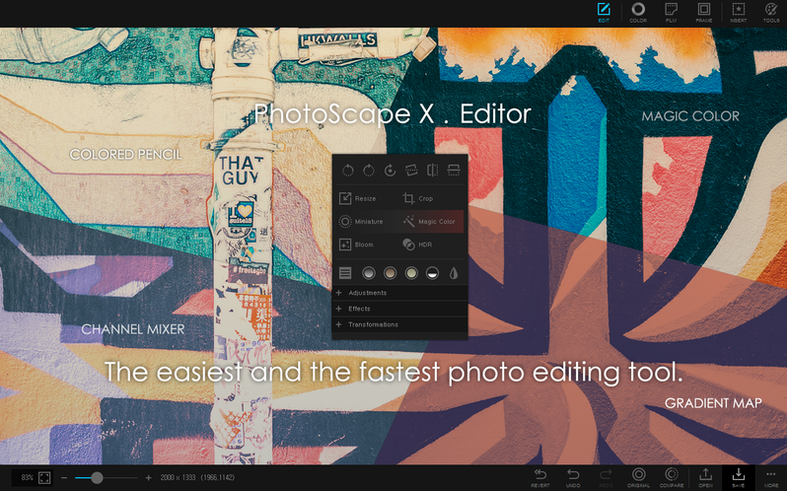
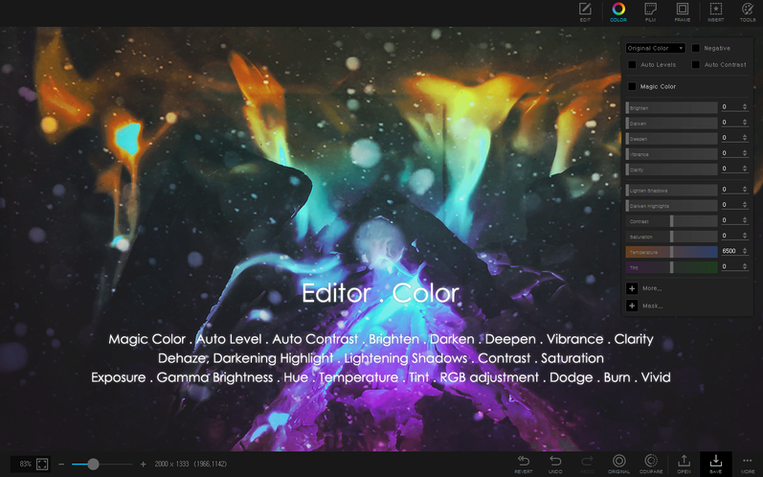
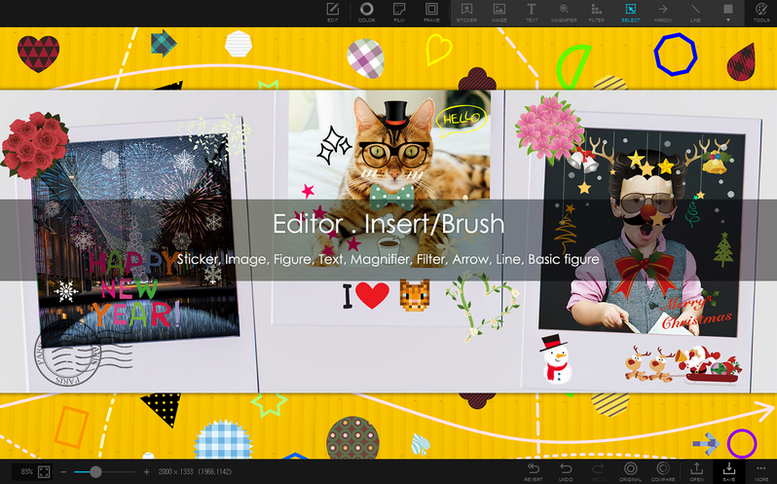
Editor — the main workspace holds the expected colour, crop and sharpening controls alongside a colour picker that pulls hex values straight from the image. Over a thousand stickers and hundreds of figures sit in the panel for when you need a quick annotation or a playful overlay on a title card.
Batch — if you have a folder of stills destined for a storyboard or a website gallery, the batch tab handles format conversion, resizing and renaming in one sweep. It is the kind of utility that pays back the time you spend learning it within the first real job.
Collage — dragging a handful of frames into a grid is fast, and the template library covers the common aspect ratios. Splitting a single photo into multiple parts lives here too, which can be a handy trick for creating diptychs or breaking a wide frame into social-ready tiles.
GIF — a simple timeline turns a burst sequence or a short video clip into an animated GIF. It is not a replacement for a dedicated motion tool, but for a looping behind-the-scenes moment or a quick visual gag, it is more than enough.
Merge — focus stacking and HDR merging are tucked into the toolset for photographers who want to extend depth of field or pull highlight detail from a bracket of exposures without leaving the app.
Sharp batch utility that hands off finished frames
PhotoScape X Pro does not ask to be the centre of your creative toolset. It works best as a sharp utility that passes finished frames to wherever they are headed next. The batch-renamed stills from a set shoot land cleanly in a Finder folder labelled by scene and take, ready to be pulled into DaVinci Resolve or Final Cut Pro as reference plates. A focus-stacked macro shot exported as a 16-bit TIFF slides into Affinity Photo without a format conversation, because the app writes standard files that other software reads without complaint.
On the desktop side, the colour picker is one of those quiet workhorses that gets more use than you expect. Sampling a hex value from a frame and pasting it into a grade note or a set-design document happens without leaving the workspace. The screenshot tool saves directly into the browser, so a reference grab from a streaming rough cut appears alongside your own stills—useful when you are building a lookbook and want everything in one scrollable view.
macOS continuity features handle the rest. An edited still dropped into an iCloud-synced folder pops up on an iPad for a director to mark up in Freeform or a similar annotation app. The Share menu hooks into Messages and AirDrop with the usual system extensions, which means sending a quick collage to a producer or a GIF to the crew chat does not require exporting to the desktop first. It is not a deep integration, but it is the kind of frictionless handoff that keeps a small production moving when everyone is working from different devices.
A fix release that steadied heavy filter stacks
The 4.3 release was marked as a fix, not a feature drop, and that is worth noting because the changes addressed a handful of stability issues that had been tripping up colour-intensive workflows. Applying a heavy filter stack on a large RAW file no longer stalls the editor midway through rendering the preview. The healing brush and clone stamp tools, which previously could introduce a slight lag when sampling from a high-resolution layer, now track more smoothly on Apple Silicon machines. These are not the kinds of updates that make a changelog exciting, but they are the ones that determine whether you trust the app with a tight turnaround.
Some users who had been hunting for a photoscape mac solution after switching from Windows noted that the 4.3 build felt closer to the responsiveness they remembered from the earlier PC version. The interface redraws are snappier, and the batch processor handles folders with a few hundred large JPEGs without beachballing. For anyone arriving via a photoscape x pro mac search and expecting a native Apple Silicon experience, this build delivers what the architecture promises: quiet fans and fast exports.
Your Finder folder is the real library, not the browser
The most common early mistake is treating the browser like a permanent library. PhotoScape X Pro reads from your existing folder structure; it does not create a managed catalogue. New users sometimes delete or move files in the Finder and then wonder why their ratings and flags have vanished. The metadata lives with the app's own database, not embedded in the files themselves, so reorganising outside the browser breaks the link. The safer habit is to do your culling and rating inside the app first, then export or move the keepers as a final step.
Another trap is overestimating the GIF tool's frame-handling. Dragging a two-minute video clip into the timeline and expecting a smooth animation leads to a bloated file that stutters. The tool is designed for short bursts—think ten to twenty frames from a continuous sequence—and works best when you trim the source clip beforehand. Users who grab a PhotoScape torrent and jump straight into the animation features can get cleaner results by simply checking the frame limits first, so the app delivers exactly what it was built for.
The batch renamer trips newcomers in a subtler way. It applies changes in the order you stack them, and forgetting to move a numbering step above a text prefix step yields filenames that sort unpredictably in the Finder. Testing the sequence on three files before committing to a folder of three hundred saves a quiet evening from turning into a manual rename session. Nobody reads the tooltip that explains the drag-to-reorder behaviour until after the first mistake—but the lesson sticks.
- macOS 13 Ventura or later
- Apple Silicon Mac
Questions from the booth
Yes, it requires macOS 13 Ventura or later and runs on Apple Silicon Macs.