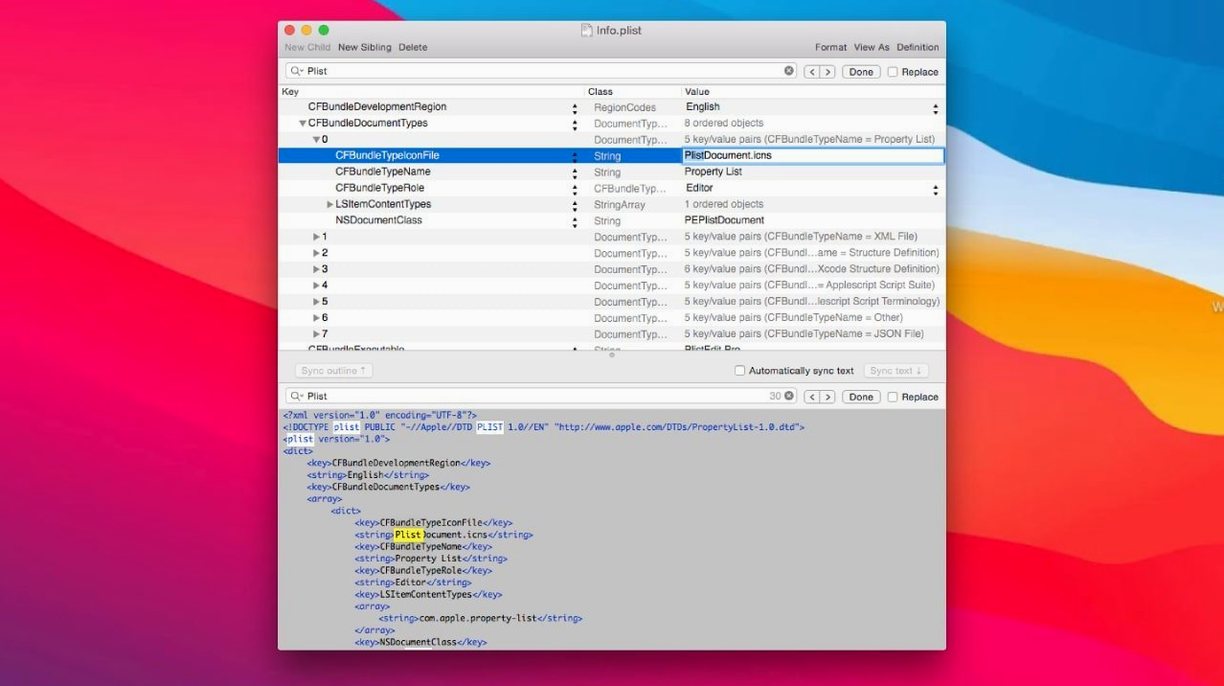
The browser sidebar can search an entire folder of plist files for a specific key or value, so you do not have to open a dozen versions of a preferences file one by one when tracking down a stray boolean. That kind of broad search is where PlistEdit Pro shifts from a simple plist viewer into something that holds its own in a build-and-debug workflow.
How does the structured editing actually help?
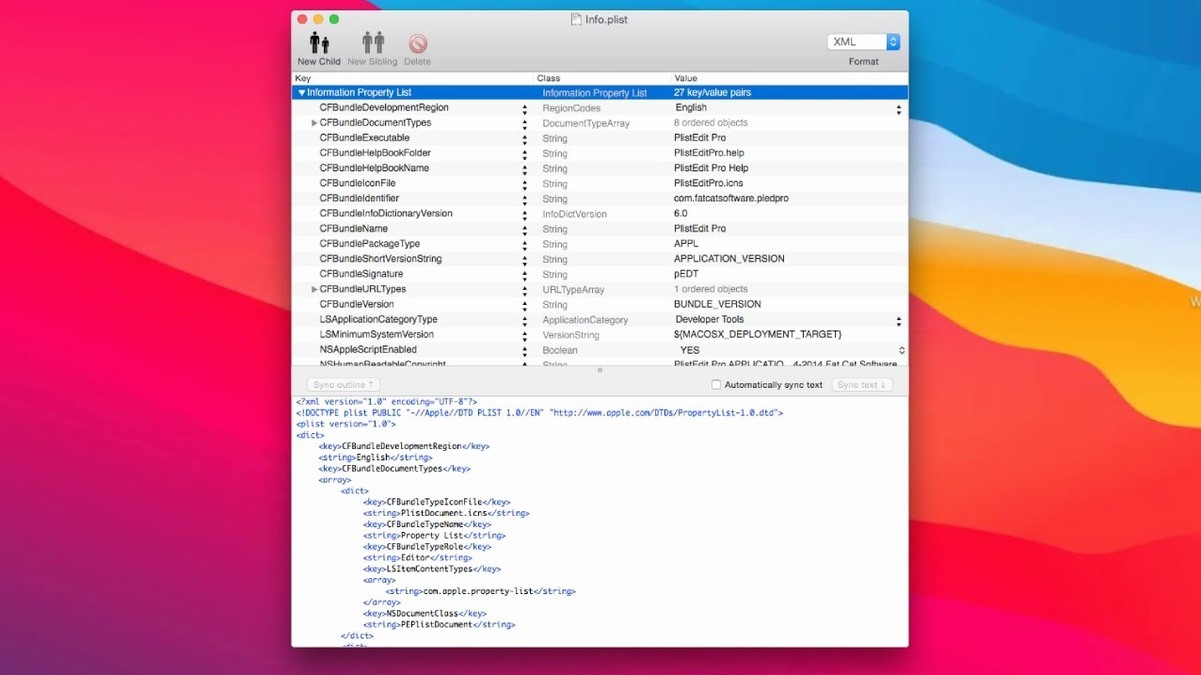
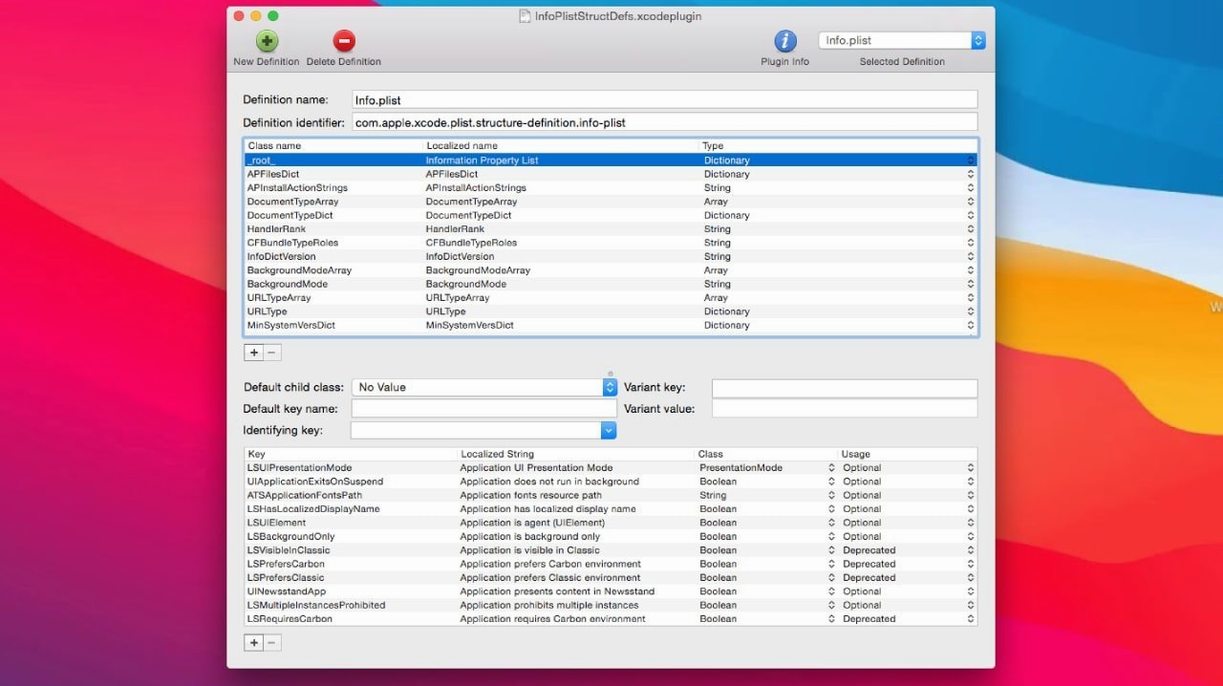
The app ships with structure definitions for standard property list files, which means you see meaningful labels rather than raw key names. A key like NSToolbar Configuration appears with its child types already mapped, so you can work through a preferences file reading the actual settings, not guessing at cryptic identifiers.
Can you rearrange data without breaking the file?
Yes, and it is one of the quiet strengths of the interface. The drag-and-drop support lets you move dictionary entries, array items, and whole subtrees within a plist, reordering things visually while the underlying syntax stays valid. For complex JSON files, the same holds true — you can restructure nested objects without ever touching a bracket.
Batch-update version strings from the command line
AppleScript support means you can automate batch changes across files, and the included pledit command-line tool gives you the same access from shell scripts or build phases. Between the two, a routine task like updating a version string across a suite of plists becomes something you script once and forget about.
Debugging a launchd daemon through its property list structure
Mac and iOS developers working with frameworks that lean heavily on property lists — AppKit, UIKit, even launchd daemons — will find the structured editor pays for itself during debugging sessions where a misconfigured plist is the culprit. The preferences browser alone makes it useful for anyone who regularly opens ~/Library/Preferences to check a setting or compare a working configuration against a broken one, but there is a quieter audience too: QA engineers and support staff who need to verify what a shipped app actually wrote to disk without learning to parse XML by eye.
Power users who customize macOS through defaults commands will recognise the territory immediately, and the folder-wide search turns what used to be a grep-and-guess exercise into something you can do in a single search field. If you maintain build scripts that stamp version numbers or feature flags into plist bundles, the command-line tool slots into a CI pipeline without ceremony.
Spotting a single Boolean that resets your checkbox
You are tracking a bug where a checkbox in your app refuses to stay checked between launches. The code looks sound, so you open PlistEdit Pro and point the preferences browser at your app's bundle identifier. One click and the file opens in the outline view — not as raw XML, but as a tree of named keys where NSWindow Frame Main Window sits beside the custom keys your app defines.
You scroll to the boolean that should be YES and see it is stored as a string — "YES" instead of the plist boolean type. That is the kind of type mismatch that is invisible in a text editor but glaring in a structured view. You double-click the value, change its type to Boolean, toggle it to true, and save. The outline refreshes, the key stays typed correctly, and you can reopen the file with confidence that the syntax is intact.
Later, you need the same fix across a dozen localization folders. You open the folder search, type the key name, and see every plist that contains it listed in the sidebar. You click through them one by one, making the same type correction without ever opening Finder. A session that started as a single-file investigation ends as a bulk cleanup, and you never once had to touch plutil or write a throwaway sed command.
Compared with the alternatives
Xcode's built-in property list editor handles the basics well enough for casual editing, but it folds entirely when you step outside Apple's own key-space — custom keys appear as raw strings with no type guidance, and there is no folder search, no preferences browser, and no way to edit plists that live outside a project. PlistEdit Pro picks up where Xcode leaves off, giving you the same outline editing for any plist on disk, structured definitions attached, and a search scope that spans folders rather than a single file.
BBEdit offers a different kind of strength: it will open a plist as text and let you rearrange it with all the power of a programmer's editor, but without the type-aware interface you get from a dedicated tool. Changing a string to a date in BBEdit means editing the XML or binary representation directly; in PlistEdit Pro, you right-click and select the type. For quick grepping through dozens of plists, BBEdit's multi-file search is excellent, but it works on the raw text rather than the parsed structure, so searching for a key that appears inside an array requires a regex that understands plist syntax. PlistEdit Pro's search already knows which parts of the tree are keys and which are values.
Plistinator has a narrower feature set but a more approachable single-window design, and it appeals to users who want to edit a few files without learning a tool. It lacks the structured definitions, the command-line companion, and the folder-wide search that make PlistEdit Pro a workbench rather than a lightweight utility. Once you need to edit more than a file or two at a time, or you are debugging preferences across a whole system, the difference becomes concrete rather than cosmetic.
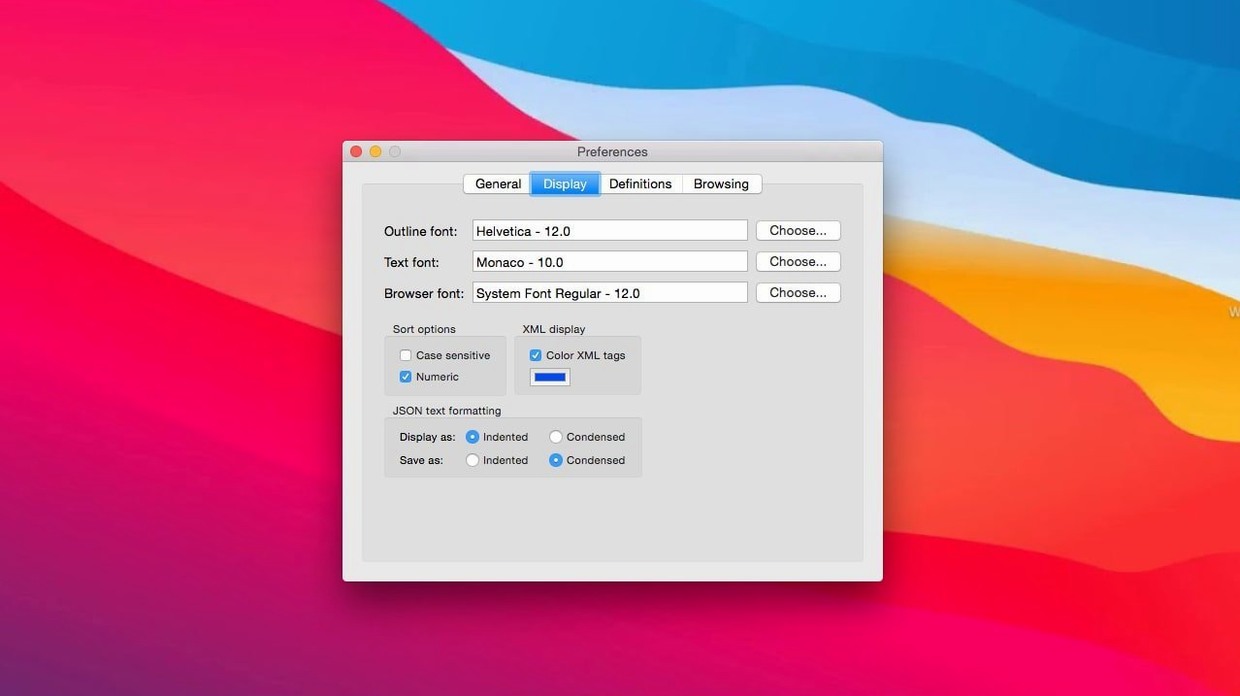
Version 1.10.0 raises the floor to macOS 14 and refreshes the interface for macOS Tahoe. The preferences browser options checkboxes now live in a tidy toolbar menu, and the "Ask to revert when file changes on disk" setting has been reworked into a small popover, keeping the preferences pane from feeling cluttered.
- macOS 14 or later
- Apple silicon or Intel Mac
- English interface