
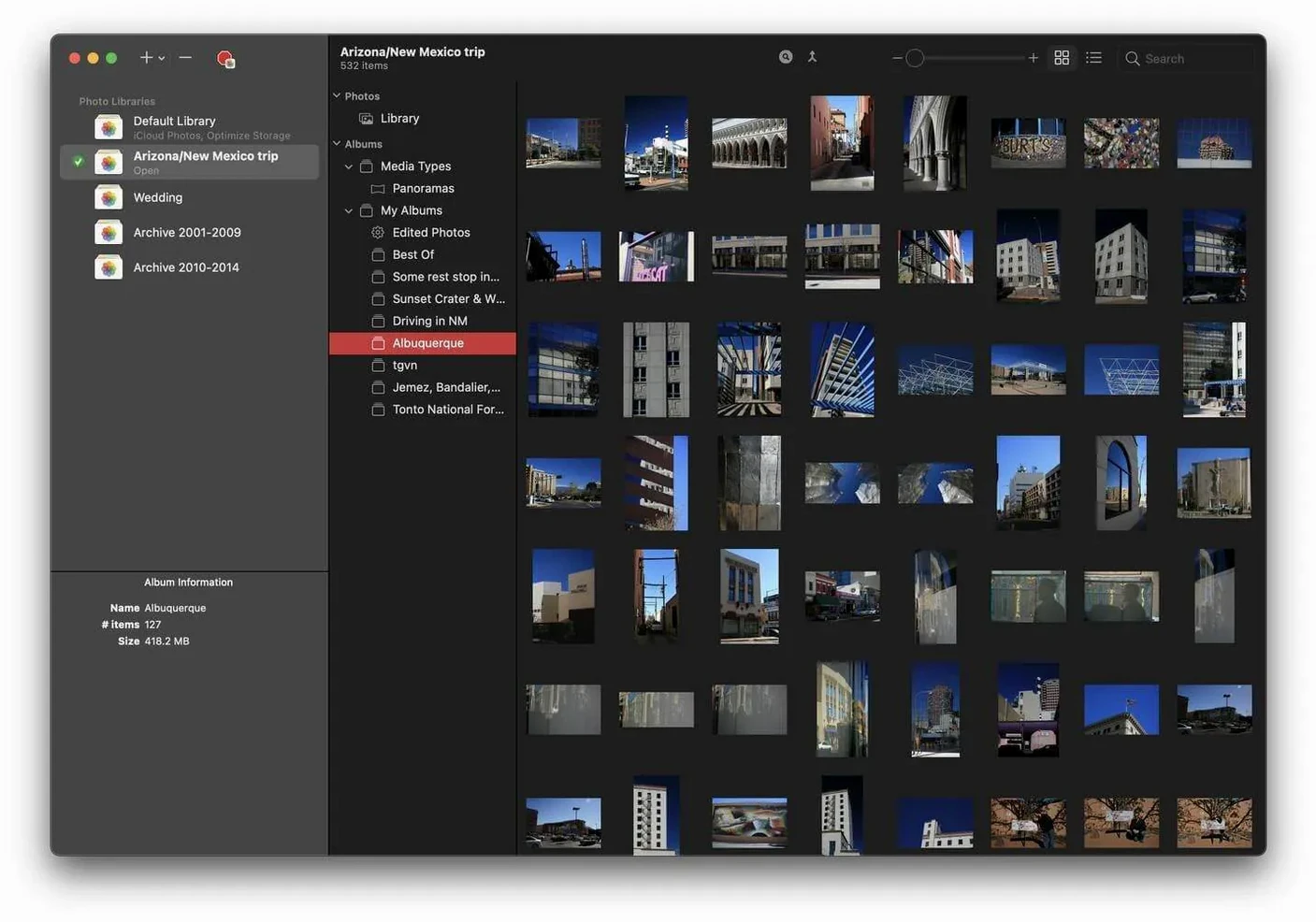
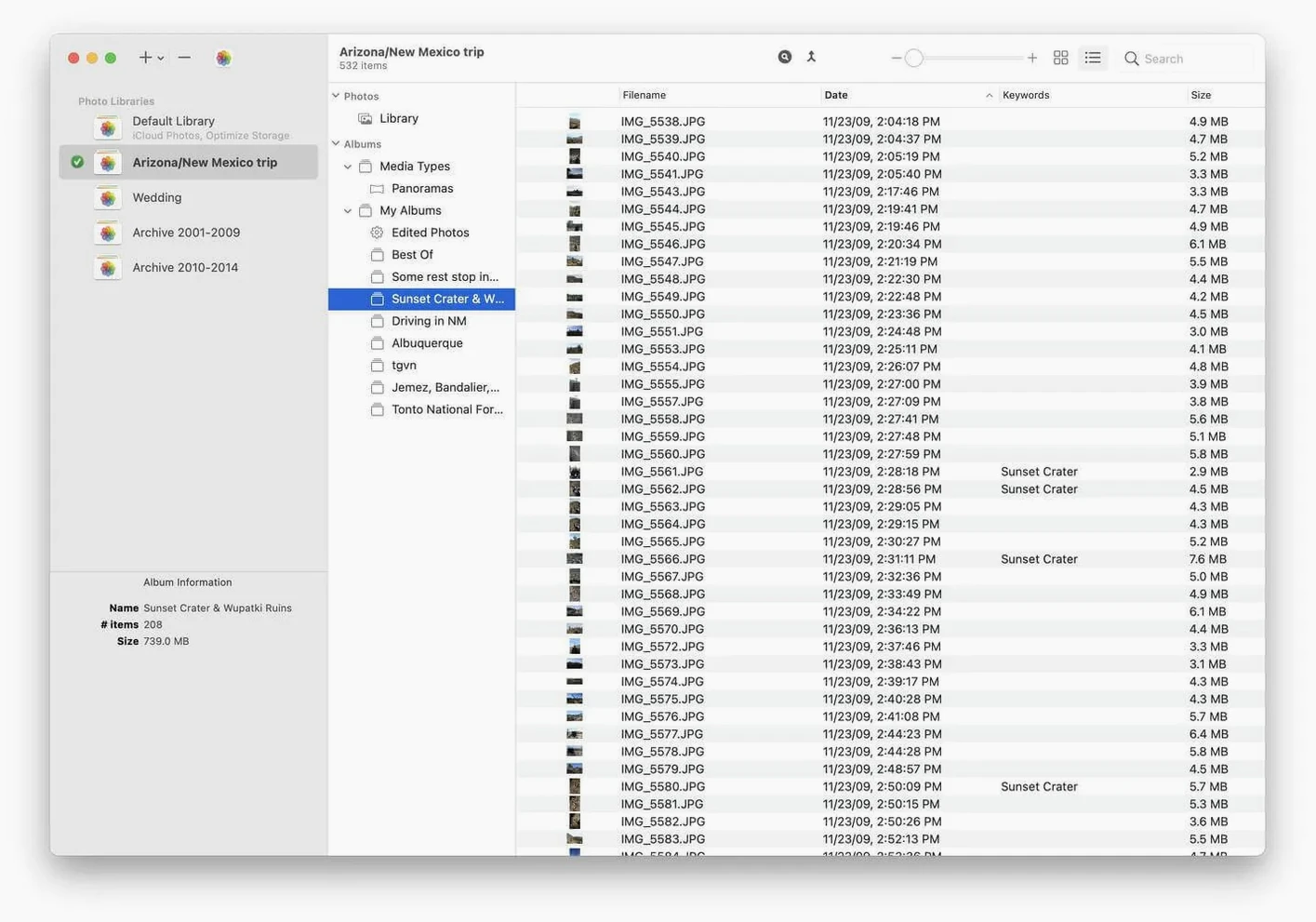
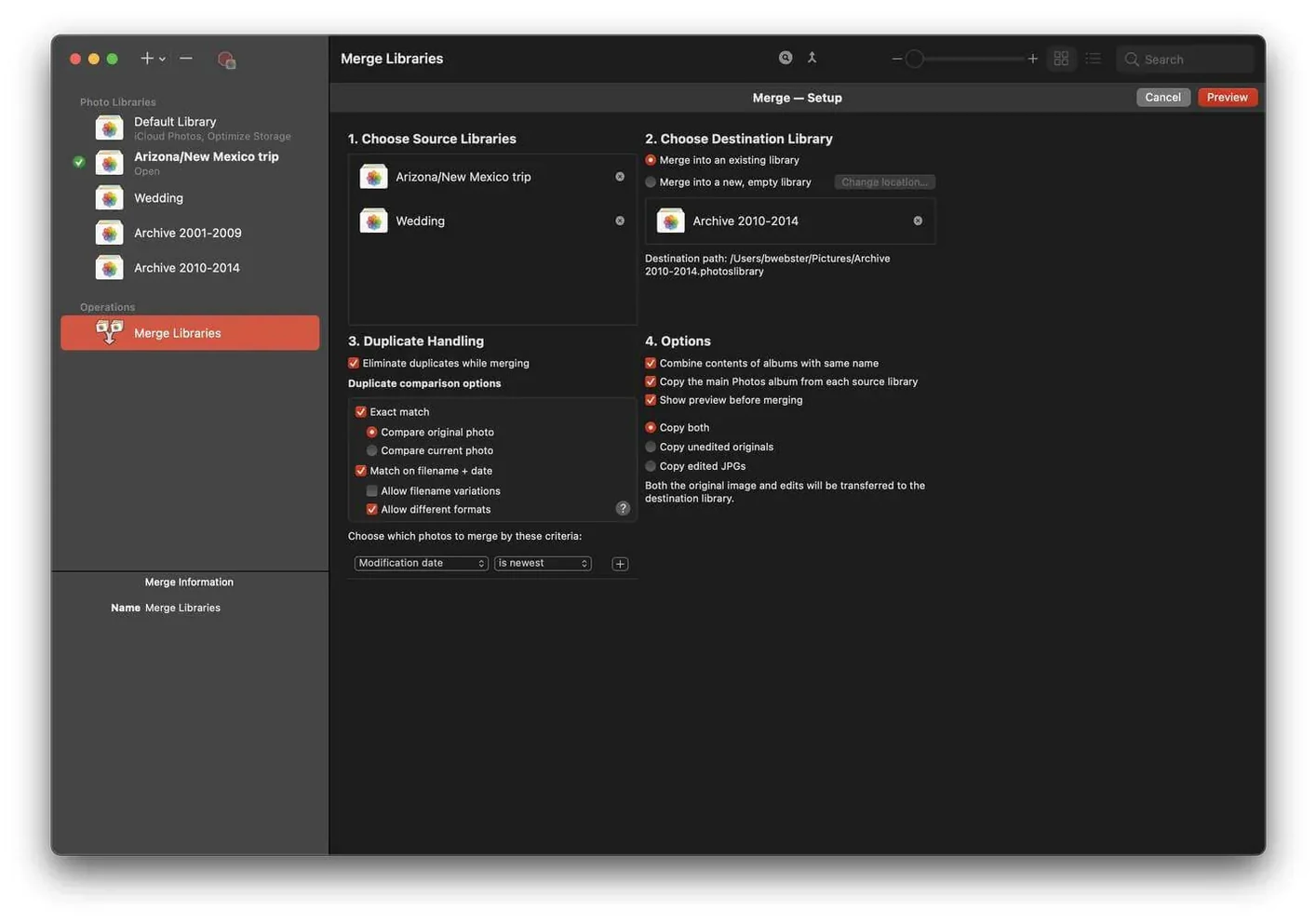
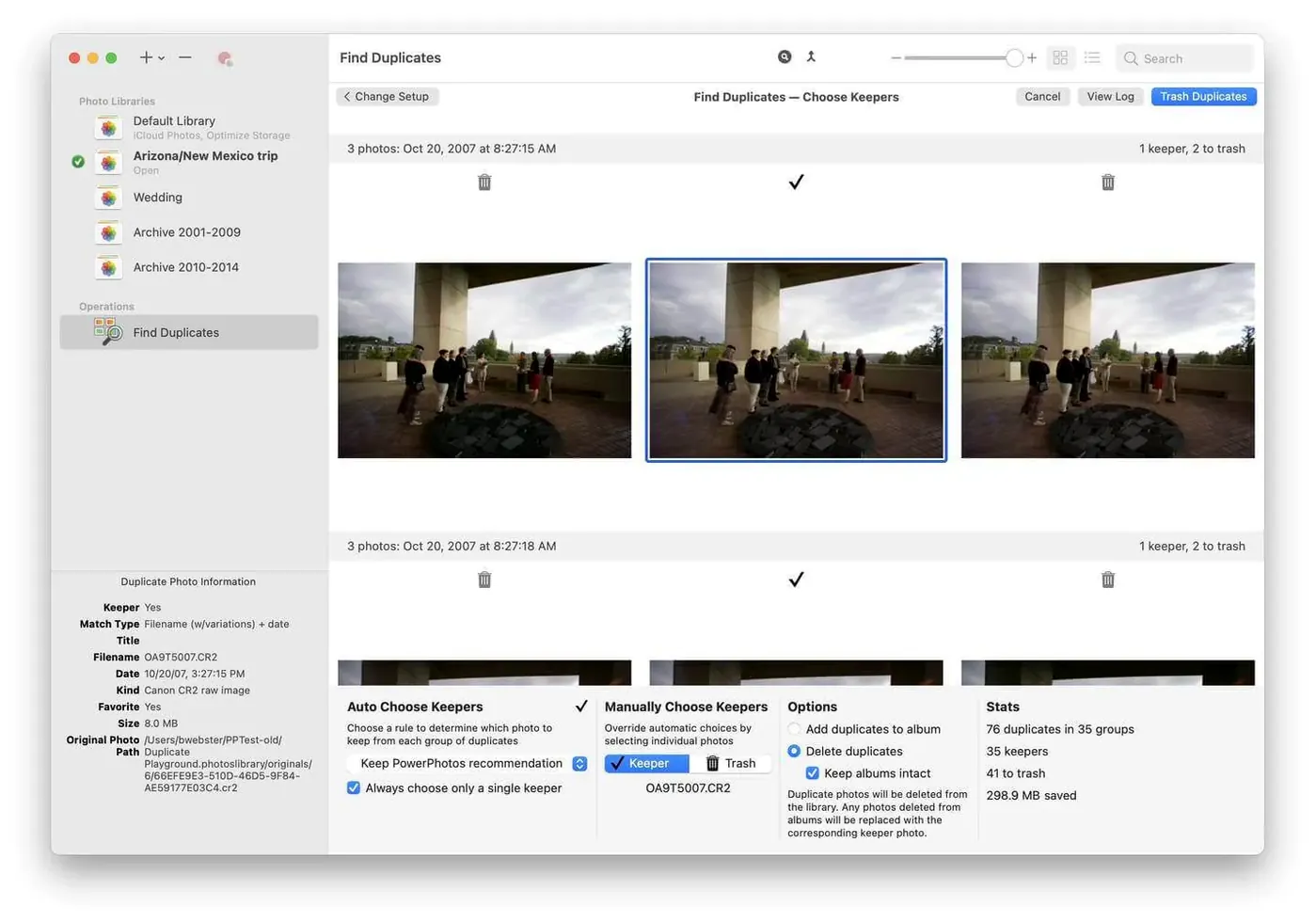
PowerPhotos is a utility from Fat Cat Software that sits beside Apple’s Photos and gives you the one thing the built-in app never offered: a way to work with multiple libraries as if they were a single, organised collection. For anyone who has watched a single Photos library balloon into a sluggish, multi-hundred-gigabyte monolith, the idea of splitting things up is immediately appealing — and this is the tool that makes it practical.
- Break one massive library into several smaller ones by dragging albums or moments across, keeping projects, years, or personal and client work separate.
- Browse photos inside any library directly from PowerPhotos without asking Photos to quit and reload a different library each time.
- Find duplicate images and videos across all your libraries using a comparison engine that looks past filenames to the actual image data.
- Reduce iCloud storage costs by moving older or less-used libraries to an external drive while keeping a lean, synced library on your Mac.
- Switch between libraries from the menu bar — a small thing that removes the friction of the hold-the-Option-key dance every time you launch Photos.
It does not replace Photos, and it does not need to. Think of it as the library wrangler that Apple left out, particularly valuable if you are already managing local storage alongside iCloud and want more granular control over what lives where.
In daily use, PowerPhotos feels deliberately lightweight. Launching it does not trigger a beach ball or a fan ramp — it sits quietly in the background until you ask it to do something substantial, like comparing half a terabyte of images across four libraries. Even then, the duplicate scan pegs a few cores for a while but stays responsive enough that you can keep browsing other libraries or checking results as they come in. Memory use on an Apple Silicon Mac tends to hover under 300 MB during routine browsing, climbing only during large copy or deduplication jobs, and it gives that RAM back when the work is done. It is the kind of resource footprint that makes sense for a utility you leave running alongside Photos, Mail, and whatever else is open. Stability has been uneventful, which is exactly what you want from a tool that touches years of personal photos. In several weeks of splitting libraries and running duplicate scans, the app has not beachballed, corrupted a library, or left a half-finished merge hanging. It writes changes through Photos’ own database routines rather than bypassing them, so a crashed Mac or a force-quit mid-operation does not leave you with a broken library — just an incomplete one you can resume or discard. That conservative approach to data is visible everywhere: before any destructive merge or delete, PowerPhotos insists on a confirmation, and the duplicate viewer never auto-selects anything for removal. You decide, photo by photo. The app fits into macOS without demanding centre stage. Finder tags you add to libraries in the sidebar are visible in PowerPhotos’ own library list, and dragging a library file onto the app icon opens it directly. It also respects Focus modes and Notification Centre quiet hours, which matters when a long duplicate scan finishes at two in the morning — you will see the result badge when you sit down, not when you are trying to sleep. One small but telling integration: the duplicate browser uses the system share sheet, so sending a side-by-side comparison to someone for a second opinion is a single click. Feature-wise, PowerPhotos occupies a niche that few Mac apps even acknowledge. Apple’s own Photos can open multiple libraries only one at a time, and iCloud syncing ties itself to a single System Photo Library — no splitting, no merging, no cross-library search. PhotoSweeper is a focused duplicate finder that works across Photos, iPhoto, Aperture, and folders, and its comparison algorithms are deeper in some areas (histogram matching, for instance), but it has no concept of library management. It cannot move albums between libraries or browse a closed library’s contents; it is a delete-only tool. Duplicate Photo Cleaner casts a wider net with cloud storage scanning and a more aggressive interface, though its Mac version feels less at home on Sonoma and Sequoia, with a design that has not shifted much in years. Neither of them deals with the structural problem PowerPhotos tackles — the single-library bottleneck. If your main pain point is a Photos library that has grown too large to back up, sync, or open without patience, splitting it into manageable pieces is the actual fix, and the duplicate removal is a bonus that happens to be built in well. There is also the quiet advantage of reducing iCloud costs without abandoning the ecosystem. A photographer can keep a current-year library synced while moving client archives and personal projects to local-only libraries on an external SSD, and PowerPhotos makes that feel like a filing decision rather than an exile. The app remembers where each library lives, even across volumes, and the menu bar switcher treats them all equally regardless of whether they sit on the internal drive or a Samsung T7. That alone changes how you think about photo storage on a Mac — less about managing one ever-growing file, and more about curating a set of libraries that match how you actually work.- macOS 14 or later
- Apple Silicon and Intel Macs
- Apple Photos app (included with macOS)
Questions from the booth
Yes, but only the system photo library can sync with iCloud. You can use PowerPhotos to copy photos from iCloud-linked libraries into separate, locally stored libraries that do not count against your iCloud storage.