A call sheet from a location scout sits on the desk, coffee-stained and folded. The notes scribbled in the margins matter, but they need to be in the production bible by evening. Prizmo Pro is what sits between the physical page and the final, searchable PDF.
Capture the page
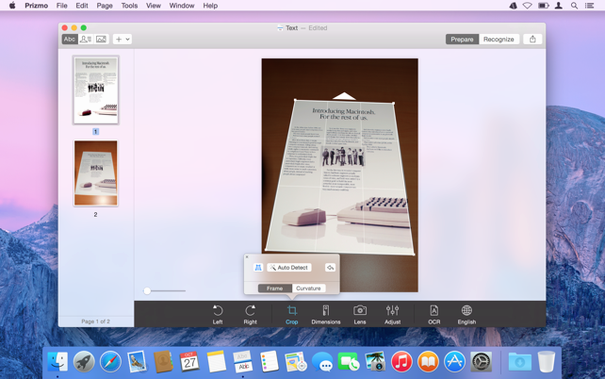
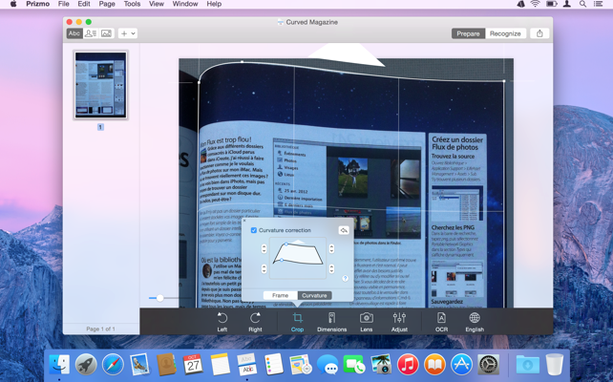
With the scanner connected, Prizmo Pro pulls in the document and automatically finds its edges. A quick crop tightens the frame, and a perspective correction flattens the curl of the paper so the text sits straight and readable, as if it had never been folded into a back pocket.
Recognize the text
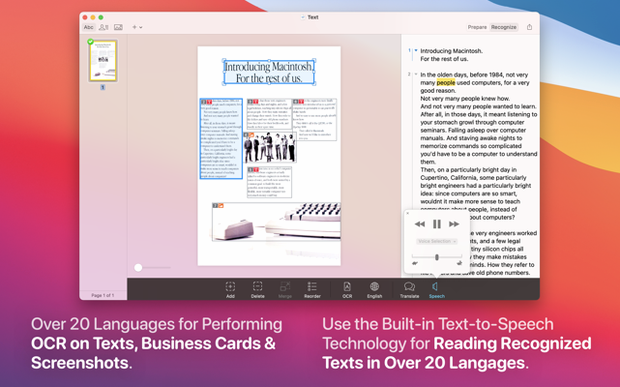
The OCR engine works through the image and layers recognized text over the scan. Russian notes from the fixer appear alongside the English legalese, and you can tap into any recognized block to correct a misread character right there, teaching the document to read itself more accurately.
Export for the edit
A searchable PDF lands in the production folder, its text selectable and indexed. The same document syncs via iCloud, so the assistant on set with an iPad can open it, search for a permit number, and keep the day moving.
A habit worth forming in the first three days: build a small library of custom export presets. The defaults are fine, but a preset tuned to your project’s folder structure and file-naming convention removes friction later. Name one for the production binder (searchable PDF, 300 dpi, grayscale, saved to the shared drive) and another for dialogue sides that only need the text (plain TXT or DOCX, no image layer). Assign a keyboard shortcut in System Preferences to launch Prizmo Pro’s scanning window without reaching for the mouse, and you cut the round-trip time per document to a handful of seconds.
If you are digitizing a stack of handwritten call sheets from a shoot that wrapped years ago, tackle the batch in passes. Run the full stack through the scanner at once, then return to the desk for recognition and correction. Prizmo Pro’s text editing panel lets you tap through each uncertain word and retype it against the original scan, which is faster than trying to correct during capture. For heavily annotated pages, leave the image layer visible in the PDF export so the scribbled arrows and circled props stay legible even when the OCR struggles with cursive.
A clean script breakdown, start to finish
A printed script lands on the desk, marked with highlight colours for each department. The workflow begins by placing the pages face-down in the scanner and letting Prizmo Pro detect the paper edges. After a quick crop to trim the binding margin, the image cleanup slider lifts the yellow highlighter from the white page, leaving the black type sharp and the staff notes intact beneath. The OCR engine processes the English text in under ten seconds for a ten-page scene, and the recognized text appears overlaid on the scan in the editing pane.
From there, a pass through the corrections fixes the usual suspects: the letter rn mistaken for m, the italicized character names that dropped a capital. Once the text reads clean, the export preset sends a searchable PDF to the shared server and a plain-text DOCX to the First AD. The whole process from paper to two digital formats runs under four minutes, including the correction pass.
Daily use reveals an app that stays out of the way until you need it, and then it works quickly. On an Apple Silicon Mac, the recognition phase for a 300-dpi letter-sized scan completes in roughly the time it takes to pour a coffee, and the CPU fan never stirs. Memory usage sits around 180 MB with a single document open, climbing to roughly 400 MB when a batch of fifteen pages is queued for OCR. The application has not beachballed once across a week of steady use, and quitting and relaunching takes under three seconds, which makes it easy to open only when a stack of paper demands attention.
- macOS 10.13 or later
- Runs natively on Apple Silicon and Intel Macs
Questions from the booth
It performs OCR on Russian, English, German, Spanish, Italian, Norwegian, Polish, Portuguese, French, and Czech text.
Yes, you can edit and correct the recognized text directly within the app before exporting the document.
It supports Handoff, so you can start a scan on one device and continue on the other, and it syncs documents through iCloud.