
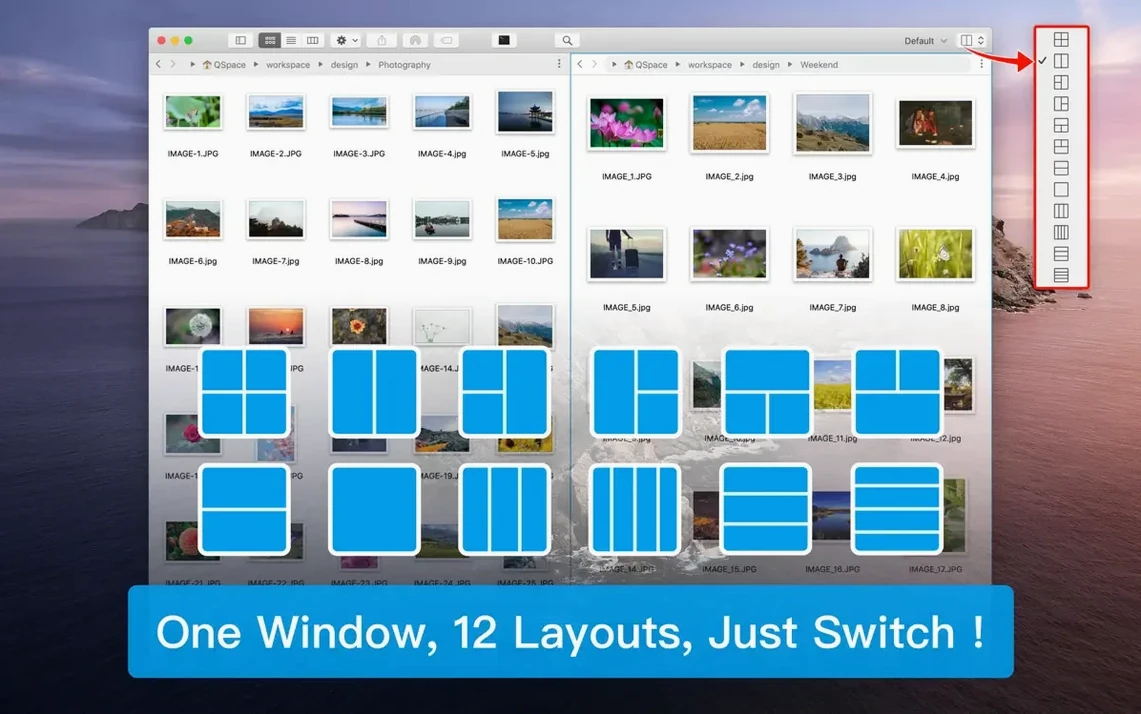
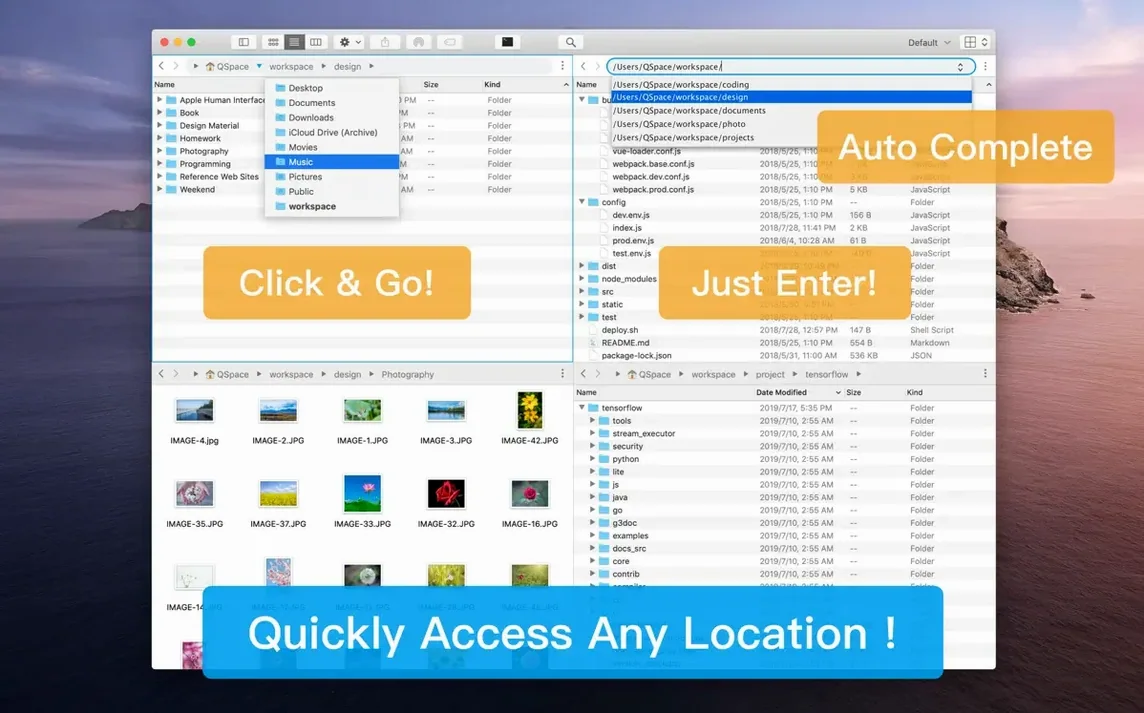
QSpace Pro runs on any Mac that can handle macOS 10.13 High Sierra or later—Intel and Apple Silicon alike. That covers a decade of machines, so unless your rig is genuinely vintage, you are set. What you get in return is a file manager that asks you to think in panes. Not panels tucked inside a single window as an afterthought, but a workspace you can split into up to twelve distinct layouts. Each pane carries its own tabs, its own path, its own sense of place.
See three drives side by side without opening extra Finder windows
- Projects that live across several folders—source footage on one drive, exports on another, sound libraries on a third. You see them all at once without opening four Finder windows.
- Batch renaming with a live preview, so you can watch the pattern take shape before you commit.
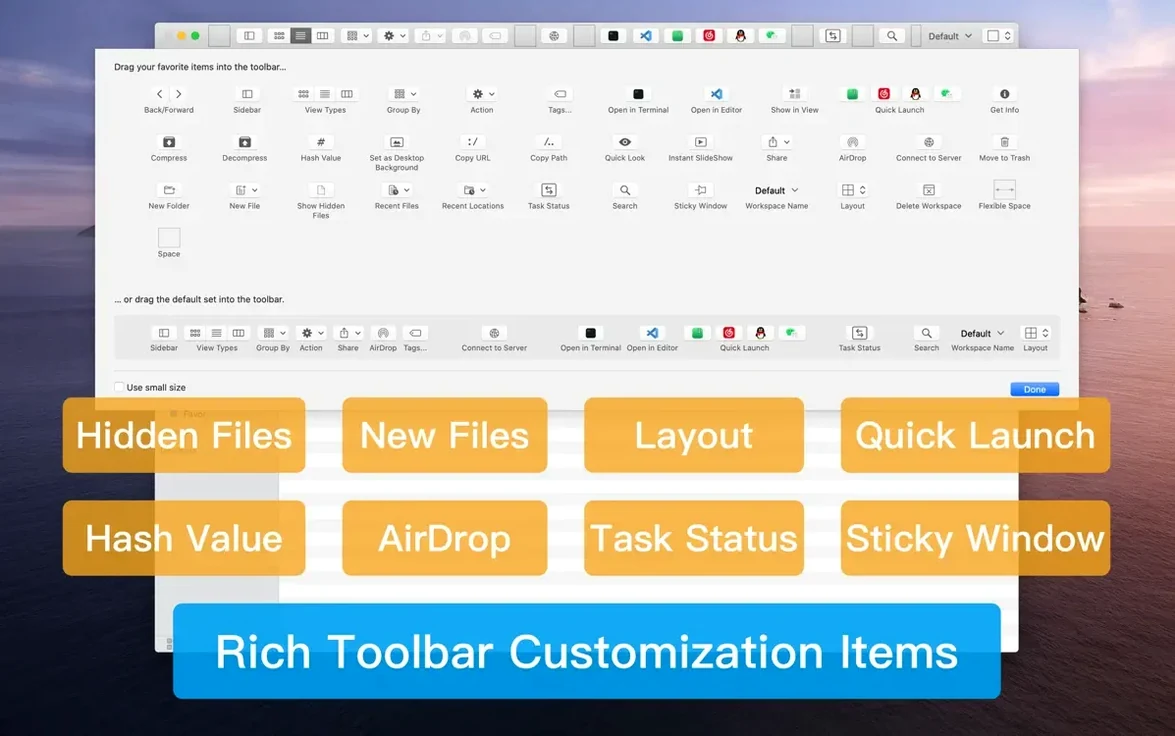
- Checking file integrity on set or after a transfer; the hash calculator covers MD5, SHA256, SHA128, SHA224, SHA384, SHA512, and CRC32.
- Customizing the sidebar with bookmark groups and drag-and-drop sorting, which is useful when you keep returning to the same project roots.
- Working across interface languages—Russian, English, German, Traditional Chinese, Simplified Chinese, Dutch, French, and Japanese are all built in.
Spend a quiet afternoon unlocking archive tools, search, and the quick launcher
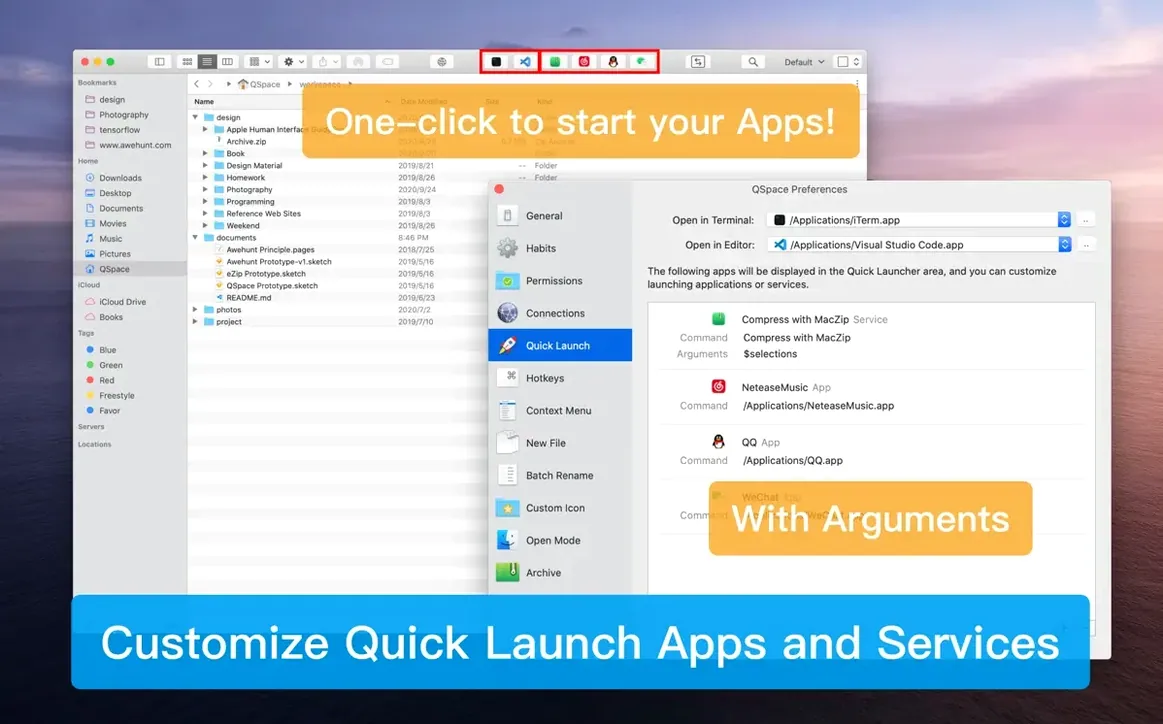
- The feature set is deep. Archive support covers extraction of more than twenty formats plus ZIP and 7Z compression, and there is a global search, a workspace search, and a configurable quick launcher. It rewards spending a quiet afternoon setting things up.
- The context menu can be customized by showing or hiding items and changing their order. Until you do that, it presents everything.
- Enhanced archive browsing includes nested archive support, but the enhanced archive manager is its own thing to learn.
Live with the defaults before diving into the redesigned preferences
Resist the urge to customize everything in the first hour. The preferences page was recently redesigned, so many options are easier to reach than they used to be, but the real payoff comes from living with the defaults long enough to know what genuinely slows you down. Start instead with a single workspace that mirrors a project you are in the middle of—something with files spread across two or three locations. Set the layout to three vertical panes, pin the left pane to your footage drive, the middle to exports, and the right to the project notes folder. Save the workspace by name. That alone changes how you move between creative and organizational tasks, and it costs you five minutes.
On day two or three, pick one pane and learn the stash shelf. Drag a handful of clips, stills, or web images into it while you browse. The shelf holds them independent of any folder, so you can collect scattered assets and then drag them into a timeline, a new directory, or a batch rename operation all at once. This habit takes a day to form and pays back every time you would have opened six Finder windows just to gather things up.
If you work with remote servers—SFTP for a client's media library, S3 for archived projects—configure one connection early and assign it a bookmark in the customized sidebar. QSpace Pro treats remote directories like local panes, tabbed and persistent, so when a collaborator asks for an old export you can pull it up without switching applications. A quiet evening of setup turns the app from a Finder alternative into a command center that remembers where everything lives.
Pick up last week’s saved workspace and start renaming raw footage
It is late morning. You have just offloaded a card of raw footage and the files are sitting in a folder named 2026-03-15_DockShots on an external drive. You open QSpace Pro to the workspace you saved last week—left pane on the external drive, centre pane on your local exports folder, right pane connected via SFTP to the colourist's server. The workspace restores exactly as you left it, tab states and all.
In the left pane you navigate into the day's folder, select the first twenty clips, and press the shortcut for the stash shelf. They collect in a sidebar strip. You switch to the centre pane, create a new folder called Proxies with a right-click, and drag the stashed clips into it. The transfer runs across the pane border without a single Finder window opening.
Three clips need renaming before transcoding—the camera assistant labelled them CLIP003_TAKE and forgot the number. You select them, open the batch renamer, and watch the live preview shift as you type a pattern that appends the creation date and a two-digit sequence. The preview shows exactly what the filenames will become. You commit. The centre pane refreshes, and the new names appear immediately.
Before you hand off to the colourist, you check three files for integrity. You open the hash tool, select SHA256, and drop the renamed clips onto it. The hashes appear in a few seconds. You drag the same files across to the SFTP pane on the right; the transfer begins as soon as you drop them, and a small progress indicator hums in the tab header. The session took under four minutes, and you never once left the single window. That is the shape of work QSpace Pro is built for.
QSpace Pro 7.0.4 arrives with a handful of under-the-hood adjustments that keep folder jumps and pane resizing responsive.
- macOS 10.13 or later
- Apple Silicon or Intel 64-bit Mac
Questions from the booth
It runs as a standalone application—you use it when you need multi-pane workflows, and the Finder remains available for everything else.