This release keeps the engine tuned for current macOS versions while staying close to the workflow filmmakers already rely on: quick extractions across a stack of archives without babysitting each one. The dual-window view remains the centrepiece — source on one side, destination on the other — so you always see where files land before you commit.
Drop a pile of archives and let it unpack while you step away
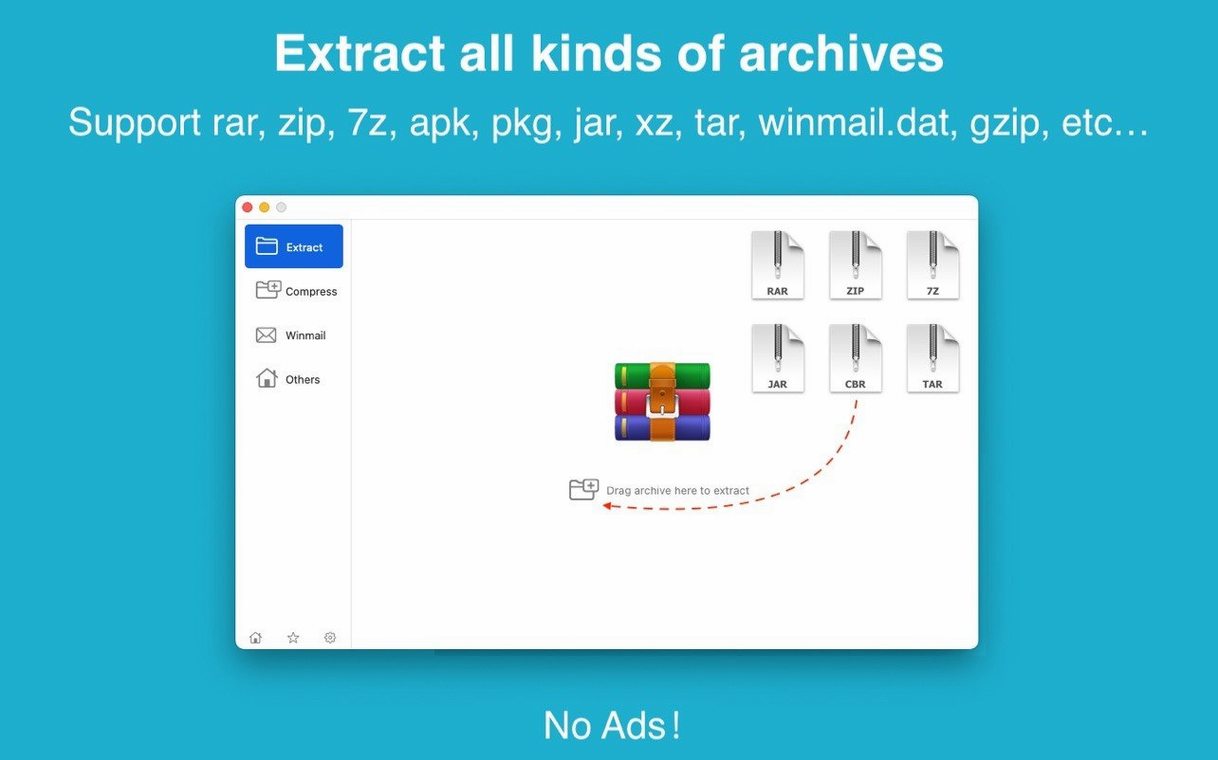
- Batch extracting a folder full of production assets. Drop a pile of RARs, 7Zs or ZIPs onto the interface and walk away while it unpacks everything in sequence.
- Opening password-protected dailies. AES-256 encryption support for ZIP and 7Z means archives with confidential footage decrypt without extra tools.
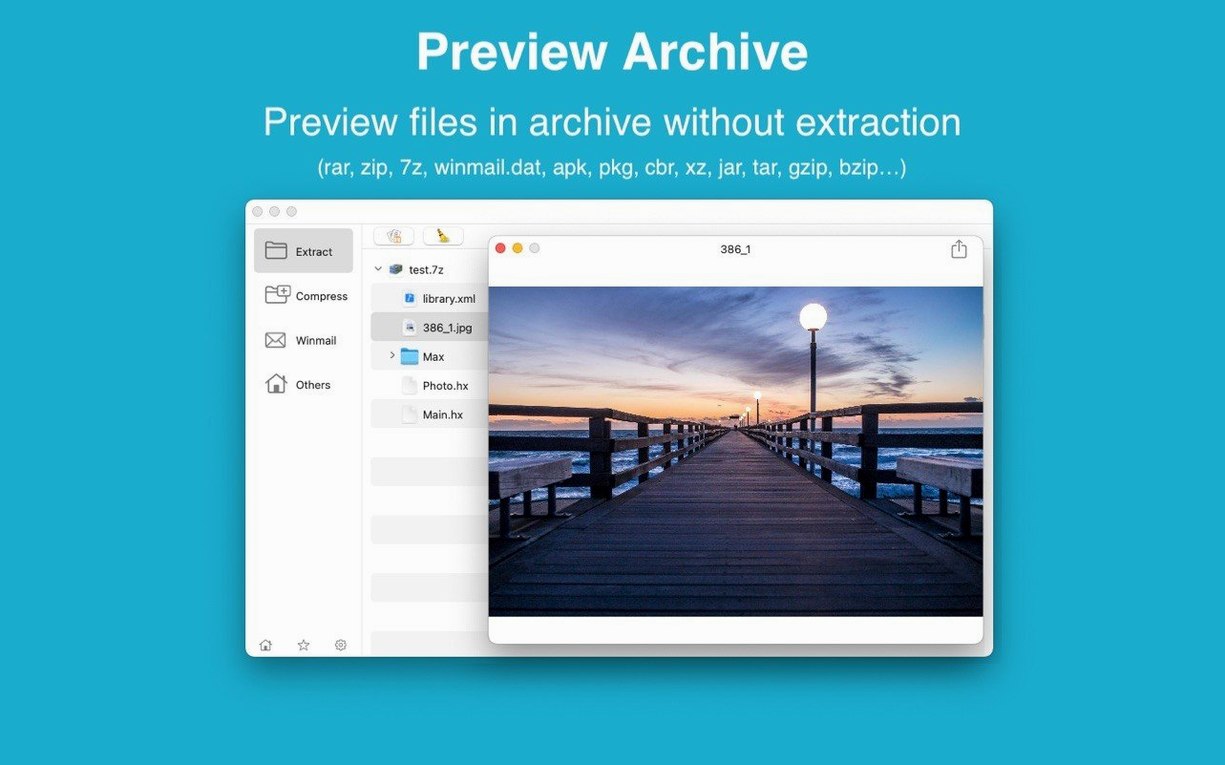
- Pulling individual files from a large archive. Preview the contents and extract a single shot or audio stem instead of the whole folder tree.
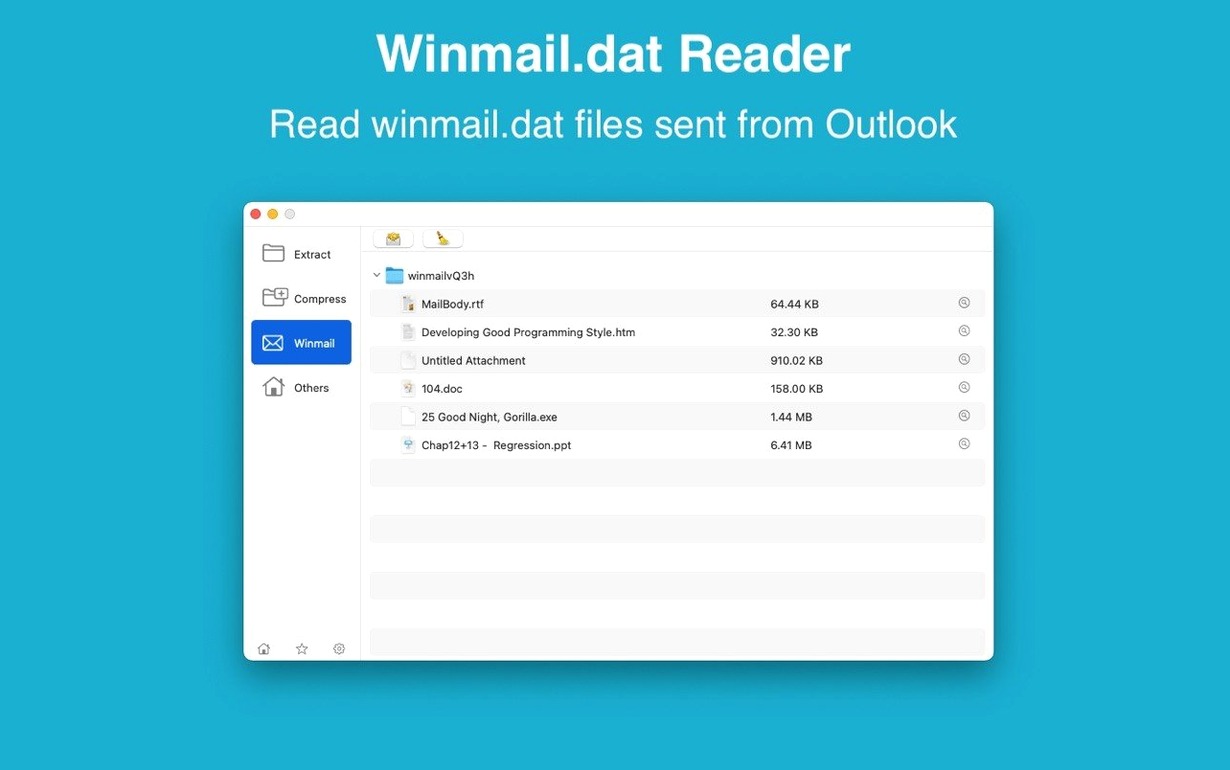
- Decoding winmail.dat attachments. The built-in previewer parses those garbled Outlook files so you can grab the actual attachment inside.
- Working across two displays. The dual-window layout keeps the archive contents and the target folder visible at the same time, which tightens the loop when you are pulling selects from different days.
- Dock-drag convenience. Dragging an archive onto the Dock icon opens it for browsing or extracts it with one movement.
Needs macOS 11.5 or later, menus stay in English or Simplified Chinese
- Requires macOS 11.5 or later.
- Interface localised in English and Simplified Chinese only.
- Part of a product line that includes the earlier first-generation RAR Extractor.
The first settings worth a tweak
Out of the box, RAR Extractor does what it says, but a few quick changes make it feel less like a utility and more like something shaped to your own rhythm. Head into preferences before you even queue up a batch.
Set your default extraction folder to the desktop or a dedicated Incoming directory — somewhere you can sweep files into a project without spelunking through dialogs. If you handle password-protected archives regularly, toggle the option that remembers the last-used password for the session. It saves retyping the same string across twenty dailies from the same encrypted drive. Turn off the success notification sound unless you really want a chime every time a ZIP unpacks. And if you work with dual monitors, lock the dual-window layout as the default; the app remembers it between launches once you set it, so you stop losing the destination pane on a secondary display.
One setting people miss: the file-list preview renders archive contents in a flat list by default. Switch it to a tree view if you prefer seeing folder structures before you extract. It adds half a second to the preview generation on very large archives, but the clarity is worth it when you are hunting for a specific subfolder inside a seventy-gig RAR.
Failed extractions usually mean a missing volume or an incompatible format
Some archives throw an error that reads like a generic failure but almost always traces back to one of two things: the file was split across multiple volumes and one part is missing, or the archive was compressed with a newer RAR algorithm than the extraction engine expects. The fix for split archives is straightforward — keep every numbered part in the same folder and point the app at the first one. It chains the rest automatically. For the algorithm mismatch, the current build handles most RAR5 archives without trouble, but if a file refuses to open, try dragging it in a second time with the source window focused. A small quirk in the parsing layer sometimes needs a second pass on deeply nested RAR5 structures.
Password dialogs that reappear after you have already entered the correct string usually mean the archive contains multiple encrypted files with different passwords. The app processes them sequentially and asks again for each new key it encounters. Not a bug, just an uncommon edge case with composite archives. Check the file list after the first extraction wave; the unencrypted files are already out, and only the stragglers need attention.
If the Dock icon stops responding to drag-and-drop after a system sleep, quitting and relaunching the app restores it. The issue appears tied to macOS window-server state after extended idle and affects a handful of third-party archive tools, not just this one.
A colourist's afternoon
Suppose a colourist has just received a drive from a production house. The drive holds twelve multi-part RAR archives, each password-protected, and each containing an EXR sequence with a convoluted folder structure. She needs only the final graded plates from three specific scenes, not the entire five hundred gigs.
She opens RAR Extractor and drags the first archive set onto the source pane. The file list populates in tree view, and she drills down through the production's folder hierarchy — EP02/SCENE_14/GRADED/PLATES/ — selects that directory, and sets the destination to her local RAID. She checks the box to apply the same password to the remaining archives in the queue, types it once, and starts the extraction. While the first batch runs, she queues the other eleven archives, each pointed at the same destination with the same folder preselected. Twenty minutes later, the RAID holds only the graded plates she needs, no media-wrangling required.
Workflow: building an encrypted 7Z for secure delivery
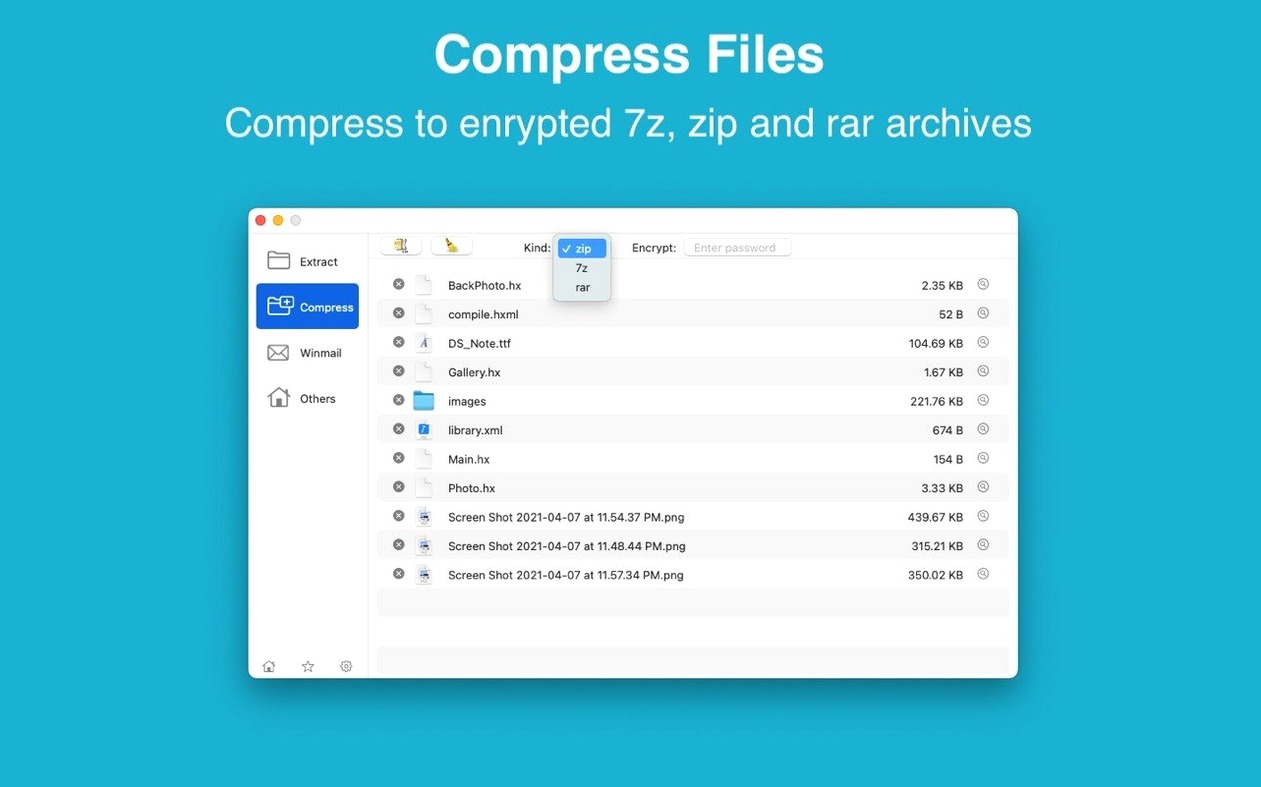
When a project calls for sending a rough cut to a remote producer, a simple ZIP is rarely enough. Here is a start-to-finish path through RAR Extractor for creating an AES-256-encrypted 7Z archive that travels safely.
Gather the deliverables. Collect the ProRes export, the AAF, a reference WAV and any LUT files into a single folder. The folder becomes the root of the archive, so recipients unpack into a clean directory without loose files scattering across their desktop.
Open the creation pane. Switch the app to the archive-creation view — the second window in the dual-pane layout. Drag the delivery folder into the source area. The app reads the directory tree and displays the file count and total size.
Choose 7Z and set encryption. Select 7Z as the format from the dropdown. Under encryption options, pick AES-256 and enter a strong password. The password field has a visibility toggle; leave it hidden if someone is watching your screen. For an extra layer of caution, avoid storing the password in the session memory — uncheck that preference for this one job so the key evaporates after creation.
Set compression level and split size. For a video file, compression gains are marginal, so choose Fast or Store to keep the process quick. If the upload portal has a file-size cap, set a split size — 2 GB works for most cloud services — and the app writes a multi-part archive automatically.
Build and verify. Hit create and let it run. On an Apple Silicon Mac, the AES-256 hardware acceleration keeps the encryption overhead low. Once the archive completes, drag it back into the extraction pane and test the password. A five-second verification now saves an awkward phone call later.
- macOS 11.5 or later
- Apple Silicon or Intel 64-bit
Questions from the booth
Yes — preview the archive contents and select a specific file or folder to extract without processing the rest of the data.