Radio Silence ships as a disk image under three megabytes. That is smaller than most system preference panes, and it hints at the philosophy behind the tool: a firewall should be felt, not seen.
Block an app from phoning home
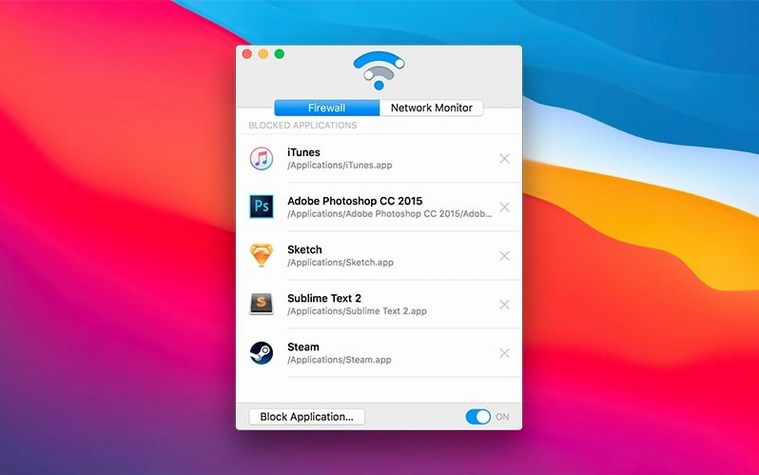
Launch the firewall tab, click the block button, and choose any installed application. From that moment the app cannot open an outgoing connection to its servers. There is no schedule to configure and no rules to write — just a single action that holds until you reverse it.
See what your apps are doing
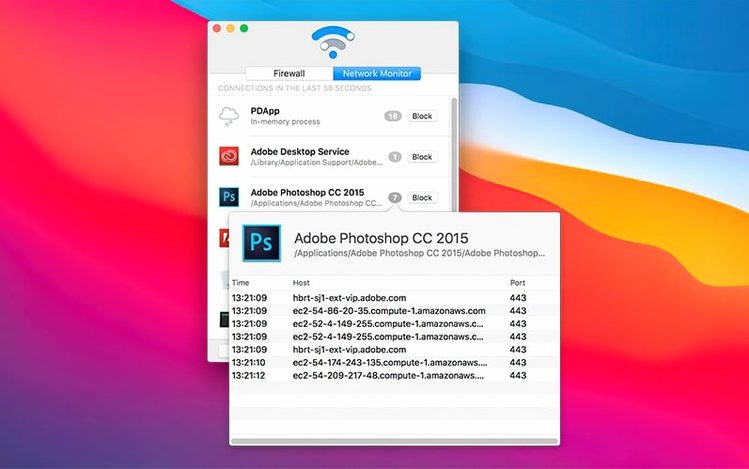
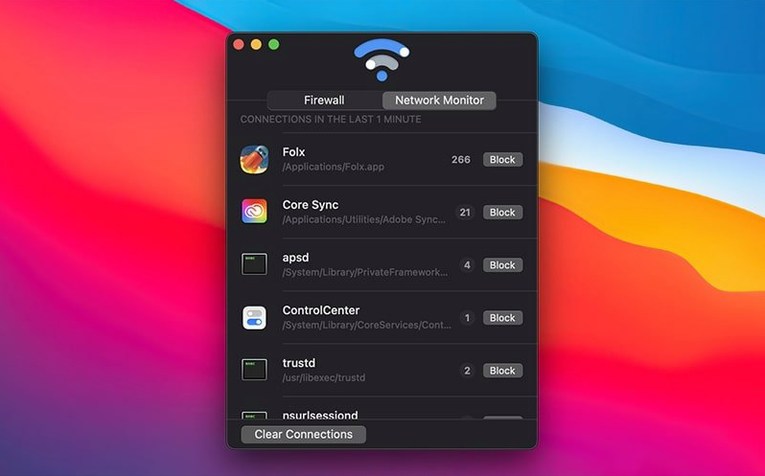
The network monitor surfaces incoming connections initiated by software you already trust. It answers the quiet question people ask before installing a firewall: what is actually happening on my Mac right now?
Live with it in silence
Once configured, Radio Silence places nothing in the menu bar. It does not badge, blink, or ask for attention. The interface is English only, and version 3.4 runs on both Intel and Apple Silicon Macs from macOS 10.15 Catalina onward.
How Radio Silence fits into a larger workflow
Radio Silence does not try to replace Little Snitch, LuLu, or the built-in macOS application firewall. It slots in alongside them, or instead of them, depending on what you actually need. The macOS firewall is port-based and invisible — it never tells you an app just tried to reach a telemetry endpoint in Virginia. Third-party firewalls like Little Snitch give you that visibility, but they also ask you to make decisions every few minutes, which is exactly the friction some people want to escape.
What I have found useful is pairing Radio Silence with a DNS-level blocker for broad domain filtering, then using Radio Silence for the few apps where I want a hard, unconditional block at the socket level. A video editor that insists on checking for updates every time it renders. A utility that sends crash reports I never agreed to. The DNS filter catches the browser noise; Radio Silence handles the specific, named binaries I do not want talking at all.
Because Radio Silence does not touch system processes by default and does not intercept every packet, it coexists peacefully with other network tools. You can run it alongside a VPN without split-tunnel conflicts, and it does not interfere with Xcode simulators reaching local servers on high ports — something that trips up more aggressive firewalls. If you pause the firewall from the single toggle in the window, everything resumes as if Radio Silence was never there, which makes troubleshooting connection issues a matter of one click rather than a rule-by-rule audit.
Version 3.4 also integrates more cleanly with macOS Tahoe's permission model. Earlier versions could land in a half-installed state if the system extension approval dialog was dismissed too quickly. The new installation guidance walks through that moment explicitly, and the help view that appears when something is missing — a network extension, a full-disk access grant — tells you what to fix without sending you to a forum thread from 2019.
Connections reveal their full binary path, not just the app name
The block button is the obvious star of the interface, but a few quieter details repay attention in the first week. In the network monitor, connections are listed with the full binary path — not just the friendly app name. That distinction matters when an app ships a dozen helper processes and only one of them is the culprit. You can spot that the Adobe installer's background updater lives at a different path than the application you intend to keep online, and block just the right binary.
There is no search field, but the list responds to typing. Start typing the name of an app while the firewall tab is focused, and the selection jumps. It is the kind of thing you discover by accident and then rely on when the block list grows past a dozen entries.
Removing an app from the block list is instant and silent — no confirmation dialog, no "are you sure" sheet. The same restraint applies to adding a block. Drag an application from the Finder directly onto the firewall tab window, and Radio Silence adds it without requiring you to navigate the file picker. The drop target is not marked; the window just accepts the drag.
Because there is no menu bar icon, checking whether the firewall is active means opening the app. That feels like a limitation until you realize the alternative — a permanent icon signalling nothing — is the kind of visual noise Radio Silence was built to avoid. The firewall runs as a system extension, not a background app, so it survives logouts and restarts without needing to be relaunched by a login item.
It never phones home — and you can verify that yourself
Does Radio Silence phone home itself? The network monitor shows its own traffic, which is none — the app does not check for updates in the background, does not send analytics, and does not make a single outgoing connection unless you explicitly download a newer version. The developer's stance on this is visible in the code: the only network activity the app can generate is the monitoring data it displays to you.
Will it slow down my connection? Radio Silence is not a proxy and does not route traffic through itself. It uses the macOS Network Extension framework to apply block rules at the kernel level, which means packets from blocked apps are dropped before they leave the machine. There is no per-packet inspection, no deep packet inspection engine, and no measurable throughput penalty for unblocked applications. On a gigabit fibre connection, you will not see a difference in speed tests — the blocked apps simply cannot open sockets, and everything else operates normally.
Can I block system processes? The app does not hide them, but it also does not encourage it. System binaries are visible in the file picker. Blocking mDNSResponder or trustd will break things in ways that are hard to diagnose, and Radio Silence does not include guardrails against those choices. The assumption is that you know what you are blocking, or you stick to third-party applications where the consequences are predictable.
What happens if I uninstall it? Removing the app also removes the system extension and all block rules. There is no residual configuration file buried in a Library folder, no lingering kernel extension to manually unload. The uninstall is as clean as the install, which is a quiet virtue in a category of software not always known for tidy departures.
First days with Radio Silence
After installing version 3.4, open the network monitor and leave it visible for an hour while you work normally. Do not block anything yet. Just watch. The list will populate with connections you expected — your email client, your browser — and a few you did not. A utility you installed six months ago for a one-off file conversion. A media player checking for codec updates. This observation period is the most useful thing you can do before touching the block button, because it turns an abstract privacy concern into a concrete list of named binaries.
When you do start blocking, begin with one application and use your Mac for a day. If something breaks — an app hangs on launch, a feature silently fails — you know exactly which rule caused it. Blocking a dozen apps at once makes that diagnosis harder than it needs to be. The pause toggle is your safety net: flip it, confirm the problem disappears, then remove blocks one by one until you isolate the conflict.
A practical rhythm that works for long-term use is to revisit the firewall tab once a month, or after installing new software. The block list does not age on its own — an app you blocked last year may have been updated to behave better, or you may have stopped using it entirely and forgotten it is still restricted. A quick scroll through the list and a couple of removals keeps the firewall relevant rather than a museum of past grievances.
Version 3.4 adds installation guidance for macOS Tahoe and a new help view that surfaces troubleshooting information when the app fails to launch. Handling of installation errors and missing permissions has also been tightened across the board.
- macOS 10.15 Catalina or later
- Intel and Apple Silicon Macs
Questions from the booth
No — blocked apps are listed in the firewall tab, but the tool stays silent with no pop-ups, sounds, or menu bar presence.