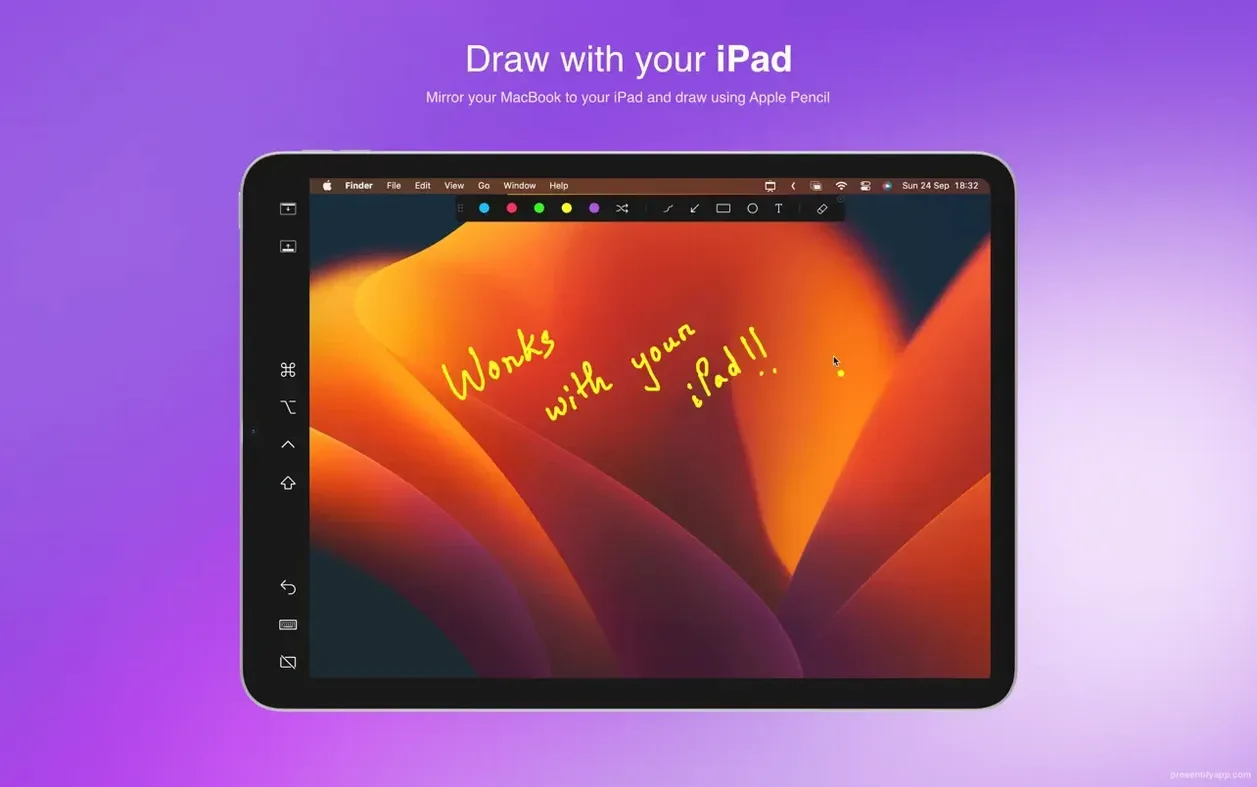
Version 8.1.3 keeps the tool lean — no interface overhaul, just the same quiet reliability for people who annotate live. It lives in the menu bar and waits until a screen share or lecture needs a mark, a spotlight, or a closer look.
See your cursor glow on a live call
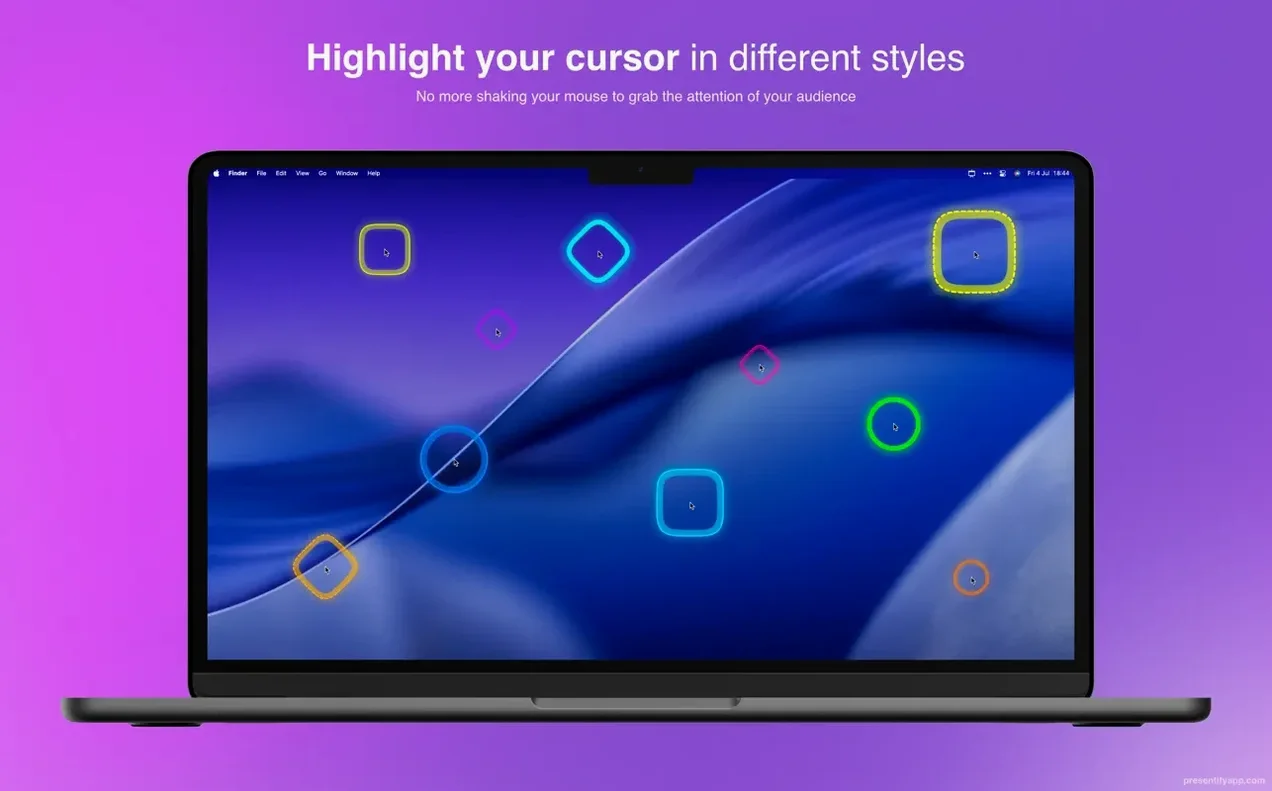
Start with cursor highlighting during a Zoom or Google Meet call. A soft ring follows the pointer, and the effect reads clearly even on a compressed stream.
Which annotation tools are worth learning early?
Text annotation and the basic shapes cover most live explanations. Random gradient colours keep drawn lines from feeling stiff, and automatic erasing means the screen does not stay cluttered after a point lands.
Annotate slides without leaving the deck
Yes. Presentify works over Keynote slides and in full-screen mode, so a presenter can mark a figure without leaving the deck.
What helps during online classes?
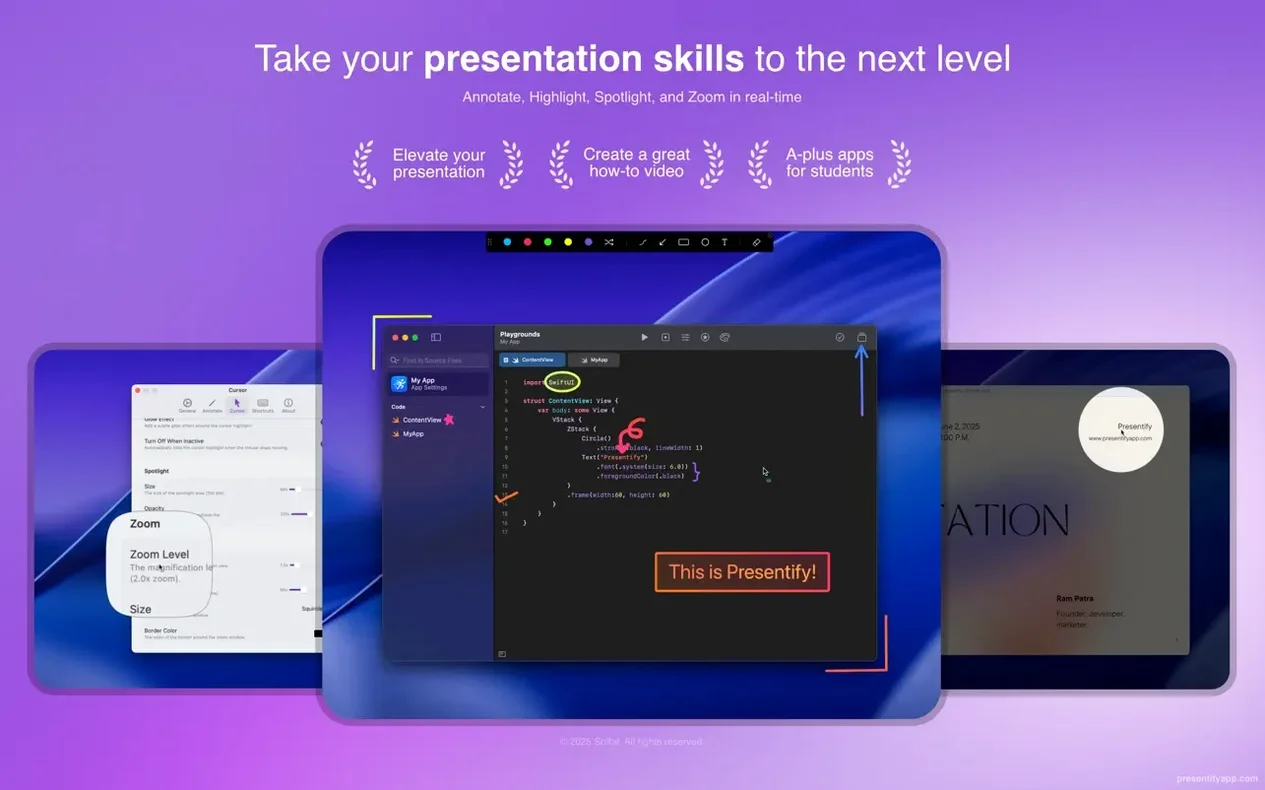
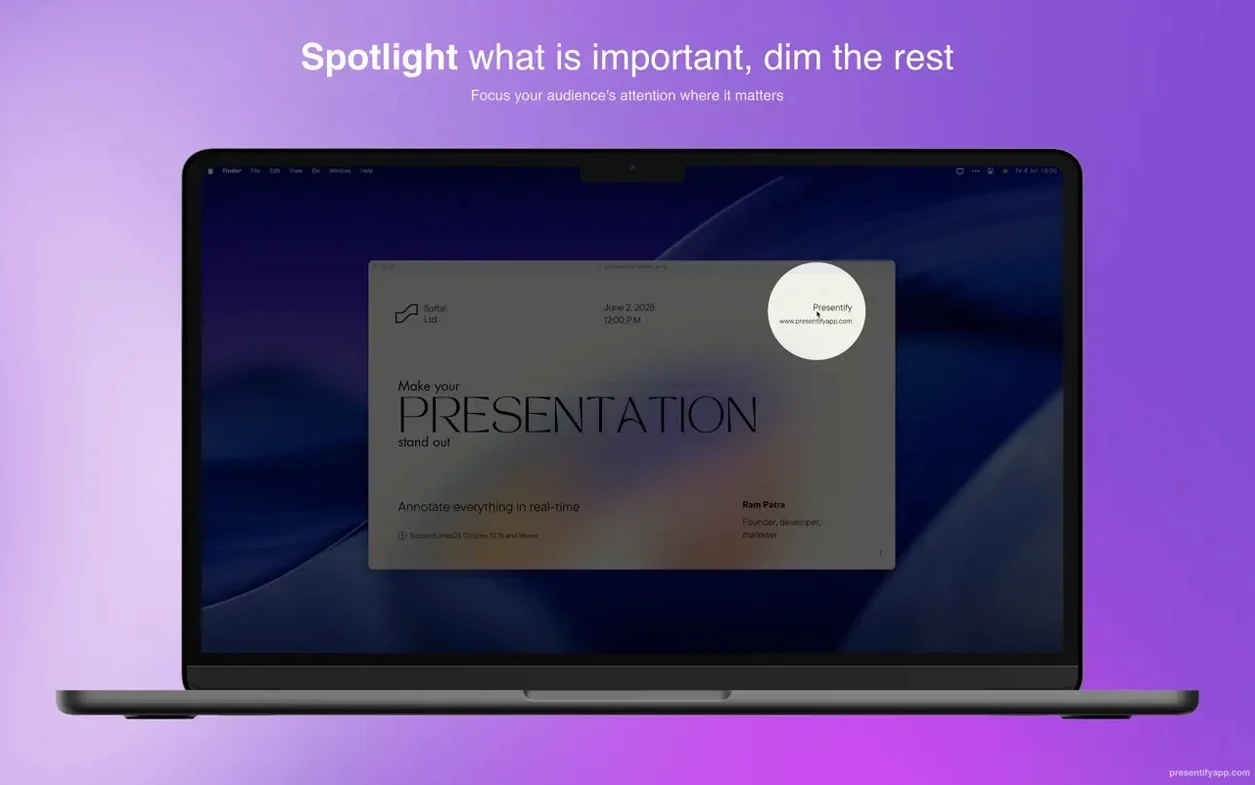
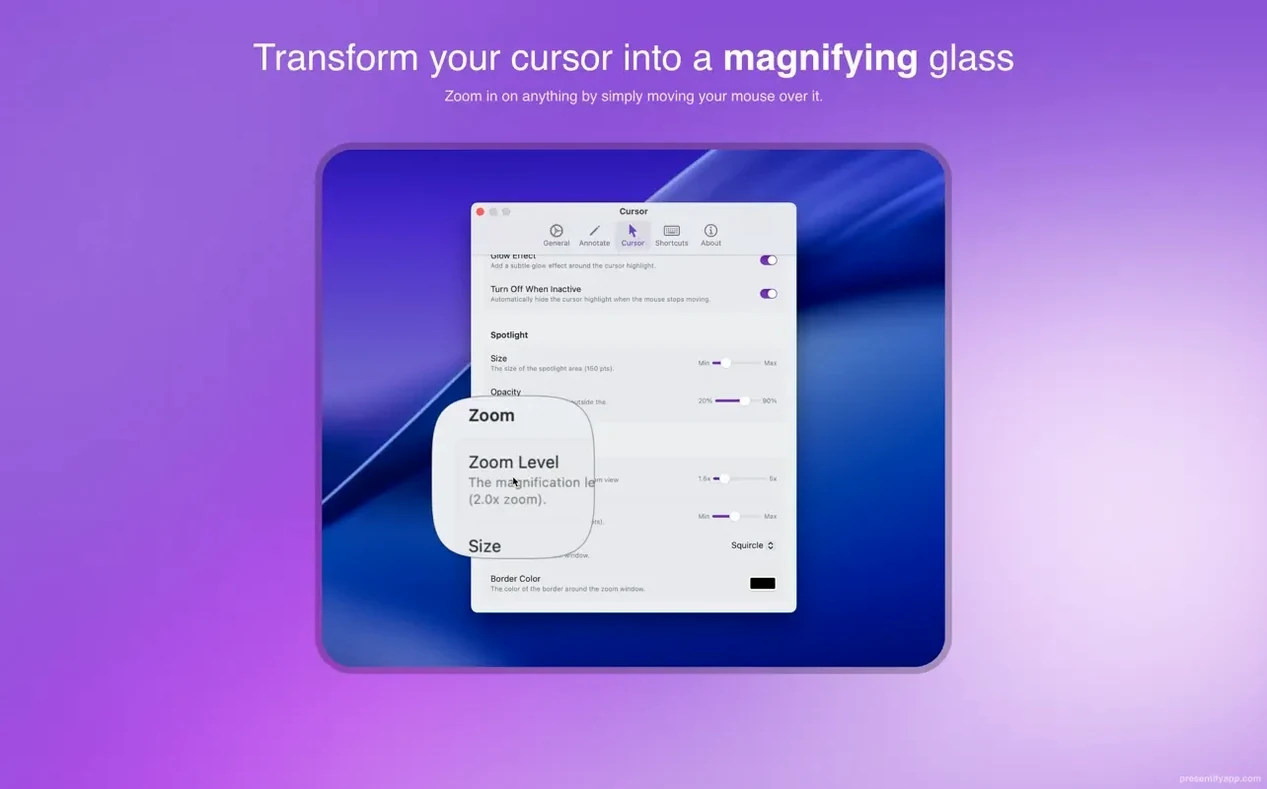
The spotlight effect dims everything except a chosen area, and the zoom tool pulls a detail forward. Both work alongside the highlight-without-covering-text option, which keeps a sentence legible while you draw attention to it.
A lightweight overlay, not a recording studio
Screen annotation on macOS splits roughly into two camps: lightweight overlay tools and full recording suites. Presentify belongs firmly in the first, and comparing it with a couple of neighbours clarifies what it does — and what it consciously leaves out.
ScreenBrush shares the overlay concept. Both apps sit above whatever is on screen and let you draw freely. Where they differ is intent. ScreenBrush leans toward creating polished still-frame explainers with a library of arrows, checkmarks, and callout shapes saved as templates. Presentify strips that back to a few essentials — line, rectangle, ellipse, text — and builds the experience around live delivery. The random gradient colours and auto-erase option feel designed for someone mid-sentence, not someone assembling a diagram after the fact. If you spend more time presenting than editing, Presentify’s smaller toolset is actually the faster one.
DemoPro takes the opposite road. It bundles screen recording, webcam overlay, click visualization, and a modest annotation layer into one app. The annotation tools are secondary — enough to circle a button during a tutorial recording, but awkward for a live class that needs quick spotlighting or zoom. Presentify does not record anything, which might sound like a limitation. In practice, it means the app is never thinking about encoding, bitrates, or temporary files. It draws; it erases; it gets out of the way. For someone already recording in OBS or streaming in Zoom, that single-mindedness is the point.
If your work already has a camera and a microphone set up, Presentify fills the one gap most setups leave open: the ability to gesture on the screen itself, live, without switching apps.
A workflow: annotating a live code review
Imagine a remote code review over Google Meet. You are sharing Visual Studio Code, walking a colleague through a pull request. A function near line forty is the problem, but explaining it verbally means repeating variable names and hoping they follow your cursor.
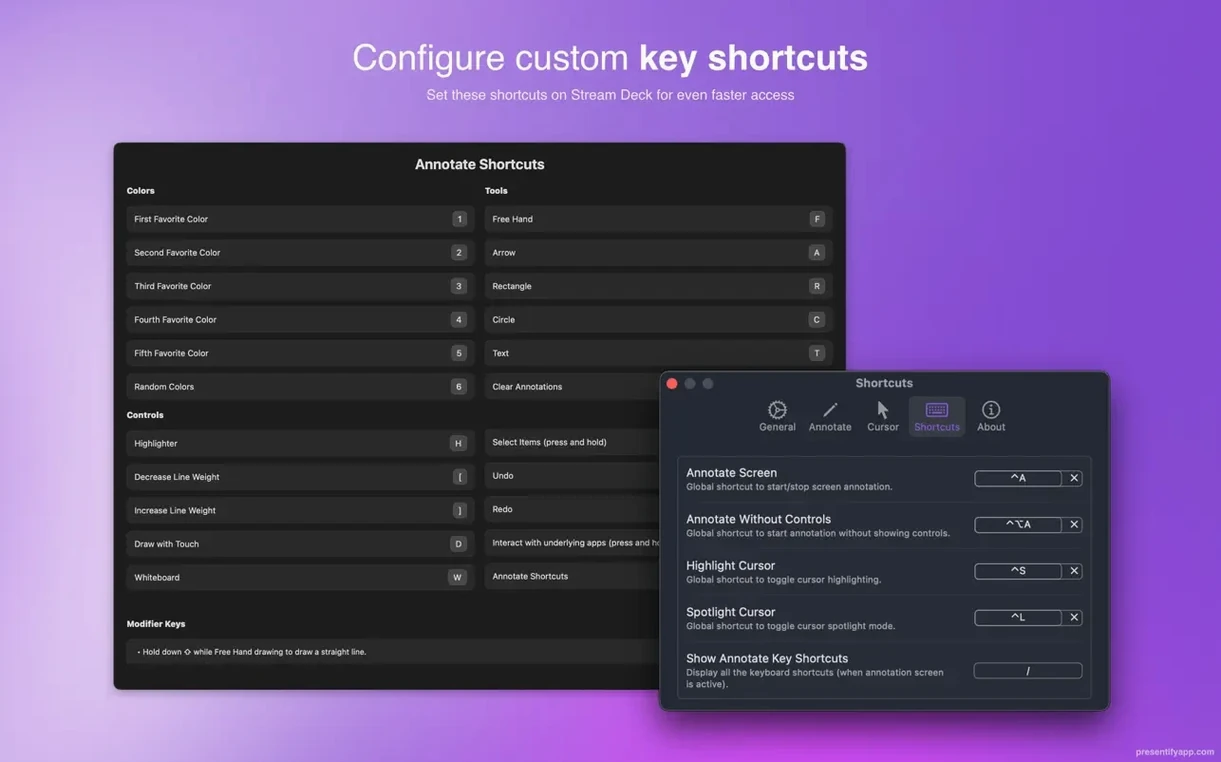
Open Presentify from the menu bar beforehand. In the controls, set the drawing tool to freehand and enable auto erase after 6 seconds. Tick the option that leaves highlighted text readable — the highlighter becomes a semi-transparent band instead of an opaque stroke. Leave the spotlight and zoom shortcuts on their defaults, which sit out of the way until you need them.
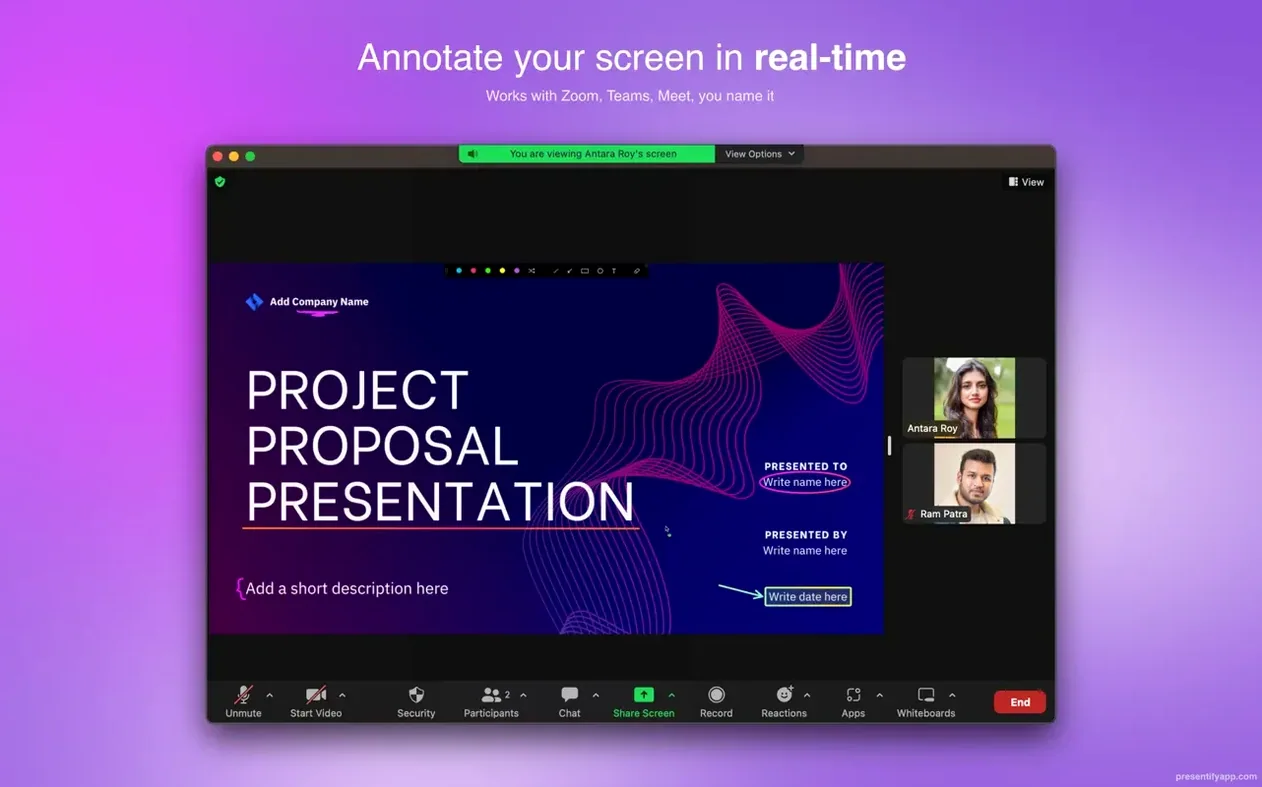
When you reach the function during the call, hold Fn and draw a loose rectangle around the block. The red-orange gradient line appears, your colleague murmurs an “ah, that one,” and after a few seconds the mark fades. No cleanup, no break in pace. A minute later they ask about a variable three screens down. You hit the zoom shortcut, drag a lens over the declaration, and let go — the screen snaps back when you move on. The whole session stays inside VS Code and Meet; Presentify never asks for its own window.
By the end of the review, you have drawn perhaps twenty marks and used zoom twice. None of them survive the call, and that is exactly the point. The screen looks untouched when you stop sharing.
Grant permissions once, then look for the menu bar icon
The first time you launch Presentify, it asks for Accessibility and Screen Recording permissions. Grant both — without them, the overlay cannot draw or track the cursor — then quit via Activity Monitor and reopen. The menu bar icon appears: a small, unassuming circle.
Click it. A compact palette drops down with drawing tools, colours, and toggles for cursor highlight and spotlight. The first thing you notice is how little it offers: freehand, line, rectangle, ellipse, text. That restraint is deliberate. During a session, you will not be browsing menus.
You start a Zoom call and share your screen. A student asks about a figure in a PDF. You click the highlighter tool, drag across the caption, and the text stays legible under a wash of translucent yellow. Another student is lost on the diagram. You switch to the spotlight, dimming everything except the axis labels. The effect is subtle enough that the rest of the slide remains visible as context, but the student’s eye lands where you intend.
Midway through, you want to annotate a paused video frame. Press the shortcut for freehand drawing, circle a detail, and the mark erases itself after the interval you set earlier. No break in the explanation to grab a cloth tool or switch modes. When the call ends, you close the palette. The app goes back to waiting in the menu bar, its memory footprint barely a few dozen megabytes.
Teachers mark and vanish without ritual
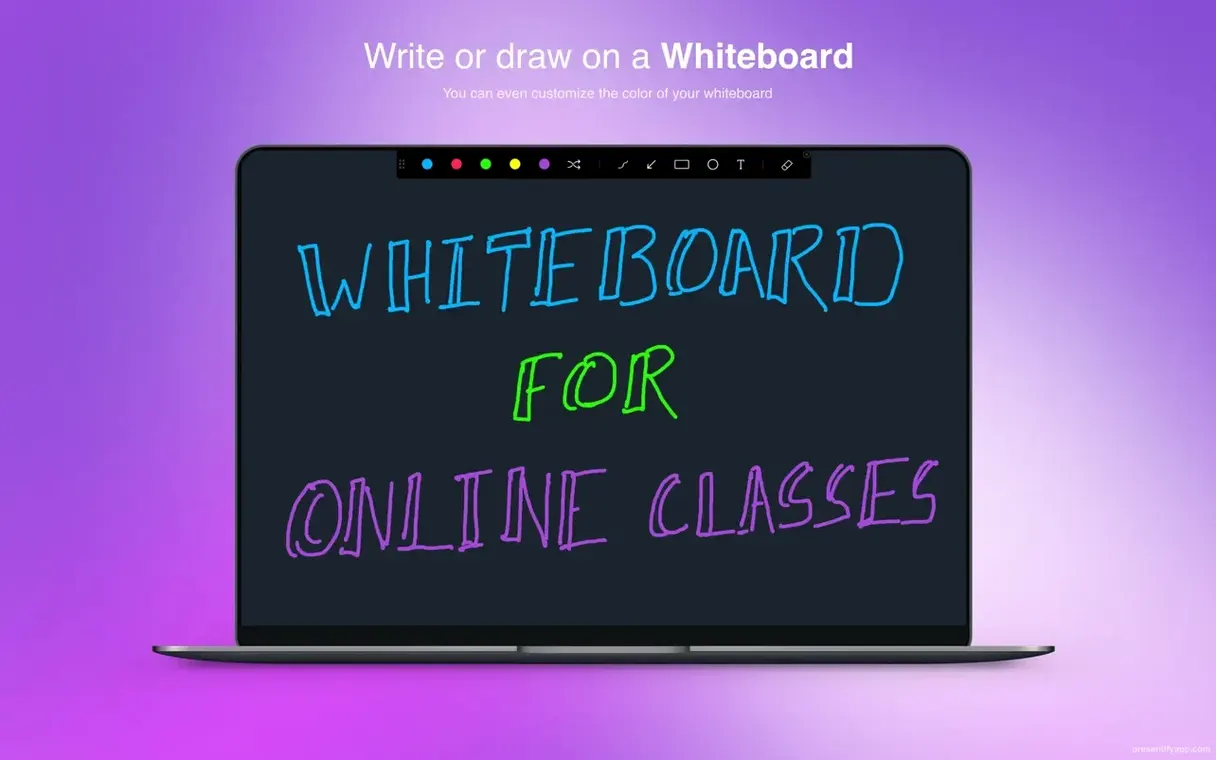
Online instructors get the most obvious return. A teacher explaining a diagram, a language tutor marking up a text passage, or a coding mentor circling syntax — all of them need marks that appear, communicate, and disappear without ritual. The spotlight and zoom tools turn a flat screen share into something closer to a classroom projector, where attention can be guided physically.
Video creators who record tutorials sit in a different relationship with the app. They often pair Presentify with OBS or ScreenFlow, using the annotations as live accents rather than post-production overlays. The auto-erase feature keeps the timeline clean, and because Presentify never records, it never interferes with the encoding pipeline. A freelancer recording a client walkthrough can mark a button, let the mark vanish, and keep the edit simple.
Designers and developers presenting work to stakeholders form a quieter user base. They tend to use Presentify sparingly — a quick circle during a Figma walkthrough, a highlighter pass over a commit hash — but they value the fact that it adds no chrome to the screen. The annotations look intentionally rough, which suits the moment: an idea in progress, not a finished asset.
Anyone who presents live, on a schedule, without an editor waiting to clean up afterwards will find the tool fits. It is not for building permanent diagrams or recording polished demos. It is for the moment when someone on the other end of a call says “wait, show me where” and you need to point, right now, without breaking eye contact with the material.
- macOS 13 Ventura or later
- Runs on Intel and Apple Silicon Macs
Questions from the booth
Yes, it is compatible with Zoom, Google Meet, and Skype.
Presentify requires macOS 13 Ventura or later and runs on both Intel and Apple Silicon Macs.