
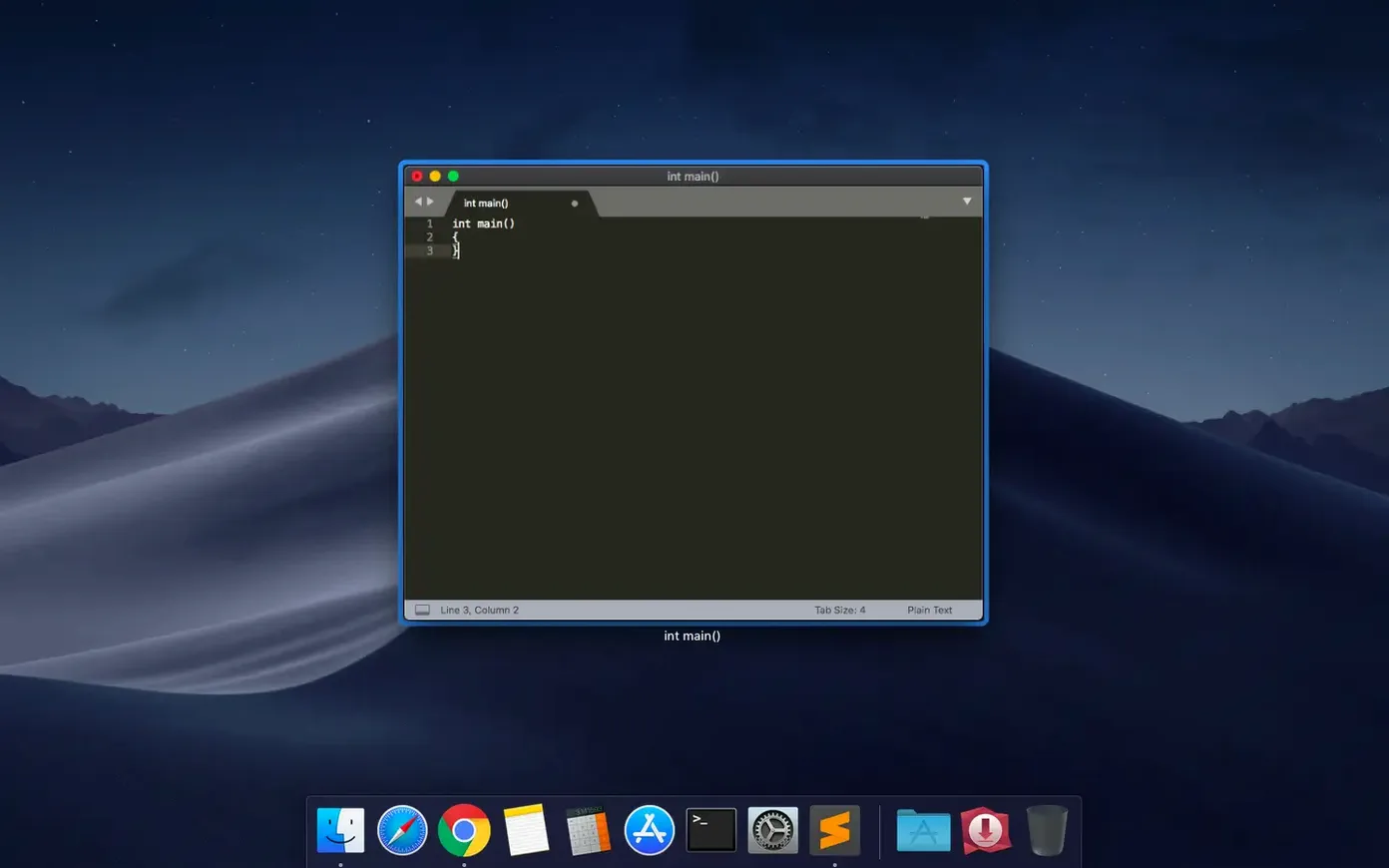
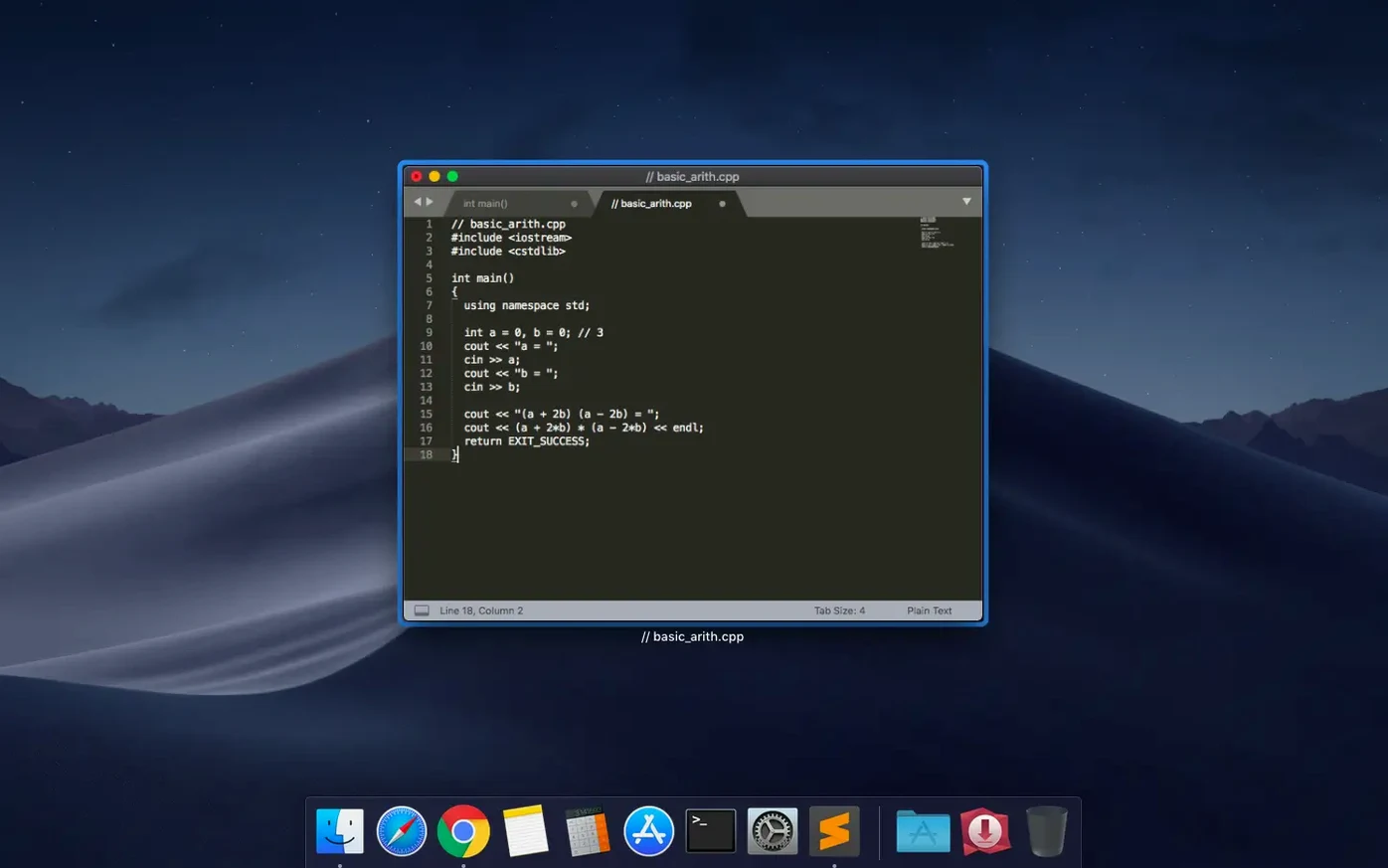
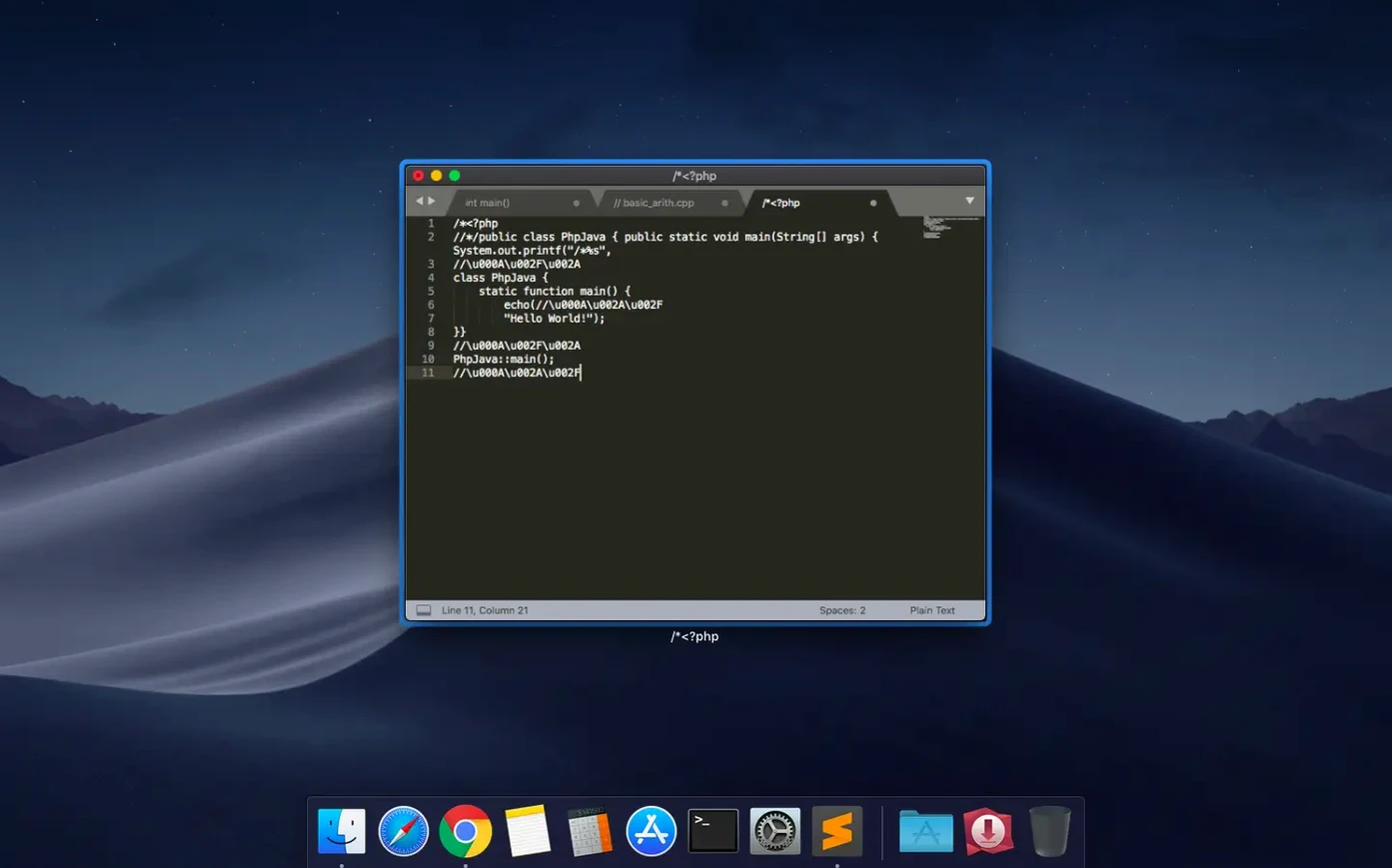
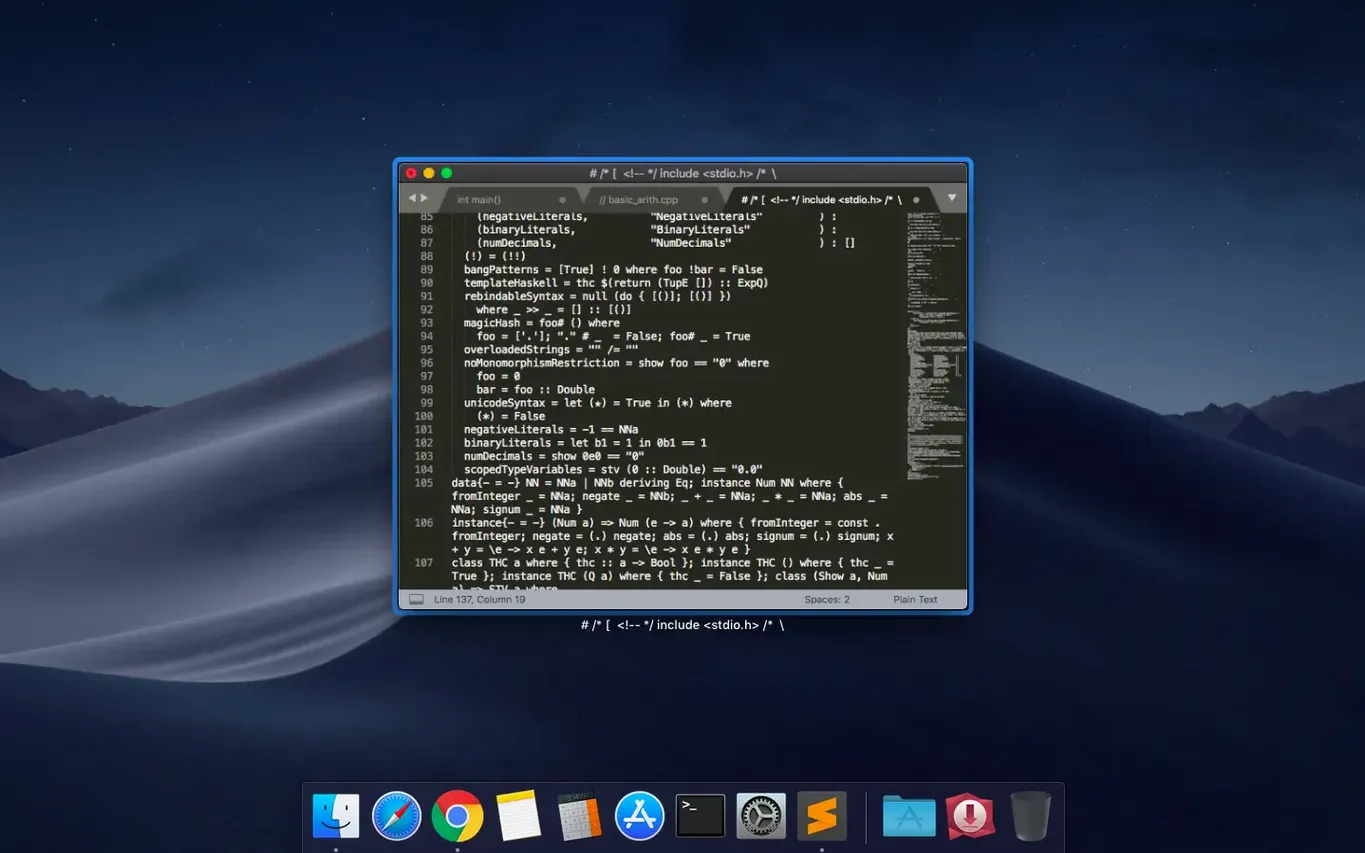
Sublime Text is a text editor built for code, markup, and prose that feels light even when a project gets heavy. Version 4 brought native Apple Silicon support, a refreshed interface with multiple visual themes, and a package manager that handles discovery, updates, and removals without restarts. The current build is a quiet maintenance release, fixing a compatibility issue that affected macOS 10.13 and 10.14 and restoring the vintage M command that had stopped responding.
Stay in the keyboard with multicursor and fuzzy file jumps
- Projects where you want to stay in the keyboard — multiple cursors, column selection, and fuzzy file navigation make moving through a codebase fast.
- Setting up build systems that run your programs without switching to the terminal.
- Writers and developers who lean on autocomplete for typed code and user-defined variables.
- Anyone who prefers an editor that auto-saves and lets macros handle the repetition.
You manage package updates yourself, with a 10.13 minimum
- The minimum macOS requirement is 10.13; Build 4215 specifically addressed a breakage on 10.13 and 10.14.
- The package manager keeps extensions current by pulling new versions from their repositories, but you manage it yourself.
Override defaults in a side-by-side JSON file right away
Out of the box, Sublime Text works, but a few small changes make it yours quickly. Open the default preferences with ⌘, and add overrides on the right-hand side — the JSON format means every setting is a key-value pair you can tweak, share across machines, or version-control alongside your dotfiles.
I start with "trim_trailing_white_space_on_save": true. It keeps diffs clean without thinking about it. Next, "ensure_newline_at_eof_on_save": true stops that small lint warning that shows up in CI logs. If you work across monitors or share screens, "font_size": 13 or 14 paired with "font_face": "SF Mono" on a Retina display makes long sessions easier on the eyes. Turn on "highlight_line": true and "highlight_modified_tabs": true — the latter changes the tab colour slightly when a file has unsaved changes, a small visual cue that catches you before you switch branches.
For anyone who touches Markdown or prose, "word_wrap": "auto" and "wrap_width": 90 keep lines readable without manual breaks. The minimap on the right side is striking, but on a laptop I set "always_show_minimap_viewport": true and reduce "minimap_scale": 2 so the visible-window indicator stands out against a compressed map of a long document. The minimap remains useful for navigation, but it stops dominating the chrome. One last setting worth changing early: "hot_exit": true saves your unsaved file state when you quit, and restores it when you reopen. Combined with auto-save, it means you almost never lose a thought.
A workflow for editing across a dozen files at once
Picture a short film project with a folder full of subtitle files in .srt format, a config file for the render queue, and a Python script that remuxes audio. You need to adjust timecodes, align speaker labels, and verify that every block has a matching language code. Doing this file by file is tedious. Doing it with Sublime Text and a few shortcuts takes minutes.
Start by dragging the project folder into the editor. Hit ⌘P and type .srt — the fuzzy search returns every subtitle file instantly. Open four of them into separate panes with ⌘⌥2 for a two-column grid, then ⌘⌥2 again to split one column into two rows. Now you can see three subtitle files and your Python script side by side. Place multiple cursors in the first file by holding ⌘ and clicking at the start of each timecode line. Type a new hour value, and every cursor inserts simultaneously. Repeat across the other panes, switching focus with ⌃1, ⌃2, and so on.
With the subtitles aligned, open Find across files with ⌘⇧F. Search for the old language code eng in the project folder, and replace it with en in every file that matches — Sublime Text shows a preview of each change before you commit. Then save all modified files at once with ⌥⌘S. The build system step comes last: open the Python script, hit ⌘B, and the remux runs in the built-in output panel at the bottom of the window without ever leaving the editor. No terminal, no context switch, just the edit and the result.
When Package Control won’t install, restore it from the palette
The package manager won’t install anything. This usually means Package Control didn’t come with the installation or was removed. Install it fresh through the command palette with ⌘⇧P and typing Install Package Control. Once it’s back, ⌘⇧P again and Install Package should pull from the channel without an error. If the channel itself is unreachable — rare, but proxy environments can cause it — check the "channels" setting in the Package Control user preferences and make sure the URL is reachable on your network.
Autocomplete feels sluggish or gets in the way. The completion popup appears as you type and pulls from open files plus any installed language servers. In a large project, you can raise the delay with "auto_complete_delay": 100 (in milliseconds) to give yourself a beat before suggestions appear, or turn off "auto_complete_commit_on_tab" if you prefer to confirm with Enter. If a particular file is bogging down completions, close it — the index shrinks immediately.
Build system output is blank. Start by checking that the build system selected under Tools → Build System matches your file type. A Python file assigned to a C build system will run and produce nothing visible. Open the build result panel with ⌘⇧B and look for error text. If the output still shows nothing, check that the executable path in the .sublime-build file is correct — especially on Apple Silicon Macs where Homebrew installs to /opt/homebrew/bin rather than /usr/local/bin. A quick test from the terminal confirms the path, then paste it into the build file and save. Sublime Text picks up saved build files instantly.
Build 4215 restored the vintage M command that had stopped working and fixed a compatibility issue affecting macOS 10.13 and 10.14.
- macOS 10.13 or later
- Intel or Apple Silicon Mac
Questions from the booth
Yes, it runs natively on both Intel and Apple Silicon Macs.
It can find, install, update, remove, enable, and disable packages without restarting the app.