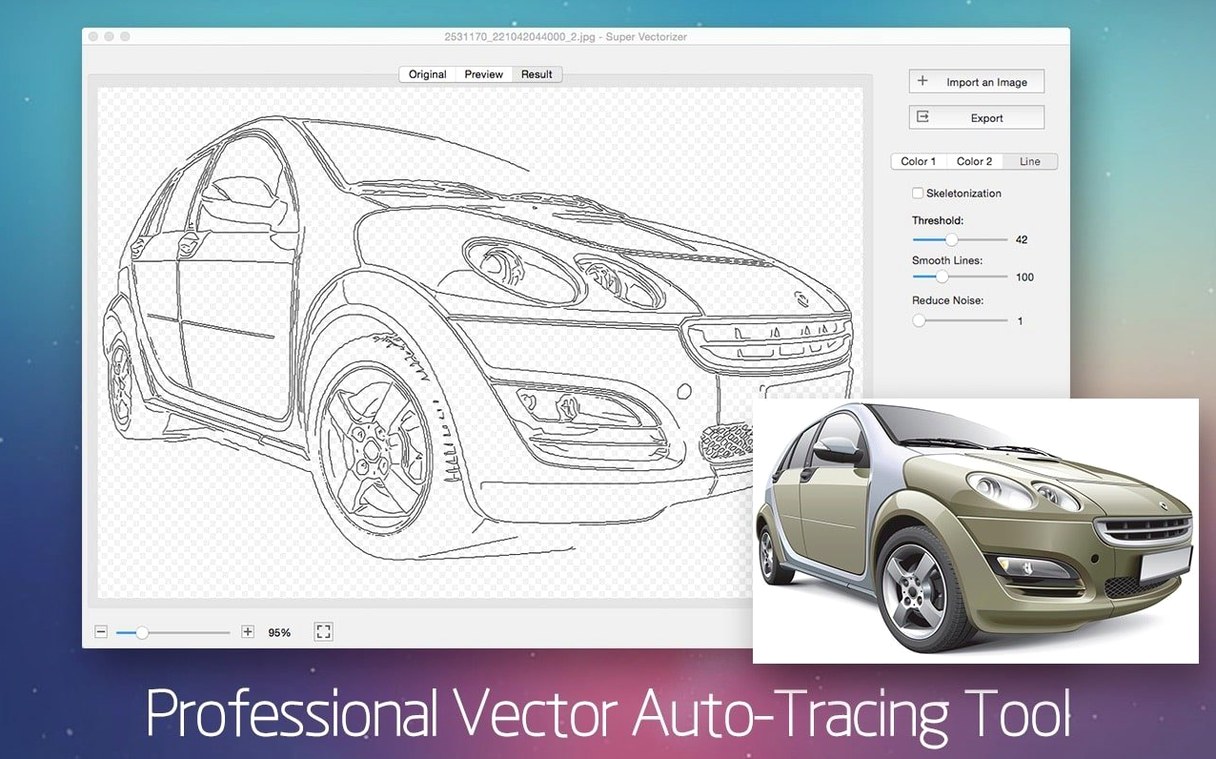
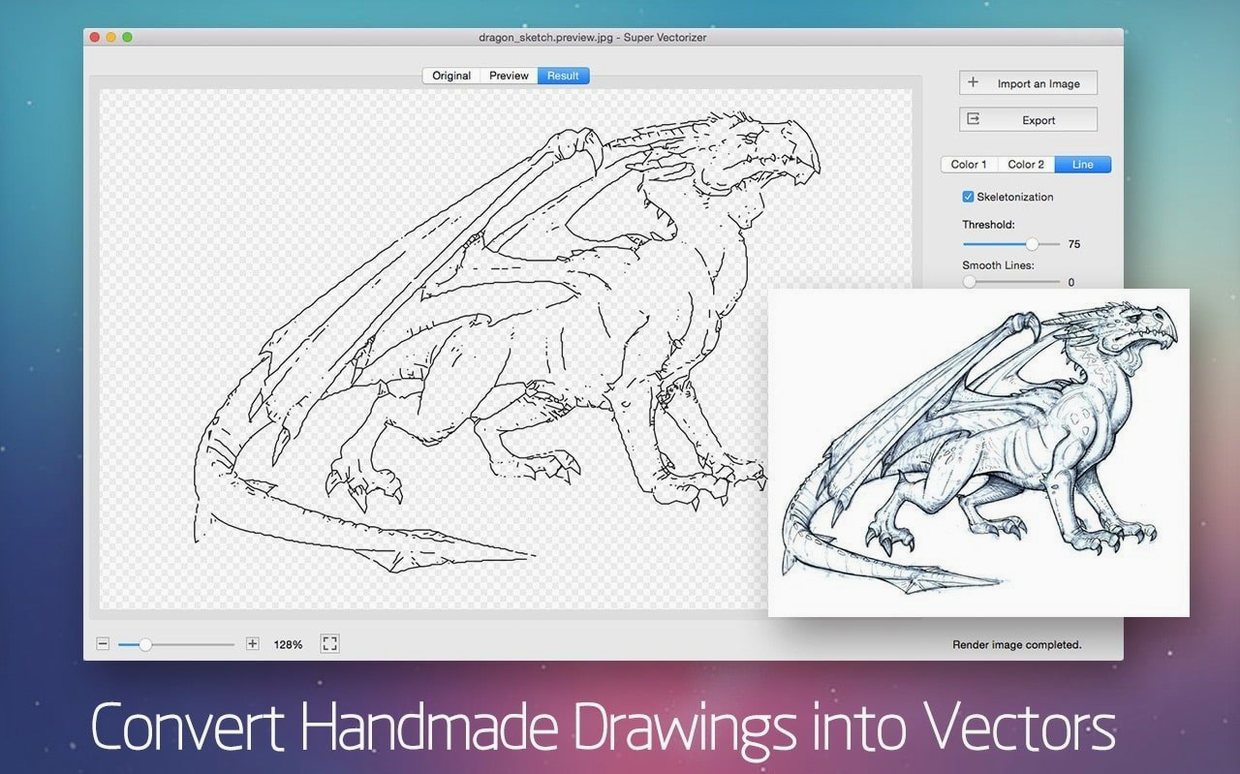
Skeletonization isn't a feature you see every day. It reduces a scanned line drawing to its thinnest possible stroke before tracing, which matters when you're converting pencil sketches into something a plotter or vinyl cutter can actually use. Super Vectorizer Pro builds its whole workflow around moments like that — where the conversion needs to understand what the line means, not just where the edge contrast sits.
Clean pencil strokes from toothy paper scans
- Turning pencil drawings into clean vector strokes, especially when the paper has a tooth or the scan is a little soft
- Quick logo traces where you can watch the threshold and path preview update in real time before committing
- Projects that will finish in Illustrator or CorelDRAW — the app exports standard vector files and doesn't try to be an all-in-one editor
Real-time preview meets a vintage macOS interface
- The app runs on both Intel and Apple Silicon Macs, but the interface feels built for an older macOS era — it needs 10.10 or later
- Real-time preview is useful for tuning, though complex photographic images will still need manual simplification after the trace
- Skeletonization works best with line art; photographs run through it will lose their tonal mass
Feeding photos hits the 64-colour ceiling
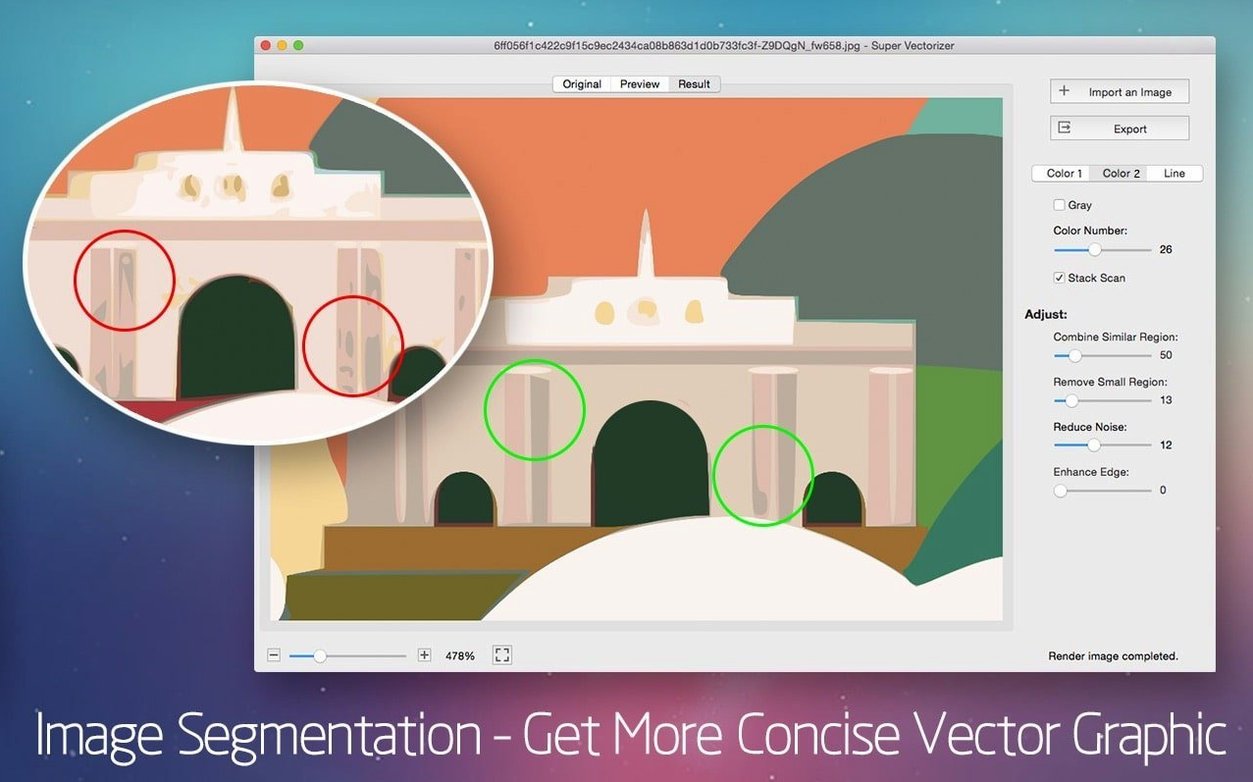
One of the first things people run into is the palette limit. The app supports up to 64 colours in a single vectorization pass, which is plenty for logos and flat illustrations, but if you feed it a photograph with soft gradients the result can look posterized in ways that surprise you. The fix isn't to push the colour count higher — it's to pre-flatten the image in a pixel editor first, reducing the palette to a deliberate set of swatches, then bring that into the tracer. You get cleaner shapes and far fewer unnecessary nodes.
Skeletonization trips people up when they apply it to the wrong kind of source. A charcoal sketch with wide, textured strokes will collapse into a spidery mess because the algorithm is looking for a single medial axis through each dark region. If the line weight varies a lot, try the regular monochrome trace first and compare the two outputs side by side. Often the standard trace preserves the character of the mark better, and you can thin strokes later in Illustrator if you need to.
Transparent backgrounds occasionally cause confusion. The app does support them, but the behaviour changes depending on whether your input file already has an alpha channel. A JPEG dropped straight in will trace everything, including the white background, as a solid shape. Convert to PNG with transparency first, or use the app's background colour picker to tell the tracer which tone to ignore. That second method works surprisingly well for scans where the paper isn't pure white — just sample the paper colour directly.
A screen printer's afternoon
Imagine someone running a small t-shirt operation from a garage studio. They've received a client's rough pencil sketch of a band logo — drawn on lined notebook paper, photographed with a phone under fluorescent light. The paper texture is visible, the lines are uneven, and there are blue ruling lines running through the whole thing. They need colour separations ready by evening.
They open the photo in Super Vectorizer Pro and immediately switch to the skeletonization mode because the pencil strokes need to become single crisp paths for the plotter. The real-time preview shows the blue lines getting picked up as faint noise, so they bump the threshold up a few points until only the graphite registers. The skeletonized result looks stark but accurate — every letterform reduced to its spine. They export as SVG, open it in Illustrator to add the colour fills by hand, and have the separations done in under an hour. The app didn't replace their vector editor; it just handled the part that would have taken the longest.
Ink and brush artists find their skeletonization shortcut
Illustrators who work from physical media — ink, pencil, brush — tend to take to the app almost immediately. The skeletonization feature speaks directly to their workflow, and the real-time preview means they can tweak a trace while the original drawing is still fresh in their mind. People coming from a super vectorizer pro search often have a specific conversion problem they're trying to solve, and the app's narrow focus rewards that kind of task-oriented approach.
Mac users who keep older machines around for specific tasks also find a natural fit here. The OS X 10.10 baseline means a dusty iMac from 2014 can serve as a dedicated tracing station, feeding vectors to a newer machine where the heavy editing happens. Graphic designers maintaining legacy software collections — the kind who still keep a working copy of sims 2 super collection mac download around on an old partition — understand the value of tools that don't demand the latest everything.
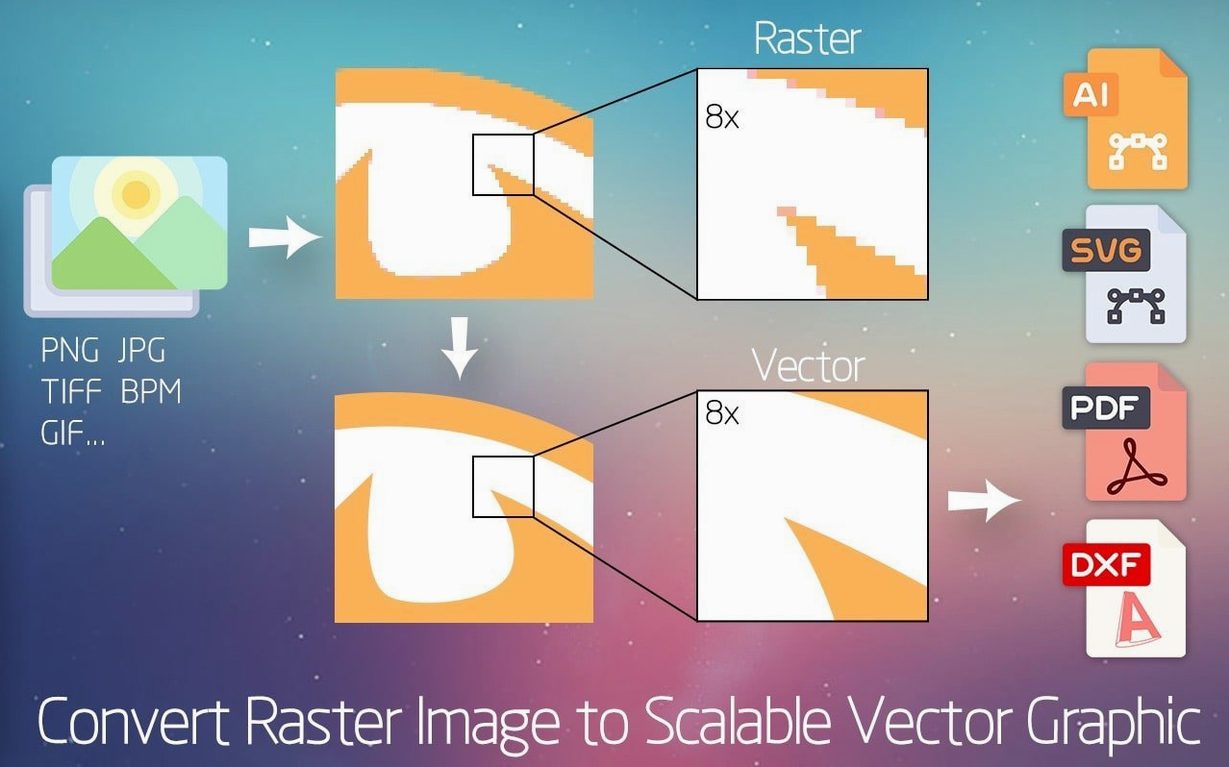
Hobbyist CNC and vinyl cutter users get disproportionate value from the DXF export. They're rarely interested in learning a full vector illustration suite, but they need clean, machine-readable paths. The app sits at exactly their level of complexity: enough control to get a usable cut file, not so many options that the interface becomes a barrier.
Pinch to zoom inside an undocumented preview
The preview window has a zoom gesture that nobody documents — a two-finger pinch works on trackpads, and it's fast enough to check node placement on a detailed trace without exporting anything. Holding the Option key while adjusting the threshold slider gives you finer increments, which helps when you're hunting for the exact point where a faint sketch line stops breaking apart.
The colour reduction step has a hidden logic worth knowing. When you set the palette to, say, twelve colours, the app doesn't just grab the twelve most frequent ones — it weighs colour area against colour distinctness, so a small but vivid accent colour in a logo won't get swallowed by a large expanse of similar background tones. If you need precise control over which colours survive, posterize the image beforehand and the tracer will respect your choices almost exactly.
Exporting to DXF preserves layer information if your source image has been pre-separated, but the app itself doesn't advertise this. Drop in a layered TIFF with each colour on its own layer, and the resulting DXF will keep those groupings intact — a quiet feature that saves time for anyone sending work to a laser cutter.
- macOS 10.10 or later
- Apple Silicon or Intel 64-bit
Questions from the booth
It converts bitmap images such as pencil drawings and logo designs into editable vector paths, with a skeletonization mode for reducing line art to its core stroke before tracing.