macOS is good at keeping recent snapshots, but it doesn't give you a complete, separate bootable clone you can hold in your hand. That's the gap SuperDuper! fills. It's a disk-cloning utility from Shirt Pocket that makes an exact, bootable copy of your drive — something you can plug into another Mac or fall back on when an update goes wrong.
Does it actually make a drive you can start up from?
Yes. A bootable copy is the whole point. It clones your hard drive so the external copy can start up a Mac just like the internal one, which is invaluable when a macOS beta or a failed migration leaves you staring at a progress bar that won't budge.
What about Apple Silicon and older Intel machines?
The current release works on both ARM and 64-bit x86 Macs. It requires macOS 10.13 or later, and the most recent update added a workaround for a startup-drive visibility problem under macOS 27 Golden Gate.
Clone your entire system to a new Mac, clutter and all
That's a common workflow. You create an exact copy of a disk, connect it to another Mac, and boot from it. Everything — applications, preferences, the clutter on your desktop — arrives intact. The same cloning engine also supports periodic backups of important data and checkpoints you can return to after a failed install.
Where things can go sideways and how to steer back
Most problems with SuperDuper! trace back to three things: the destination drive, macOS permissions, or an interrupted clone. The app is quiet about errors — it tends to log them rather than explain them up front — so a little detective work helps.
If a copy fails partway through and the destination volume won't boot, the first suspect is disk format. An external drive formatted as APFS (case-sensitive) when your source is plain APFS can cause silent mismatches. Format the drive again in Disk Utility, matching the source scheme exactly. For bootable clones on Apple Silicon, the destination needs an APFS container with a volume, not a bare partition.
Another recurring snag is full disk access. SuperDuper! needs to read every file, including those tucked behind SIP. Open System Settings > Privacy & Security > Full Disk Access and toggle the app on — or off and on again if it's already listed. Without this, certain system files get skipped and the clone may not boot.
When a scheduled backup doesn't run overnight, the cause is usually that the destination drive isn't mounted. SuperDuper! won't wake a sleeping drive unless macOS already sees it. Check that the external enclosure doesn't have its own power-saving routine. Some USB-C enclosures spin down after an hour and don't respond to the scheduler's probe. Plugging the drive into a powered Thunderbolt dock often solves it.
Finally, if you get a generic "failed to copy" message with no details, open the log from the Window menu. It usually points to one unreadable file — often a corrupted preference plist or a Photos library that's still doing background processing. Quit the app that owns the file and run the clone again.
Nightly Time Machine plus a weekly bootable clone
SuperDuper! works alongside rather than against the built-in backup tools. Time Machine handles versioned file recovery; SuperDuper! handles bootable clones. Many people run both. A typical setup is a nightly Time Machine backup to a network drive and a weekly SuperDuper! clone to a portable SSD that lives in a drawer — a superduper mac full safety net for days when the system won't even boot.
It also pairs cleanly with Carbon Copy Cloner for users who want more scheduling granularity or remote Mac backups. Some IT admins use SuperDuper! for quick one-shot clones before major upgrades and CCC for ongoing daily tasks. The two apps share a philosophy about bootable copies but diverge on interface and feature depth; SuperDuper! stays simpler, which is its appeal.
During a superduper download and first-run process, you'll notice the app asks for accessibility access too. That permission isn't for the clone itself — it's for the Smart Update feature, which uses a lightweight file-system watcher to track what's changed since the last copy. If you skip it, Smart Update still works, but it does a slower full scan each time.
On the Finder level, the cloned drive shows up as a standard bootable volume. You can hold Option at startup and select it, or use the Startup Disk pane in System Settings. The clone is a normal Mac disk, which means Migration Assistant also recognises it as a source — handy if you don't want to boot from the drive but still need to pull your environment onto a fresh machine.
Make it quit automatically after overnight clones
The defaults are sensible, but a few tweaks make a difference. Head to SuperDuper! > Preferences before you run anything:
- On successful completion: The default is "Do nothing." Change it to "Quit SuperDuper!" if you run clones overnight and don't want the app sitting open. Or set it to "Sleep" or "Shut Down" for a clean end-of-day ritual.
- Smart Update options: The checkbox for "Repair permissions on copy destination" is off by default. Turn it on for clones of your main system drive; it adds a few minutes but catches ACL drift that can prevent booting.
- Scheduling behaviour: The scheduler can skip a run if the Mac is on battery. That's on by default and worth leaving alone unless you always clone to a bus-powered SSD that won't last long unplugged.
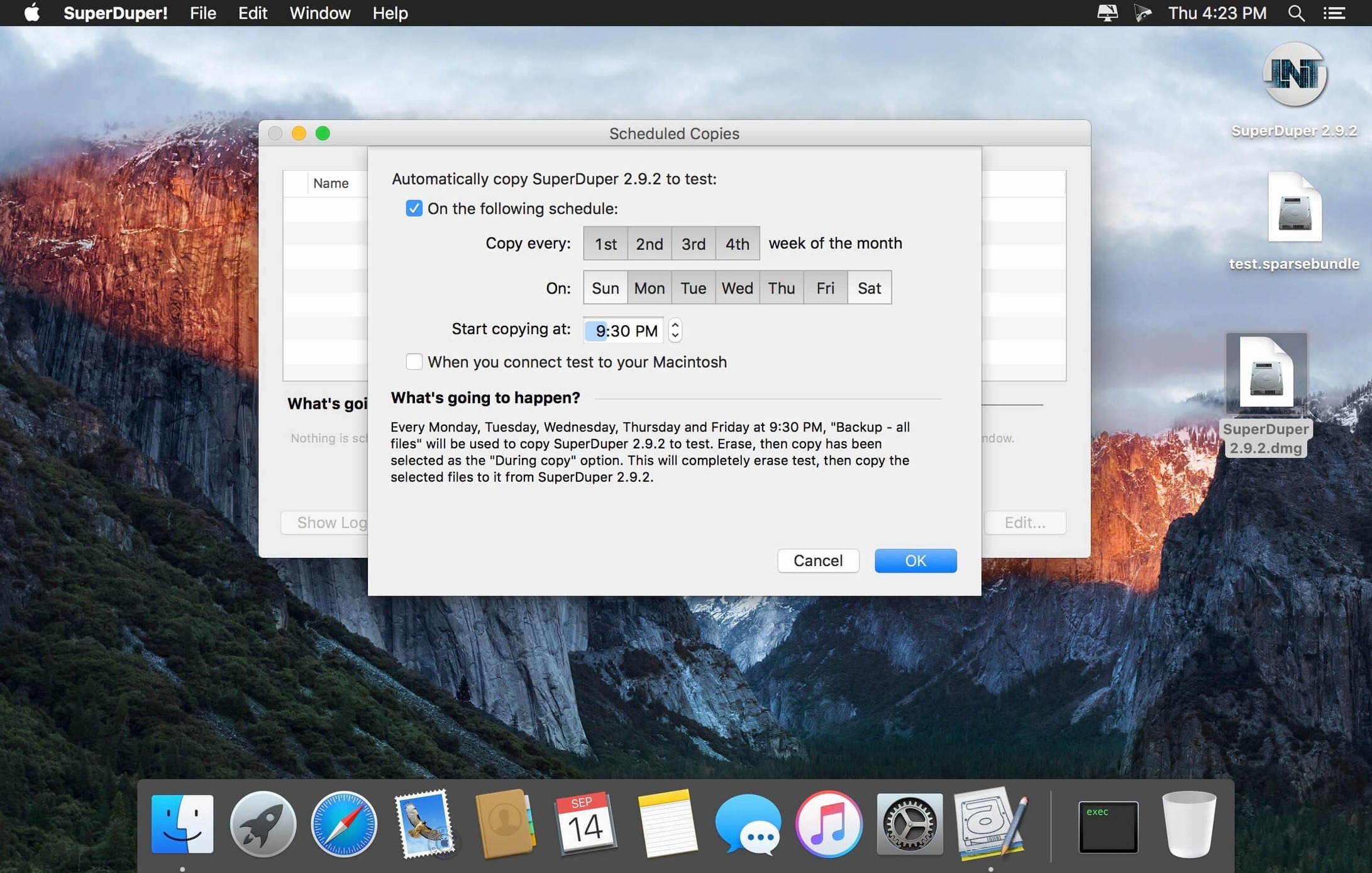
- Script hooks: If you use scripts to pause cloud sync apps before a backup, add them under "Before copy" in the schedule editor. Dropbox and OneDrive don't always flush their databases cleanly while a clone runs, and a short pause script avoids partial sync states on the copy.
Boot from the clone before installing tomorrow's macOS update
Say it's Thursday evening and a macOS point release drops the next morning. The last time that happened, you spent half of Friday restoring from a Time Machine snapshot over a slow Wi-Fi connection. This time, the portable SSD is already on the desk. You plug it in and launch SuperDuper!.
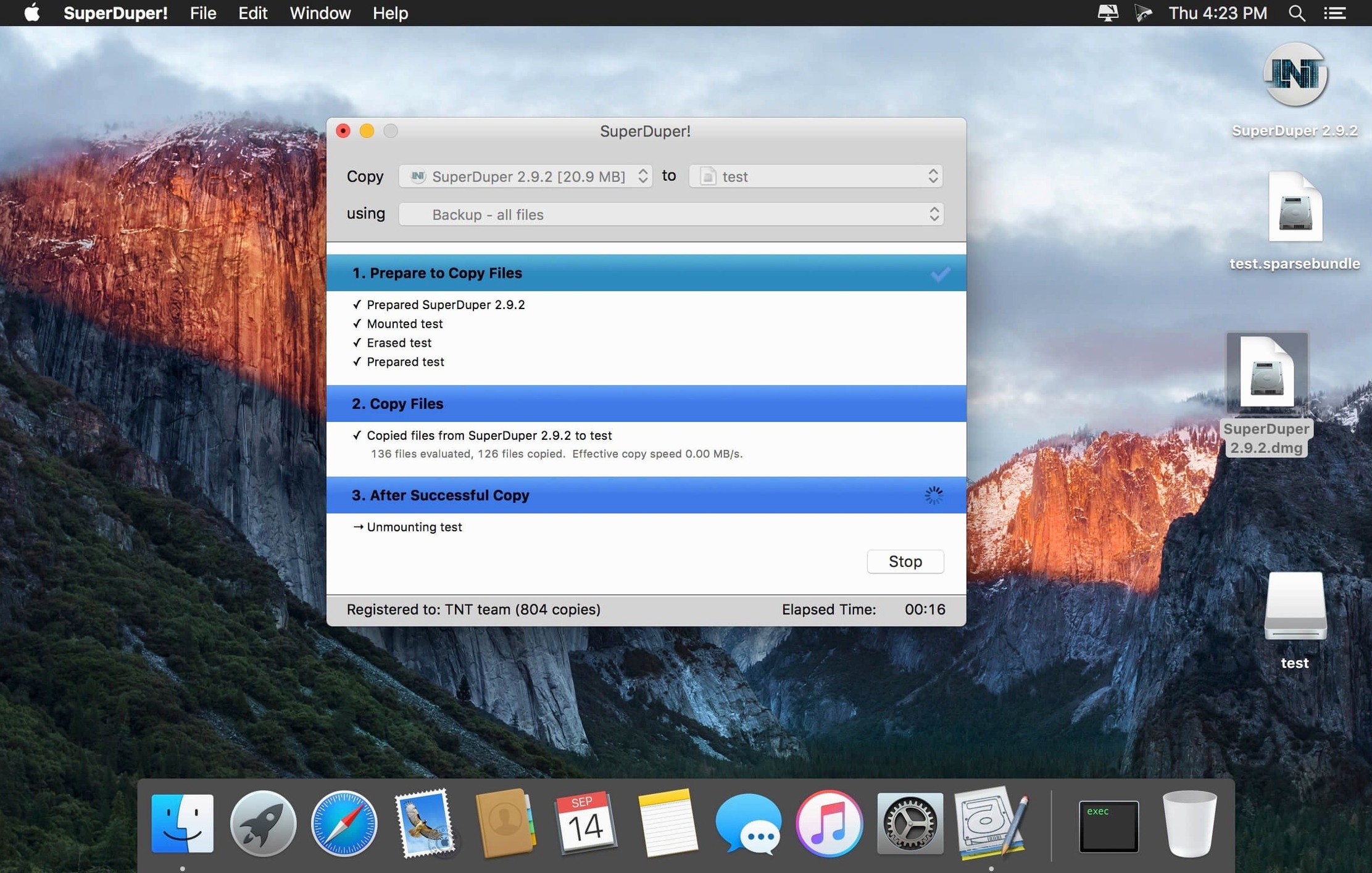
The main window shows two pop-up menus. You set the source to "Macintosh HD" and the destination to the external SSD, which is labelled "Clone_Backup" and still has last week's system on it. You choose Smart Update from the third menu — it will copy only what's changed since the last run, so this won't take long. You glance at the "What's going to happen?" text below, which confirms the destination will be erased before copying and made bootable. Good.
You hit "Copy Now" and the progress bar starts inching forward. The first few minutes are slow while the app scans both volumes and builds a file list. Then the actual copy kicks in and the indicator speeds up. SuperDuper! is quiet throughout — no pop-ups, no prompts. If you looked away, you'd miss it finishing.
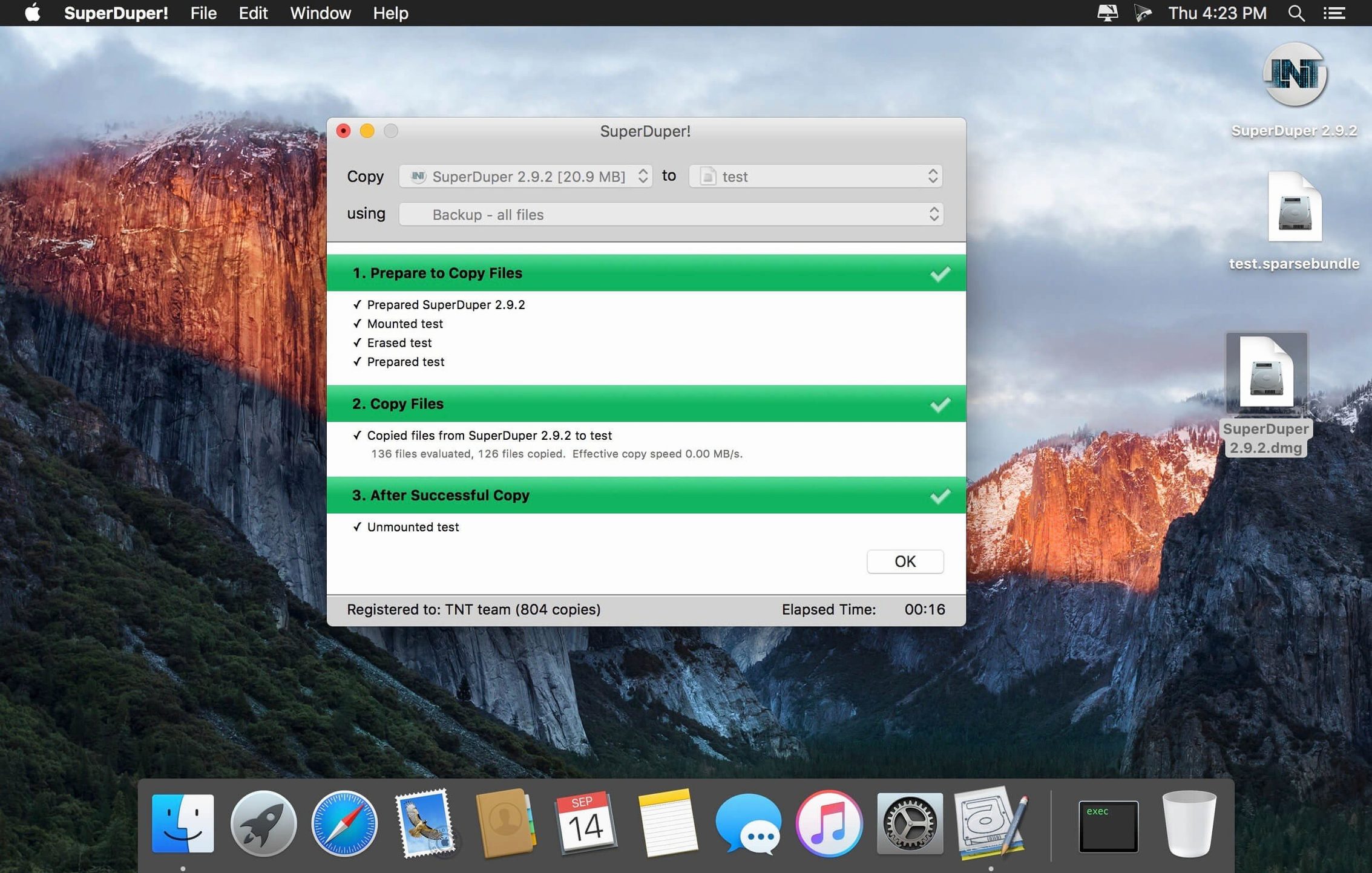
Twenty minutes later, the clone is done. The drive icon on the desktop is identical to your internal disk, down to the name. You restart holding Option, select "Clone_Backup," and your Mac boots exactly where you left off, open tabs and all. The Friday update can do its worst; you've got a complete, running copy waiting.
For users who found the app through a superduper mac torrent or superduper torrent listing and are trying it for the first time, this Thursday-evening ritual is the quickest way to see what it actually does. A full clone tells you more in one sitting than any feature list.
Version 4.0.7 adds a workaround for an issue where macOS 27 Golden Gate wouldn't reliably show a cloned startup drive.
- macOS 10.13 or later
- Apple Silicon or Intel (64-bit) Mac
- Interface: English