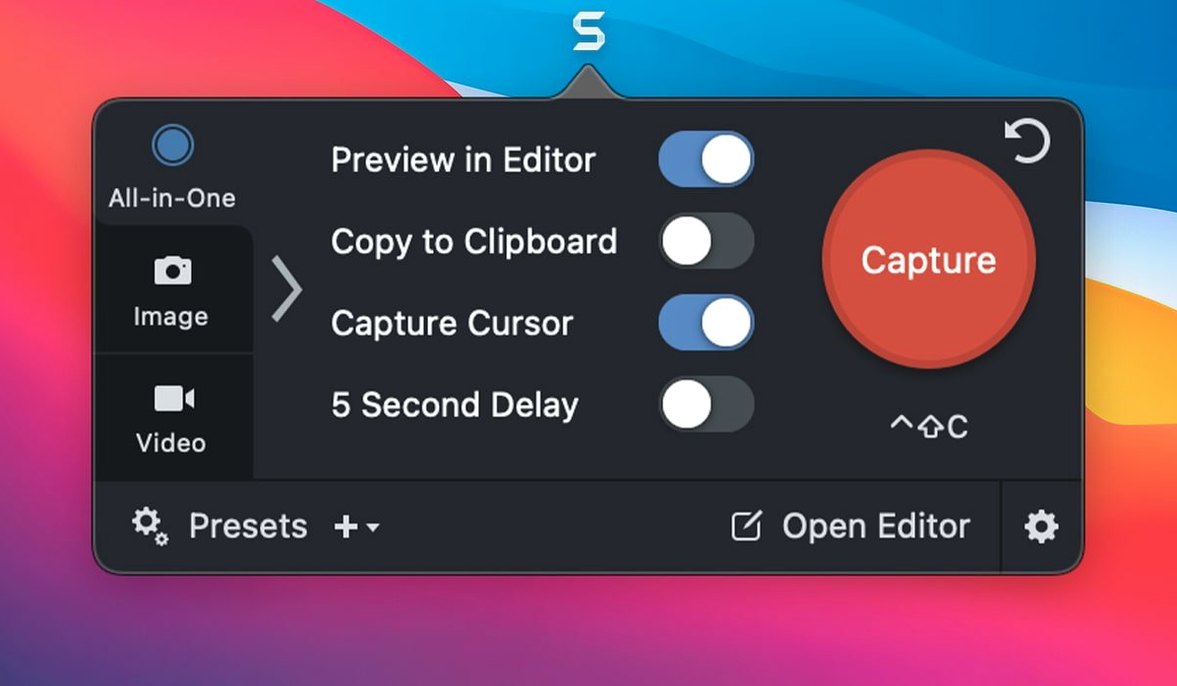
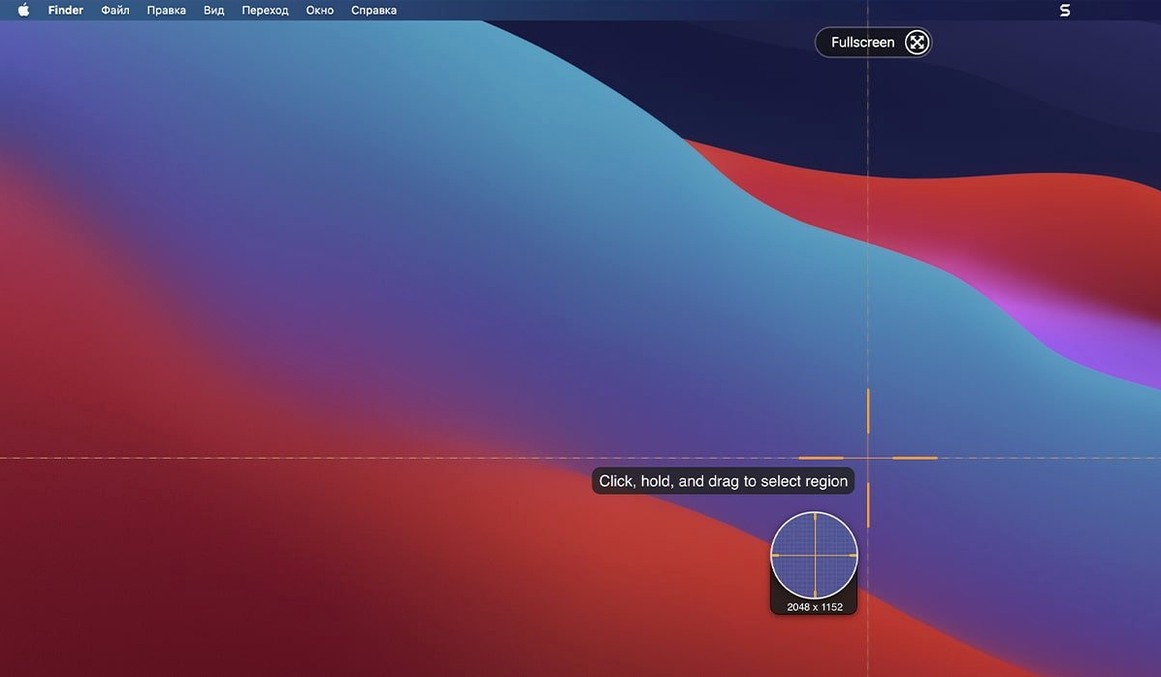
If you have spent an afternoon stitching together screenshots in Preview, Snagit is the tool that quietly removes that particular kind of busywork. It sits next to the Mac utilities you already reach for, but approaches capture less as a one-off gesture and more as a pipeline. A shot moves from screen to editor, then to a library that keeps it searchable by date or source, and finally onward — by email, to a blog, or into OneNote and MindManager when the project lives elsewhere.
Where it fits beside the built-in tools
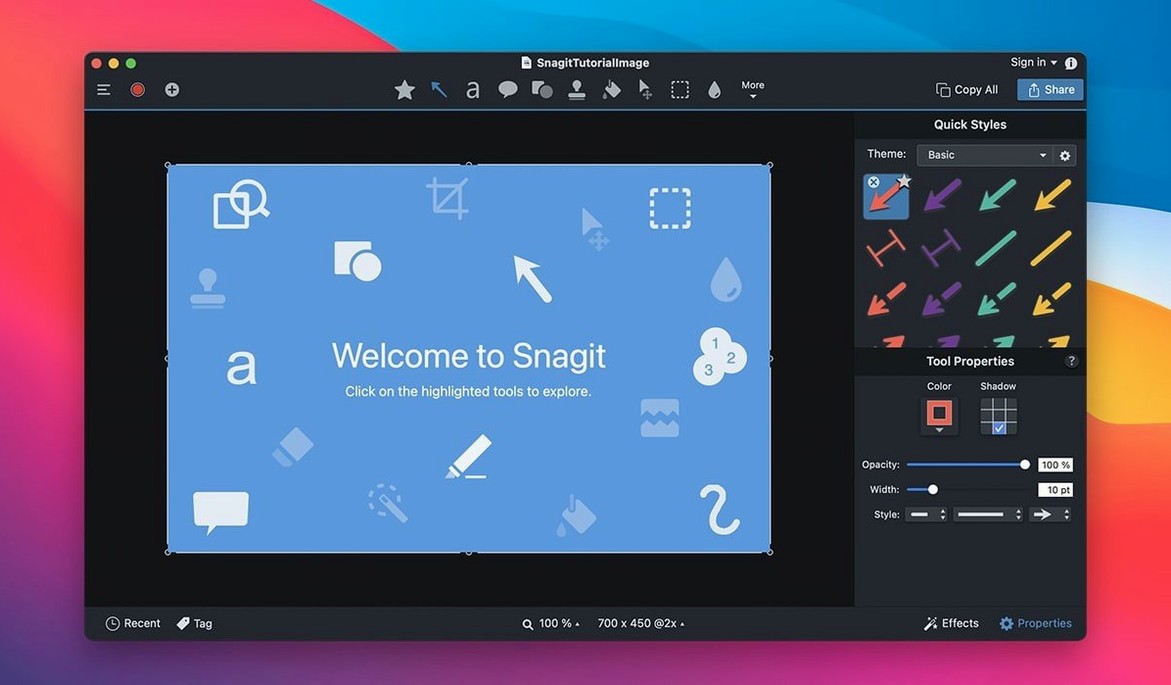
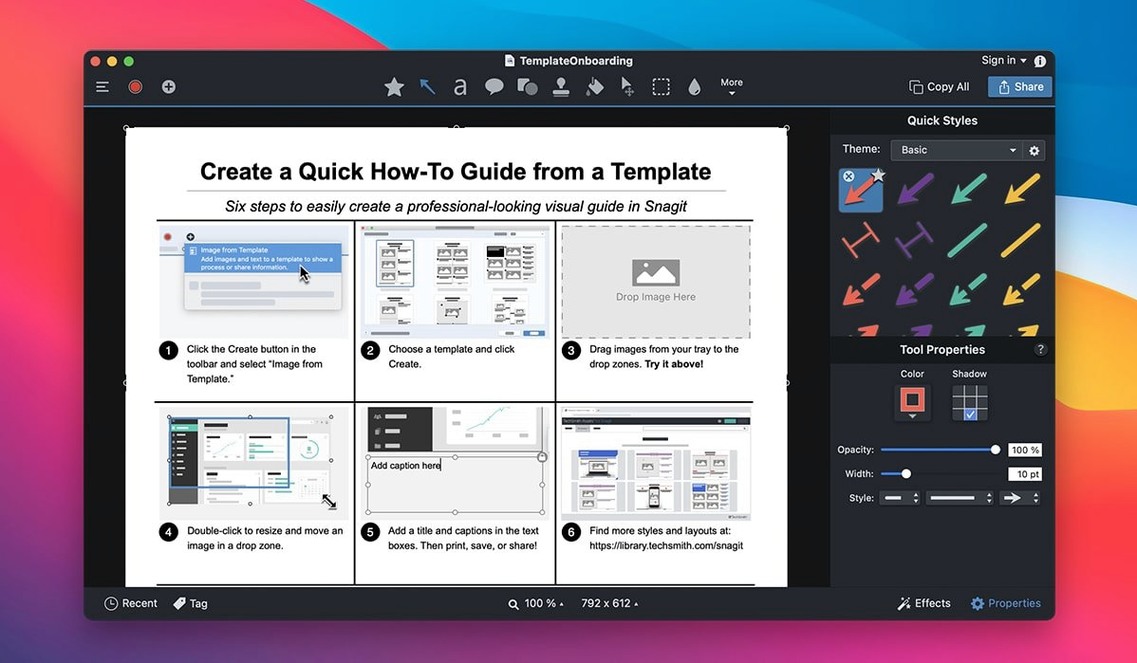
The capture itself is only the first beat. Snagit's editor adds callouts with arrows and labels, and a page-curl effect for when an image needs to feel less like raw screen data. Text capture from web pages pulls copy out of a page without the usual select-and-paste friction. Keyboard shortcuts for capture presets mean a recurring shot — a specific window, a fixed region — never has to be framed twice. Tags keep saved images from becoming a long, unreadable scroll.
After the capture
The library organizes images automatically, and searching by creation date or source makes sense of weeks of accumulated grabs. From there, publishing is direct: email, FTP, a blog, or the Office and MindManager spaces where the image actually gets used. The 2026.3.3 release fixes toolbar and control movement on macOS 27, along with video playback controls and QuickLook arrow keys in the Snagit Library.
Snags people hit early on
A capture that refuses to scroll is almost always about the target window. Snagit’s scrolling capture needs a standard scrollable view — a browser page, a long PDF in Preview, a Finder list. If the window uses a custom-drawn list or a web app that loads content dynamically as you scroll, the capture will stop after the first screen. Try the same shot in Safari’s reader view or switch to a scrolling region grab instead. The other common headache is the disappearing toolbar on macOS 27. The 2026.3.3 release fixed the drag-to-reposition issue, but if a capture toolbar still vanishes after waking the Mac from sleep, quitting and reopening Snagit brings it back every time. The app writes its window state to disk, and occasionally that state goes stale.
Video recordings that play back with a black screen or stuttering audio usually trace back to hardware-accelerated encoding fighting with another app that holds the GPU. Closing Davinci Resolve or a Twitch stream before recording clears it up. Snagit encodes in software when hardware acceleration isn’t available, but it waits a beat to decide — that pause sometimes shows as a brief freeze at the start of a clip.
Bind three screen-grab presets to keys on day one
Pick three presets and bind them to keyboard shortcuts on day one. One for the entire screen, one for a window with rounded corners and a drop shadow, and one for a fixed 800-pixel-wide region if you write documentation or blog posts. Assigning shortcuts takes two minutes in Snagit’s preferences, and the muscle memory forms within a week. After that, you stop thinking about the capture step entirely.
Turn off automatic library saving for test shots. Snagit’s library is fantastic for real work — searchable by source application, taggable, sortable by date — but it fills with discardable grabs if you leave it wide open. A quick toggle in the capture preferences sets temporary captures to float in the editor without being stored. When a shot matters, drag it into the library yourself. The library’s QuickLook integration, finally working properly with arrow keys on macOS 27 after the 2026.3.3 fix, makes browsing those curated grabs feel like flipping through a contact sheet.
Tag early, not later. The first week is when you figure out what categories your captures actually fall into — bug reports, UI mockups, reference grabs for colour palettes, whatever it is. Adding three or four tags as you save builds a structure that the search field rewards. Snagit’s search by creation date covers the rest when you can’t remember what you called something.
Where Snagit sits in a real workflow
The editor plays nicely with macOS drag-and-drop in both directions. Drop an image from Finder onto the Snagit dock icon and it opens ready for annotation. Drag a finished capture out of the editor and straight into a Mail compose window or a Slack thread without touching the desktop. The clipboard bridge is quieter but just as useful: copy a capture in Snagit, paste it into Pages or Keynote, and the transparency data for rounded corners and shadows holds. That alone saves re-exporting assets.
MindManager and OneNote integration runs deeper than export. Snagit sends a capture directly into a MindManager node or a OneNote page with the source metadata attached, so the image carries its capture date and the application it came from. For long-running research projects where you grab UI references across weeks, that metadata becomes a breadcrumb trail. The FTP and blog publishing options feel like holdovers from an earlier era, but they still serve anyone who maintains a static site or an internal wiki that runs on flat files.
Compared to the neighbourhood
macOS Screenshot.app is the obvious starting point. It’s instant, it’s free, and its screen recording is solid. But it has no editor beyond markup, no library, no scrolling capture, and no concept of presets. Every shot is a standalone event. Snagit turns capture into a repeatable, organised process — the difference between jotting a note on a scrap of paper and keeping a notebook with an index.
CleanShot X does the modern, design-forward version of screen capture well. Its scrolling capture is faster than Snagit’s, its annotation tools are minimal and tasteful, and it hides desktop icons during capture automatically. What it lacks is the deep library, the tagging, and the publishing pipeline. Snagit for Mac download numbers tend to come from people who need that pipeline — training teams, support desks, anyone who treats screenshots as documents rather than decorations.
Shottr is lightweight, pixel-accurate, and fast. Its measuring tools and colour picker make it a favourite among developers and designers grabbing quick specs. But it has no video recording, no library to speak of, and its annotation set is basic. Shottr captures a single moment; Snagit carries that moment forward into a document, a presentation, or a searchable archive. If you find yourself searching through old Shottr grabs by filename, you’ve already outgrown it.
Snagit 2026.4.3 refines the capture engine on recent versions of macOS, bringing a handful of targeted fixes and stability improvements detailed in the developer's release notes.
- macOS 15 or later
- Apple Silicon or Intel 64-bit Mac
Questions from the booth
Yes, the current build runs on both Intel and Apple Silicon Macs, with macOS 15 or later.