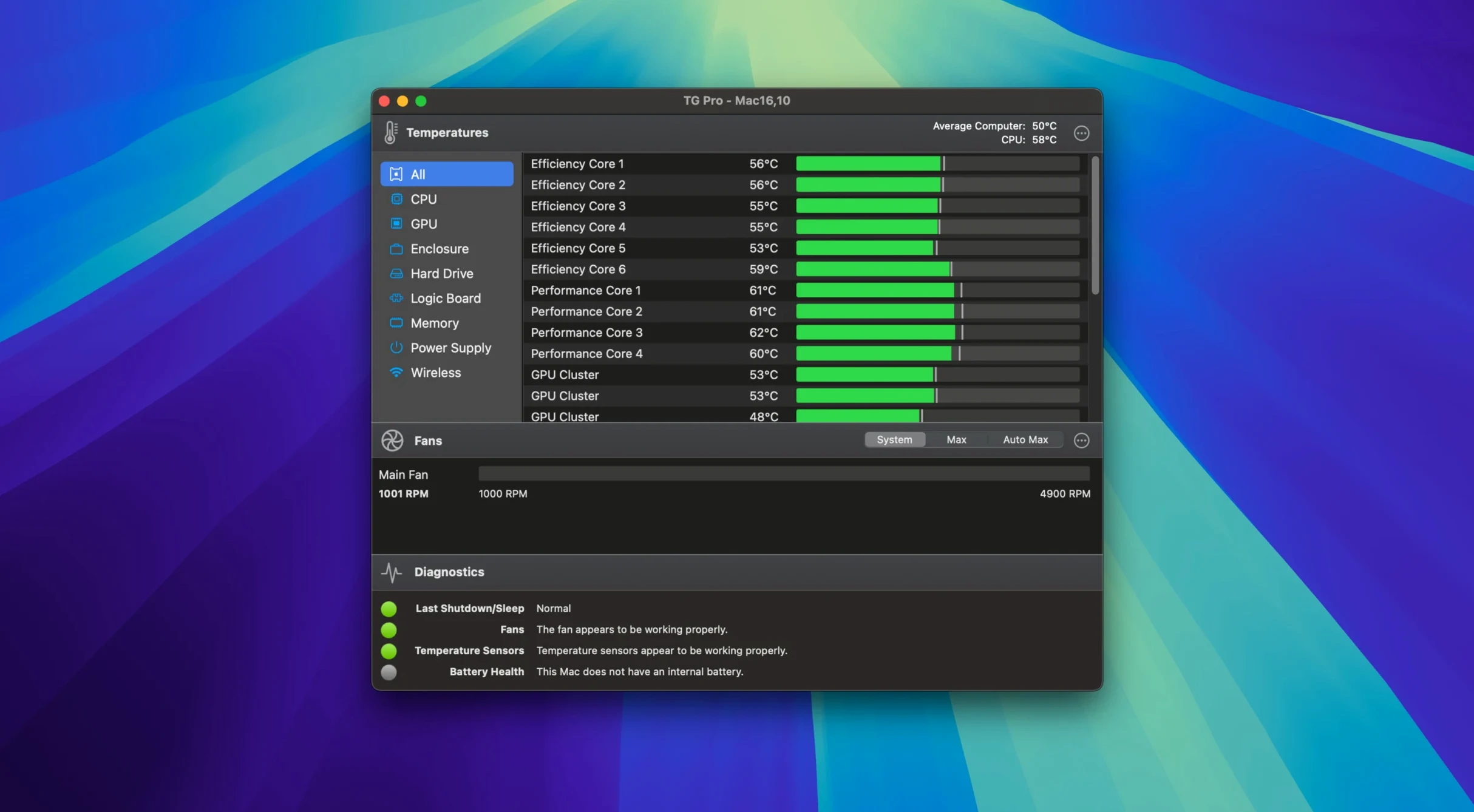
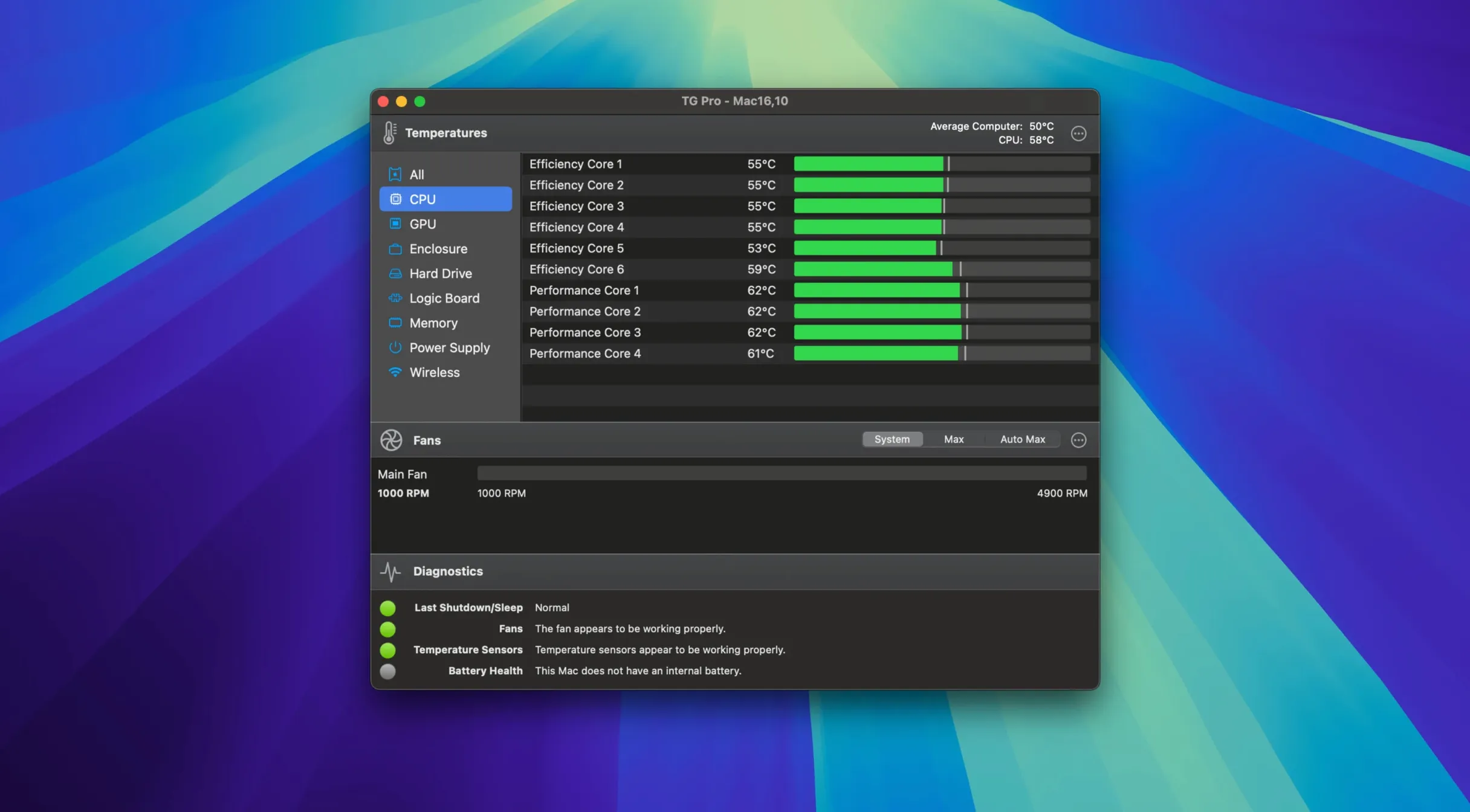
Eighty-six temperature sensors. That is what a fully loaded Mac Studio can expose, from CPU proximity to memory modules and the power supply. TG Pro surfaces every one of them, then hands you the controls. Version 2.103 extends that reach to the newest silicon: complete fan control now works on M4, M4 Pro, and M4 Max machines, and Auto Boost rules no longer stumble when you switch between battery and mains power. The diagnostics panel still gives you a fast health check on fans, thermals and battery, and the logging engine quietly records temperature events in the background for later review.
Custom fan curves for any temperature sensor, not just the CPU
- Dialling in custom fan curves tied to any temperature sensor, not just the CPU
- Catching thermal throttling early with on-screen alerts and CSV logs
- Manual fan override when you want the cooling to lead, not follow
- Hackintosh builds — a compatibility toggle keeps fan readings accurate on non-Apple hardware
Manual mode can override Apple's thermal safeguards
- Fan control behaviour is per-model, so what works on a MacBook Pro differs from a Mac Pro
- Manual mode bypasses Apple's thermal protection; sustained high temps without adequate fan speed can cause shutdowns
- The interface is English-only
Switch to Auto Boost so TG Pro reacts before macOS does
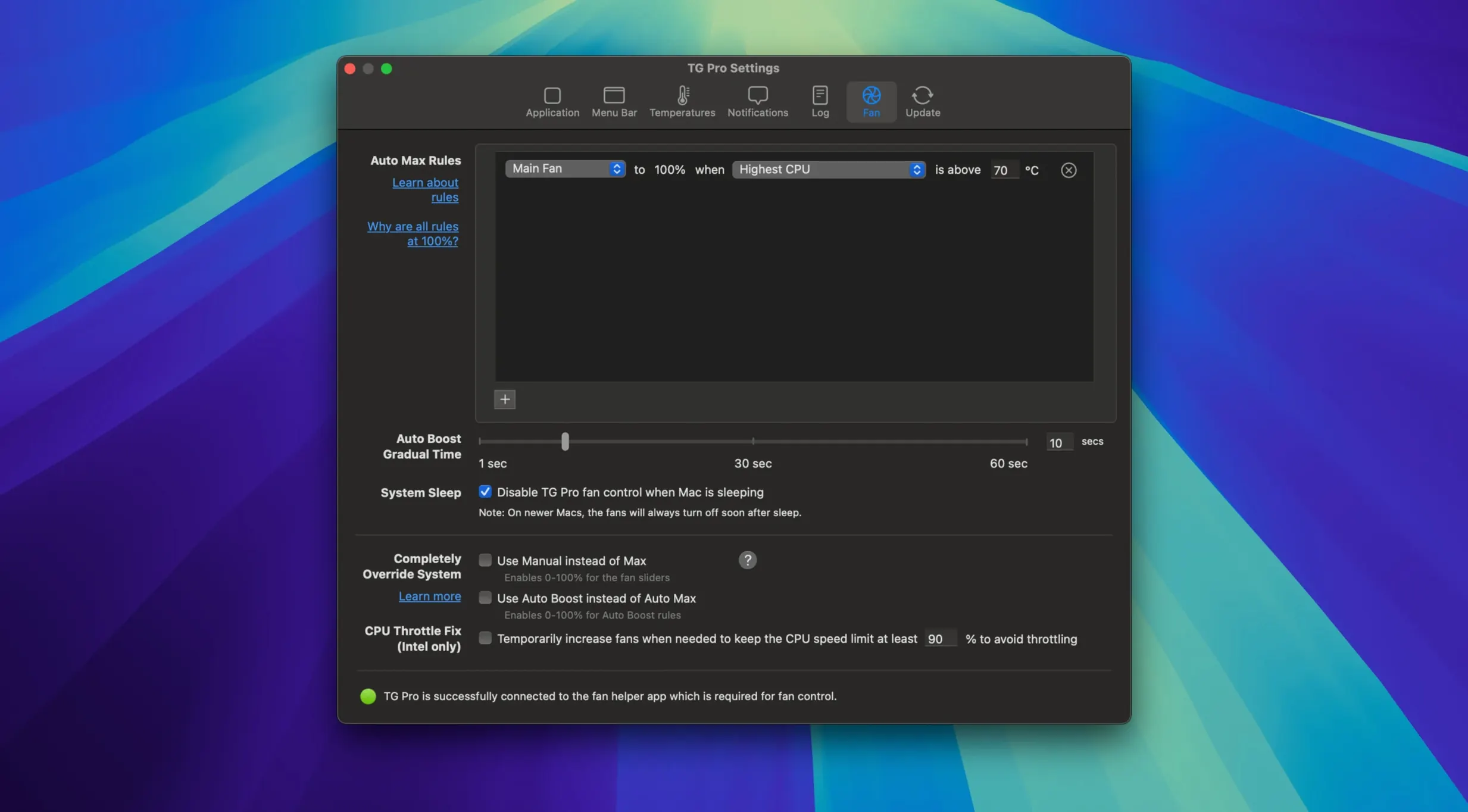
The default installation leaves the fans in System mode, which is safe but passive. Open the preferences and switch the Fan control mode to Auto Boost if you want TG Pro to step in before macOS does — this engages your custom rules the moment a sensor crosses a threshold, rather than waiting for the SMC to react on its own. Under Menubar, pick at least two readings: the hottest CPU core and one fan speed. That tiny strip of numbers saves you from opening the main window every time a render kicks off.
Next, head to Alerts and set a temperature ceiling. A notification at 90 °C gives you a heads-up without panic; an automatic fan boost tied to that same trigger can pull the machine back from the edge while you decide whether to pause the export or open a window. If you keep logs, enable Write temperatures to CSV and pick a folder you actually remember. The file grows slowly — TG Pro sips resources in the background — but a month of data makes it easy to spot a fan that is degrading or a paste job that needs redoing.
Hackintosh users should find the toggle labelled Hackintosh compatibility in the General tab. Turning it on adjusts how sensor chips are addressed on non-Apple firmware. Without it, some boards report wild readings or nothing at all.
Built for sustained render, grade, and mix sessions that last hours
People who push sustained loads for minutes or hours rather than seconds. Video editors grading in DaVinci Resolve, 3D artists running Redshift or Octane on a MacBook Pro, and audio producers mixing large sessions with heavy plug-in chains all live in the zone where Apple's conservative fan curves let temperatures climb further than they need to. A Mac Studio tucked under a desk accumulates heat that the system fans address slowly; TG Pro lets you set a floor speed of 1800 RPM for the intake fans so the aluminium never becomes a radiator in the first place.
Anyone who runs a Mac in a shared or noise-sensitive room also benefits. A recording engineer can lock the fans to a fixed low speed during takes, accepting a gentle temperature rise in exchange for silence, then release them afterward. On the other end, a machine in a server closet or machine room can be told to ignore noise entirely — crank everything to maximum and keep the chip cool around the clock.
Hackintosh builders get something close to native thermal management, which is otherwise a patchwork of kexts and guesswork. The compatibility toggle and per-sensor fan assignments mean the cooling responds to the actual workload, not a generic CPU reading that lags ten seconds behind reality.
A session with TG Pro, step by step
The menu bar reads 62 °C — 1800 RPM. That is idle territory for a MacBook Pro on a desk, nothing to act on. You launch DaVinci Resolve and open a project with a dozen nodes of colour correction and temporal noise reduction. Within ninety seconds the menu bar climbs to 88 °C and the fans have barely moved — Apple's curve is still waiting. You click the menu bar icon and switch from System to Auto Boost.
Immediately the left fan spins up to 3200 RPM, the right to 2900. The temperature graph in the main window shows the CPU proximity sensor flattening at 82 °C, then dropping. You let the render finish and glance at the log: the peak was 94 °C for eleven seconds before the custom rule caught it. Next time, you will lower the trigger point by five degrees. You close the window; TG Pro stays in the menu bar, updating every few seconds, using less than half a percent of CPU time.
Diagnosing a thermal issue: a start-to-finish workflow
Suppose a MacBook Pro feels slower during long exports, and you suspect thermal throttling. Start by opening TG Pro and clicking the Diagnostics tab. Run the full test — it spins each fan to maximum for a few seconds, reports current and minimum speeds, and checks whether the battery reports normal temperatures. A fan that whines or stays silent during the test points to hardware, not software.
Next, go to the main window and sort sensors by highest temperature. Begin your export and watch the CPU die temperatures. If they hit 100 °C while the fans hover at 2500 RPM, the machine is throttling before the cooling has even tried. Create a rule: select the hottest CPU sensor as the source, set a target of 85 °C, and assign both fans to ramp from 3000 to 5500 RPM between 80 °C and 90 °C. Save it to Auto Boost.
Run the export again. With the fans leading the heat curve, the CPU cores should stay in the high 80s and sustain higher clock speeds. Export the CSV log from the last hour and drop it into Numbers or Excel. Plot the temperature and fan speed columns side by side — the gap between the heat spike and the fan response tells you whether the rule needs a lower trigger or a steeper ramp. Adjust once, save, and let the logging run for a week. By Friday you will know exactly how your machine behaves under real workloads, not synthetic benchmarks. That data is the reason people download TG Pro for Mac and keep it running long after the first curiosity session.
- macOS 10.13 or later
- Intel 64-bit
Questions from the booth
Yes, it includes a preference toggle specifically for Hackintosh builds to ensure fan readings and control remain reliable.
It can trigger on-screen alerts and log temperature events automatically, so you have a record even if you are not watching the readings.