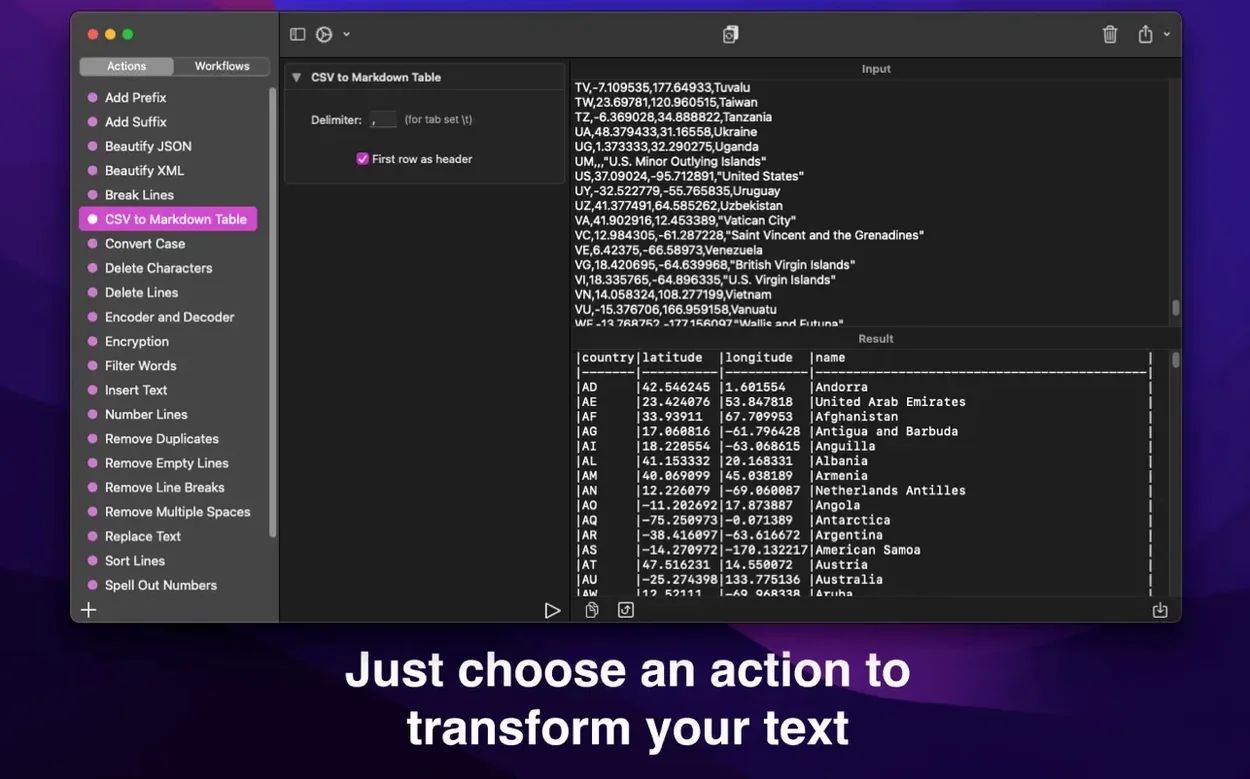
A quiet, focused utility for reshaping text through actions you can chain together and replay. Text Workflow turns repetitive cleanup—stripping characters, sorting lines, inserting delimiters—into a single saved routine.
Clean a messy log into something readable
Filter lines by what they contain or exclude, then strip away emojis, tabs, or numeric characters in the same pass. The statistics panel shows you character, word, and line counts as you go.
Reformat a raw export for import elsewhere
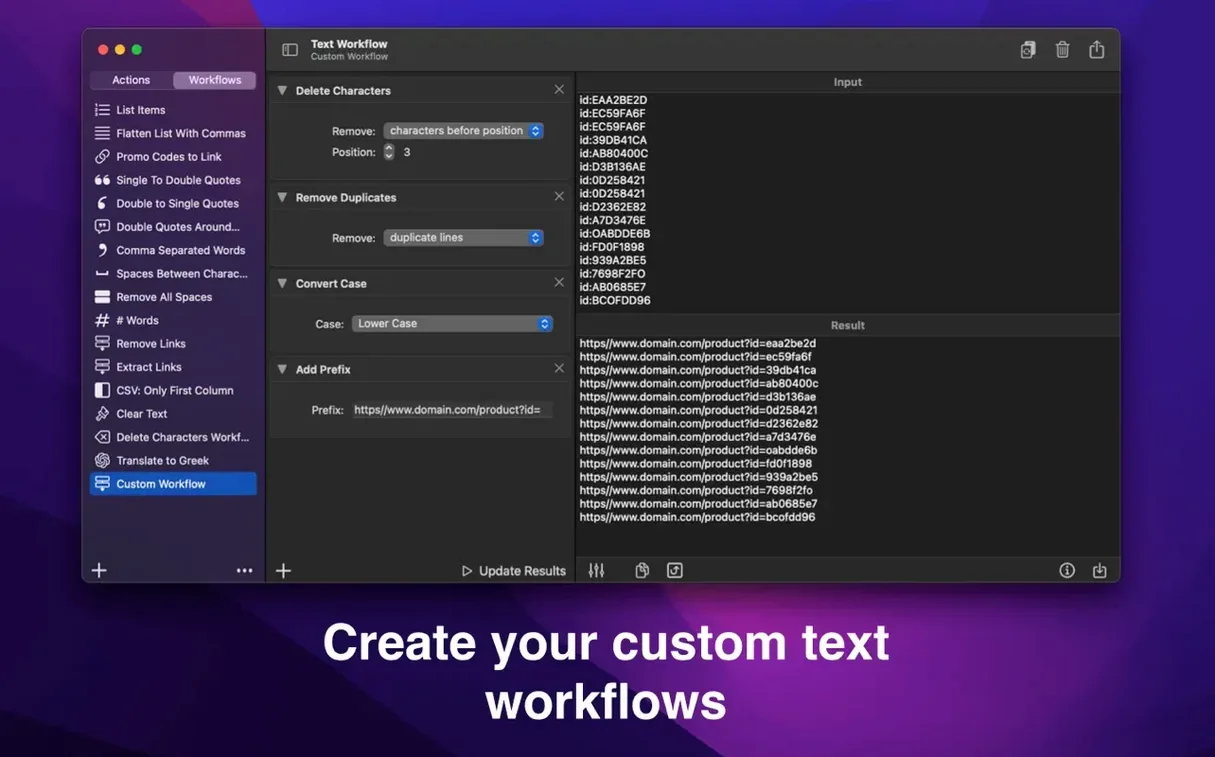
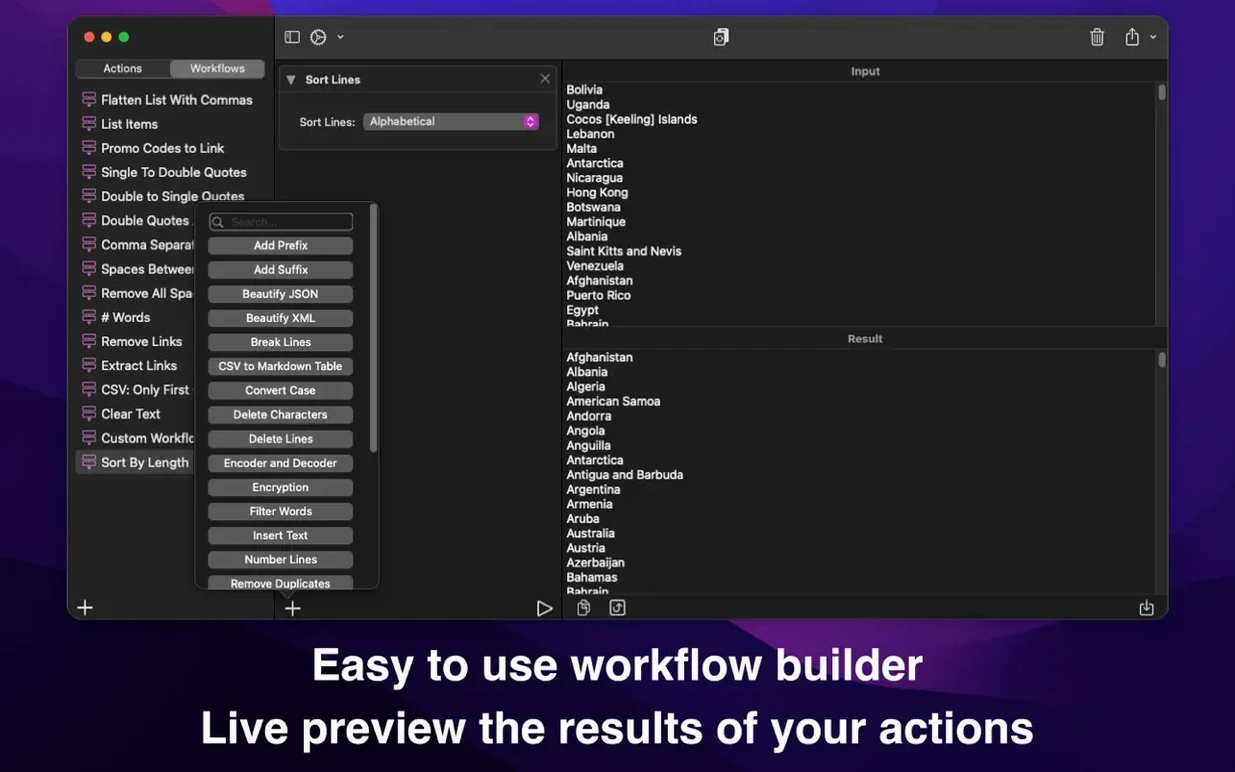
Insert text before each line, after each word, or between sentences. Sort the result alphabetically or by length, then wrap it with pretty-printed JSON or XML so the next tool accepts it without complaint.
Share a repeatable transformation with someone else
Export your workflow to a file and hand it off. iCloud sync keeps the same flows available on your iPhone and other Macs, so a routine built at the desk follows you.
Where Text Workflow sits among similar Mac tools
BBEdit’s text factory and Keyboard Maestro both overlap with what Text Workflow does, though they approach the problem from different angles. BBEdit gives you grep-powered find-and-replace across folders, and its text factories can chain multiple operations—but they live inside a larger editor, and sharing a factory with someone who uses a different text tool means exporting steps as prose, not as a file they can drop in. Keyboard Maestro can absolutely mangle text through its own action chains, and it does far more besides, yet building a text-only workflow inside it feels like steering an ocean liner to visit the corner shop. Text Workflow strips that down to a single-purpose pane with no macro engine to configure and no editor project to open first.
Another point of comparison is TextSoap, which has been scrubbing text on the Mac for years. TextSoap’s strength is its library of pre-built cleaners—great for stripping email quoting or normalizing whitespace, but custom chains live inside a proprietary format that doesn’t travel as a plain file you can version-control or send over Signal. Text Workflow’s exported workflow files are compact and readable enough that you could keep them in a git repo alongside project scripts. That matters if you’re the person on a team who documents the data-cleaning step before the CSV import.
Replacing sed one-liners you've typed three times this week
Developers who juggle logs, API responses, and config files between different formatting expectations tend to reach for it the moment they realize they’ve typed the same sed one-liner three times in a week. Saving a workflow that filters lines containing ERROR, removes timestamps, and wraps the result in JSON means the fourth time is a drag-and-drop affair.
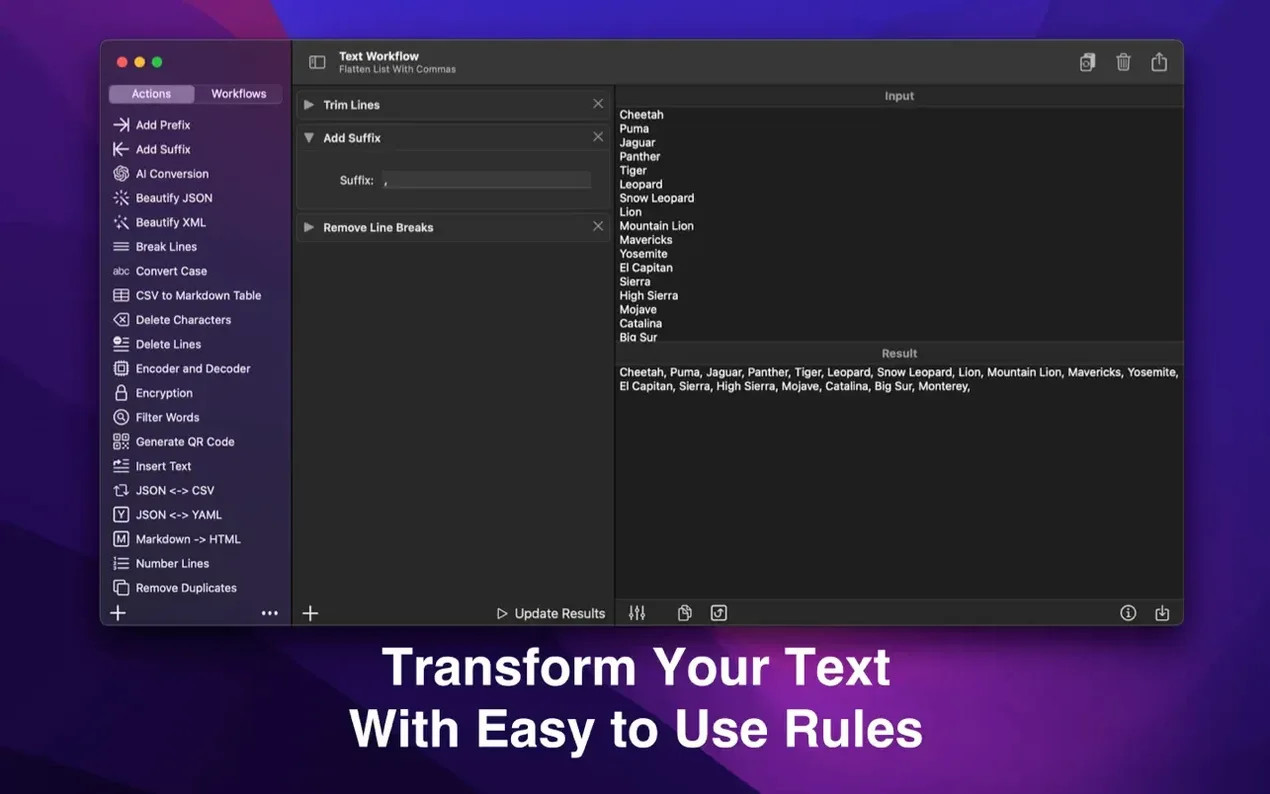
Writers and editors working with prose in Markdown or plain text benefit from the line- and word-level insertions. Dropping a list of names into a workflow that adds a comma after each word, sorts alphabetically, and trims trailing spaces turns a manual formatting chore into something that finishes while the kettle boils. Translators dealing with glossary files often need to add prefixes or remove duplicate lines before importing into a CAT tool, and Text Workflow’s iCloud sync means the same cleaning routine works on an iPhone when a client sends a spreadsheet from an airport lounge.
Anyone whose text workflow torrent mac search led them here probably already knows the pain of ad-hoc scripts. This is the GUI version of that impulse.
Start with a twice-a-week chore and watch the statistics panel
Start by building one workflow for something you already do by hand at least twice a week—cleaning email addresses from a messy list, say—and run it on a copy of real data. Watch the statistics panel as you add each action; it reveals where a step produces an empty string or doubles a delimiter, which teaches you the action order faster than the documentation does.
Name workflows by what they output, not what they fix. A name like JSON-ready error log tells you more six months later than clean up server output. Export the workflow file to the same folder as the project it serves, and it becomes self-documenting.
When a workflow grows past six actions, insert a trim step midway through the chain. Surplus spaces and line breaks accumulate in longer sequences, and a trim action prevents a later sort or filter from tripping over invisible characters. Finally, test password-based encryption on a short string before trusting it with anything sensitive—the action itself is straightforward, but confirming the output round-trips correctly through decryption is worth the extra minute.
Version 3.3 turns Text Workflow into a precision instrument for keeping exactly the words you want while transforming everything around them. The marquee addition is marked text: select any fragment in the input area with Shift-Command-M or a right-click, then choose Keep marked text to shield those words from the next action, or Change only marked text to target them alone. Command-drag to mark several pieces at once — it holds up beautifully across a messy paragraph of mixed formatting. Seven new actions round out the release. Show Invisible Characters reveals ghosts like no-break spaces and zero-width spaces as readable tags — [NBSP], [ZWSP] — with a tally of what was found. Compare Lists returns the overlap and the differences between two sets, line by line. Convert Units handles kilometres and miles, kilograms and pounds, Celsius and Fahrenheit, cups and spoons, areas and data sizes, all inline. URL Parser splits a link into its components with one line per query parameter. For developers, there is a Number Base Converter spanning decimal, hex, binary and octal; Generate Hash for MD5 and SHA; and Generate Password. Convert Case gains snake_case, kebab-case, CONSTANT_CASE, dot.case and URL Slug. Encoder and Decoder picks up backslash escapes for JSON strings and code. Extract Text now finds numbers, IP addresses, hashtags, mentions and colours, and can sort what it pulls out. Throughout every action, the options panel has been cleaned up so labels, fields and checkboxes align properly, with room for every language.
- macOS 13 or later
- Apple Silicon and Intel 64-bit
Questions from the booth
Yes, you can remove selected characters, alphanumeric or numeric characters, tabs, spaces, emojis, or characters by their position in a line.
The app uses iCloud to sync your saved workflows across Mac and iPhone, and you can also export a workflow to a file to share with other users.