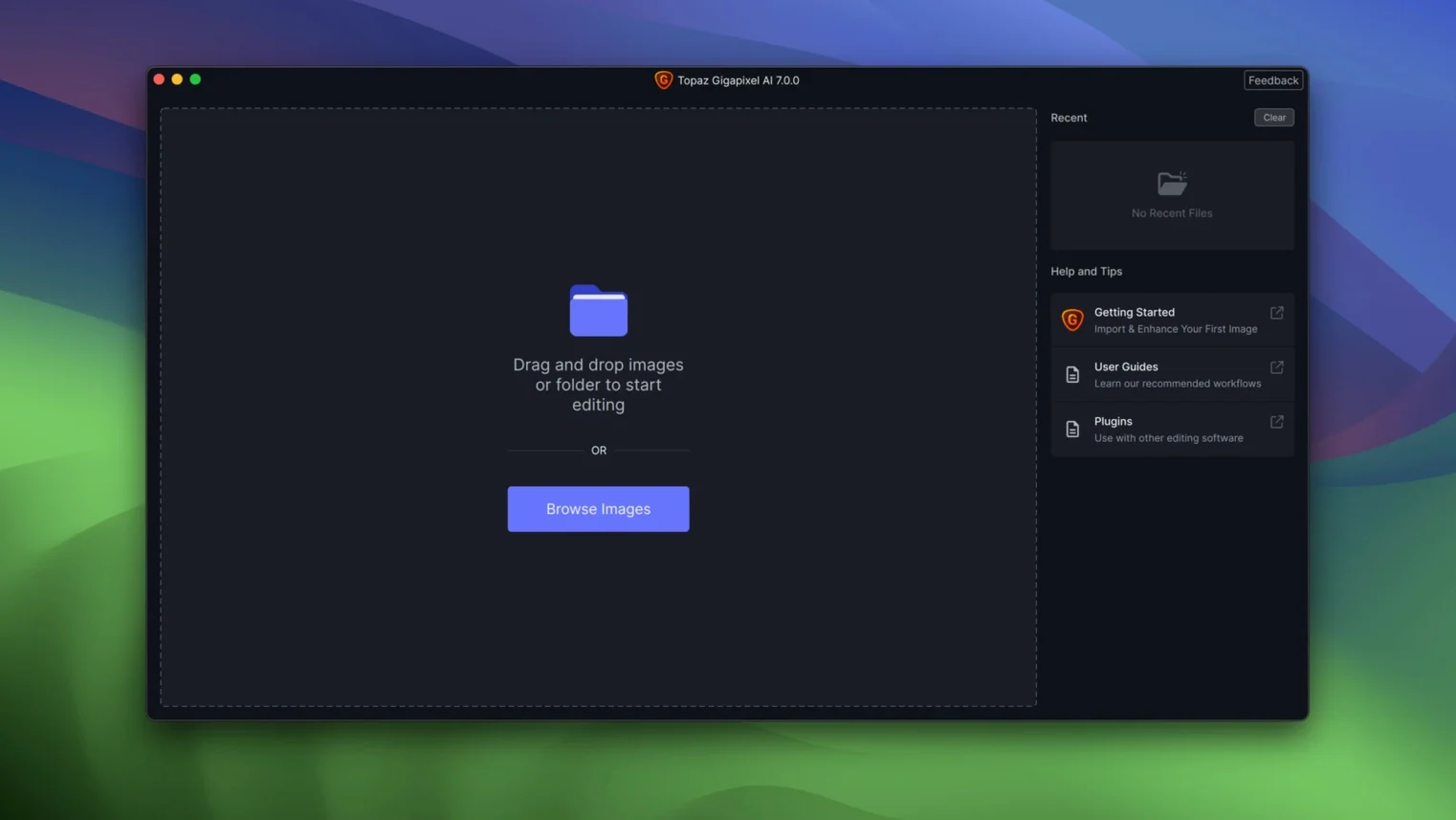
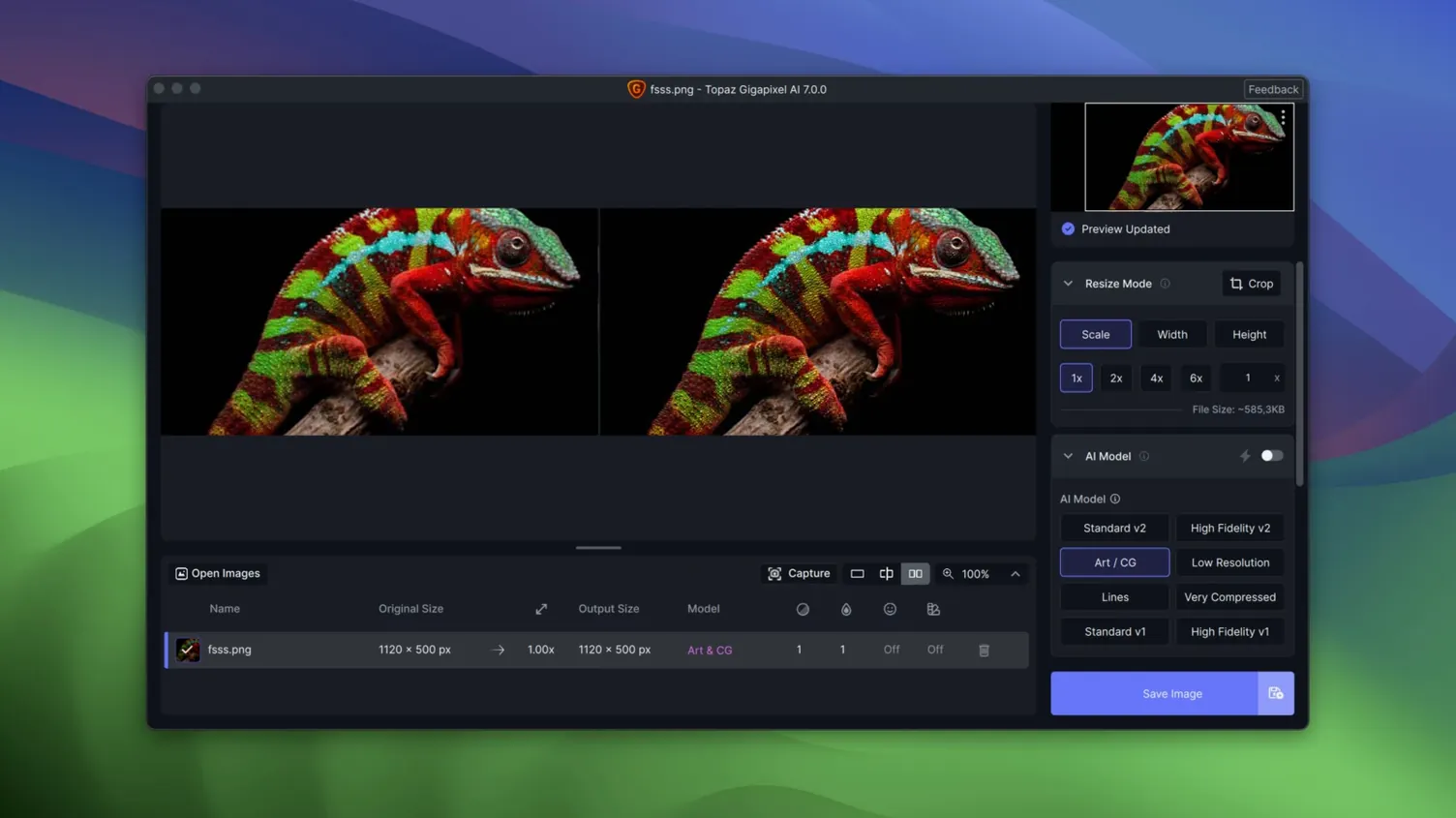
Topaz Gigapixel AI 1.3.5 arrives as separate builds for Apple Silicon and Intel 64-bit Macs, both requiring macOS 12 or later. If you have an M-series machine, you grab the ARM package; older Intel hardware gets its own installer. The software is a desktop upscaler that feeds your image through a trained neural network, pulling detail back into low-resolution files without the sharpened-mush look of traditional resampling.
- What kind of detail work does it actually handle? Low-resolution portraits get face recovery that rebuilds eyes, lashes and skin texture rather than smearing them.
- Does it batch process? Yes — queue a folder of images on your desktop and the app works through them unattended.
- Can it clean up problem files? It targets pixelation and heavy JPEG compression artefacts, including noisy edges on low-quality line art and PNGs with banding.
- Is it a plug-in or a standalone app? A full desktop application — no host editor required.
The Mac build feels tuned to the hardware it sits on, and splitting the installer by architecture keeps things lean. If you are working with old scans, frame grabs or client-supplied images that looked fine on a phone but fall apart on a monitor, that is where the AI's reconstruction model earns its keep.
Getting comfortable in the first few days
Resist the urge to drag an entire shoot onto the app the moment it finishes installing. Gigapixel AI's batch processing is solid, but you will learn more about what the neural network actually does by working image by image for the first afternoon. Feed it a low-res portrait from an old phone, a noisy 800-pixel-wide product shot, and a line-art PNG with visible stair-stepping along the curves. Watch what the preview window does with each one before you commit to a full render. The preview is not a rough approximation — it is a crop of the actual output, and it teaches you which files the model handles well and which ones need a lighter touch with the suppression sliders.
A practical note about file formats on the Mac side: the app writes back to TIFF and PNG cleanly, but if you are pulling JPEGs from Messages or a WhatsApp export, check the compression level before you upscale. Heavily compressed source files sometimes carry block boundaries the AI interprets as detail, and you will see faint grid patterns in the output. Running those through a light deblocking pass in another tool first, or simply feeding a cleaner original, avoids chasing artefacts that are baked into the source.
Also worth doing early: set your output folder to something distinct from your source folder. The app defaults to writing next to the original, which works fine until you have a hundred upscaled TIFFs mixed in with your raw selects and no quick way to separate them. A dedicated _upscaled folder per project keeps things navigable.
A full restoration session, step by step
Mid-afternoon, coffee going cold, and a folder of scanned family photos from the late 1980s lands on my desktop. These are 600 DPI TIFFs from a flatbed, but the prints themselves were small — wallet-sized, some of them — and the scans are grain-heavy with colour shifts baked into the emulsion. The goal is not gallery prints, just something a cousin can look at on a tablet without squinting.
I open Gigapixel AI and drag the first scan into the window — a shot of my grandmother at a kitchen table, maybe 400 pixels across the face. The preview defaults to a 4× upscale, and I switch the model to the face recovery line. The eyes sharpen without looking glassy, and the skin texture stays natural rather than turning into plastic. I drop the suppression slider just a touch because the original grain is heavy and I want to keep some of that character rather than smoothing everything into a digital sheen. I set the output to 2× instead of 4× — enough for screen viewing, and the file stays manageable. Hit render. Thirty seconds later, a TIFF lands in the output folder.
I queue another eight images, same settings, and the batch runs while I answer emails. Two of the frames were underexposed and the AI's grain handling in the shadows is better than I expected — it does not mistake the noise for edge detail the way a bicubic upscale would. One frame of a landscape needs the model switched away from face recovery, which I catch in the preview before processing. By the time the coffee is finished, the folder is done, and the images hold up at full screen on a 5K display.
A working session, narrated
It is late evening and a director friend has sent over still frames pulled from an old DV tape transfer — 720×480, blocky compression, the kind of footage that looked fine on a CRT in 2002 and falls apart on anything modern. She needs a few clean frames for a pitch deck, and the deadline is tomorrow.
I drag the first frame into Gigapixel AI. The preview loads and I can see the macroblock edges immediately — those flat 8×8 squares that MPEG-2 loves to leave behind. I switch the model to the artefact suppression line and set the scale to 3×. The preview updates: the block edges dissolve, and the AI fills the flat areas with plausible texture rather than just blurring the grid away. I export as PNG to keep the edges crisp for layout. The file lands at a clean 2160 pixels wide.
I queue the remaining nine frames — same source, same camera angle, so the settings hold across the batch — and let the app chew through them while I pull together a rough layout in Photoshop. The exports finish in under five minutes on the M1 Max. When I place the first upscaled frame into the deck, the difference is stark: what was a soft, blocky mess now reads as a deliberate still photograph. The friend sends back a single thumbs-up emoji, which from her is high praise.
Who should keep this in their toolkit
Photographers pulling old RAWs or scanned negatives into modern portfolios will find the face recovery and texture reconstruction genuinely useful — not as a gimmick, but as a way to make archival work sit comfortably alongside images from a current sensor. The app does not replace a careful darkroom pass, but it buys back resolution that would otherwise require a reshoot that is simply not possible.
Designers and layout artists who regularly receive client-supplied images at web resolution get the most practical daily benefit. A logo pulled from a website footer, a headshot grabbed from LinkedIn, a product photo that only exists as a 600-pixel JPEG — these are the files that break a layout, and Gigapixel AI turns them into something usable without the telltale softness of conventional upscaling. The batch processing means you can clean up an entire asset folder while you work on something else.
Indie filmmakers and video editors working with archival footage or frame grabs also find a natural home here. The app handles single-frame exports from a timeline without fuss, and the artefact suppression is tuned for the kind of compression cruft that video codecs leave behind. If you are building a crowdfunding page or a festival submission packet with stills pulled from old MiniDV or early DSLR footage, the upscaled frames look intentional rather than desperate.
Mac users on Apple Silicon get the snappiest experience — the neural engine does meaningful work on export times — but the Intel build is no slouch for older machines still in service. The architecture split means neither camp carries unnecessary code, and the app feels responsive on both. If you work with images that arrived too small and cannot be reshot, this is a tool that solves a specific, recurring problem without asking you to learn a new paradigm to get there.
- macOS 13 or later
- Apple Silicon or Intel 64-bit