5 GB is the point where a lot of transfer tools start to sweat. A ProRes master for a short film can cross that line before the first coffee break. Transmit handles it through plain FTP, SFTP, S3, or WebDAV, with a Places Bar that keeps the drives and folders you return to one click away.
No-chunk S3 transfers for massive files
- Uploading and downloading very large Amazon S3 files without splitting them first.
- Batch renaming local or remote items, which helps when camera rolls leave you with a mess of clip names.
- Managing and generating secure keys inside the app, along with two-factor login for servers that require it.
- Opening the current remote location in Terminal when a script or ffmpeg pass needs to happen right where the footage sits.
Sync keeps site settings alive across Macs
- Tags and Panic Sync keep site settings consistent across Macs, but the sync setup is its own small ritual.
- Version 5.11.6 lists its file date as April 27, 2026, and improves error reporting when files are too large for S3.
- The interface runs in English, German, Simplified Chinese, French, and Japanese.
What the latest patch quietly fixed
Version 5.11.6 arrived on April 27, 2026, and most of its changes read like footnotes — until one of them catches you mid-session. Dragging a file from Transmit into IntelliJ used to trigger a reproducible crash, and that is gone now. If you edit code on a remote server and keep the IDE open alongside your transfer window, that single fix removes a tiny ritual of caution you had probably learned to perform without thinking.
The more practical shift involves S3. Upload a file that exceeds the service limit and the error message now tells you plainly that the file was too large. Before this patch, the failure was vague enough to send you down a rabbit hole of checking permissions, network conditions, or bucket policies. The difference in everyday use is minutes saved on a wrong guess.
Two interface tweaks round out the build. The Get Info toolbar button becomes active immediately after launch — a small thing, but earlier versions kept it greyed out until you connected somewhere, which never matched how people actually work. And the German localization now shows larger text entry fields on the File Rename sheet, fixing a layout quirk that made typing longer names uncomfortable for that language.
Double-clicking downloads but doesn’t sync back
New users often treat Transmit like the Finder and try to open a remote file by double-clicking its icon. The app downloads a temporary copy and hands it to the default editor, but editing that local file does not push changes back to the server. If you mean to work live, you need to mount the server as a disk or use an editor that speaks the protocol directly.
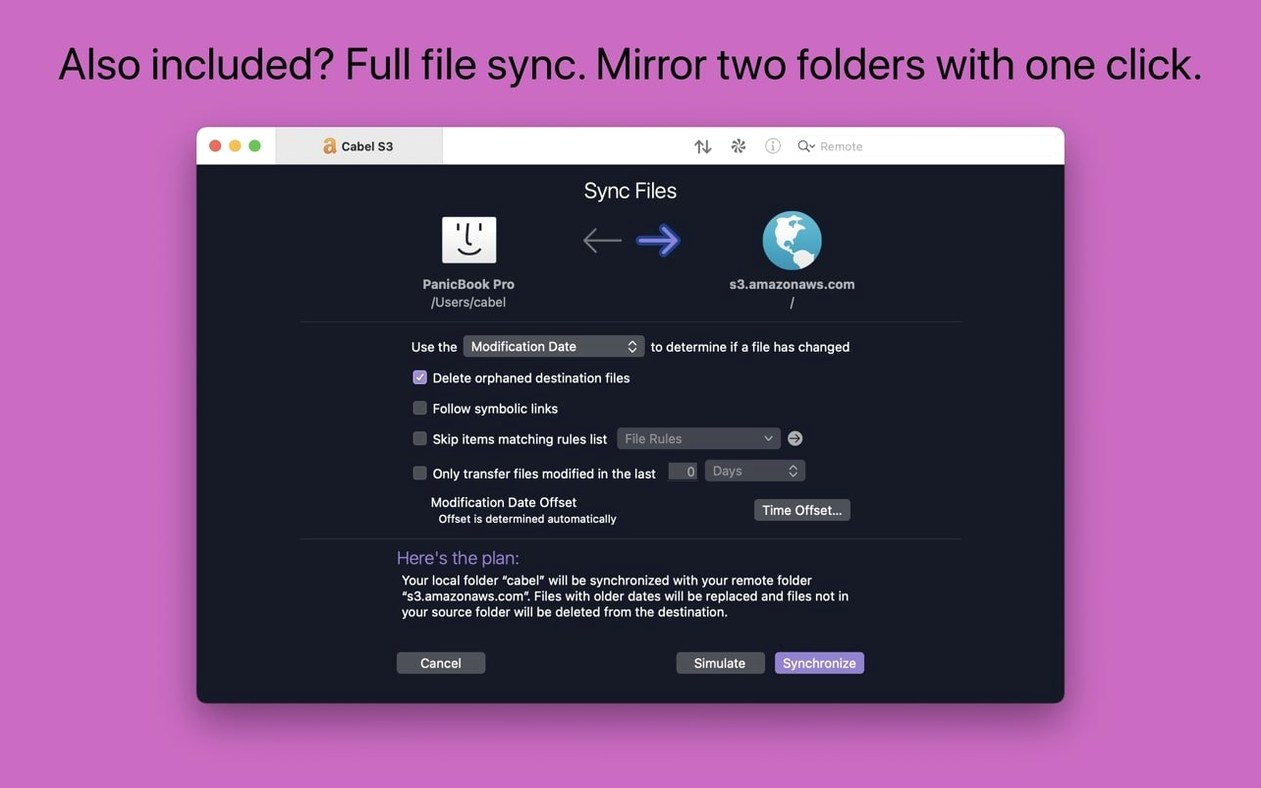
Another common stumble involves the sync direction. The Synchronize command compares two folders and flags differences, but the arrow indicators are subtle. People sometimes mirror the wrong side and overwrite the newer files with older local copies. A quick glance at the preview pane before committing the sync avoids that particular heartbreak.
Beginners also overlook the Places Bar entirely. It sits at the top of every file browser, accepts folders, servers, and S3 buckets, and saves the kind of repetitive navigation that otherwise eats ten minutes per session. Dragging a remote folder there once makes it a one-click destination for the rest of a project.
Lighter window drawing under sustained load
Cyberduck covers much of the same protocol spread and adds a few cloud services Transmit does not, but its interface feels heavier and the transfer queue is less responsive under sustained load. Transmit keeps the window drawing and progress reporting snappier, which matters when you are pushing dozens of files and want to see at a glance what is still running.
ForkLift packs a dual-pane file manager and an SFTP client into a single window, and it does a lot. The trade-off is visual density. Transmit commits to one thing — moving files between here and there — and the clarity of that focus shows in dialogs that do not bury the important controls behind tabs and inspector panels. If you already live in Finder most of the day, ForkLift's dual-pane approach may feel redundant; if you want a Finder replacement, Transmit is not trying to be one.
Both Cyberduck and ForkLift handle large S3 uploads, but Transmit's chunked handling for very large Amazon S3 files has been a specific design point since the 5.x line. In practice this means fewer timeouts on multi-gigabyte video files, which is the scenario where the differences between these three apps become real rather than theoretical.
Workflow: posting a short film to a festival server via SFTP
A festival calls for a ProRes 422 HQ master and a caption file, deadline midnight. The server details arrive by email: hostname, port, username, and a private key the festival generated for your submission.
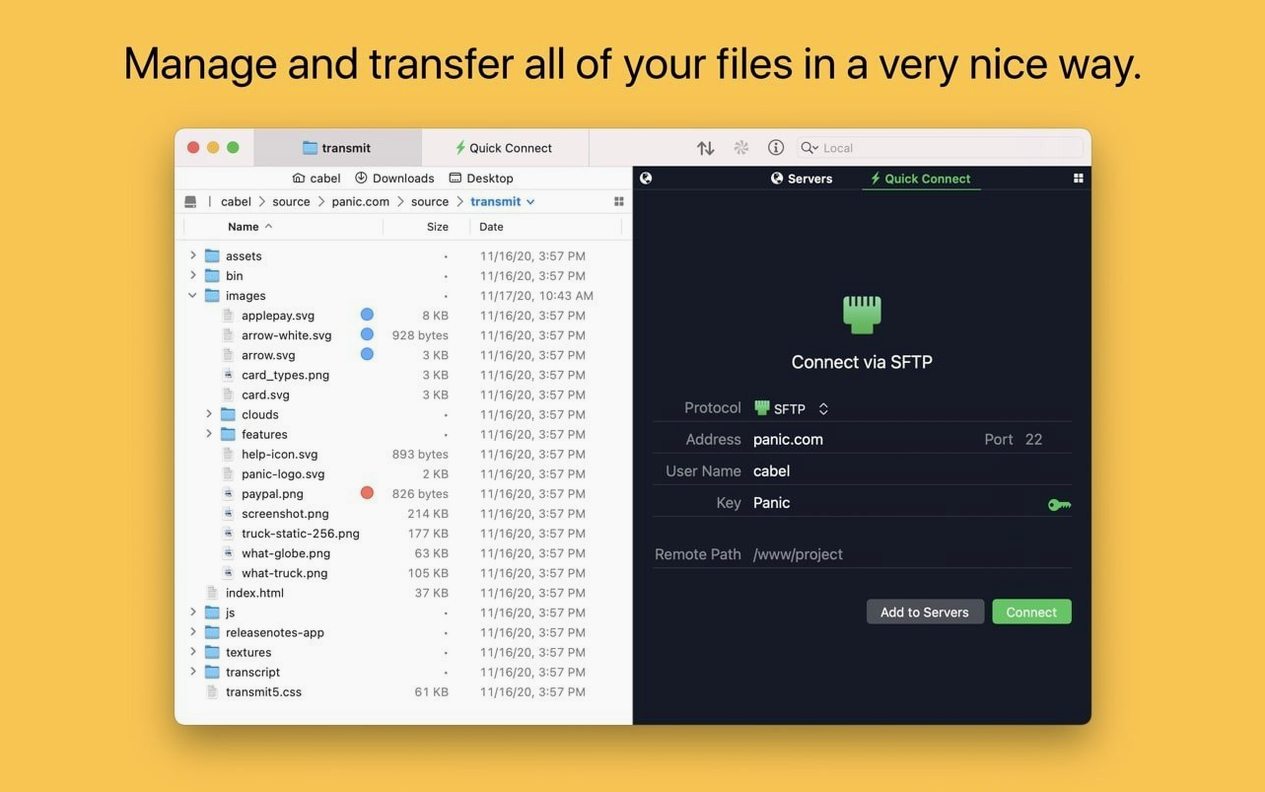
Start Transmit and open the key manager. Import the private key the festival sent, assign it a passphrase if needed, and confirm it appears in the key list. Create a new SFTP bookmark: paste the hostname and username, select the key you just imported from the authentication dropdown, and give the bookmark a name that includes the festival and the year. Drag the bookmark into the Places Bar for the duration of the submission period.
Connect. The remote side shows a single folder named "uploads." Open your local drive in the other pane and navigate to the master file and its companion SRT. Apply a batch rename to add your submission ID as a prefix — select both files, open the Rename sheet, and set a pattern like "ID-1234_·name·.·extension·" so the festival's intake system matches them easily.
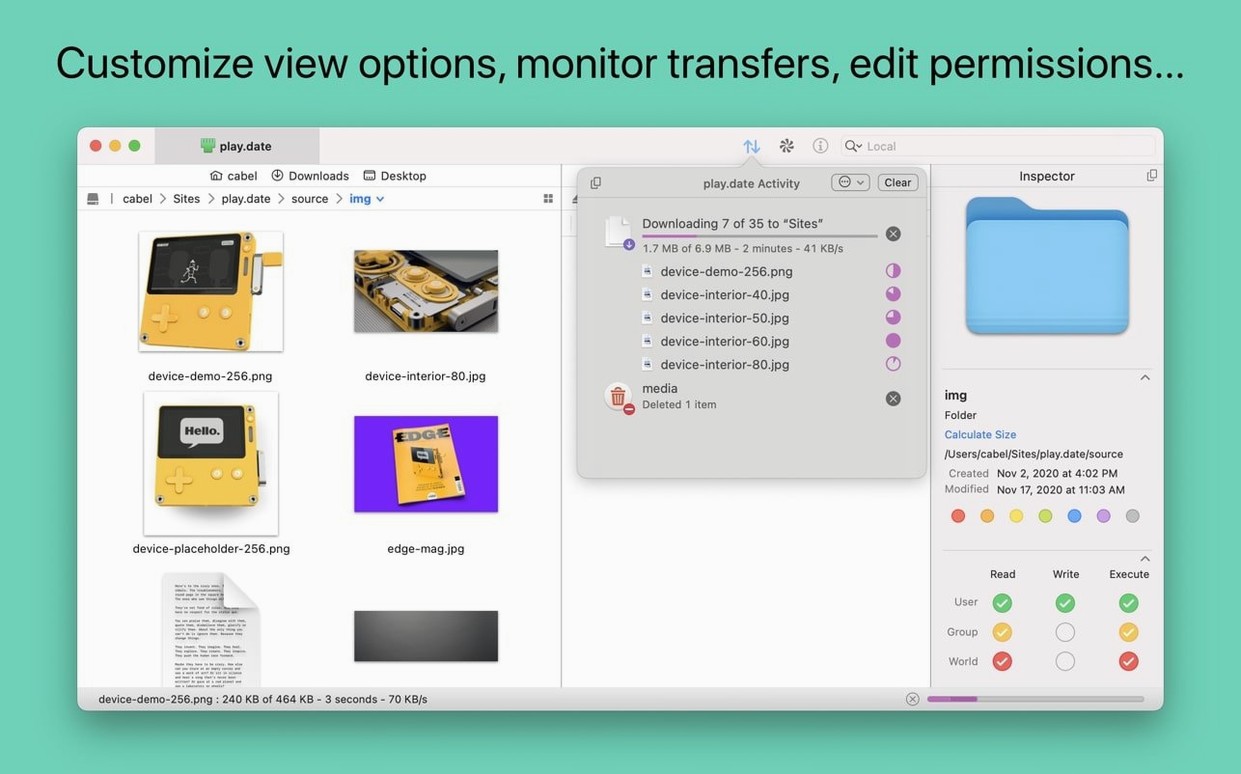
Queue both files for upload. Transmit shows the combined size and estimated time. While the ProRes pushes, the S3-style chunking engine is not in play here — SFTP has its own pacing — but the queue manager lets you pause and resume without losing progress if your connection drops. Once the status reads complete, right-click the remote folder and open it in Terminal. Run a quick ls -lh to confirm file sizes match what left your machine, then close the session and notify the festival.
The whole sequence — key import, bookmark, rename, queue, verify — fits inside ten minutes once the steps are familiar, and the Places Bar means connecting tomorrow for a correction takes exactly one click.
Transmit 5.11.7 is a maintenance update that smooths out transfer quirks and strengthens connections to remote servers.
- macOS 13 (Ventura) or later
- Apple Silicon or Intel 64-bit Mac
Questions from the booth
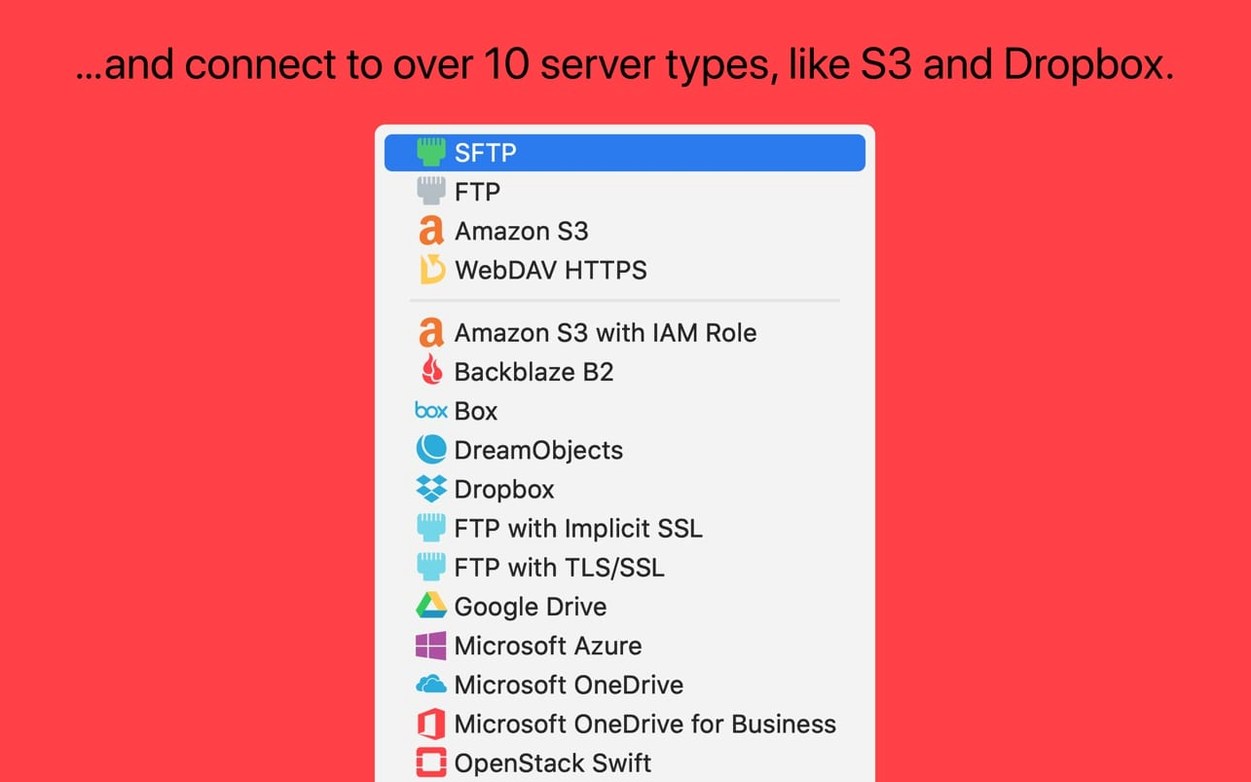
Yes, it connects to Backblaze B2, Box, Google Drive, DreamObjects, Dropbox, Microsoft Azure, and Rackspace Cloud Files, along with standard FTP, SFTP, S3, and WebDAV servers.