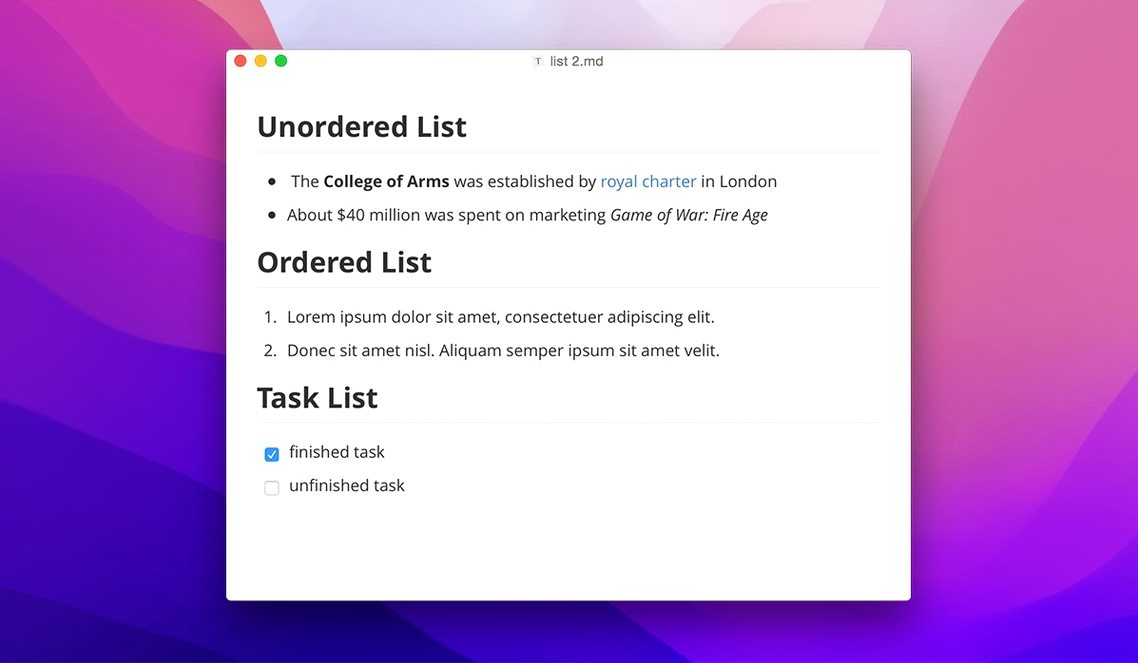
Typora runs on Apple Silicon and 64-bit Intel Macs, asking only for macOS 10.13.6 or newer. The current stable release, version 1.14.10, continues the quiet, single-pane approach that has defined the app since it dropped the traditional preview window. Instead of a source view and a rendered view side by side, Typora merges them: you type Markdown and the formatting hides itself, leaving the styled text in place. There is no mode switcher to flick between, no syntax symbols cluttering the line, and no separate preview pane to manage.
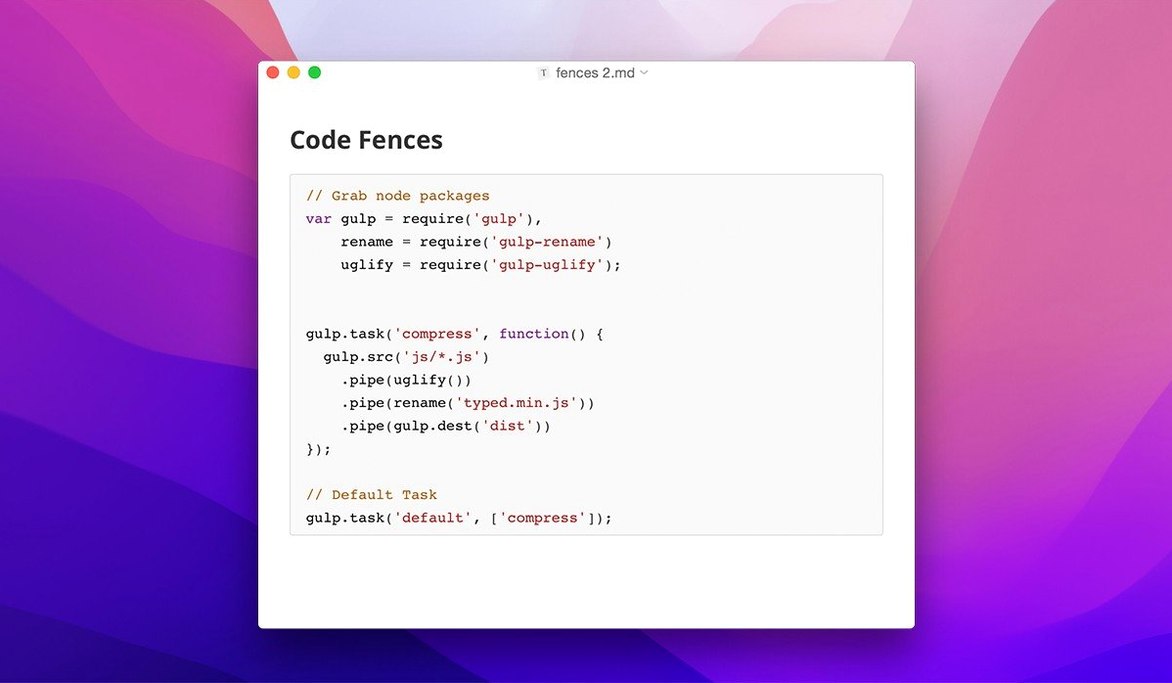
The 1.14 update tightened the macOS integration further, adding context-menu style settings that feel native to the system. What stayed the same is the core writing experience—code fences with syntax highlighting, LaTeX for equations, Markdown tables that expand as you add rows, and an auto-generated table of contents. Custom CSS themes let you shape the page to a warm dark background or a clean manuscript white, and the export pipeline leans on pandoc for anyone who needs to leave Markdown behind.
Draft prose, code, and math without ever seeing raw Markdown
- Drafting notes and documentation without ever seeing raw Markdown tags
- Writing academic or technical material that mixes prose, code, and math in one document
- Exporting to Word, PDF, or HTML through pandoc when the draft is finished
Local files only, with no visible syntax—where that trade-off stings
- The interface hides Markdown syntax completely; if you prefer visible source markers, the workflow may feel opaque
- Collaboration features and built-in cloud sync are not part of the package—Typora works on local files
Building a lecture outline from scratch
A workflow I keep returning to starts with a blank file and a rough idea for a talk. I open Typora, hit cmd-shift-l to toggle the sidebar and outline view, and type a working title. The moment I press return and start a new line with a hash, the outline panel picks it up—no separate compile step, no waiting for a preview to rebuild. I draft the section headings first, filling in bullet points under each one, and the indented structure appears in the outline as I go. When a section feels thin, I drag it higher or lower in the sidebar and watch the heading move in the document body; the file tree and the text stay in sync without thinking about it.
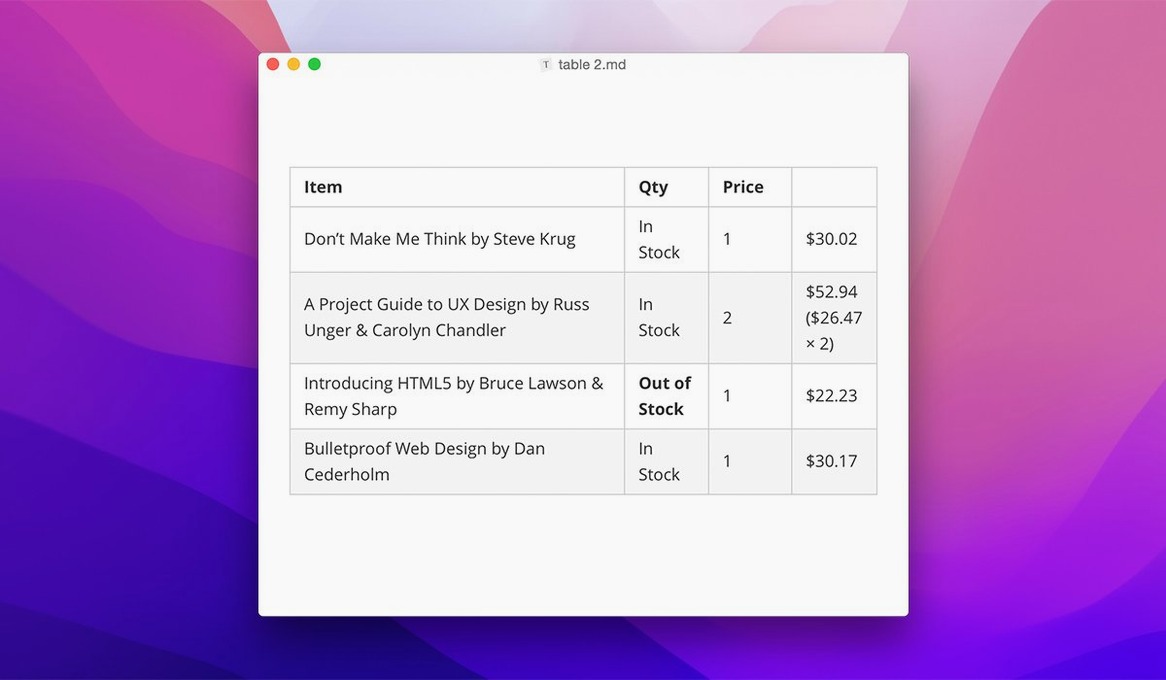
Next I drop in a table for a comparison slide. I type | Concept | Old approach | New approach | and press return, and the columns widen as I add rows, text staying aligned and readable. I paste a short code block—indented four spaces, language hint on the fence—and the syntax highlights in muted greens and blues, enough to check logic without pulling me out of the flow. For a formula-heavy section, I wrap a LaTeX expression in $$ and it renders inline, the symbols crisp on my display. A few minutes before the talk, I export to PDF through pandoc straight from the file menu, and the fonts, margins, and heading hierarchy hold exactly as they looked in the editor.
Launches under two seconds and stays light across long documents
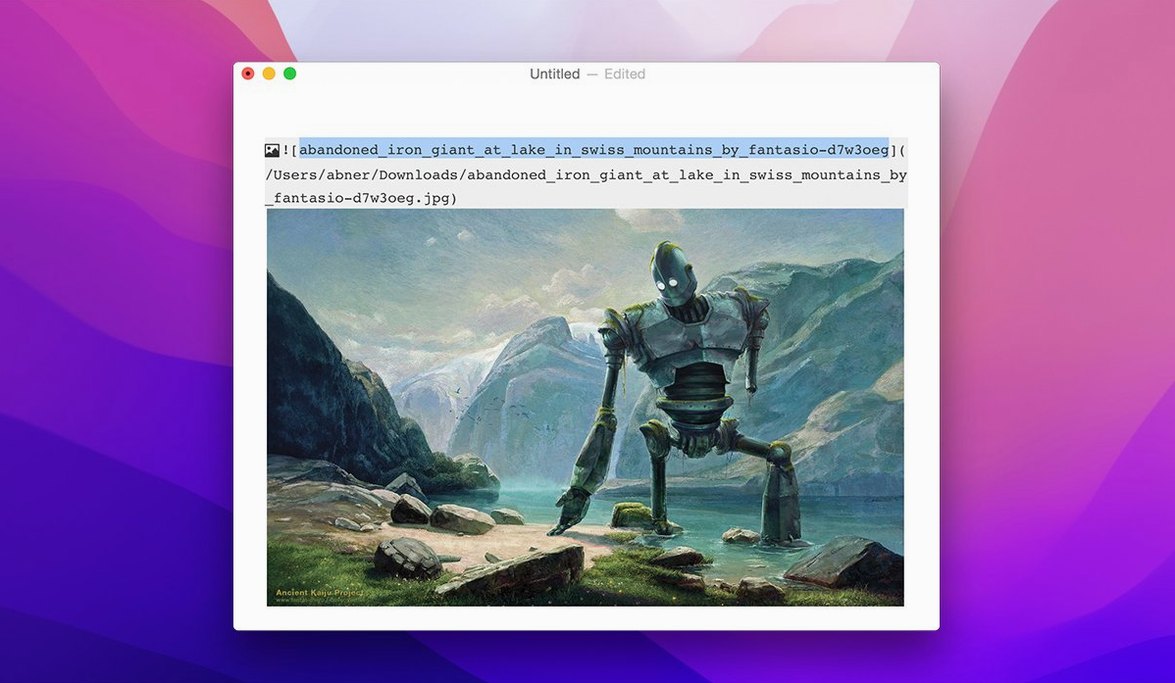
On an Apple Silicon Mac, Typora launches in under two seconds and settles to a low memory footprint even with several long documents open. Scrolling through a file with a few thousand words, embedded images, and a dozen code blocks stays smooth—no lag when the outline rerenders, no beachball when switching tabs. The editor feels like a native text view, not a wrapped web component struggling to keep up with each keystroke. I have left it running alongside Final Cut Pro and a browser with thirty tabs, and it barely registers in Activity Monitor, usually sitting around 150 MB of RAM for a working session with three or four open files.
Stability has been uneventful, which is what you want from a tool you draft in all day. Across weeks of daily use, I have not seen a crash during typing or an export hang mid-write. The 1.14.10 release patched a pandoc export bug from source mode, and since then the pipeline has been predictable: even large documents with mixed formatting convert cleanly. Autosave fires quietly, and reopening the app restores every open file and cursor position without fanfare. If you are coming from an older Typora Mac build or a Typora TNT installation, the current version tightens the file-tree behaviour and fixes the welcome panel clipping that used to appear on first launch.
Three Preferences moves to make the moment it opens
Mount the disk image, run the Open Gatekeeper friendly script, press Enter in Terminal when prompted, and drag the app into Applications. Once it is running, open Preferences and give the first few minutes to these three moves.
First, pick a theme. Under Appearance, switch between the bundled themes while keeping a short document open; the change applies instantly, no reload required. If you write late at night, try "Night" and then adjust the font size up a point or two—the line spacing stays comfortable and the contrast does not get harsh. Second, map a shortcut for the floating editor toolbar if you use it often. The toolbar appeared in version 1.14 and sits unobtrusively near the selection, but I needed a day to remember it was there; binding it to a key I already know made it second nature. Third, decide how you want the file sidebar to behave. The 1.14 release added options to show hidden files, folders, and non-Markdown files; if you keep a project folder with scripts, CSVs, and notes all together, toggling these on turns the sidebar into a lightweight project browser.
- macOS 10.13.6 or later
- Apple Silicon and Intel 64-bit
Questions from the booth
Yes, Typora runs natively on ARM-based Macs and 64-bit Intel Macs, requiring macOS 10.13.6 or later.
Typora uses pandoc for export, supporting formats like Word, PDF, and HTML. Version 1.14.10 fixed a pandoc export issue that occurred when exporting from source mode.