Composers, arrangers, copyists and educators who need a notation tool that handles the edge cases without workarounds tend to settle here. Dorico Pro is built for music where the notation itself is complex — tuplets that cross barlines, microtonal accidentals, stemless passages on a single line — and it draws them correctly the first time.
Version 6.2.30 arrived in June 2026 with over forty fixes and refinements, most of them aimed at the quiet details that matter during a tight deadline. Hidden notes behave more predictably now, and tuplet brackets that you have suppressed in your engraving options finally export cleanly instead of reappearing in the MusicXML. If you are moving scores between Dorico and a DAW or another notation program, those small corrections add up.
The sound library sits at just under 1,500 instruments, which means playback during composition feels closer to a real session and less like a placeholder. When the score calls for a glissando, you can now override the appearance of individual lines — a wiggly trill glyph for one passage, a straight portamento line for another — and the line style property remembers it per instance.
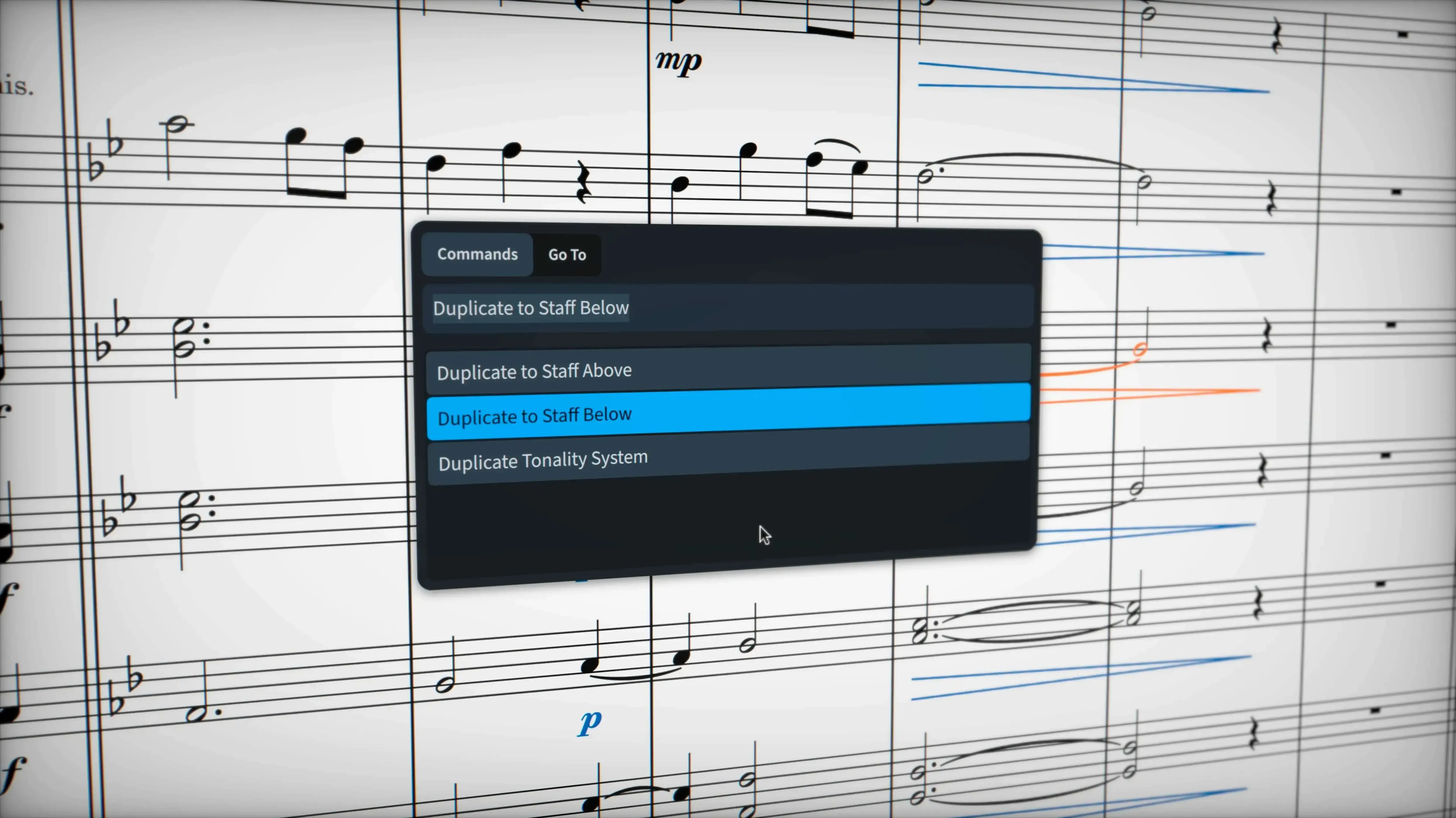
After the first launch, a few things can make the first two days less about hunting through menus and more about getting notes on the page. The Jump Bar — hit J — is the fastest way to reach any command without memorising the ribbon. Type "tuplet ratio" and it appears; type "glissando style" and you are dropped straight into the property you need. A lot of experienced users barely touch the menus after the first hour, and the Jump Bar is why.
If you are coming from another notation program, the single biggest shift is that Dorico thinks in terms of musical semantics, not graphical placement. A note belongs to a voice, a voice belongs to a player, and a player lives in a flow. Fighting that hierarchy by dragging stems and beams around will exhaust you. Instead, when something looks wrong, ask what the musical instruction should be — change the voice, adjust the playing technique, or open the Properties panel and set the local override. The engraving engine recalculates everything downstream.
A practical habit for the first week: set up a project template with your preferred page size, staff size, default playback template and at least one flow already named. Even a blank template with just those four things cuts the friction of starting a new score to almost nothing. Save it to the template folder and it appears in the Hub the next time you launch Dorico.
Drag tempo in the System Track without touching the printed metronome mark
The System Track in Play mode does not advertise itself loudly, but it is where tempo changes, time-signature ramps and playback overrides live in one horizontal lane. Dragging a tempo point there changes the playback without touching the printed metronome mark — useful when you want the audio to breathe but the score to stay clean for the session musicians.
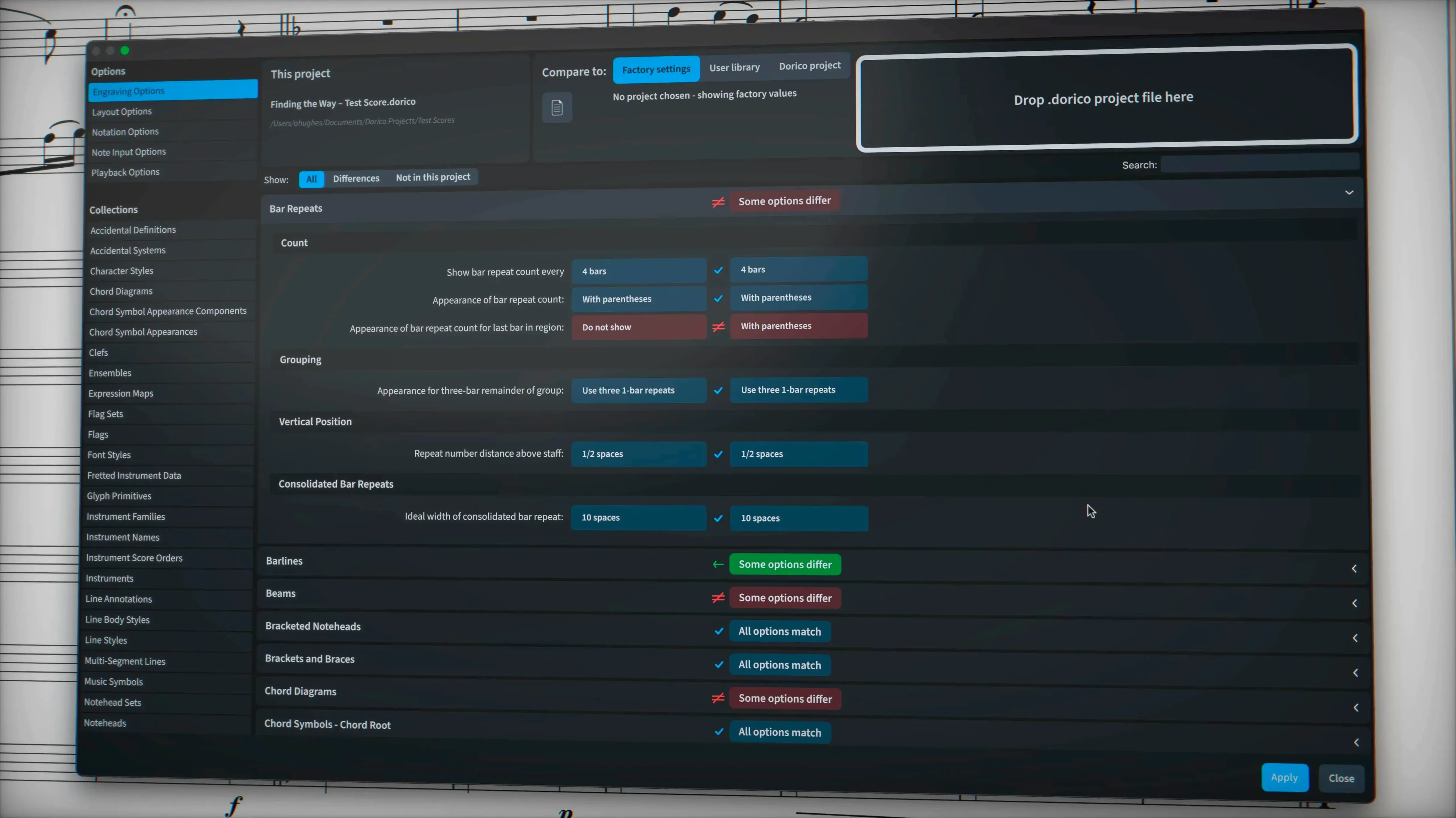
Right-clicking almost any object opens a context menu that includes "Show Properties" or "Show Engraving Options for…" and takes you to the exact set of controls that govern that element. It saves the long scroll through Library > Engraving Options, and it works on slurs, dynamics, time signatures, bar numbers — whatever needs tweaking.
Shift-D toggles between the score view and the active part layout. Ctrl-Alt-N creates a new flow. P opens the playing techniques popover, where a quick type like "pizz" applied to a passage switches the playback sound without cluttering the notation. These three alone, committed to muscle memory, remove most of the cursor travel that slows a session down.
When one instrument falls silent, check for an unsupported playing technique
A common snag in the first week: playback suddenly goes silent for one instrument. Nine times out of ten, a playing technique has been applied that the sound library does not recognise — "flautando" on a piano, say — and the playback engine quietly disengages. Open the Track Inspector in Play mode, check the playing techniques lane, and remove the offending instruction. The sound returns immediately.
Another point of confusion is the difference between System Breaks and Frame Breaks. A system break forces a new line of music within the current frame; a frame break pushes everything after it into a new page entirely. If your layout looks stubbornly wrong — too few systems on a page, or a page that refuses to fill — check which break you have inserted. Shift-S toggles system breaks visible, and the coloured markers tell you at a glance which is which.
MusicXML import can still misbehave with third-party scores that contain non-standard encoding. If dynamics appear as plain text or slurs vanish after import, the quickest fix is to re-save the source file from the original program as a "compressed" .mxl rather than plain .xml. The compressed format carries metadata that helps Dorico interpret the markup more accurately. Version 6.2.30 addressed several import issues specifically, so keeping the build current matters here.
Beginners sometimes treat the Properties panel as a global setting — they select a note, change the stem direction in Properties, and expect every subsequent note to inherit that choice. Properties are always local overrides; they apply only to the current selection. If you want a stem-direction rule that holds for the entire flow, that lives in Library > Notation Options, not in Properties. Mixing up those two panels is the most frequent early mistake, and it leads to scores that look inconsistent for no obvious reason.
One more worth mentioning: the default playback template loads all 1,500 sounds into memory on first launch, which can make an older Intel machine feel sluggish. If you are scoring for a string quartet and do not need a full orchestral palette, create a stripped-down playback template with only the instruments you are using. Switch to it in Play mode, and the loading time drops noticeably. The template travels with the project, so collaborators on Apple Silicon machines get the same benefit without any extra steps.
Data moves out through MusicXML, MIDI and PDF, so the finished score reaches whoever needs it in whatever format they work with.
- macOS 12 or later
- Apple Silicon or Intel processor