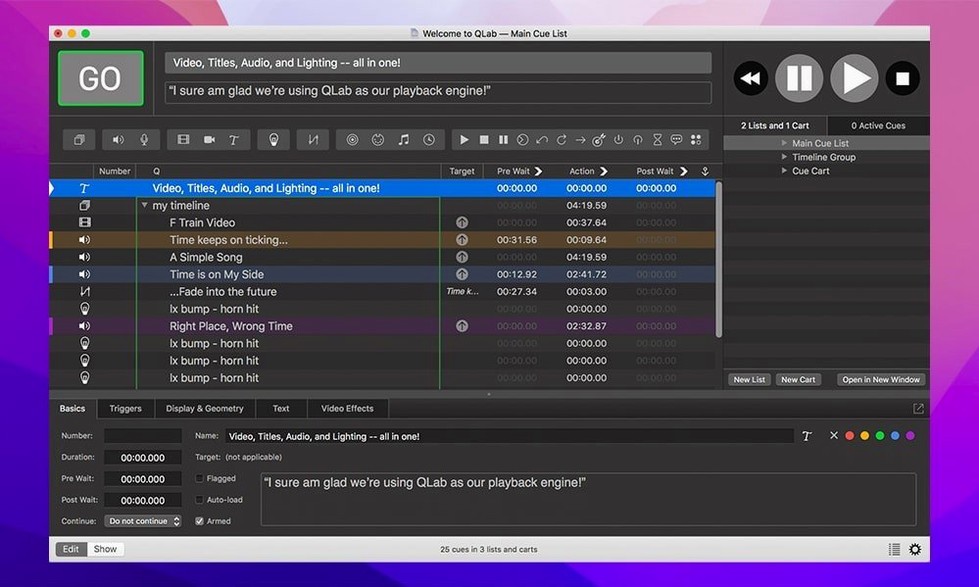
Forty-eight discrete audio outputs. That's the canvas QLab Pro hands to a sound designer, and it's what makes a complex theatre show or immersive installation feel alive rather than merely loud. Version 5.6.3 keeps that power front and centre, now with clearer visual feedback in the Light Library when an instrument definition drifts out of alignment.
Routing a quadraphonic cue from scratch
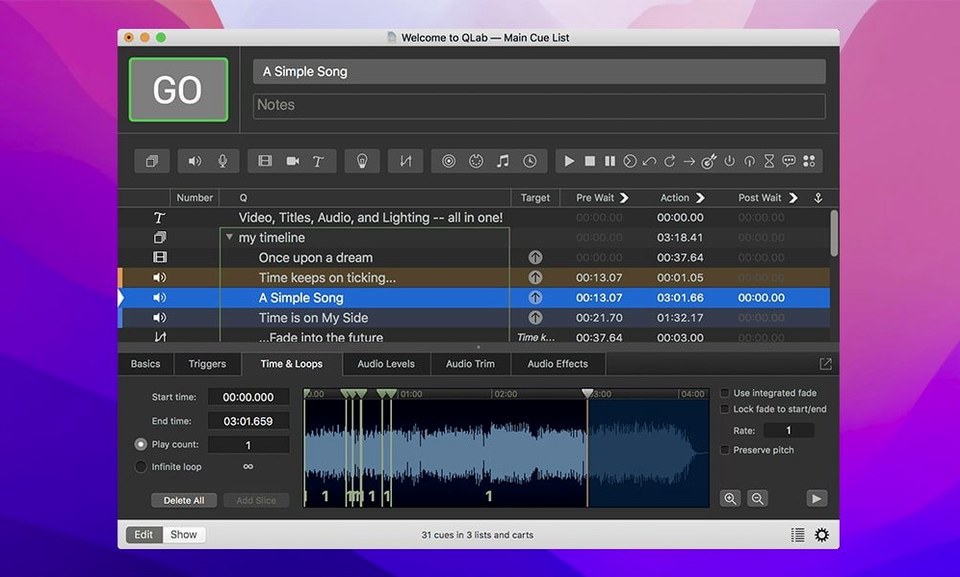
Create a new workspace and drag a field recording into the cue list. Open the integrated audio editor to trim the head and tail so the piece starts on the first footstep and ends in silence, then assign its channels across four outputs routed to speakers in the room corners.
Adding live video with Syphon
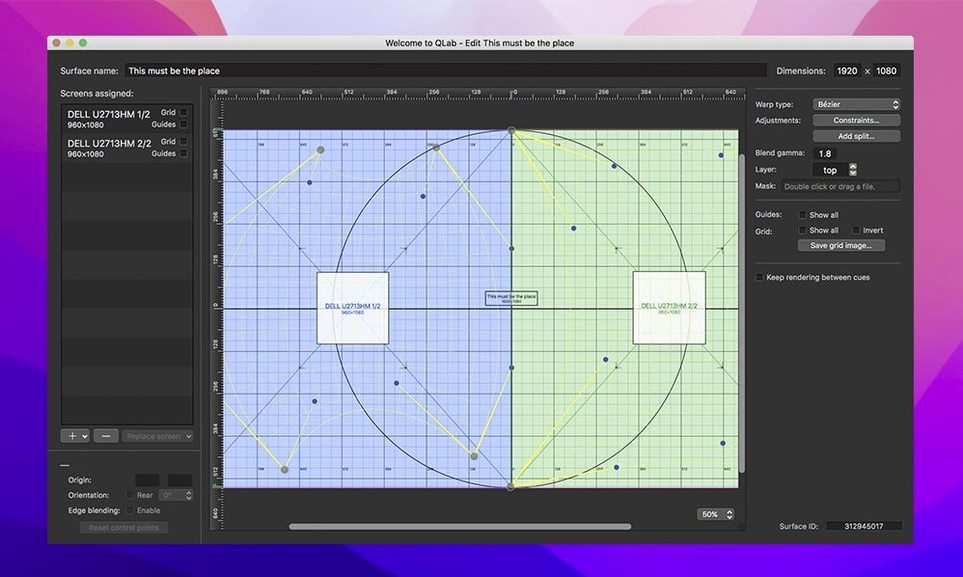
Pull a live feed from a Blackmagic capture device onto a Video cue, and send its surface through Syphon to a companion projection app. Set a cue to fire the video and an audio fader move simultaneously, so the image brightens as the sound swells.
Lighting a scene change in one cue list
Drop an OSC cue that tells the lighting console to load a warm amber preset, then follow it with a MIDI note to trigger a haze machine. The row colours in the Light Library tell you at a glance if the instrument mapping is solid before you press GO.
The glue layer between your DAW mixes and lighting cues
QLab isn't a replacement for your digital audio workstation or your lighting console's native programmer. It's the piece that connects them, and that distinction shapes how you organise a project. Audio stems get built in Logic or Reaper, exported as continuous WAVs, then pulled into QLab where they're sliced, grouped, and assigned to a physical output matrix. The DAW handles the creative edit; QLab handles the spatial reality of eighteen speakers across three zones and the timing logic that fires them on a performer's mark.
On the lighting side, QLab speaks OSC and MIDI to consoles from ETC, MA Lighting, or ChamSys. A single GO button in the cue list can send a MIDI Show Control string to a lighting desk, trigger a video fade on a projector, and duck the background ambience by six decibels — all within the same quarter-second. The Light Library in 5.6.3 makes that handshake more transparent. If an instrument definition is misconfigured, the row shifts colour and the Light Patch editor displays a Broken status before you discover the problem during a tech rehearsal at ten p.m.
macOS itself plays a quiet supporting role. Aggregate audio devices, configured in Audio MIDI Setup, let QLab address interfaces from different manufacturers as a single block of outputs. AppleScript cues can toggle system Do Not Disturb or launch a companion app seconds before curtain. And because QLab uses Core Audio and Core Video directly, it inherits the low-latency path that makes a Mac Mini a viable show machine for a hundred-seat house.
Building a doorbell cue from field recording to stage
Suppose a production needs a doorbell that rings in the upstage-right practical speaker, followed by footsteps crossing the room over four channels. Start with the raw recording: a mono WAV of a brass bell captured on a handheld recorder. Import it into the workspace and open the integrated audio editor. Trim the attack so the ring begins cleanly on the transient, then fade the tail to silence over half a second to avoid a hard digital chop.
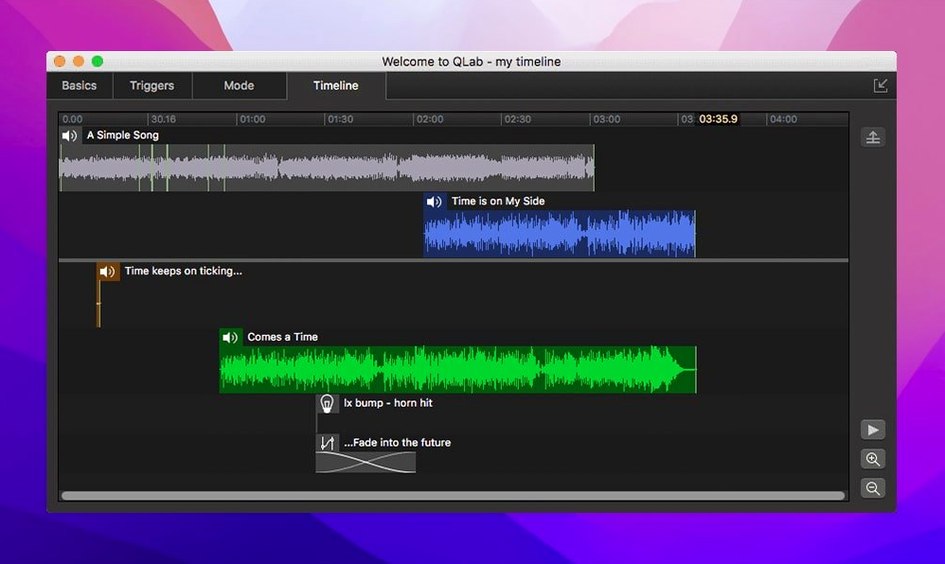
Set the cue's audio output to the single matrix channel that feeds the upstage-right speaker. Now the footsteps. Drag four mono recordings — heel, toe, heel, toe — into a Group cue so they fire sequentially. Assign each to a different output channel panned across the stage: far right, centre-right, centre-left, far left. Adjust the pre-waits so the rhythm matches the actor's blocking, then wrap the group inside a second Group cue that also triggers a gentle lighting bump via OSC. The whole sequence fires from one space bar press, and the timing can be nudged without touching the original audio files.
Name the Group cue meaningfully — something a stage manager can read aloud over comms — and add a note describing what the audience should hear. Three months later, when the show remounts in a different venue, that note will save someone a phone call.
When the outputs don't line up
The most common stumble for new users is the mismatch between the cue's assigned outputs and the physical patching of the interface. A cue plays, the meters bounce, but no sound reaches the auditorium. Nine times out of ten, the audio device routing in the workspace settings has drifted — perhaps the interface was disconnected and reconnected, and macOS assigned it a different device ID. Open Workspace Settings, select the Audio tab, and confirm the output patch points to the correct physical device. If the interface has renamed itself, re-map the cues to the new device and save the workspace immediately.
Another snag: video cues that play on the control monitor but not on the projector. QLab treats the stage display as a separate surface, and it needs to be enabled in the Video preferences. Check that the correct display is selected and that the stage is fullscreen. If the projector shows the Mac's desktop instead of the video surface, the stage display hasn't taken focus. Press Command-F or select "Full Screen" from the Workspace menu while the stage display is active.
Users pulling a workspace from an older version sometimes find that Syphon surfaces don't appear for companion apps. QLab 5 changed how Syphon frames are published; re-select the Syphon output in the cue's video settings and the surface should reappear downstream. Also worth checking: if a Blackmagic capture cue shows a black frame, the device might need a firmware update that matches the Desktop Video driver version installed on the Mac.
An installation artist's first tech day
Mara designs a six-channel sound piece for a gallery, triggered by motion sensors over OSC. She arrives with a MacBook Air, a Focusrite Scarlett 18i20, and a QLab workspace built at home. The speakers in the gallery are wired differently than her studio setup — channels three and four are swapped. Rather than repatch the interface, she opens the workspace's Audio Outputs tab and drags the channel assignments into the correct order. The whole fix takes thirty seconds and doesn't require touching a single cable.
She adds a Network cue that listens for an OSC integer from the sensor hub. When a visitor enters the zone, QLab fires a random Group cue from a pool of twelve, each a different combination of field recordings and short narrated fragments. She sets a minimum dwell time so the piece doesn't retrigger if someone lingers at the threshold. By the end of the day, the gallery staff can power up the Mac and the interface, launch the workspace, and press GO — and the piece runs autonomously until closing.
Lock in your audio interface before cue one exists
Before building anything, open QLab's preferences and set the default audio device to your primary interface. The factory default is often Built-In Output, and forgetting to change it leads to a workspace full of cues that need repatching later. In the same session, assign a stage display if you're working with video, and set the default fade times for audio and video cues — half a second for audio, one second for video are sensible starting points that you can override per cue.
Organise your media folder deliberately. QLab references files by path; if you move a WAV after importing it, the cue list shows a red broken link indicator. Keep all media inside a single project folder, and use relative paths by saving the workspace inside that same folder before importing anything. That way the whole project is portable to another Mac without relinking a hundred individual files.
Learn the difference between Fire, Start, and Panic hotkeys, and remap them if your muscle memory clashes. The default Escape key stops all cues immediately — useful during a tech run, alarming in the middle of a performance if your wrist catches the keyboard. Many designers move Panic to a function key with a modifier to make it a deliberate action rather than an accident.
Finally, take fifteen minutes to build a tiny test workspace: one audio cue, one video cue, one OSC cue, and one MIDI cue. Run it through your actual hardware chain. If something fails, you'll know before the pressure of a production deadline, and the fix is usually quicker than the debugging session you'd face at midnight with an audience due in twelve hours.
Misconfigured instrument definitions now surface immediately with changed row colours in the Light Library and Light Definition editor. Workspaces from older versions migrate cleanly to the built-in network device definition for Right On Cue Services Stage|Tracks.
- macOS 11 or later
- Apple Silicon and Intel Macs
Questions from the booth
Yes, workspaces created in 5.6.2 and earlier now migrate automatically to the built-in network device definition for Right On Cue Services Stage|Tracks.