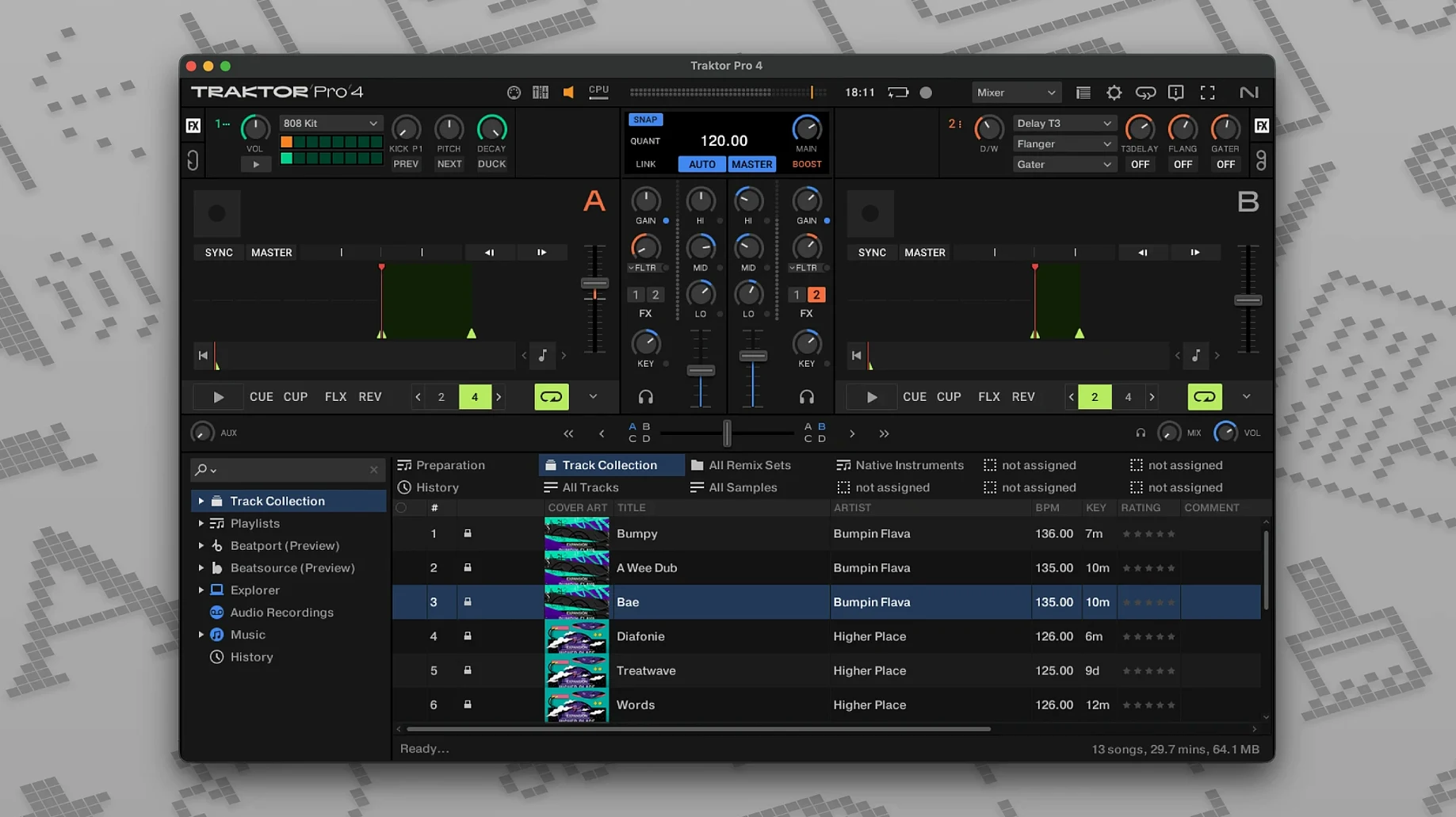
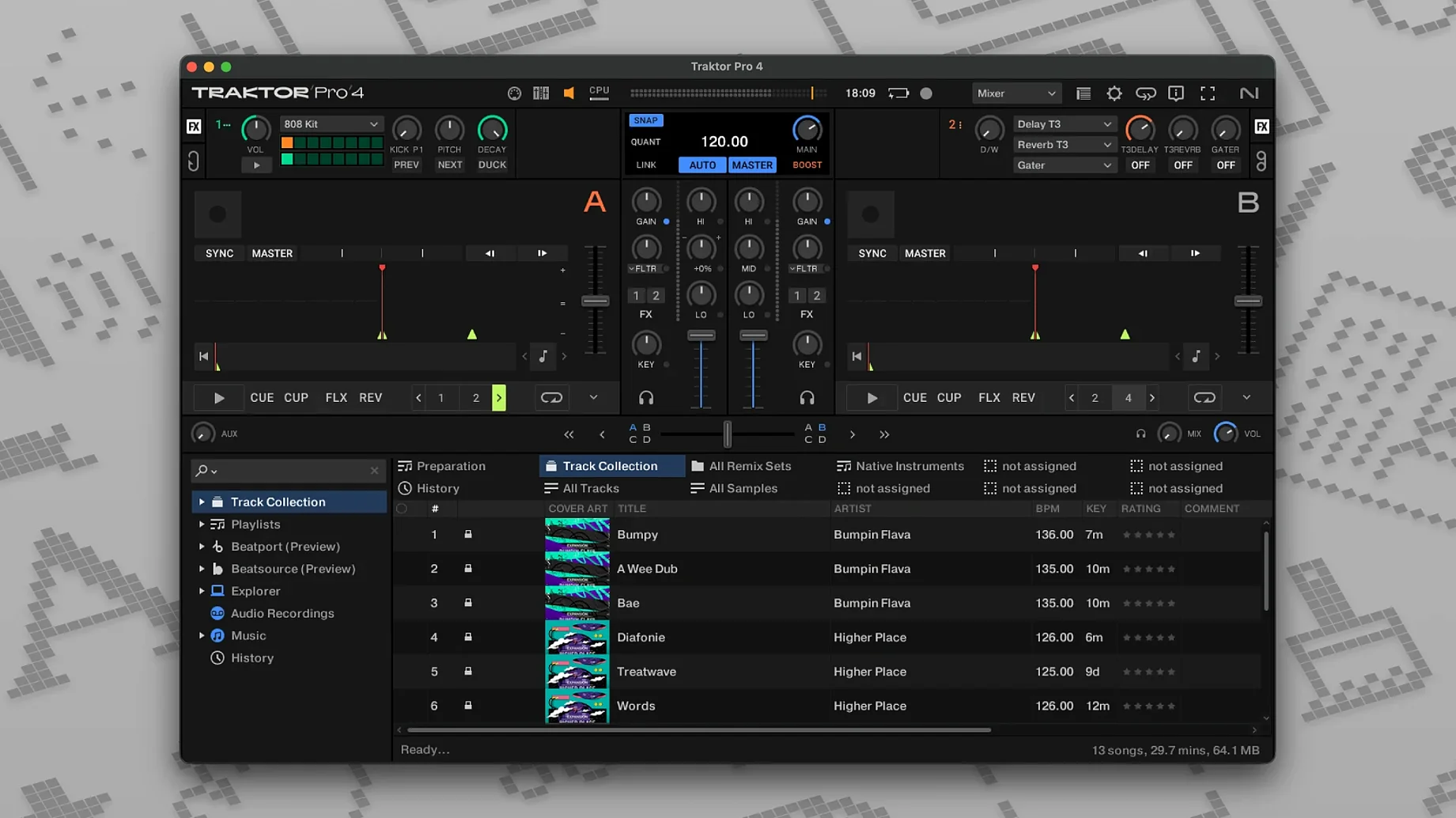
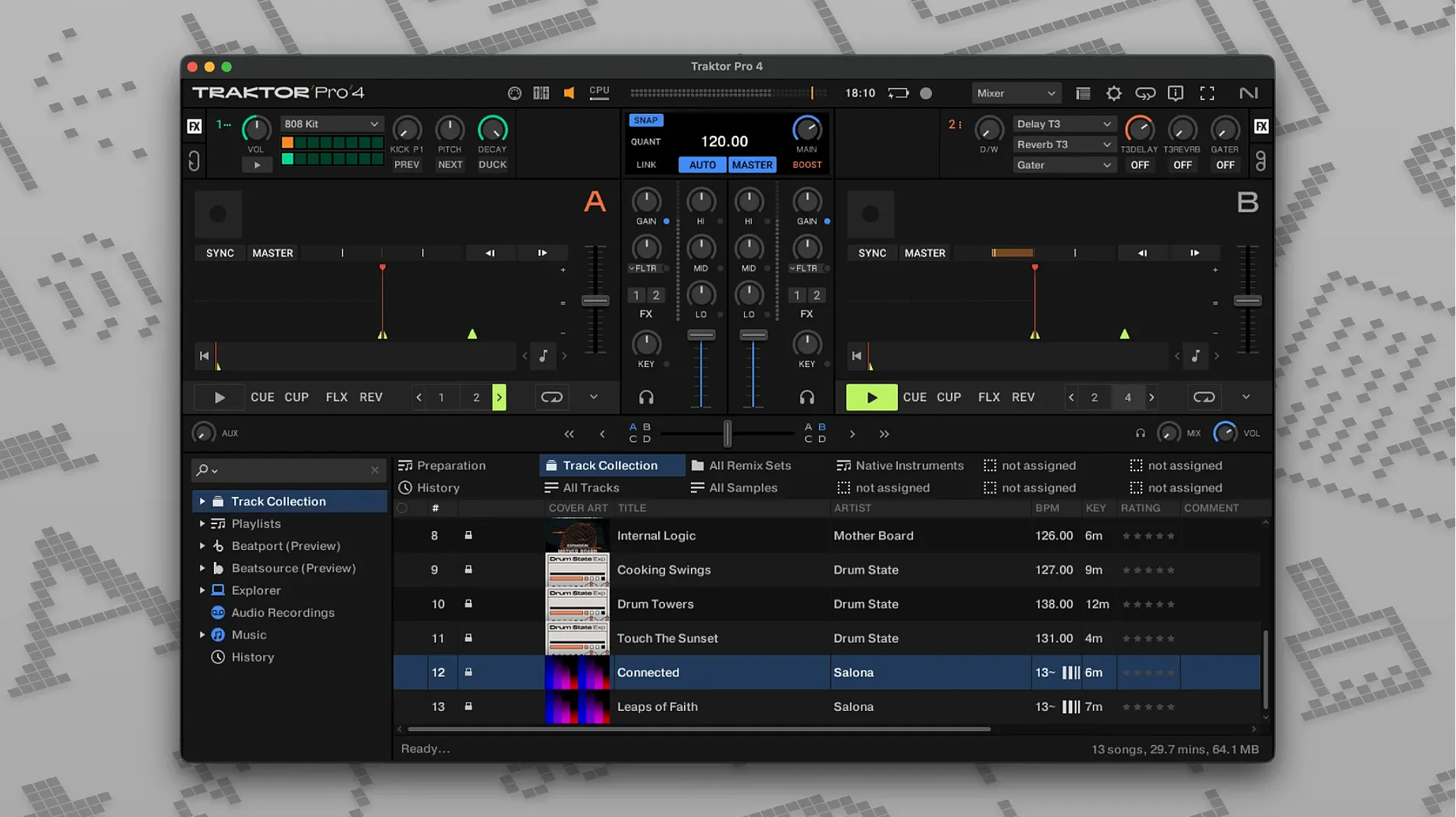
Four decks, a MIDI Clock signal, and a stem separation engine running in real time. That is the kind of territory Traktor Pro occupies before you even touch a controller. It is built for DJs who think in layers — acapellas, drum tracks, synth lines — and need the software to keep up without flattening everything into a two-channel compromise.
How does stem separation hold up in a live mix?
The processing happens internally, so you can isolate drums, bass, vocals or melody from a full track on the fly. It is not a bounce-and-import affair — you pull a fader down and the vocal line peels away while the groove keeps rolling underneath. The quality depends on the source material, but for real-time surgery on a crowded dancefloor, the immediacy matters more than surgical perfection.
What does OSC and MIDI Clock sync unlock?
Traktor Pro can talk to drum machines, modular rigs and lighting software through OSC or MIDI Clock. When the master deck sends a clock pulse, Ableton Link-compatible gear falls into step, and an external audio interface routes the mix to a front-of-house desk while the booth monitor stays independent. It turns a laptop into the centre of a larger electronic setup.
Which details reward someone who builds their own layout?
The deck headers, mixer sections and waveform views are modular — you can strip the interface down to a single deck with a phase meter and nothing else, or spread four decks across a widescreen with custom cue points and flux-mode controls always visible. ID3 tag writing happens in-session, so crates stay tidy without switching software. Reverse playback and recording actions round out the toolkit for edits that go beyond a crossfade.
Switch to 48 kHz before the red lights come on
A fresh install of Traktor Pro ships with sensible defaults, but a few tucked-away preferences make an outsized difference once the red lights come on. The first stop should be the audio setup pane. Switch the sample rate to 48000 Hz if your controller supports it — most modern hardware does — and set the latency as low as your machine can manage without crackling. On a recent MacBook Pro, 128 samples usually holds steady at a 5 ms output latency, which is tight enough for beatmatching by ear.
Next, head to the track loading tab. Enable load only to stopped deck unless you actively use the feature that drops a track onto a playing deck mid-phrase. It is a safety net that has saved more than a few opening slots. While you are there, tick analyse new tracks on load and set the beatgrid mode to automatic. Traktor's grid detection is not flawless — breakbeat and live drum tracks still need manual correction — but for four-on-the-floor material, it nails the downbeat nine times out of ten.
The stem separation quality toggle lives under the deck defaults menu. By default it runs in a balanced mode that prioritises low CPU hit. If your Mac has an M-series chip with 16 GB of RAM or more, bump it to high quality. The difference is most audible on vocals pulled from dense midrange mixes, where the lower setting can leave a faint ghost of the snare tucked behind the acapella. For a laptop running on battery in a warm booth, keep it balanced — the thermal throttling trade-off is not worth it.
Finally, remap the flux mode toggle to a key you can reach without looking. Flux mode lets you jump to a cue point, scratch or loop and have the track continue silently underneath, snapping back to where it would have been when you release. It is the kind of feature that feels like a gimmick during soundcheck and becomes indispensable during a transition that needs thirty extra seconds. The default mapping hides it behind a shift layer; pull it onto the primary layer of your controller or assign it to a single keystroke.
When your controller lights up but no sound comes out
The most common headache after installing Traktor Pro is a controller that lights up but refuses to send audio. Almost always, the culprit is the output routing matrix. Traktor separates the master, monitor and record channels into independent assignable paths, and a fresh installation sometimes routes the monitor cue to channels 1–2 while the master sits silent on 3–4. Open Preferences > Output Routing and verify that the master output points to the physical outputs your PA or speakers are actually plugged into. Test it with a track playing and the crossfader wide open — the little level meter next to each assignment shows signal long before the house system does.
Another recurring snag is beatgrid drift on tracks with tempo changes or live drumming. Traktor's automatic analysis assumes a constant BPM, which means a 1970s funk track with a human drummer will gradually wander off-grid after about sixteen bars. The fix lives in the grid panel: set a second grid marker at the point where the drift becomes audible, or tap the metronome alongside the track and manually nudge the grid with the fine-adjust arrows. It takes about two minutes per track, and once you save the ID3 tag, the corrected grid sticks forever.
Stem separation sometimes greys out on a deck unexpectedly. This happens when the track file lives on a network drive or a slow external disk — Traktor requires local storage for the real-time separation engine to load the audio buffer fast enough. Moving the file to the internal SSD and reloading the deck brings the stem controls back immediately. It also helps to keep your collection folder excluded from Spotlight indexing; the background I/O contention can cause dropouts during stem-heavy transitions on Intel Macs.
You can mix with just a keyboard and trackpad
Can Traktor Pro run well without a controller? Yes, and the keyboard-and-trackpad workflow is more capable than you might expect. The default keyboard mapping covers transport, cue points, looping and the crossfader, and you can remap every function through the Controller Manager. Mixing on a laptop keyboard alone is not anyone's first choice for a paid gig, but for preparing sets, editing beatgrids or testing transitions in a hotel room, it works. Pair it with a splitter cable for cue monitoring and you have a functional travel rig.
Does stem separation work on tracks that were not analysed beforehand? It does. The separation runs on demand — drop a track onto a Stem Deck and the processing begins within a second or two. The first time you load a given track, there is a brief analysis pass that writes a small metadata file alongside the audio; subsequent loads are instant. The trade-off is that stems are not pre-rendered, so the CPU does the heavy lifting every time you unmute a separated element during playback. On Apple Silicon, this is barely perceptible. On an older Intel machine, you might hear a momentary dip in responsiveness when you first activate all four stem faders simultaneously.
How does Traktor Pro handle a library that lives in Apple Music or the old iTunes XML? The import reads the iTunes Music Library.xml file and pulls in playlists, ratings and play counts. Track file paths must remain unchanged after import — if you reorganise folders in Finder, Traktor loses the reference and shows a missing-file icon. The better long-term approach is to let Traktor manage its own collection folder and use the import as a one-time migration step. ID3 tags written inside Traktor do not feed back into the Music app, but they persist inside the audio files themselves.
Apple Silicon launch time under four seconds cold
Traktor Pro 4.5.1.21 runs natively on Apple Silicon, and the difference from the Rosetta-translated early builds is tangible. Launch time on an M2 MacBook Air clocks in under four seconds cold, and the waveform rendering — even with four decks scrolling simultaneously in high-resolution mode — stays butter-smooth. The stem separation engine leans hardest on the performance cores; with stems active on two decks and a third deck playing a full track, Activity Monitor shows about forty percent CPU utilisation, leaving comfortable headroom for recording the master output.
Memory usage settles around 1.2 GB with a medium-sized collection loaded. That figure has stayed flat across several hours-long sessions, which suggests the stem analysis cache manages itself well. The real test comes when the Beatport streaming integration pulls in tracks over Wi-Fi during a set. On a stable 5 GHz connection, buffering is aggressive enough that a full track loads before the outgoing tune reaches its outro, and the waveform preview fills in within seconds. On a congested 2.4 GHz network, the same process can stutter — a wired Ethernet adapter is worth the dongle if the venue's router hides behind a wall of bodies.
Stability in daily use holds up to the reputation Traktor earned over a decade of club installations. Across several marathon sessions — the kind that start with an afternoon crate-dig and stretch into a late-night recording — the software has not hard-crashed once. The only hiccup worth noting is that unplugging a Traktor Kontrol controller mid-session sometimes leaves the audio engine in a confused state where the internal mixer sliders jump to zero. Reconnecting the controller and toggling the audio device off and on in preferences restores everything in about ten seconds.
Drop a funk record, kill the drums, layer a techno groove
DJs who build sets around live remixing rather than straight A-to-B transitions will find Traktor Pro hard to leave. The Stem Deck workflow turns any track into raw material — drop a funk record, kill the drums, layer a techno kick pattern from the Remix Deck and bring the bassline back in with a high-pass filter sweeping upward. It is a fundamentally different approach from software that treats a track as a sealed unit, and the interface encourages it by putting stem controls a single click from the main mixer view.
Producers who perform their own material also stand to gain. The OSC and MIDI Clock sync lets a hardware synth arpeggio chase Traktor's tempo in real time, while the Live Input deck routes an external drum machine through Traktor's effects chain. A single laptop becomes the clock source, the effects processor and the recording deck, which collapses a small flight case worth of gear into a clean signal path. The ability to record the master output as a 24-bit WAV while simultaneously playing four decks and processing a live input says a lot about how efficiently the software threads its audio pipeline.
Even beginners with a modest controller and a few hundred tracks will find the learning curve gentler than the four-deck layout implies. The interface is modular enough to strip down to two decks and a crossfader, and the automatic beatgrid analysis means someone still training their ears can lean on sync while they learn phrasing. The danger — and it is a pleasant one — is that the deeper features become magnetic over time. You start with two Track Decks and a filter knob, and within a month you are routing a drum stem through a delay on the third channel while cueing an acapella on the fourth. Traktor Pro grows with you, and the ceiling is genuinely high.
- macOS 12 or later
- Apple Silicon and Intel 64-bit processors
Questions from the booth
Yes, it records your actions as a continuous audio file directly from the master output, complete with all deck movements and effects.
It supports generic MIDI control, though a Traktor Kontrol hardware controller gives you plug-and-play mapping with haptic feedback and jog-wheel integration.